
Introduction
The MEE audio Connect Air AF-CA1 is a compact Bluetooth wireless audio transmitter designed to enable wireless audio streaming from devices equipped with a 3.5mm audio jack to Bluetooth headphones or speakers. This adapter is ideal for use with in-flight entertainment systems, gym equipment, televisions, and gaming consoles, allowing you to enjoy audio wirelessly.
Safety Information
Please read and follow these safety guidelines to ensure proper use and prevent damage to the device or personal injury:
- Avoid exposing the device to water or excessive moisture.
- Do not expose the device to extreme temperatures (hot or cold).
- Do not attempt to disassemble or modify the device. This will void the warranty.
- Keep the device away from children and pets.
- Dispose of batteries according to local regulations.
Package Contents
- MEE audio Connect Air AF-CA1 Bluetooth Wireless Audio Transmitter
- USB-C Charging Cable
- User Manual
Product Overview
The MEE audio Connect Air features a compact design with intuitive controls and indicators.

Image: MEE audio Connect Air AF-CA1 Bluetooth Transmitter, showing the 3.5mm jack, multifunction button, headphone indicator lights, and battery indicator lights.

Image: Diagram illustrating the components of the Connect Air, including the 3.5mm audio jack, multifunction button, two headphone indicator lights (blue/red alternating for pairing, blinking blue for standby, solid blue for connected), and four battery indicator lights (100%, 75%, 50%, 25%).
Controls and Indicators:
- 3.5mm Audio Jack: Connects to audio sources.
- Multifunction Button: Power on/off (hold 2 seconds), Bluetooth pairing mode (press 2 times), check battery status (press 1 time).
- Headphone Indicator Lights (1 & 2): Indicate pairing status for each connected headphone (blue & red alternating for pairing, blinking blue for standby, solid blue for connected).
- Battery Indicator Lights: Four white LEDs show remaining battery charge (4 lights for 100%, 3 for 75%, 2 for 50%, 1 for 25%).
- USB-C Port: For charging the device.
Setup
1. Charging the Connect Air
Before initial use, fully charge the Connect Air using the provided USB-C cable. Connect the USB-C end to the Connect Air and the other end to a USB power source (e.g., computer, wall adapter).

Image: Diagram showing the Connect Air connected to a power source via its USB-C port for charging.
2. Pairing with Bluetooth Headphones
The Connect Air can pair with up to two Bluetooth headphones simultaneously.
- Power On: Press and hold the multifunction button for 2 seconds until the indicator lights turn on.
- Enter Pairing Mode (Connect Air): Double-press the multifunction button. The headphone indicator light (1) will flash blue and red alternately, indicating it is in pairing mode.
- Enter Pairing Mode (Headphones): Put your Bluetooth headphones into pairing mode. Refer to your headphone's user manual for specific instructions.
- Connect: Place your headphones close to the Connect Air. Once paired, the headphone indicator light (1) on the Connect Air will turn solid blue.

Image: Diagram illustrating how to turn on the Connect Air by holding the button for 2 seconds, and how to enter pairing mode by double-pressing the button.

Image: Diagram showing how to put AirPods into pairing mode by opening the case lid and pressing the button on the back, or double-tapping the front for some models.
3. Connecting to an Audio Source
- Plug the 3.5mm audio jack of the Connect Air into the audio output port of your desired device (e.g., airplane entertainment system, TV, gym equipment).
- Ensure your paired headphones are powered on and connected to the Connect Air.
- Start playing audio on your source device. The audio will now stream wirelessly to your headphones.

Image: Diagram showing the Connect Air plugged into an audio source, wirelessly transmitting audio to a pair of over-ear headphones.
Operating
Using with In-Flight Entertainment
Plug the Connect Air into the 3.5mm headphone jack of the airplane's entertainment system. Pair your Bluetooth headphones to enjoy movies, music, or TV shows wirelessly.

Image: The MEE audio Connect Air plugged into an airplane seat-back entertainment system, wirelessly streaming audio.
Using with Gym Equipment, TVs, and Gaming Consoles
The Connect Air is compatible with any device featuring a standard 3.5mm audio output. This includes treadmills, elliptical machines, televisions, and gaming console controllers (e.g., Nintendo Switch, Xbox, PlayStation).

Image: Icons representing gym equipment, airplanes, gaming consoles, and TVs, indicating the Connect Air's broad compatibility with 3.5mm audio jacks.
Dual Headphone Support
The Connect Air can stream audio to two Bluetooth headphones simultaneously, allowing two users to share the audio experience from a single source.
- First, pair your primary headphones as described in the Setup section.
- To pair a second pair of headphones, double-press the multifunction button again. The second headphone indicator light (2) will flash blue and red alternately.
- Put your second pair of Bluetooth headphones into pairing mode.
- Once paired, the second headphone indicator light (2) will turn solid blue.

Image: Two individuals sharing audio from a tablet via the Connect Air, each wearing Bluetooth headphones, demonstrating dual-headphone support.
Charging
The Connect Air features a built-in rechargeable battery. To check the current battery level, press the multifunction button once. The battery indicator lights will illuminate to show the remaining charge:
- 4 Lights: 100% charge
- 3 Lights: 75% charge
- 2 Lights: 50% charge
- 1 Light: 25% charge
The device can be used while charging. A full charge provides approximately 20 hours of playtime with one pair of headphones or 15 hours with two pairs.

Image: The Connect Air displaying its battery indicator lights, with text highlighting its extended battery life of 20 hours with one headphone and 15 hours with two headphones.
Maintenance
To ensure the longevity and optimal performance of your MEE audio Connect Air:
- Clean the device with a soft, dry cloth. Do not use harsh chemicals or abrasive materials.
- Store the device in a cool, dry place when not in use.
- Avoid dropping the device or subjecting it to strong impacts.
Troubleshooting
Hardware Reset
If the device becomes unresponsive, a hardware reset may resolve the issue.
- Locate the reset pinhole on the side of the Connect Air.
- Insert a small pin or paperclip into the pinhole and gently press until you feel a click.
- The device will power off and reset.
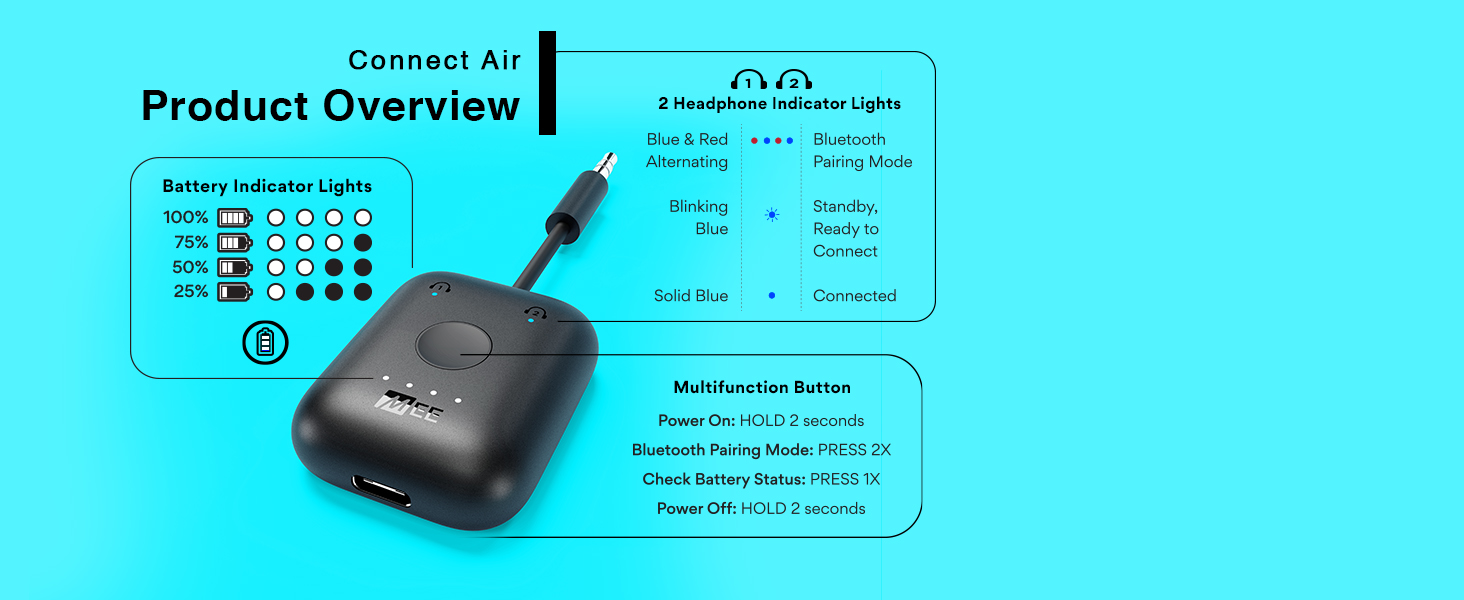
Image: Diagram showing the location of the reset pinhole on the side of the Connect Air and how to insert a pin or paperclip to perform a hardware reset.
Software Reset (Clear Pairing Memory)
To clear all previous Bluetooth pairings from the Connect Air's memory:
- Power on the Connect Air.
- Press the multifunction button 6 times rapidly.
- Both headphone indicator lights will flash, indicating that the memory has been cleared.
- A new pairing process must be initiated for any headphones.

Image: Diagram showing the Connect Air and indicating to press the multifunction button 6 times to perform a software reset and clear pairing memory.
Specifications
| Product Dimensions | 1.5 x 0.6 x 1.8 inches |
| Item Weight | 0.6 ounces |
| Item Model Number | AF-CA1 |
| Batteries | 1 Lithium Metal battery (included) |
| Connectivity Technology | Bluetooth |
| Power Source | Battery Powered |
| Special Feature | Low Latency (aptX Low Latency compatible) |
| Material | Plastic |
Warranty and Support
The MEE audio Connect Air AF-CA1 comes with a 1-year manufacturer's warranty. For technical support, warranty claims, or additional product information, please visit the official MEE audio website or contact their customer service department.
MEE audio Website: www.meeaudio.com


