
Govee H6088
Govee Cube Wall Sconces RGBIC LED Smart Light Fixture User Manual
Model: H6088
1. Introduction
This manual provides instructions for the installation, operation, and maintenance of your Govee Cube Wall Sconces RGBIC LED Smart Light Fixture, Model H6088. Please read this manual thoroughly before use to ensure proper functionality and safety.

Image 1.1: Govee Cube Wall Sconces product overview.
2. What's in the Box
Verify that all components are present before beginning installation:
- Wall Sconces x 6
- Control Box x 1
- Power Adapter x 1
- Mounting Brackets x 18
- Screws x 12
- Cable Clips x 6
- User Manual x 1

Image 2.1: Package contents of the Govee Cube Wall Sconces.
3. Specifications
| Feature | Detail |
|---|---|
| Brand | Govee |
| Model Number | H6088 |
| Color | White |
| Shape | Square |
| Material | Plastic |
| Light Source Type | LED |
| Power Source | AC |
| Voltage | 12 Volts (DC) |
| Brightness | 150 Lumen |
| Light Source Wattage | 12 Watts |
| Mounting Type | Wall Mount |
| Bulb Features | Dimmable |
| Number of Light Sources | 1 per sconce |
| Product Dimensions | 11.02"L x 7.08"W x 5.11"H |
| Adjustable Cables | 27cm-90cm (approx. 0.8ft-3ft) |
4. Setup and Installation
Follow these steps to install your Govee Cube Wall Sconces:
- Plan Layout: Determine the desired placement for each of the six wall sconces. The serial number 1 base (without cables) should be opposite the direction of the power supply.
- Adjust Cables: The distance between two wall sconces can be adjusted between 27cm and 90cm (approximately 0.8ft to 3ft). Pull the cable under the base to lengthen it, or twirl the built-in handle to shorten it. Adjust the cable length before mounting.
- Mounting: Peel off the adhesive tape from the mounting brackets. Stick them securely onto the wall at your planned locations. For a more permanent installation, use the provided screws and anchors.
- Connect Sconces: Start installing from the light that is furthest from the power supply. After fitting the base, slide the sconce upwards or downwards into the slots to fix it onto the base.
- Repeat: Repeat step 4 until all 6 wall sconce lights are assembled onto their bases.
- Final Connection: Plug the cable of the control box into the input end of the last light. Then connect the power adapter to the control box and plug it into a power outlet.
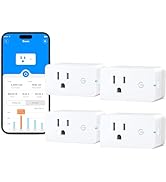
Image 4.1: Step-by-step installation guide for the wall sconces.

Image 4.2: Detail of adjustable cable mechanism.
5. Operating Instructions
5.1 Govee Home App Control
Download the Govee Home app from your smartphone's app store. Follow the in-app instructions to pair your Govee Cube Wall Sconces. The app provides comprehensive control over your lights.
5.2 Dynamic RGBIC Effects
The lights feature RGBIC technology, offering multicolor RGBW lighting with 16 million color options and 50 preset lighting effects. These effects can be selected and customized via the Govee Home app.

Image 5.1: Example of dynamic RGBIC lighting effects.
5.3 Higher Brightness and Dimmable
The sconces provide 150 lumens of brightness and are fully dimmable. Adjust the brightness levels through the Govee Home app to suit your environment and preferences. The lights can illuminate a wall-washing distance of up to 2 meters.

Image 5.2: Lights set to a higher brightness, demonstrating dimmable functionality.
5.4 Music Sync Lighting
Utilize the built-in microphone to synchronize the lights with music. The lights will react to audio, creating a dynamic visual experience that changes with your favorite tunes. This feature is controlled via the Govee Home app.

Image 5.3: Music Sync Lighting in action.
5.5 Personalize with DIY Mode
The Govee Home app includes a DIY mode, allowing users to create and save custom lighting effects. This feature enables personalized lighting for daily use or special occasions.

Image 5.4: Customization options available through DIY Mode.
5.6 Voice Control
The Govee Cube Wall Sconces are compatible with voice assistants such as Amazon Alexa and Google Assistant. Once connected through the Govee Home app, you can control the lights using voice commands.

Image 5.5: Voice control integration with smart assistants.
6. Maintenance
To ensure the longevity and optimal performance of your Govee Cube Wall Sconces, follow these maintenance guidelines:
- Cleaning: Gently wipe the surface of the sconces with a soft, dry cloth. Avoid using abrasive cleaners, solvents, or harsh chemicals, as these can damage the finish or electronic components.
- Power Disconnection: Always disconnect the power adapter from the wall outlet before performing any cleaning or maintenance.
- Cable Management: Ensure cables are not pinched, twisted, or exposed to excessive tension. Use the provided cable clips to secure them neatly.
- Environmental Conditions: Avoid exposing the lights to extreme temperatures, high humidity, or direct water contact. These lights are designed for indoor use only.
7. Troubleshooting
If you encounter issues with your Govee Cube Wall Sconces, refer to the following troubleshooting tips:
| Problem | Possible Cause | Solution |
|---|---|---|
| Lights do not turn on | No power supply; loose connection; faulty power adapter. | Ensure the power adapter is securely plugged into a working outlet and the control box. Check all cable connections between sconces. Try a different outlet. |
| Cannot connect to Govee Home app | Bluetooth/Wi-Fi off; incorrect pairing mode; app issue. | Ensure your phone's Bluetooth and Wi-Fi are enabled. Restart the Govee Home app. Power cycle the lights (unplug and replug). Follow in-app pairing instructions carefully. Ensure your Wi-Fi network is 2.4GHz. |
| Lights flicker or display incorrect colors | Loose connection; software glitch. | Check all physical connections. Restart the lights by unplugging and replugging the power adapter. Update the Govee Home app and light firmware if available. |
| Voice control not working | Incorrect setup with voice assistant; network issue. | Ensure the lights are properly linked to your Amazon Alexa or Google Assistant account via the Govee Home app. Check your internet connection. Try re-linking the Govee skill/service. |
8. Warranty and Support
8.1 Warranty Information
Govee products typically come with a limited warranty. Please refer to the warranty card included in your product packaging or visit the official Govee website for detailed warranty terms and conditions. Keep your purchase receipt as proof of purchase for warranty claims.
8.2 Customer Support
For technical assistance, troubleshooting beyond this manual, or warranty inquiries, please contact Govee customer support through one of the following methods:
- Govee Home App: Access the support section within the app.
- Official Website: Visit www.govee.com for FAQs, support articles, and contact information.
- Email: Refer to the contact details provided on the Govee website or in your product packaging.
Ask a question about this manual
Ask about setup, troubleshooting, compatibility, parts, safety, or missing instructions. Manuals+ will review the question and use this page’s manual context to help answer it.