
Introduction
Thank you for choosing the Aigostar A60 E27 12W Bluetooth Mesh Smart LED Bulb. This manual provides detailed instructions for the safe and efficient use of your smart bulb. Please read this manual thoroughly before installation and operation, and retain it for future reference.
Safety Information
- Ensure the power is turned off before installing or replacing the bulb.
- This bulb is designed for indoor use only.
- Do not disassemble or modify the bulb.
- Avoid exposure to water or high humidity.
- Operate within the specified voltage range (220V AC).
- Keep out of reach of children.
Package Contents
The package typically includes:
- Aigostar A60 E27 12W Bluetooth Mesh Smart LED Bulbs (2 units)
- Bluetooth Remote Control (if included in your specific package)
- User Manual

Image: Aigostar A60 E27 12W Bluetooth Mesh Smart LED Bulbs, showing two bulbs, a remote control, and the product packaging.
Specifications
| Brand | Aigostar |
| Model Number | S10301O2H-207636 |
| Bulb Base | E27 |
| Bulb Shape Size | A19 |
| Wattage | 12 Watts |
| Incandescent Equivalent | 80 Watts |
| Luminous Flux | 1150 Lumens |
| Color Temperature | 2700K - 6500K (Warm White to Cool White) |
| Light Color | Multicolored (RGB) |
| Color Rendering Index (CRI) | >80 |
| Voltage | 220 Volts (AC) |
| Connectivity | Bluetooth Mesh 5.0 |
| Average Lifespan | 25,000 Hours |
| Dimensions (L x W x H) | 6 x 6 x 11.8 cm |
| Weight | 190 grams |
| Specific Uses | Indoor use only |

Image: A diagram illustrating the physical dimensions of the Aigostar A60 E27 12W Smart LED Bulb, with a height of 118mm and a width of 60mm.
Setup
1. Physical Installation
- Power Off: Ensure the power switch to the light fixture is in the OFF position before installation.
- Install Bulb: Screw the Aigostar smart LED bulb into a standard E27 light socket. Do not overtighten.
- Power On: Turn on the power switch to the light fixture. The bulb should light up.

Image: A visual comparison showing the simpler setup process for Aigostar Bluetooth Mesh bulbs (direct Alexa connection) compared to traditional WiFi smart bulbs that require a third-party app download and registration.
2. Connecting to Alexa (Direct Bluetooth Mesh Connection)
This method does not require the AigoSmart app or a separate gateway if you have a compatible Alexa Echo device (2nd generation or newer).
- Install Bulb: Follow the physical installation steps above.
- Discover Devices: Say, "Alexa, discover devices" to your Alexa Echo device.
- Confirmation: Alexa will confirm when the bulb is found and connected. You can then control the bulb using voice commands or the Alexa app.
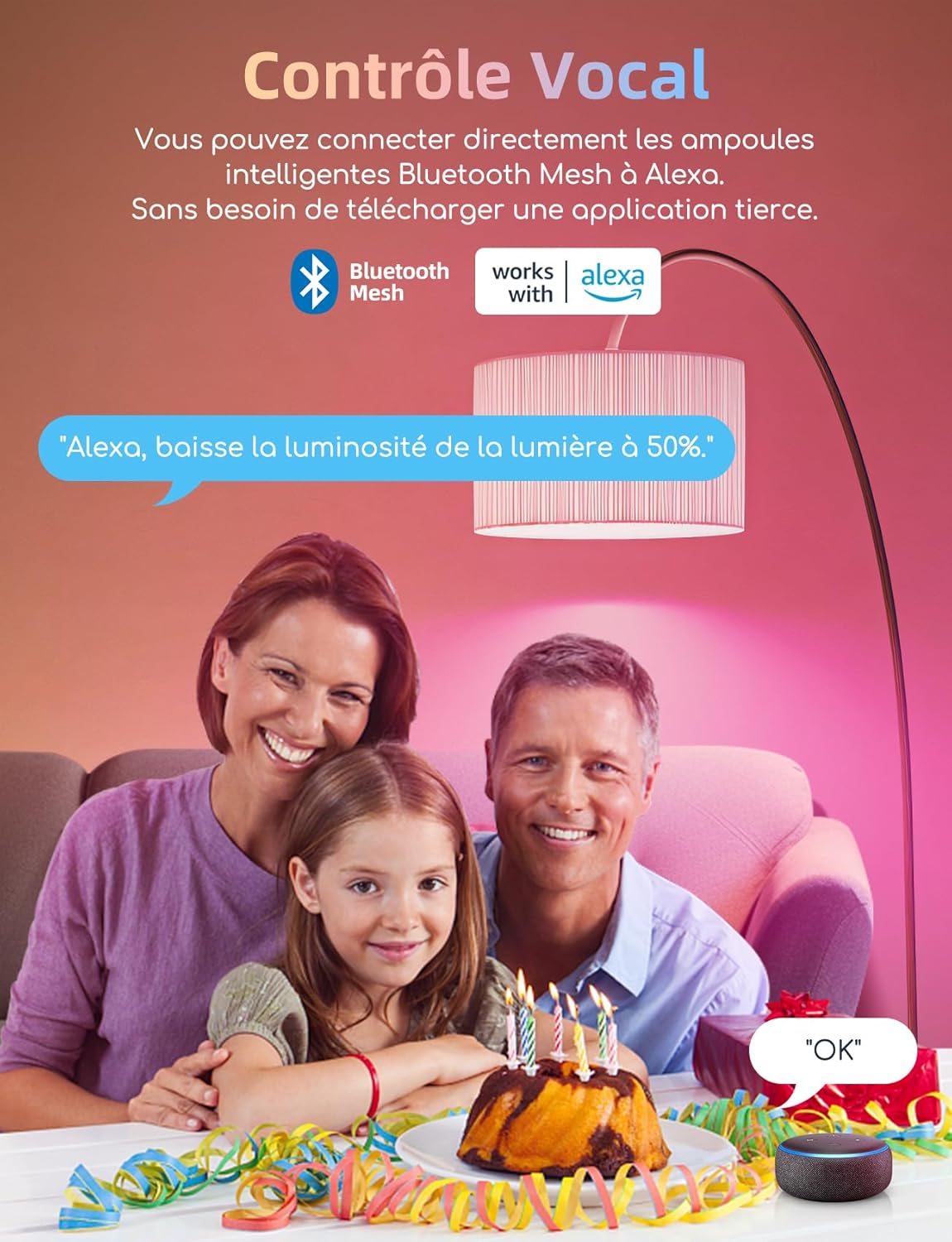
Image: A family interacting with an Alexa device to control an Aigostar smart bulb, demonstrating voice control functionality.
3. Connecting via AigoSmart App and Gateway (for Remote Control & Advanced Features)
For remote control outside your home network, advanced scheduling, and grouping features, connect your bulbs through the AigoSmart app and an Aigostar Smart Gateway (sold separately).
- Install Bulb: Follow the physical installation steps.
- Download AigoSmart App: Download the AigoSmart app from your smartphone's app store.
- Pair Gateway: Follow the instructions within the AigoSmart app to pair your Aigostar Smart Gateway.
- Add Bulbs: Within the AigoSmart app, add your smart bulbs to the gateway.
- Link to Alexa (Optional): If you wish to use Alexa voice control with the AigoSmart app, enable the "AigoSmart" skill in your Alexa app and link your AigoSmart account. Your bulbs will then synchronize with Alexa.

Image: The Aigostar Smart Gateway, a central control unit for smart home devices, compatible with Aigostar Bluetooth Mesh products for remote control and automation. This device is sold separately.
Operating Instructions
1. Basic Control (Voice/App)
- Turn On/Off: "Alexa, turn on [bulb name]" or "Alexa, turn off [bulb name]". Use the AigoSmart app to toggle power.
- Adjust Brightness: "Alexa, set [bulb name] to 50%" or use the dimmer slider in the Alexa/AigoSmart app (1% to 100%).
- Change Color Temperature: "Alexa, set [bulb name] to warm white" (2700K) or "Alexa, set [bulb name] to cool white" (6500K). Adjust using the color temperature slider in the app.
- Change Color: "Alexa, set [bulb name] to red" or select from 16 million colors in the Alexa/AigoSmart app.

Image: A visual representation of the controls for adjusting brightness (1% to 100%), color temperature (2700K-6500K), and selecting from 16 million RGB colors for the smart bulb.
2. Bluetooth Remote Control (If Included)
The included Bluetooth remote control allows for quick adjustments without an app or voice commands.
- ON/OFF: Press the ON or OFF buttons.
- Brightness: Use the brightness up/down buttons.
- Color Temperature: Select preset color temperatures (e.g., 2700K, 3200K, 4000K, 6500K).
- RGB Colors: Select preset RGB colors (R, G, B, C, M, Y).
- Scene Modes: Use S1-S4 buttons for preset dynamic scene modes.
3. Timing Function
Set schedules for your bulbs to turn on or off automatically using the AigoSmart app.
- Open the AigoSmart app and select the desired bulb or group.
- Navigate to the "Schedule" or "Timer" function.
- Set your desired ON/OFF times and days of the week.

Image: Two panels illustrating the timing function of the smart bulb: one showing the light turning on at 7:00 AM as a person wakes up, and another showing it turning off at 10:00 PM as a person sleeps.
4. Grouping Bulbs (AigoSmart App)
Control multiple bulbs simultaneously by grouping them in the AigoSmart app.
- Open the AigoSmart app.
- Select the option to "Create Group" or "Manage Groups".
- Add the desired Aigostar smart bulbs to the new group.
- You can now control the entire group with a single command or setting.

Image: A diagram depicting a Bluetooth Mesh network where multiple smart bulbs in a living room are interconnected, allowing for seamless communication and control between up to 200 devices.
Maintenance
- Cleaning: Ensure the bulb is off and cool before cleaning. Wipe with a soft, dry cloth. Do not use liquid cleaners.
- Storage: If storing the bulb for an extended period, keep it in a cool, dry place away from direct sunlight.
- Firmware Updates: Periodically check the AigoSmart app for any available firmware updates for your bulbs to ensure optimal performance and security.
Troubleshooting
| Problem | Possible Cause | Solution |
|---|---|---|
| Bulb does not light up. | No power; bulb not screwed in properly; bulb faulty. | Check power switch and circuit breaker. Ensure bulb is securely screwed into the socket. Test bulb in another working fixture. |
| Cannot connect to Alexa. | Alexa Echo device is too old; Bluetooth is off; bulb is too far from Echo; interference. | Ensure your Echo device is 2nd generation or newer. Move bulb closer to Echo. Reduce interference from other devices. Try "Alexa, discover devices" again. |
| Remote control not working. | Battery low; remote out of range; interference. | Replace remote battery. Move closer to the bulb. Ensure no obstructions. |
| AigoSmart app cannot find bulbs. | Gateway not powered on/connected; bulbs not in pairing mode; Bluetooth off on phone. | Ensure Aigostar Smart Gateway is powered and connected. Check phone's Bluetooth. Follow app instructions for adding devices. |
| Bulb disconnects frequently. | Weak Bluetooth signal; too many devices on mesh network; interference. | Ensure bulbs are within range of each other or the gateway. Reduce sources of interference. |
For further assistance, please refer to the Aigostar support website or contact customer service.
Link: Aigostar Mesh Product FAQ, providing answers to common questions. Note: This link is in Spanish.
Warranty and Support
Aigostar products come with a standard manufacturer's warranty. Please refer to the warranty card included with your purchase or visit the official Aigostar website for detailed warranty terms and conditions.
For technical support, product inquiries, or warranty claims, please contact Aigostar customer service through their official website or the contact information provided in your product packaging.
Website: www.aigostar.com


