Introduction
The Portta 4K 60Hz HDMI Matrix 4x2 is a versatile device designed to switch between four HDMI input sources and distribute them to two HDMI output displays. This matrix supports advanced features such as 4K@60Hz resolution, HDR, 3D, HDCP 2.3, audio extraction, ARC (Audio Return Channel) on Output A, and 4K downscaling. It is ideal for various applications including home theater systems, conference rooms, educational environments, and gaming setups.

Figure 1: The Portta 4K 60Hz HDMI Matrix 4x2 unit and its included IR remote control.
Safety Information
- Ensure proper ventilation around the device to prevent overheating.
- Do not expose the device to water, moisture, or excessive humidity.
- Use only the provided power adapter. Using an incorrect power adapter may damage the device and void the warranty.
- Avoid placing heavy objects on the device.
- Do not attempt to disassemble or repair the device yourself. Refer all servicing to qualified personnel.
Package Contents
Please check the package contents upon opening to ensure all items are present:
- 1 x Portta 4K 60Hz HDMI Matrix 4x2 Unit
- 1 x IR Remote Control
- 1 x USB-C Power Cable
- 1 x 5V Power Adapter
- 1 x User Manual (this document)

Figure 2: Included accessories and product dimensions (approximately 6.8 inches long, 2.6 inches wide, 0.8 inches high).
Product Overview: Ports Description
Familiarize yourself with the various ports and indicators on the HDMI Matrix unit:

Figure 3: Front and rear panel layout of the HDMI Matrix.
- Power Indicator: Illuminates when the device is powered on.
- Output A/B Indicators: Show which input is currently routed to Output A or Output B.
- Output A/B Select Buttons: Used to manually switch the input source for Output A or Output B.
- ARC Mode On/Off (Output A Only): Button to enable or disable Audio Return Channel for Output A.
- HDMI Input 1-4: Connect your HDMI source devices (e.g., PS5, Blu-Ray Player, PC).
- HDMI Output A & B: Connect to your HDMI displays (e.g., HDTV, Projector, Monitor).
- Toslink Output A & B: Optical audio output for extracting audio from Output A and Output B.
- Stereo 3.5mm Output A & B: 3.5mm audio jack for extracting analog audio from Output A and Output B.
- EDID Mode DIP Switch: Used to manually set the EDID mode (see EDID Modes section).
- USB-C Power Port: Connect the provided 5V power adapter here.
Setup
Follow these steps to set up your Portta HDMI Matrix:
- Power Off Devices: Before making any connections, ensure all HDMI source devices and displays are powered off.
- Connect HDMI Input Sources: Connect up to four HDMI source devices (e.g., game consoles, media players, computers) to the HDMI IN 1-4 ports on the matrix using high-quality HDMI 2.0 cables.
- Connect HDMI Output Displays: Connect your two HDMI displays (e.g., TVs, monitors, projectors) to the HDMI OUT A and HDMI OUT B ports on the matrix using high-quality HDMI 2.0 cables.
- Connect Audio Devices (Optional): If you wish to extract audio, connect your audio receiver or sound system to the Toslink or 3.5mm audio outputs for Output A and/or Output B.
- Connect Power: Connect the provided 5V power adapter to the USB-C Power Port on the matrix, then plug the adapter into a power outlet. The Power Indicator LED will illuminate.
- Power On Devices: Power on your displays first, then power on your HDMI source devices.
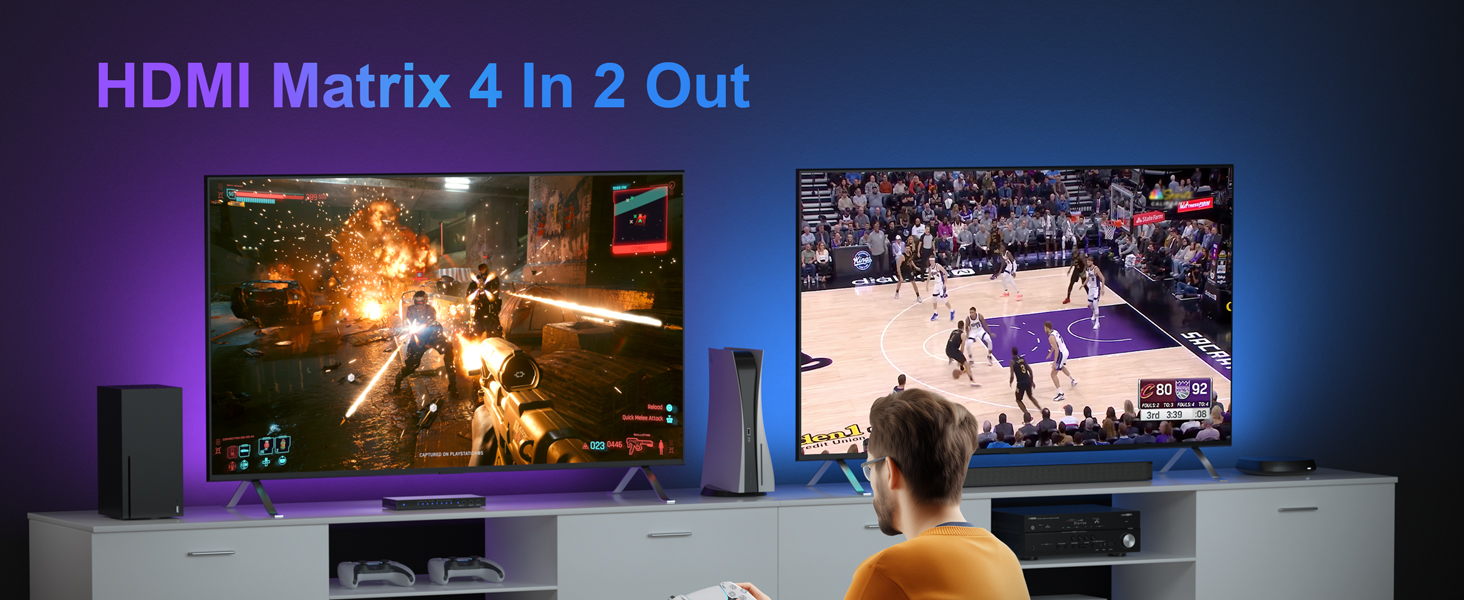
Figure 4: Example setup showing two displays receiving different content from the matrix.
Operating Instructions
Switching Modes
The Portta HDMI Matrix supports both matrix and splitter modes:
- Matrix Mode: Allows any of the four input sources to be routed to either of the two output displays independently. This means Output A and Output B can display different content from different input sources.

Figure 5: Matrix Mode, where two displays show different content from different sources. Note: Supports PC/Laptop SST mode only, not MST mode.
- Splitter Mode: Allows a single input source to be simultaneously displayed on both output displays. This means Output A and Output B will display the same content from the same input source.

Figure 6: Splitter Mode, where two displays show identical content from a single source.
Switching Inputs
You can switch input sources using either the buttons on the front panel or the IR remote control.
- Manual Switching: Press the 'Select A' button to cycle through inputs 1-4 for Output A. Press the 'Select B' button to cycle through inputs 1-4 for Output B.
- Remote Control Switching: Use the dedicated input buttons (1, 2, 3, 4) under 'Output A' or 'Output B' sections on the remote to directly select the desired input for each output.

Figure 7: Manual switching via front panel buttons and remote control switching.
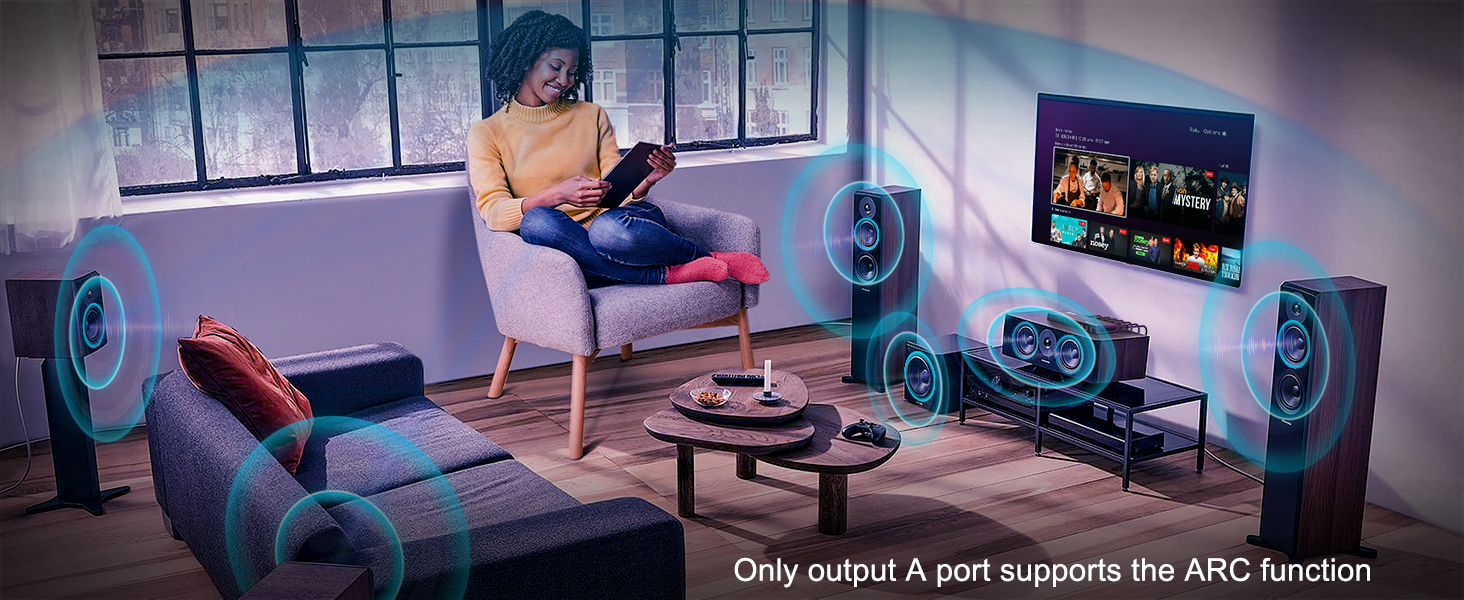
Figure 8: Remote control button functions, including input selection for Output A and B, audio extraction toggles, and ARC on/off.
Audio Extraction and ARC
The matrix allows for audio extraction and supports ARC functionality:
- Audio Extraction: Audio from both HDMI Output A and Output B can be simultaneously extracted via the Toslink (optical) and 3.5mm stereo audio ports. Use the 'Output A Extract Audio On/Off' and 'Output B Extract Audio On/Off' buttons on the remote to control this feature.
- Audio Return Channel (ARC): Only HDMI Output A supports ARC. This feature allows audio from your smart TV's built-in apps (e.g., Netflix, YouTube) to be sent back to the matrix and then outputted through its Toslink or 3.5mm audio ports to an external sound system. Use the 'ARC On/Off (Output A Only)' button on the remote to enable or disable ARC.

Figure 9: The ARC function allows TV audio to be sent back to the matrix for output to external speakers. Only Output A supports ARC.
4K Downscale Function
The matrix can downscale 4K video signals to 1080P for compatibility with older displays:
- The device supports downscaling from 4K 60Hz (4:4:4, 4:2:2, 4:2:0) to 1080P 60Hz. This is useful when one of your displays is 4K capable and the other is 1080P.
- Note that the matrix supports mixed 4K 60Hz and 1080p 60Hz outputs, but it does not support mixed 4K 60Hz and 4K 30Hz outputs.

Figure 10: Downscaler Mode allows simultaneous output to a 4K display and a 1080p display.
EDID Modes
The EDID (Extended Display Identification Data) settings can be adjusted using the DIP switches on the rear panel to ensure optimal compatibility with your connected devices. Each mode corresponds to a specific resolution and audio format. The DIP switches are set to '0' for LOW and '1' for HIGH.
| EDID Mode | DIP Switch Status (0=LOW, 1=HIGH) | EDID Setting Description |
|---|---|---|
| Mode 1 | (0000) | Copy EDID from HDMI Output A |
| Mode 2 | (0001) | 1080p, 2CH Audio |
| Mode 3 | (0010) | 1080p, Dolby/DTS 5.1 |
| Mode 4 | (0011) | 1080p, HD Audio |
| Mode 5 | (0100) | 1920x1200p, 2CH Audio |
| Mode 6 | (0101) | 1920x1200p, Dolby/DTS 5.1 |
| Mode 7 | (0110) | 1920x1200p, HD Audio |
| Mode 8 | (0111) | 4Kx2K@60Hz, 10.2Gbps, HDR10, 2CH Audio |
| Mode 9 | (1000) | 4Kx2K@60Hz, 10.2Gbps, HDR10, Dolby/DTS 5.1 |
| Mode 10 | (1001) | 4Kx2K@60Hz, 10.2Gbps, HDR10, HD Audio |
| Mode 11 | (1010) | 4Kx2K@60Hz, 18Gbps, HDR10, 2CH Audio |
| Mode 12 | (1011) | 4Kx2K@60Hz, 18Gbps, HDR10, Dolby/DTS 5.1 |
| Mode 13 | (1100) | 4Kx2K@60Hz, 18Gbps, HDR10, HD Audio |
| Mode 14 | (1101) | Lowest format of audio/video |
| Mode 15 | (1110) | Highest format of audio; Support mix 4K 60Hz & 1080p 60Hz; 4K 30Hz & 1080p 30Hz |
| Mode 16 | (1111) | Lowest format of audio; Support mix 4K 60Hz & 1080p 60Hz; 4K 30Hz & 1080p 30Hz |
Table 1: EDID Mode settings and descriptions.

Figure 11: Visual representation of the EDID Mode table.
Maintenance
To ensure the longevity and optimal performance of your HDMI Matrix, follow these maintenance guidelines:
- Cleaning: Use a soft, dry cloth to clean the exterior of the device. Do not use liquid cleaners or aerosol sprays.
- Ventilation: Ensure the device is placed in a well-ventilated area, free from obstructions that could block airflow.
- Cable Management: Keep HDMI cables and power cords neatly organized to prevent strain on the ports and accidental disconnections.
- Storage: If storing the device for an extended period, disconnect it from power and store it in a cool, dry place.
Troubleshooting
If you encounter issues with your Portta HDMI Matrix, refer to the following common problems and solutions:
| Problem | Possible Cause | Solution |
|---|---|---|
| No image or flickering screen | Loose HDMI cables, incompatible resolution, cable length issues, power issue. | 1. Ensure all HDMI cables are securely connected. 2. Verify that your displays support the output resolution from the matrix. 3. Use high-quality HDMI 2.0 cables. 4. Check cable lengths (max 16.4ft/5m for 4K@60Hz, 32.8ft/10m for 4K@30Hz). 5. Ensure the matrix is properly powered. |
| No audio output | Audio extraction not enabled, incorrect audio format, ARC not configured correctly. | 1. Ensure audio extraction is enabled via the remote. 2. Check your audio receiver/soundbar settings for correct input. 3. If using ARC, ensure it's enabled on the matrix and your TV, and that your TV's HDMI port supports ARC. |
| Remote control not working | Battery low/dead, IR sensor blocked, remote out of range. | 1. Replace the remote control battery. 2. Ensure there are no obstructions between the remote and the matrix's IR sensor. 3. Operate the remote within its effective range. |
| Device not powering on | Power adapter not connected, faulty power outlet. | 1. Verify the power adapter is securely connected to the matrix and a working power outlet. 2. Try a different power outlet. |
| Picture distortion or abnormal colors | Poor quality HDMI cable, EDID mismatch. | 1. Use certified high-speed HDMI 2.0 cables. 2. Adjust the EDID mode using the DIP switches to match your display's capabilities. |

Figure 12: Troubleshooting tips for display issues, including cable requirements for different resolutions.
Specifications
| Feature | Description |
|---|---|
| Model Number | N2MT42AX |
| HDMI Version | HDMI 2.0b |
| HDCP Version | HDCP 2.3 / 2.2 / 1.4 |
| Max Resolution | 4K@60Hz (4:4:4) |
| Bandwidth | 18Gbps |
| Color Depth | 8/10/12 bit Deep Color |
| HDR Support | HDR10, Dolby Vision |
| 3D Support | Yes |
| Audio Formats | LPCM2.0/5.1/7.1, DTS, Dolby Digital, DTS-HD Master Audio, Dolby TrueHD |
| Audio Extraction | Toslink, 3.5mm Stereo (from Output A & B) |
| ARC Support | Yes (Output A Only) |
| Downscale | 4K@60Hz to 1080P@60Hz |
| EDID Modes | 16 modes via DIP switch |
| Control | Front Panel Buttons, IR Remote Control |
| Power Supply | DC 5V |
| Product Dimensions | 6.67 x 2.61 x 0.78 inches (16.94 x 6.63 x 1.98 cm) |
| Item Weight | 9.1 ounces (257.98 grams) |
Warranty and Support
Portta offers a 2-year warranty for this product, ensuring a hassle-free and risk-free purchase. For any questions, concerns, or technical assistance, please contact our customer support team. You can find more information and support resources on the official Portta store page: Portta Store on Amazon.