
Bose 880066-0100
Bose QuietComfort Ultra Bluetooth Headphones User Manual
Model: 880066-0100
Introduction
The Bose QuietComfort Ultra Bluetooth Headphones are designed to provide an unparalleled listening experience with world-class noise cancellation, immersive spatial audio, and crystal-clear call quality. This manual provides essential information for setting up, operating, maintaining, and troubleshooting your headphones to ensure optimal performance and longevity.
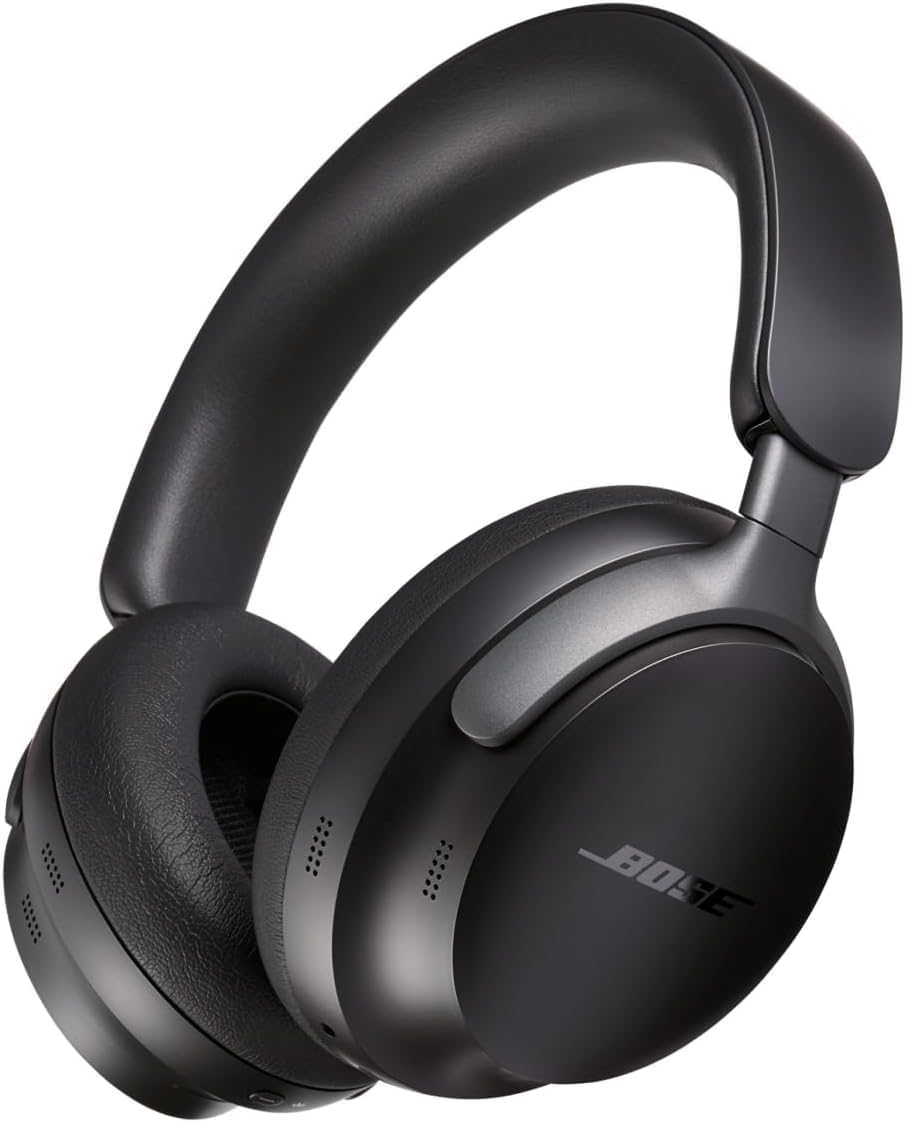
Image: The Bose QuietComfort Ultra Headphones in black, showcasing their sleek design and over-ear form factor.
What's in the Box
Your Bose QuietComfort Ultra Headphones package includes the following components:
- Bose QuietComfort Ultra Headphones
- Protective Case
- USB-C Charging Cable
- 3.5 mm Audio Cable
- User Manual (this document)

Image: All included accessories for the Bose QuietComfort Ultra Headphones, neatly arranged: the headphones, their protective carrying case, a USB-C charging cable, and a 3.5mm audio cable.
Setup
Charging the Headphones
Before first use, fully charge your headphones. A full charge takes approximately 3 hours. A 15-minute quick charge provides up to 2.5 hours of playtime (2 hours with Immersive Audio).
- Connect the small end of the USB-C charging cable to the USB-C port on the right earcup.
- Connect the other end of the cable to a USB wall charger (not included) or a computer's USB port.
- The battery indicator light will show charging status.

Image: A detailed view of the right earcup of the Bose QuietComfort Ultra Headphones, highlighting the USB-C charging port for power input.
Bluetooth Pairing
Your headphones can be paired with up to 8 devices and maintain an active connection with two devices simultaneously.
- First-time Pairing: When you power on the headphones for the first time, they automatically enter pairing mode. A voice prompt will indicate "Ready to connect."
- Manual Pairing: To enter pairing mode manually, slide and hold the Power/Bluetooth switch to the Bluetooth symbol until the voice prompt says "Ready to connect" and the Bluetooth indicator blinks blue.
- On your device, enable Bluetooth and select "Bose QC Ultra Headphones" from the list of available devices.
- For Android devices, Google Fast Pair allows for quick and seamless pairing.
- For advanced settings and managing connections, download the Bose Music app.
Operating Your Headphones
Controls and Functions
The headphones feature intuitive controls located on the earcups:
- Power/Bluetooth Switch: Located on the right earcup, used to power on/off and initiate Bluetooth pairing.
- Multi-function Button: Controls playback (play/pause, skip tracks), call management (answer/end calls), and voice assistant activation.
- Volume Strip: Swipe up or down on the right earcup to adjust volume.
- Mode Button: Cycles through noise cancellation modes (Quiet, Aware, Immersion).

Image: A detailed view of the right earcup of the Bose QuietComfort Ultra Headphones, illustrating the placement of the power button, Bluetooth pairing button, and the volume control strip.
Noise Cancellation Modes
Your QuietComfort Ultra Headphones offer three distinct listening modes:
- Quiet Mode: Provides world-class noise cancellation, minimizing distractions from your surroundings.
- Aware Mode: Allows you to hear your surroundings while still enjoying your audio, ideal for situational awareness.
- Immersion Mode: Combines full noise cancellation with Bose Immersive Audio for the most engaging listening experience.
Bose Immersive Audio
Bose Immersive Audio utilizes CustomTune technology to analyze your ear's shape and adapt the audio performance, placing sound in front of you for a natural, lifelike experience. This feature enhances depth and realism, making your music feel more present and engaging.

Image: A person lying down, eyes closed, wearing the Bose QuietComfort Ultra Headphones, illustrating the comfort and immersive audio experience provided by the product.
Making and Receiving Calls
The integrated microphone system focuses on your voice and filters out background noise, ensuring crystal-clear phone calls. Use the multi-function button to answer or end calls.
Using the Bose Music App
The Bose Music app provides additional control and customization options for your headphones:
- Complete setup and manage Bluetooth connections.
- Access Adjustable EQ settings to personalize your sound.
- Receive software updates for new features and improved performance.
- Customize control shortcuts.
Care and Maintenance
To ensure the longevity and optimal performance of your Bose QuietComfort Ultra Headphones, follow these care guidelines:
- Cleaning: Wipe the headphones with a soft, dry cloth. Do not use abrasive cleaners or solvents.
- Storage: When not in use, store the headphones in their protective case to prevent damage.
- Water Resistance: These headphones are Not Water Resistant. Avoid exposure to liquids, moisture, or extreme temperatures.
- Ear Cushions: The ear cushions are designed for comfort and can be replaced if necessary. Refer to Bose support for replacement kits.
Troubleshooting
If you encounter issues with your headphones, refer to the table below for common problems and solutions. For more detailed troubleshooting, please consult the official Troubleshooting Guide PDF available on the product's Amazon page or the Bose support website.
| Problem | Possible Solution |
|---|---|
| Headphones do not power on | Ensure the headphones are charged. Connect to a power source and allow them to charge for at least 15 minutes. |
| Cannot pair with a device | Ensure Bluetooth is enabled on your device. Put headphones in pairing mode. Clear the Bluetooth device list on the headphones (press Power and Multi-function buttons simultaneously for a few seconds). Try pairing again. |
| No audio or poor sound quality | Check volume levels on both headphones and device. Ensure headphones are properly connected. Try restarting both devices. Disable Immersive Audio to see if it resolves the issue. |
| Noise cancellation is not effective | Ensure earcups form a tight seal around your ears. Adjust the fit of the headphones. Cycle through noise cancellation modes. |
| Microphone not working during calls | Ensure the headphones are selected as the audio input device on your phone. Check for any obstructions around the microphone ports. |
Technical Specifications
| Feature | Specification |
|---|---|
| Model Name | Bose QuietComfort Ultra Wireless Noise Cancelling Headphones |
| Noise Control | Active Noise Cancellation |
| Connectivity Technology | Wireless, Wired |
| Wireless Communication | Bluetooth 5.3 |
| Bluetooth Range | Up to 30 Feet (9 meters) |
| Battery Life | Up to 24 Hours (up to 18 hours with Immersive Audio) |
| Charging Time | Approximately 3 Hours |
| Headphones Jack | 3.5 mm Jack |
| Item Weight | 252 Grams (8.9 ounces) |
| Product Dimensions | 2 x 5.5 x 7.7 inches |
| Frequency Range | 20 Hz - 20,000 Hz |
| Impedance | 32 Ohm |
| Material | Plastic |
| Water Resistance Level | Not Water Resistant |
Warranty and Support
Bose products are designed for durability and performance. Your Bose QuietComfort Ultra Headphones come with a limited warranty. Please refer to the warranty information provided with your purchase or visit the official Bose website for details regarding warranty coverage and terms.
For further assistance, product registration, or to download the latest user manuals and troubleshooting guides, please visit the Bose support website or contact Bose customer service.
- Official User Manual (PDF): Download Here
- Troubleshooting Guide (PDF): Download Here
Related documents880066-0100


Ask a question about this manual
Ask about setup, troubleshooting, compatibility, parts, safety, or missing instructions. Manuals+ will review the question and use this page’s manual context to help answer it.