
MekedeTech M6ProPlus
MekedeTech M6 Pro Plus Android Car Stereo User Manual
Model: M6ProPlus | Brand: MekedeTech
1. Introduction
This manual provides comprehensive instructions for the installation, operation, and maintenance of your MekedeTech M6 Pro Plus Android Car Stereo. Designed for universal compatibility, this advanced head unit features an Android 12 system, a 9.5-inch 2K IPS touch screen, Bluetooth 5.1, an Octa-Core processor, and 8GB RAM with 256GB storage, offering a superior in-car entertainment and navigation experience.
2. Safety Information
Always prioritize safety. Read all instructions carefully before installation and operation. Professional installation is highly recommended to prevent damage to the unit or your vehicle. Do not operate the device in a way that distracts you from driving. Ensure all wiring is correctly connected and secured to avoid electrical hazards or short circuits. Keep the unit away from water and extreme temperatures.
3. Package Contents
Verify that all items listed below are included in your package:
- Host Device (Main Head Unit)
- Instruction Manual (this document)
- Packaging Box
- RCA Cable
- Reversing Camera (if included in your specific package)
- Fakra GPS Antenna
- Fakra 4G Antenna
- MIC (Microphone)
- USB Plug x3
- Upgraded fan, built-in powerful cooling fan
- Support for ADAS DVR front camera (camera not included)
- AHD rear camera support (camera not included)

Figure 3.1: Contents included in the MekedeTech M6 Pro Plus package.
4. Product Features Overview
The MekedeTech M6 Pro Plus is engineered with advanced features to enhance your driving experience:
- Upgraded Android System: Features an Android 12 system with an 8-core processor (2 cores ARM Cortex A75 + 6 cores ARM Cortex A55), 8GB RAM, and 256GB internal memory for smooth and responsive performance.
- 9.5-inch 2K QLED Full-Fit Screen: A high-resolution 2000x1200 QLED display offers superior picture quality, vibrant colors, and reduced light reflection, ensuring excellent visibility even in bright sunlight.
- Wireless CarPlay & Android Auto: Seamlessly integrate your smartphone for navigation, calls, messages, and music without the need for cables.
- Qualcomm 3031 Bluetooth 5.1: Provides low power consumption, faster transmission speeds, and stable signal for clear calls and high-quality audio streaming.
- Voice Control Support: Intelligent voice control allows for hands-free operation, enhancing driving safety and convenience.
- DSP 36-Band EQ & DTS 4.1/5.1 Channel Surround System: Offers precise audio tuning with a 36-segment equalizer and immersive surround sound for a dynamic listening experience.
- Built-in 4G and Wi-Fi: Stay connected on the go with integrated 4G capabilities (requires SIM card) and Wi-Fi for internet access.
- GPS Accurate Positioning: Utilizes a global positioning system with real-time traffic conditions for accurate navigation.
- Support ADAS DVR & AHD Reversing Camera: Enhances driving safety with support for advanced driver-assistance systems and high-definition rear-view cameras (cameras sold separately).
- Split-Screen Functionality: Run two applications simultaneously for multitasking, such as navigation and music playback.

Figure 4.1: Front view of the MekedeTech M6 Pro Plus Android Car Stereo.

Figure 4.2: Detailed view of the 12NM processor and 2K QLED screen technology.

Figure 4.3: Illustration of Qualcomm Bluetooth 5.1 and DSP 36-band EQ capabilities.

Figure 4.4: Key features including voice control, 4G connectivity, CarPlay/Android Auto, and built-in cooling fan.
5. Installation Guide
5.1 Wiring Diagram
Refer to the following diagram for proper wiring connections. It is highly recommended to have this unit installed by a qualified professional to ensure correct functionality and avoid damage.
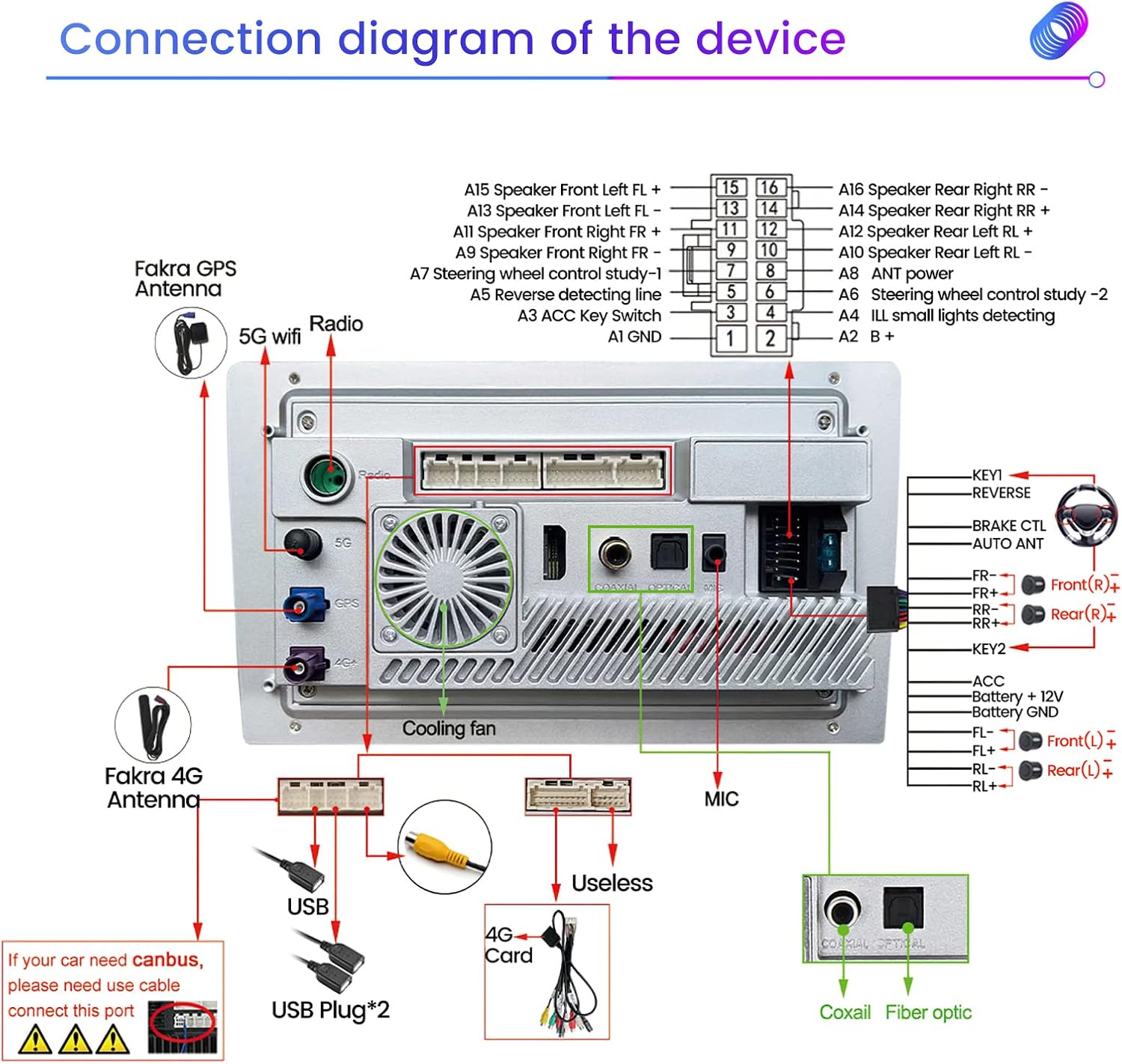
Figure 5.1: Detailed connection diagram for the MekedeTech M6 Pro Plus car stereo.
5.2 Antenna Installation
Ensure the Fakra GPS Antenna and Fakra 4G Antenna are installed in locations with clear line of sight to the sky for optimal signal reception. Proper antenna placement is crucial for accurate navigation and stable internet connectivity.

Figure 5.2: Illustration of custom GPS and 4G antennas for enhanced signal stability.
6. Initial Setup and Configuration
6.1 Power On and Basic Navigation
Upon first power-on, the system will boot to the main interface. Navigate through the menus by tapping the icons on the screen. The main menu provides access to all core functions.
Video 6.1: Demonstrates main menu operation, GPS navigation, radio function, music playback, video playback, Bluetooth function, 4G/WiFi, split-screen mode, built-in CarPlay, steering wheel control, system UI replacement, DVR function, and reversing camera input.
6.2 Network Connectivity (4G & Wi-Fi)
To access online features, connect the unit to the internet. You can insert a 4G SIM card directly into the head unit or connect to a Wi-Fi hotspot from your mobile phone.

Figure 6.2: The unit supports built-in 4G and Wi-Fi for internet access.
6.3 Bluetooth Pairing
Pair your smartphone via Bluetooth 5.1 for hands-free calling and audio streaming. Access the Bluetooth settings from the main menu, enable Bluetooth on your phone, and select the head unit from the list of available devices.
6.4 CarPlay & Android Auto Setup
The unit supports both wireless CarPlay and wired/wireless Android Auto. Follow the on-screen prompts to connect your compatible smartphone. For wireless connection, ensure Bluetooth is enabled on your phone and the unit. For wired Android Auto, connect your phone via a USB cable.

Figure 6.3: Steps for connecting Wireless CarPlay.

Figure 6.4: Steps for connecting Wired Android Auto.
6.5 Steering Wheel Control (SWC)
If your vehicle supports steering wheel controls, you can configure them to operate the head unit. Access the SWC settings in the system menu and follow the instructions to map your vehicle's steering wheel buttons to the desired functions.
7. Operating Instructions
7.1 GPS Navigation
The unit supports various navigation applications. Ensure your GPS antenna is properly installed for accurate positioning. You can download and use your preferred navigation software from the Play Store.
7.2 Radio Function
Access the Radio application to tune into FM/AM stations. The unit supports RDS for enhanced radio information.
7.3 Media Playback (Music & Video)
Play music and videos from various sources, including USB drives or internal storage. The unit supports 1080P video playback and features a Picture-in-Picture (PIP) mode for simultaneous video viewing and other tasks.
7.4 DSP and Equalizer Settings
Customize your audio experience using the built-in DSP (Digital Signal Processor) and 36-band equalizer. Adjust sound fields, bass, and stereo sound enhancement to create your ideal in-car audio environment.
7.5 Split-Screen Mode
Utilize the split-screen feature to run two applications side-by-side, such as navigation on one side and a video player or web browser on the other.
7.6 DVR Function (Front + Back)
The unit supports connection to a USB DVR camera (sold separately) for recording front and rear views, enhancing driving safety and providing evidence in case of incidents. The DVR function also supports Picture-in-Picture (PIP) mode.
7.7 Reversing Camera Input
Connect an AHD rear camera (sold separately) for clear reversing assistance. The system automatically switches to the rear-view display when the vehicle is in reverse gear.
8. Maintenance
To ensure the longevity and optimal performance of your MekedeTech M6 Pro Plus:
- Cleaning: Use a soft, dry cloth to clean the screen and exterior. Avoid abrasive cleaners or solvents.
- Software Updates: Periodically check for system software updates provided by MekedeTech to ensure the latest features and performance improvements.
- Temperature: Avoid exposing the unit to extreme temperatures, both hot and cold, for extended periods.
- Ventilation: Ensure the built-in cooling fan and ventilation areas are not obstructed to prevent overheating.
9. Troubleshooting
If you encounter issues with your MekedeTech M6 Pro Plus, refer to the following common problems and solutions:
| Problem | Possible Cause | Solution |
|---|---|---|
| Unit does not power on. | Incorrect wiring; Blown fuse; Power supply issue. | Check all power connections and fuses. Ensure proper voltage supply. Consult a professional installer. |
| No sound output. | Volume too low; Mute activated; Speaker wiring issue; Incorrect audio settings. | Increase volume. Check if mute is active. Verify speaker connections. Adjust audio output settings in DSP/EQ. |
| GPS signal weak or inaccurate. | Antenna not properly installed or obstructed; Outdated map data. | Ensure GPS antenna has a clear view of the sky. Check antenna connection. Update navigation software/maps. |
| Bluetooth connection unstable. | Interference; Device too far; Outdated firmware. | Ensure devices are within range. Minimize interference. Update head unit firmware. Re-pair the device. |
| Touch screen unresponsive. | System freeze; Software glitch. | Perform a soft reset (refer to manual for reset button location, usually a small pinhole). If issue persists, contact support. |
For more complex issues or if troubleshooting steps do not resolve the problem, please contact MekedeTech customer support.
10. Specifications
| Feature | Detail |
|---|---|
| Model Name | M6ProPlus (9.5inch-8+256G) |
| Operating System | Android 12 |
| Processor | Octa-Core (2 cores ARM Cortex A75 + 6 cores ARM Cortex A55) |
| Memory (RAM) | 8GB |
| Storage (ROM) | 256GB |
| Display Size | 9.5 Inches |
| Display Resolution | 2000x1200 (2K QLED) |
| Bluetooth Version | Bluetooth 5.1 (Qualcomm 3031 chip) |
| Connectivity | Wireless (Wi-Fi), 4G (SIM card support) |
| Special Features | Touchscreen, Wireless CarPlay, Wired Android Auto, Voice Control, DSP 36-Band EQ, DTS 4.1/5.1 Channel Surround, Split-Screen, ADAS DVR support, AHD Rear Camera support |
| Audio Output Mode | Stereo |
| Manufacturer | Shenzhen Mekede Technology Co.,Ltd |
11. Warranty and Support
MekedeTech products are backed by a manufacturer's warranty. For specific warranty terms and conditions, please refer to the warranty card included in your product packaging or visit the official MekedeTech website. For technical support, troubleshooting assistance, or any inquiries regarding your product, please contact MekedeTech customer service directly. Many users have reported positive experiences with direct communication via platforms like WhatsApp or WeChat for technical modifications and support.
Manufacturer: Shenzhen Mekede Technology Co.,Ltd
Seller on Amazon: Mekedetech
For the latest support information and contact details, please visit the MekedeTech Store on Amazon.
Ask a question about this manual
Ask about setup, troubleshooting, compatibility, parts, safety, or missing instructions. Manuals+ will review the question and use this page’s manual context to help answer it.