
1. Product Overview
The LEXXSON Wireless CarPlay Android Auto Adapter is an OEM screen upgrade decoder box designed to integrate Wireless CarPlay, Android Auto, Mirror Link, and USB media playback into compatible Toyota vehicles equipped with the Entune 2.0 system from 2014 to 2019. This retrofit kit enhances your vehicle's multimedia capabilities while retaining all original car functions and controls.
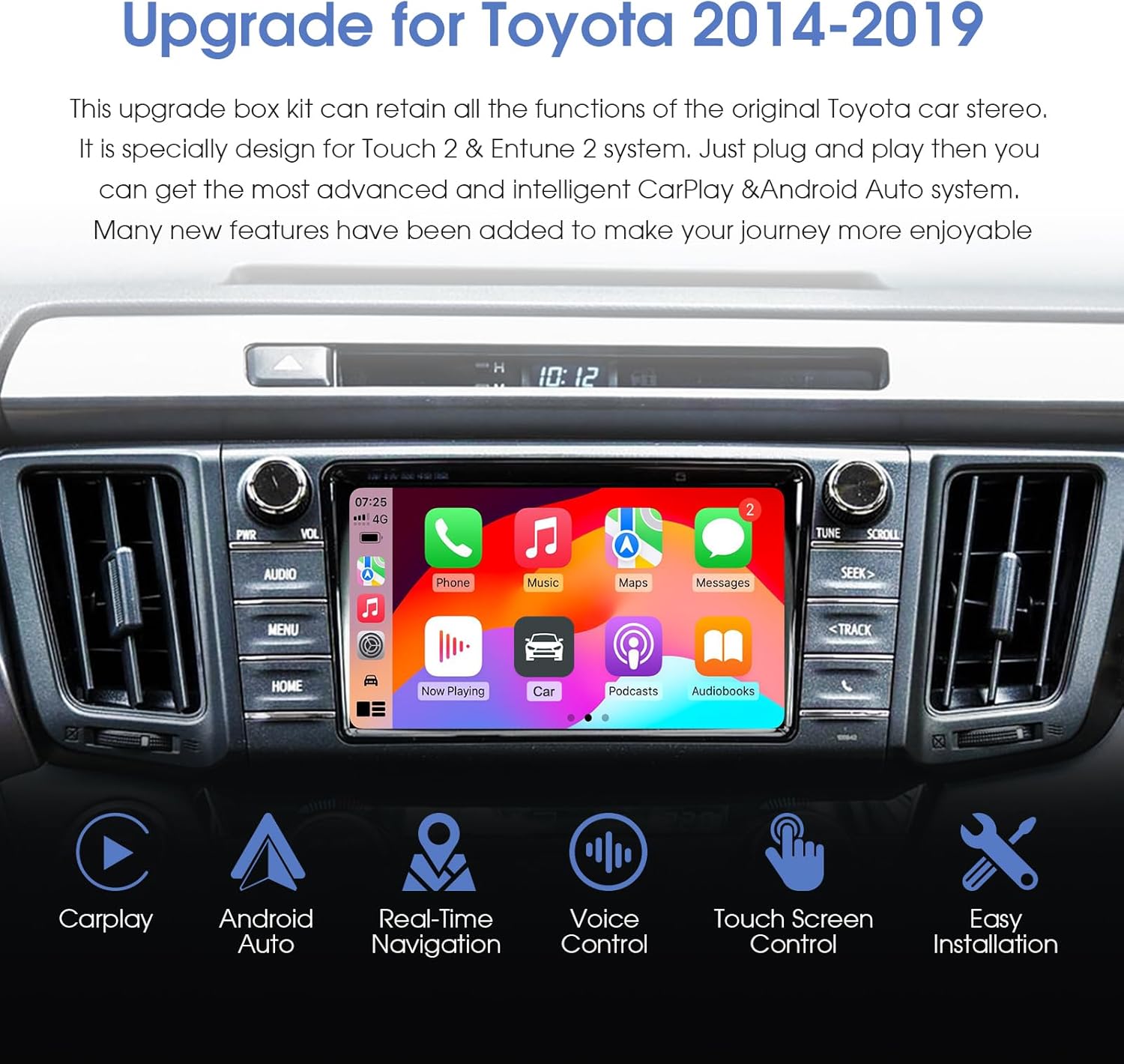
Image 1.1: The LEXXSON adapter seamlessly integrates with your Toyota's existing display, providing access to CarPlay and Android Auto features.

Image 1.2: Overview of the upgrade kit's capabilities, including navigation, voice control, and touch screen functionality.
2. What's in the Box
The package includes the following components:
- OEM Screen Upgrade Decoder Box
- All necessary wire harnesses

Image 2.1: The main decoder box and essential wiring harnesses.
3. Compatible Vehicles
This adapter is compatible with various Toyota models from 2014-2019 that feature the Entune 2.0 or Touch 2 system. Please verify your vehicle's compatibility before installation.

Image 3.1: Detailed list of compatible Toyota car models and years.

Image 3.2: The adapter is compatible with Toyota's Touch 2 and Entune 2.0 system hosts (must be Panasonic/Fujitsu/Pioneer).
4. Setup and Installation
The installation process is designed to be plug-and-play and non-destructive, requiring no wire cutting. Follow these general steps:
- Remove the original car radio unit from the dashboard.
- Unplug the specified three jacks from the original car radio.
- Connect the provided wire harnesses from the LEXXSON adapter to the corresponding ports on the original car radio.
- Plug the original factory cables back into the new harness connections.
- Ensure all connections are secure before powering on the unit.
- After installation, click the 'AUX' icon on your car's screen to enter the upgrade system interface.
Video 4.1: This video demonstrates the installation process and initial setup of the LEXXSON Wireless CarPlay Android Auto Adapter for Toyota Entune 2.0 systems.

Image 4.2: Wiring diagram for connecting the adapter to the car's main unit.
5. Operating Instructions
Once installed, the adapter provides a new interface accessible via the AUX input. This interface allows you to use Wireless CarPlay and Android Auto, along with other features.
5.1. Wireless CarPlay & Android Auto
- Connect your smartphone via Bluetooth to the adapter.
- The CarPlay or Android Auto interface will appear on your car's screen.
- Use the factory touch screen, steering wheel buttons, or original car knob controls to navigate.
- Activate voice control (e.g., "Hey Siri" for CarPlay) by long-pressing the voice button or the corresponding icon on the screen.

Image 5.1: CarPlay features including navigation, music, and communication.
5.2. Mirror Link
The Mirror Link function allows you to display your smartphone's screen directly onto the car's display, enabling you to watch videos or use other apps.
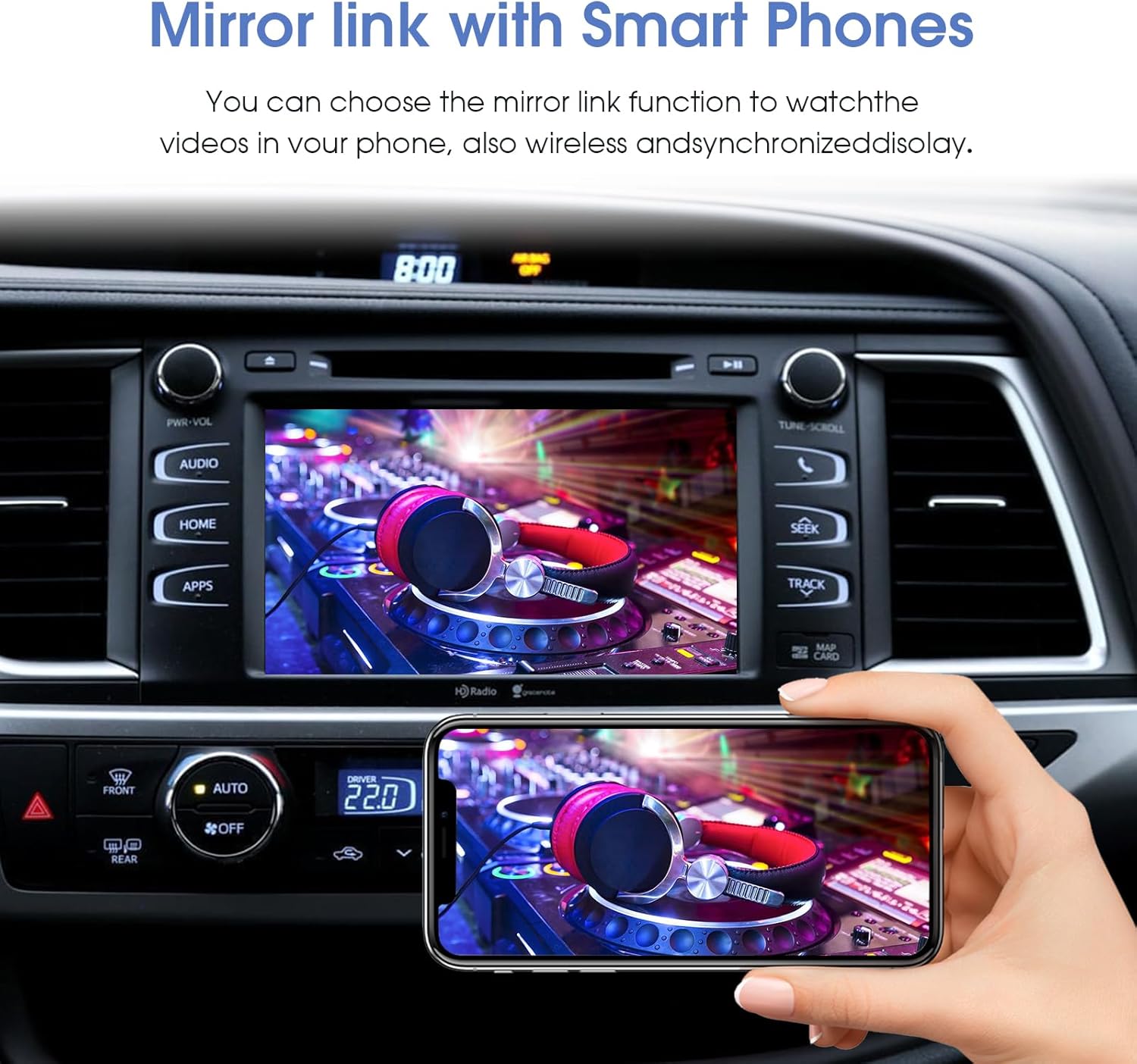
Image 5.2: Using the Mirror Link function to display smartphone content on the car screen.
5.3. Navigation and Media
- Utilize GPS navigation apps like Google Maps, Waze, and Apple Maps for real-time traffic information.
- Control music playback and volume directly from the CarPlay/Android Auto interface.
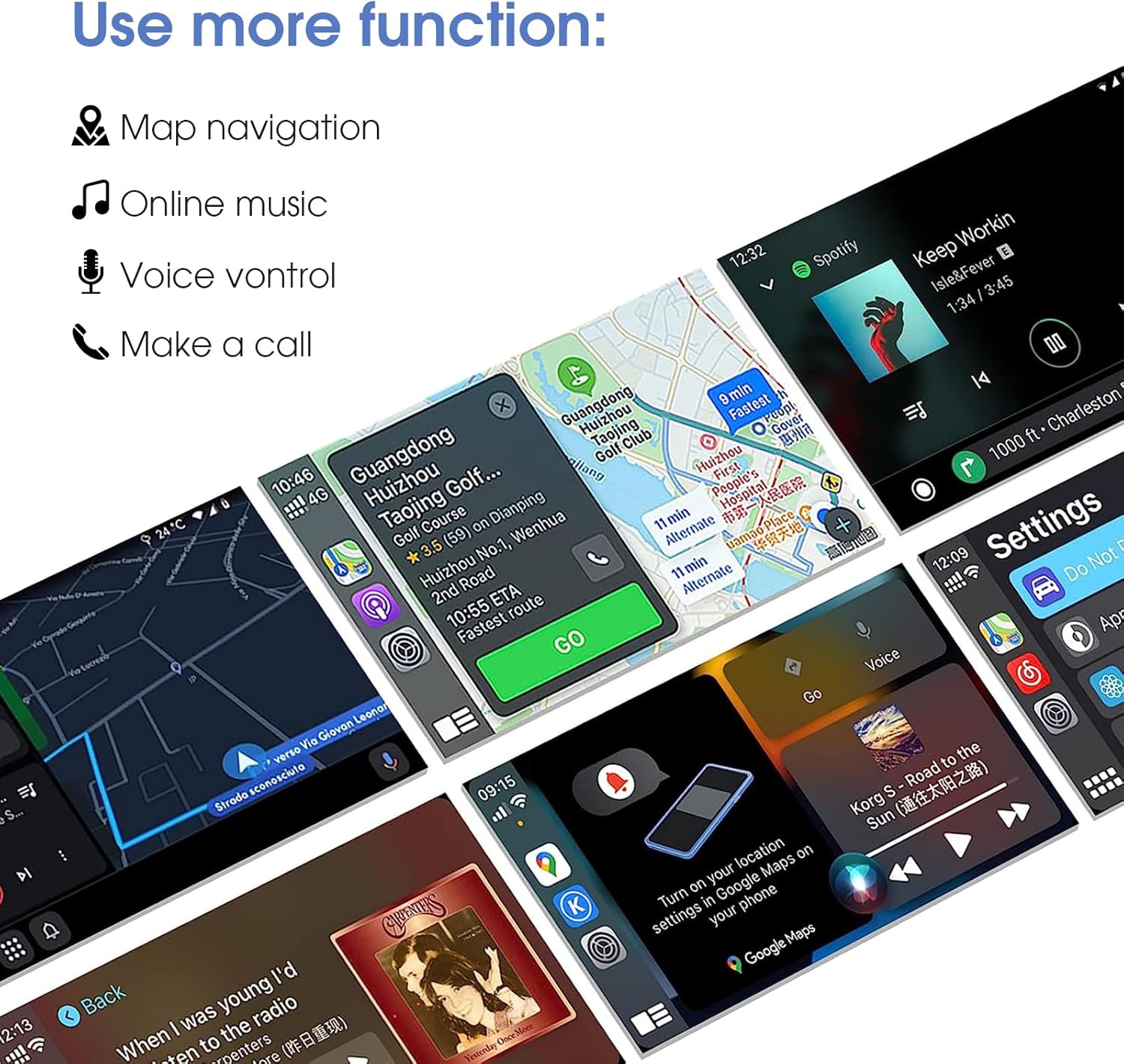
Image 5.3: Examples of navigation, music, and voice control functions.
6. Features
- Wireless Connectivity: Built-in 2.4G and 5.8G Wi-Fi for stable connection and Bluetooth 5.0 technology.
- Audio Enhancement: Integrated Digital Signal Processor (DSP) with fully adjustable Audio EQ for optimal sound quality.
- Camera Inputs: Two RCA inputs for connecting front and rear PAL, NTSC, and CVBS AHD cameras.
- Seamless Integration: Retains original car button and knob controls, including steering wheel controls.
7. Specifications
| Feature | Detail |
|---|---|
| Brand | LEXXSON |
| Model Number | 8523dd63-177e-4d12-9d66-3994f2069d5b |
| Connectivity Technology | Auxiliary, Bluetooth, RCA, USB, Wi-Fi |
| Controller Type | Android |
| Special Feature | GPS Navigation |
| Compatible Devices | Smartphone, Speaker |
| Connector Type | 3.5mm Jack, RCA, USB |
| Audio Output Mode | Surround |
| Surround Sound Channel Configuration | 5.1 |
| Video Encoding | PAL, NTSC, CVBS AHD |
| Color | Grey |
| Number of Channels | 6 |
| Supported Internet Services | Maps, Waze |
| Control Method | Touch, Voice |
| Audio Output Type | Internal |
| Item Type Name | OEM Screen Upgrade Decoder Box |
8. Troubleshooting
If you encounter any issues, please refer to the following common troubleshooting steps:
- No display after installation: Ensure all wire harnesses are securely connected. Check the AUX input selection on your car's stereo.
- CarPlay/Android Auto not connecting: Verify your phone's Bluetooth is on and paired with the adapter. Ensure Wi-Fi is enabled on your phone for wireless connection.
- Audio issues: Check the volume levels on both your phone and the car stereo. Ensure the correct audio source (AUX) is selected.
- Controls not responding: Confirm that the adapter is fully initialized. Some functions may require specific gestures or button presses as per your car's original system.
For further assistance, please contact customer support.
9. Warranty and Support
This LEXXSON product comes with a 1-Year Warranty from the date of purchase. For warranty claims or technical support, please contact LEXXSON customer service through your retailer or the official LEXXSON website.
Please retain your proof of purchase for warranty validation.


