
NIIMBOT B21
NIIMBOT B21 Thermal Label Printer User Manual
Model: B21
Introduction
The NIIMBOT B21 is a portable, inkless thermal label printer designed for various labeling needs. It connects wirelessly via Bluetooth to your smartphone or via USB to a PC, offering a convenient solution for creating custom labels. This manual provides detailed instructions for setting up, operating, and maintaining your B21 label printer.


What's in the Box
Upon unboxing your NIIMBOT B21, verify that all components are present:
- 1x NIIMBOT B21 Label Maker
- 1x 50x30mm Roll of white labels (230pcs)
- 1x Type-C Charging Cable
- 1x User Manual

Setup Guide
1. Charging the Device
Before first use, fully charge your NIIMBOT B21 label maker. Connect the provided Type-C charging cable to the printer and a suitable USB power adapter (not included). The charging indicator light will show the charging status.
2. Installing Label Paper
Open the label compartment cover. Insert the label roll with the printing surface facing up. Ensure the labels are properly aligned and the first label extends slightly out of the printing slot. Close the cover securely.
3. App Installation (for Mobile Devices)
The NIIMBOT B21 requires the "NIIMBOT" app for operation with smartphones. Download the official NIIMBOT App from the Apple App Store (for iOS) or Google Play Store (for Android).

4. PC Driver Installation (for PC Connection)
For PC connectivity, download the necessary drivers from the official NIIMBOT website. The printer is compatible with PC via USB connection. Note that Bluetooth and USB cannot be connected simultaneously.

Operating Instructions
1. Power On/Off and Bluetooth Connection
Press and hold the power button to turn the printer on or off. Once powered on, open the NIIMBOT App on your smartphone. The app will automatically search for and connect to the B21 via Bluetooth. Ensure Bluetooth is enabled on your device.
2. Creating and Editing Labels
The NIIMBOT App offers a variety of functions for label design:
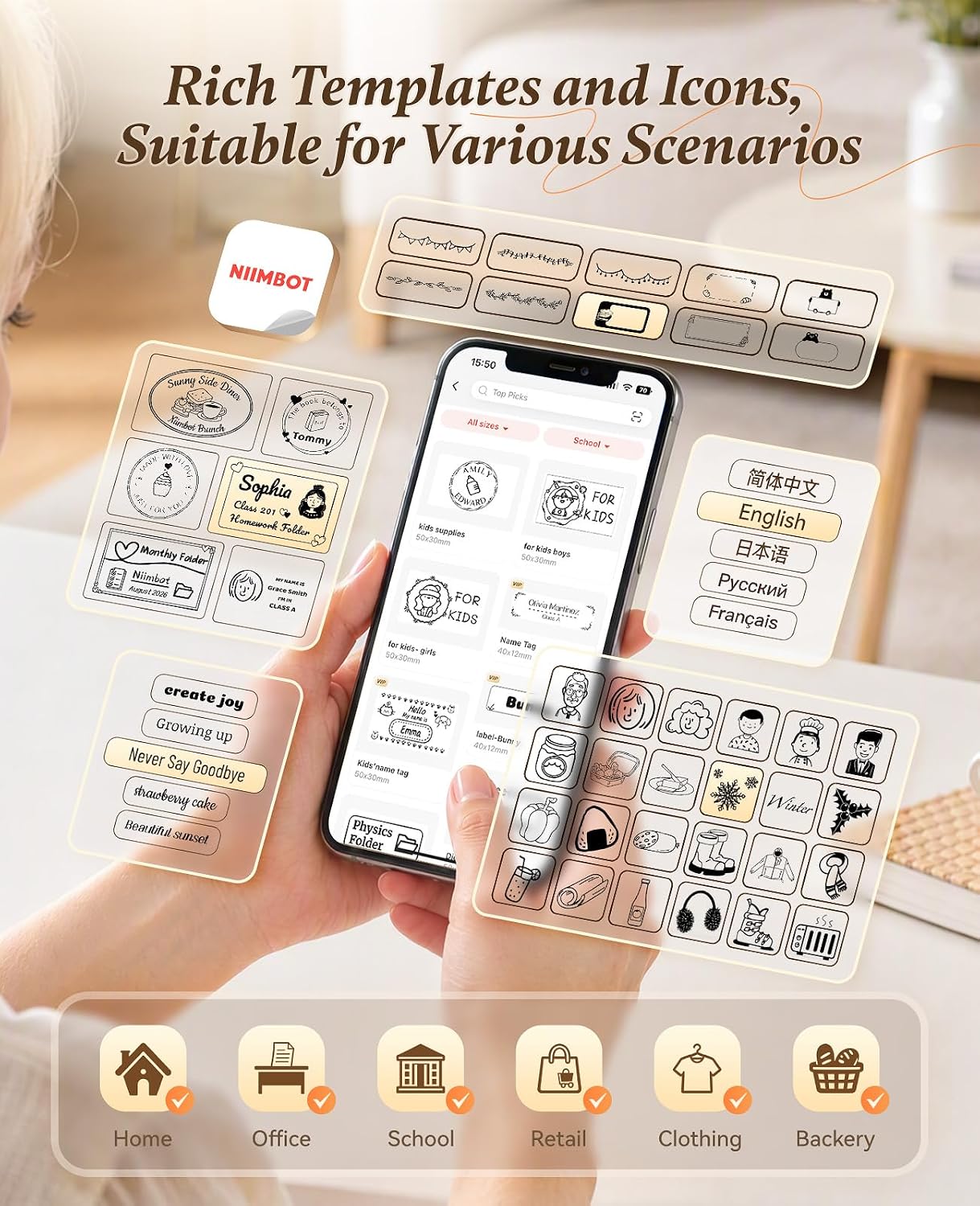
- Text: Enter custom text, choose from over 20 fonts, and adjust size and style.
- Icons & Borders: Access over 1000 icons and 100+ borders to personalize your labels.
- Images: Embed images or use the image recognition feature.
- QR Codes & Barcodes: Generate and print QR codes and various barcode types.
- Batch Printing: Print multiple labels with sequential data or identical content.
- Templates: Utilize pre-designed templates for common labeling scenarios.

3. Printing Labels
After designing your label in the app, tap the "Print" button. The printer will automatically identify the label paper and print at a speed of 2.4 inches per second (60mm/s). The B21 is an inkless thermal printer, meaning no ink cartridges are required.

Maintenance
1. Cleaning the Print Head
To ensure optimal print quality, periodically clean the thermal print head. Use a soft, lint-free cloth lightly dampened with isopropyl alcohol. Gently wipe the print head surface. Allow it to dry completely before use.
2. Label Paper Compatibility
The NIIMBOT B21 label printer is designed to be compatible only with official NIIMBOT thermal label paper. Using third-party labels may result in poor print quality or damage to the printer. NIIMBOT labels are long-lasting, waterproof, wipeable, tear-resistant, self-adhesive, abrasion-resistant, and BPA-free.

Troubleshooting
| Problem | Possible Cause | Solution |
|---|---|---|
| Printer does not turn on. | Low battery or power issue. | Charge the printer using the provided Type-C cable. Ensure the charging cable and adapter are working correctly. |
| Cannot connect via Bluetooth. | Bluetooth is off, app issue, or printer is already connected to another device. | Ensure Bluetooth is enabled on your smartphone. Restart the NIIMBOT App and the printer. Disconnect from any other devices. |
| Poor print quality or blank labels. | Incorrect label paper orientation, dirty print head, or non-NIIMBOT labels. | Verify the label roll is inserted with the printing surface facing up. Clean the print head. Ensure you are using official NIIMBOT thermal labels. |
| App indicates "incompatible paper". | Non-NIIMBOT label paper or sensor issue. | Only use official NIIMBOT label paper. Remove and re-insert the label roll to allow the printer to re-identify it. |
| Printer not recognized by PC. | Missing PC drivers or incorrect USB connection. | Download and install the latest drivers from the official NIIMBOT website. Ensure the USB cable is securely connected and not simultaneously connected via Bluetooth. |
Specifications
| Feature | Detail |
|---|---|
| Brand | NIIMBOT |
| Model Name | B21 |
| Connectivity Technology | Bluetooth, USB |
| Printing Technology | Thermal (Inkless) |
| Special Feature | Portable |
| Printer Output | Monochrome |
| Max Print Speed | 2.4''/s (60mm/s) |
| Item Weight | 11.2 ounces |
| Item Dimensions (DxWxH) | 2.4"D x 3.7"W x 5.1"H |
| Compatible Devices | PC, Smartphones (iOS & Android) |
| Resolution | 300 x 300 DPI |
| Maximum Media Size | 2" (width 0.8''-2'') |
| Battery Life | 4 hours continuous working time (after 1.5 hours charging) |
| Control Method | App, Push Button |
Warranty Information
The NIIMBOT B21 Thermal Label Printer comes with a 2-Year Manufacturer Warranty. Please retain your proof of purchase for warranty claims. For detailed terms and conditions, refer to the official NIIMBOT website or contact customer support.
Customer Support
For further assistance, technical support, or inquiries regarding your NIIMBOT B21 label maker, please visit the official NIIMBOT website or contact their customer service team. The website also provides access to the latest drivers and software updates.
Related documentsB21


Ask a question about this manual
Ask about setup, troubleshooting, compatibility, parts, safety, or missing instructions. Manuals+ will review the question and use this page’s manual context to help answer it.