
Nettech AP1868AL
Universal Replacement Remote for Apple TV
Model: AP1868AL
Brand: Nettech
1. Introduction
This manual provides comprehensive instructions for the setup, operation, and maintenance of your new Nettech Universal Replacement Remote, model AP1868AL. This remote is designed to be compatible with various Apple TV models, offering a convenient and functional alternative to your original remote.

Figure 1: Nettech AP1868AL Universal Remote and its compatibility with various Apple TV remote designs.
2. Safety Information
- Keep the remote control out of reach of children.
- Do not expose the remote to direct sunlight, heat sources, or extreme temperatures.
- Avoid dropping or subjecting the remote to strong impacts.
- Do not attempt to disassemble or modify the remote control.
- Dispose of used batteries according to local regulations.
3. Package Contents
- 1 x Nettech Universal Replacement Remote (AP1868AL)
- Note: 2 AAA batteries are required and not included in the package.
4. Product Overview
The Nettech AP1868AL remote is an Infrared (IR) remote designed for ease of use with Apple TV devices. It features dedicated buttons for navigation, playback, volume control, and TV power functions.

Figure 2: Button Layout and Functions.
- Power Button: Turns the TV on/off (requires manual programming for TV).
- Navigation Ring: Up, Down, Left, Right for menu navigation.
- Select Button: Confirms selections (center of navigation ring).
- Menu Button: Returns to the previous screen or main menu.
- TV/Home Button: Accesses the TV app or Home screen (HD & 4K versions).
- Play/Pause Button: Controls media playback.
- Volume Up/Down: Adjusts volume.
- Mute Button: Mutes/unmutes audio.
5. Setup
5.1. Battery Installation
The remote requires two AAA 1.5V dry cell batteries. Open the battery compartment cover on the back of the remote, insert the batteries ensuring correct polarity (+ and -), and close the cover securely.
5.2. Initial Pairing with Apple TV
This remote is designed for immediate use without complex programming. Simply insert new batteries, and it should function directly with your Apple TV. If it does not work immediately, follow these steps to pair:
- Point the Nettech remote directly towards your Apple TV device.
- Press and hold both the Menu button and the Left navigation button simultaneously for approximately 6 seconds until the pairing is complete.
For visual guidance on pairing, please refer to the product video if available.
5.3. Compatibility
This universal remote is compatible with the following Apple TV models:
- Apple TV 4K: A2169 (2nd Gen), A1842 (1st Gen)
- Apple TV HD: A1625 (4th Gen)
- Older Apple TV Models: A1427 (3rd Gen), A1469 (3rd Gen), A1378 (2nd Gen), A1218 (1st Gen)

Figure 3: Remote compatibility with various Apple TV models.
5.4. TV Control Function (Power Key)
The Power key on this remote can control the power of certain TV brands. This function requires manual programming for your specific TV. It is compatible with:
- Samsung
- LG
- Sony
- Westinghouse
- Insignia
- Vizio
- Toshiba
Note: This function is not compatible with any ROKU TV.
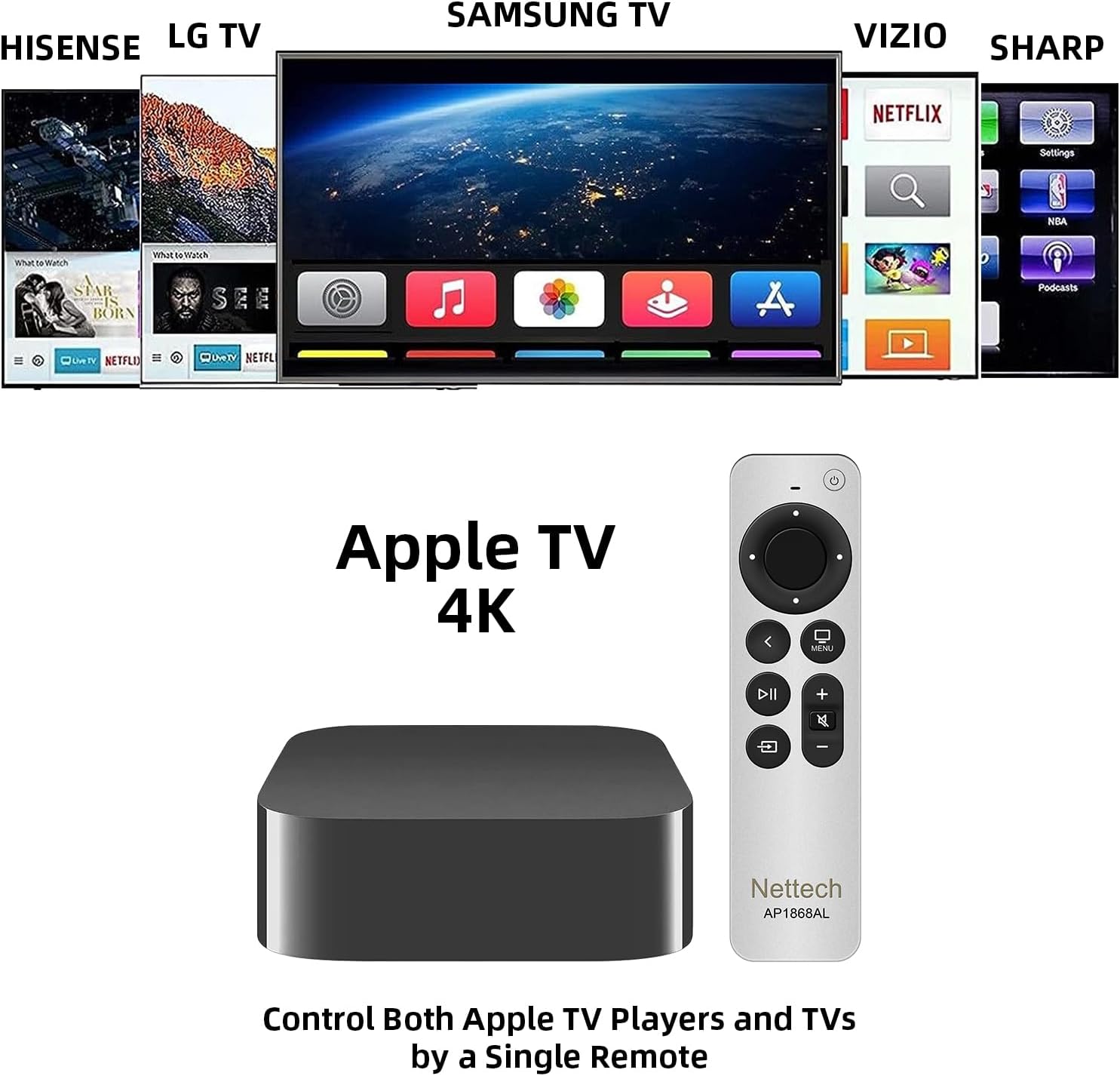
Figure 4: Remote controlling both Apple TV and various TV brands.
6. Operating Instructions
6.1. Basic Navigation
Use the Navigation Ring to move through menus and select items. Press the center button of the ring to confirm your selection. The Play/Pause button controls media playback.
6.2. Volume and Mute Control
Adjust the volume using the Volume + and Volume - buttons. The dedicated Mute button allows you to quickly silence or restore audio, a feature not present on all older Apple TV remotes.
6.3. TV/Home Button Functionality
The TV/Home button provides quick access to the Apple TV app or the Home screen, depending on your Apple TV model (HD & 4K versions). Press and hold this button to access the Control Center.

Figure 5: The Versatile Home Button functionality.
6.4. Using Multiple Remotes
This Nettech remote can be used in conjunction with your original Apple TV remote, allowing you to have two functional remotes for your device simultaneously.
7. Maintenance
- Clean the remote with a soft, dry cloth. Do not use abrasive cleaners or solvents.
- If the remote will not be used for an extended period, remove the batteries to prevent leakage.
8. Troubleshooting
- Remote not responding: Ensure fresh AAA batteries are correctly installed. Re-attempt the pairing process (Section 5.2).
- Power key not controlling TV: Verify your TV brand is listed as compatible (Section 5.4). Ensure you have manually programmed the power key for your specific TV model.
- Limited functionality: This is an IR remote and does not support Siri voice control or touchpad functions. Line-of-sight to the Apple TV is required.
9. Specifications
| Feature | Detail |
|---|---|
| Product Dimensions | 7 x 5 x 0.5 inches |
| Item Weight | 1.76 ounces |
| Batteries Required | 2 AAA batteries (not included) |
| Special Feature | Ergonomic, Pre Programmed |
| Color | White/Silver |
| Max Number of Supported Devices | 2 (Apple TV + TV Power) |
| Compatible Devices | Apple TV (various generations), Select TV Brands |
10. Warranty and Support
This Nettech Universal Replacement Remote comes with a 30-day warranty from the date of purchase.
If you have any questions, concerns, or require assistance with your remote, please do not hesitate to contact us. We are committed to helping you resolve any issues you may encounter.
Ask a question about this manual
Ask about setup, troubleshooting, compatibility, parts, safety, or missing instructions. Manuals+ will review the question and use this page’s manual context to help answer it.