
1. Introduction
The TEYUN A6 Professional Portable Mixer is a versatile sound mixing console designed for various audio applications, including live broadcasts, stage performances, and karaoke. It features multiple input options, advanced digital signal processing (DSP), and wireless streaming capabilities to provide dynamic control over your audio.
Key Features:
- USB/Flash Reader/MP3 Compatibility: Connect external USB devices, computers, flash drives, or Bluetooth devices for mixing and recording.
- Bluetooth Wireless Streaming: Seamlessly stream music from smartphones, tablets, or other Bluetooth-enabled devices.
- 3V/48V/2MIC and Stereo Line Inputs: Supports XLR and unbalanced 1/4" plugs with +48V Phantom power, LED Peak level indicators, and ultra-musical 3-band EQ on all channels.
- Rugged Steel Chassis: Durable construction with sealed rotary controls to resist dust and grime, ideal for various environments.
- Multi-Voltage Power Supply: 100V-240V (±15V DC power adapter) for worldwide usage.
2. Package Contents
Upon opening the package, please ensure all items are present and in good condition:
- TEYUN A6 Mixing Console
- Power Cable
- User Manual

Figure 2.1: TEYUN A6 Professional Portable Mixer and its packaging contents.
3. Product Overview and Controls
Familiarize yourself with the various inputs, outputs, and controls on your TEYUN A6 mixer.

Figure 3.1: Top view of the TEYUN A6 mixer, highlighting input channels, main output, and control knobs.

Figure 3.2: Angled view of the TEYUN A6 mixer, providing a clearer perspective of the control panel and digital display.
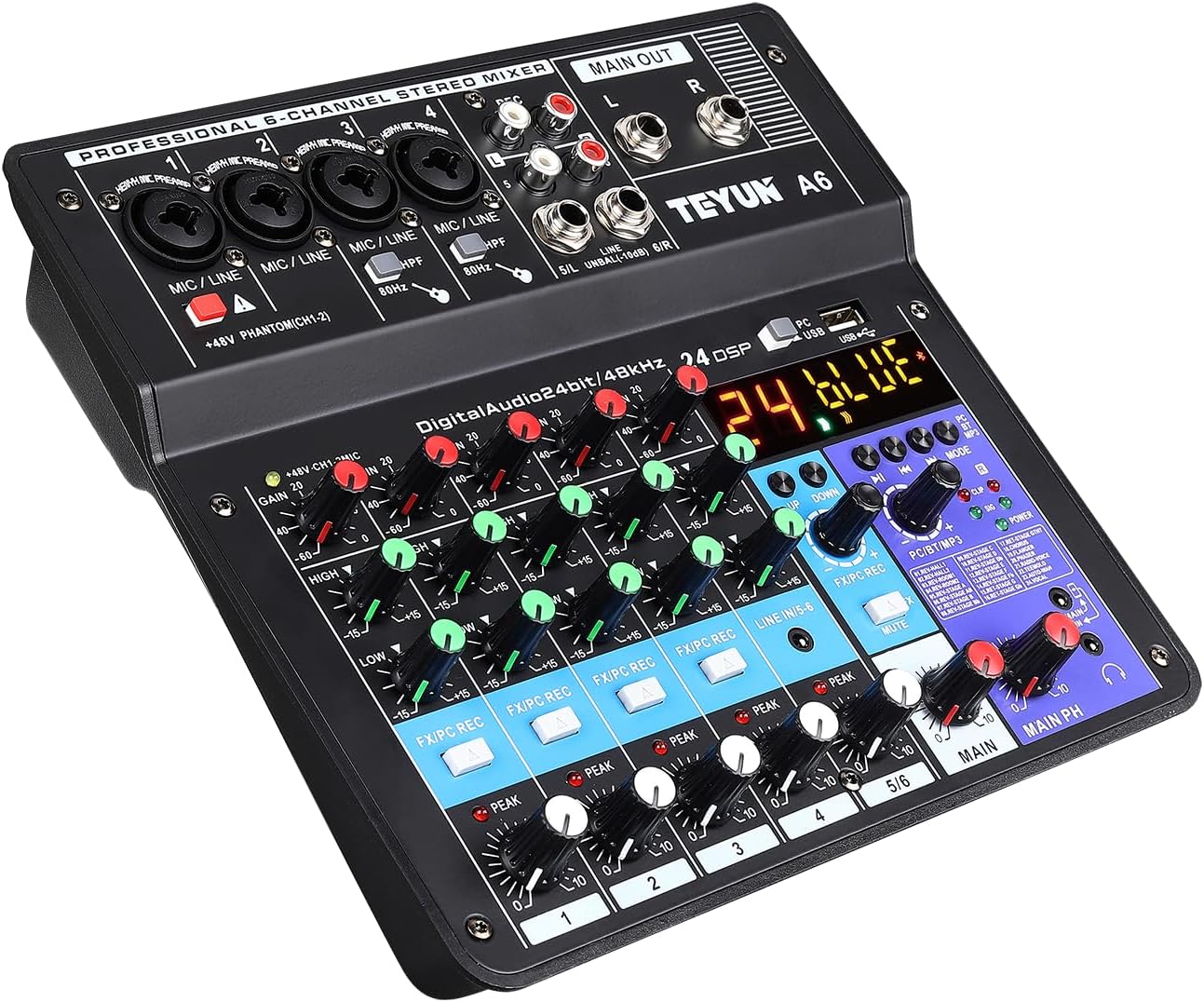
Figure 3.3: A different angled view of the TEYUN A6 mixer, emphasizing its compact design.

Figure 3.4: Dimensions of the TEYUN A6 mixer, showing its compact size for portability.
4. Setup and Connections
4.1 Power Connection
Connect the mixer to a power source using the provided power cable. Ensure the power button is pressed when connecting to a power supply or computer.
Video 4.1: TEYUN USB Audio Interface A6 Overview. This video demonstrates the power connection and various input/output ports of the mixer.
4.2 Input Connections
The mixer supports various audio inputs:
- Microphone/Line Inputs (Channels 1-4): Use for 48V condenser microphones, dynamic microphones, or line-level instruments.
- High-Pass Filter (HPF): Available on some channels (e.g., 80Hz) to minimize breath and vibration sounds when using electric guitars or microphones.
- Line Input (5/6): For connecting stereo line-level devices.
4.3 Output Connections
- REC Output: For recording the mixed audio.
- Main Output (L/R): For connecting to speakers or an amplifier.
- Headphone Monitor Jack: For monitoring the audio output.
- Mobile Phone Live Socket: For direct connection to a mobile phone for live streaming or recording. Please use a high-quality 3.5mm audio cable for connection, or with an original adapter if needed.
4.4 USB/PC/Bluetooth Connection
The mixer can connect to a computer via USB for recording or playback, or stream audio wirelessly via Bluetooth.
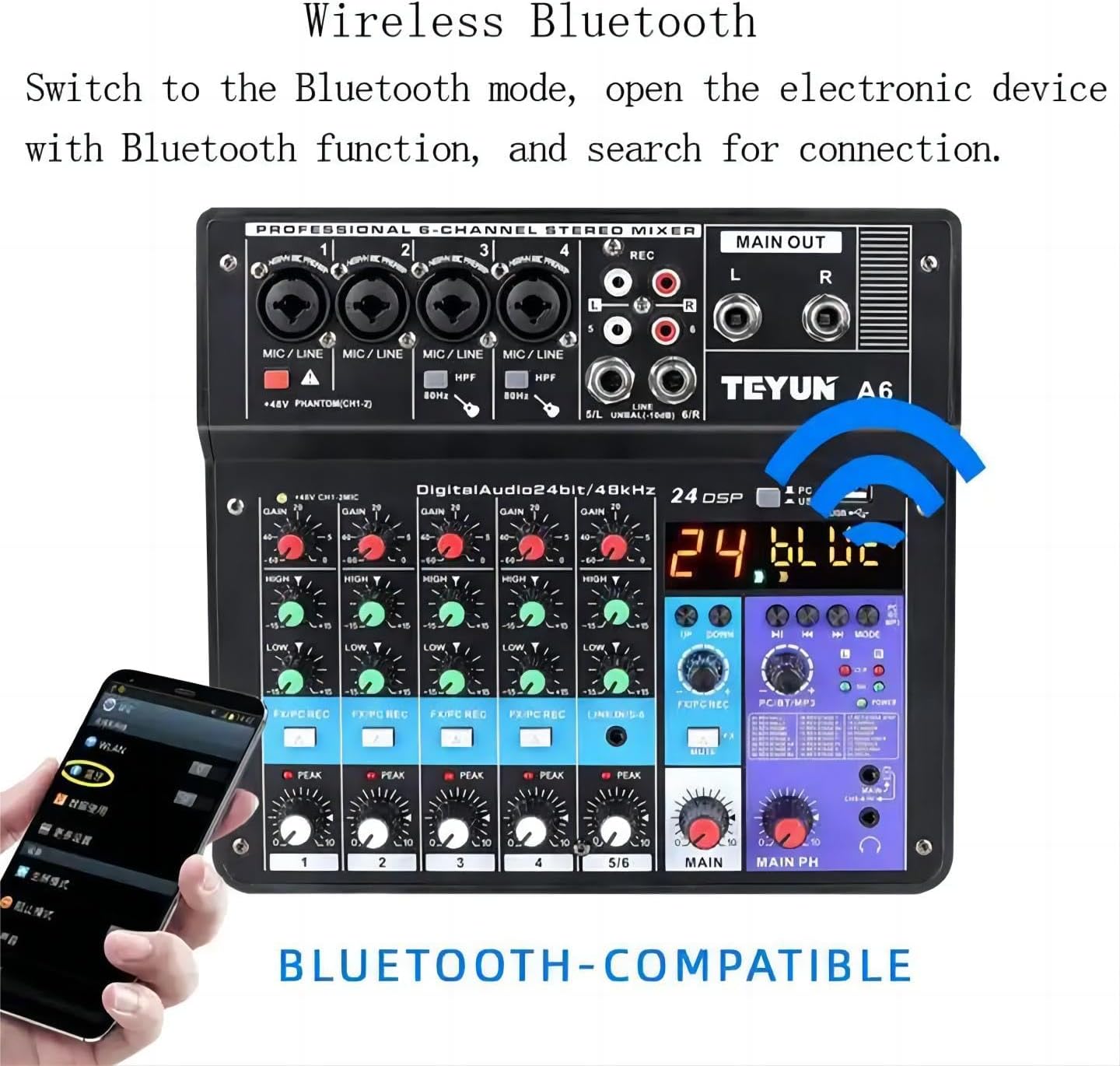
Figure 4.1: Demonstrating Bluetooth connectivity with the TEYUN A6 mixer and a smartphone.
Video 4.2: TEYUN A6 MIXING console in action. This video illustrates various connection methods and basic operation of the mixer, including microphone, phone, and headphone connections.
5. Operating Instructions
5.1 Channel Controls
- Gain Adjustment: Adjusts the input sensitivity for each channel.
- Treble Adjustment: Controls the high frequencies of the audio signal.
- Bass Adjustment: Controls the low frequencies of the audio signal.
- EFX Send: Adjusts the amount of signal sent to the effects processor.
- Peak Indicator: Lights up when the input signal is too high, indicating potential clipping.
- Channel Volume: Controls the individual volume level of each channel.
5.2 Master Controls and Digital Features
- 24 DSP: Built-in digital signal processor for various effects.
- LED Display: Shows current mode (e.g., "BLUE" for Bluetooth) and other information.
- Pause/Previous Song/Next Song/Mode Switch:
- Select [MODE] key to MP3 mode when using USB.
- Select [MODE] key to BT mode when using Bluetooth connection.
- Select [MODE] key to PC mode when using computer connection.
- Main Effect Volume: Controls the overall volume of the applied effects.
- Digital Signal Volume Control: Adjusts the volume of digital audio sources.
- Main Volume: Controls the overall output volume of the mixer.
- Mute: Mutes the main output.
6. Specifications
| Feature | Detail |
|---|---|
| Item Weight | 2.31 pounds (1.05 Kilograms) |
| Product Dimensions | 10.24 x 10.63 x 3.15 inches (3.23"D x 3.23"W x 10.24"H) |
| Country of Origin | China |
| Item Model Number | 6-Channel |
| Power Source | Corded Electric (100V-240V) |
| Number of Channels | 6 (Input channels, total 12 channels listed in specs, but product is 6-channel mixer) |
| Connectivity Technology | Bluetooth, USB |
| Phantom Power | +48V (on specific channels) |
| DSP Effects | 24 DSP effects |
7. Maintenance
To ensure the longevity and optimal performance of your TEYUN A6 mixer, follow these maintenance guidelines:
- Keep the unit clean by wiping it with a soft, dry cloth. Avoid using abrasive cleaners or solvents.
- Protect the mixer from dust and grime, especially the rotary controls and faders, as they are sealed to resist these elements.
- Avoid exposing the mixer to extreme temperatures, humidity, or direct sunlight.
- Do not block ventilation openings.
- Store the mixer in a safe place when not in use to prevent physical damage.
8. Troubleshooting
If you encounter issues with your TEYUN A6 mixer, refer to the following common troubleshooting steps:
- No Power: Ensure the power cable is securely connected to both the mixer and a working power outlet. Check if the power button is fully pressed.
- No Sound Output:
- Verify all input and output cables are correctly connected.
- Check channel volume and main volume knobs are turned up.
- Ensure the Mute button is not engaged.
- If using phantom power (+48V), ensure it is activated for condenser microphones.
- Check connected speakers/headphones for proper function and volume.
- Distorted Sound:
- Reduce the Gain for the input channel if the Peak indicator is lighting up frequently.
- Check cable connections for any damage or loose contacts.
- Adjust Treble and Bass controls to balance the sound.
- Bluetooth Connection Issues:
- Ensure the mixer is in Bluetooth mode (LED display shows "BLUE").
- Make sure Bluetooth is enabled on your streaming device and it is within range.
- Forget the device on your streaming device and re-pair.
- USB/PC Connection Issues:
- Ensure the mixer is in PC mode.
- Verify the USB cable is securely connected.
- Check your computer's audio settings to ensure the mixer is selected as the input/output device.
If the issue persists after attempting these steps, please contact customer support.
9. Warranty and Support
Information regarding warranty coverage and customer support for your TEYUN A6 mixer is typically provided with your purchase documentation or on the manufacturer's official website. Please refer to those resources for detailed warranty terms, registration, and contact information for technical assistance.
For the most up-to-date support and service, please visit the official TEYUN website or contact your retailer.