
1. Introduction
This manual provides essential instructions for the safe operation and maintenance of your Cuifati S99 4K Camera Drone. Please read this manual thoroughly before operating the drone to ensure proper usage and to prevent damage or injury. Keep this manual for future reference.
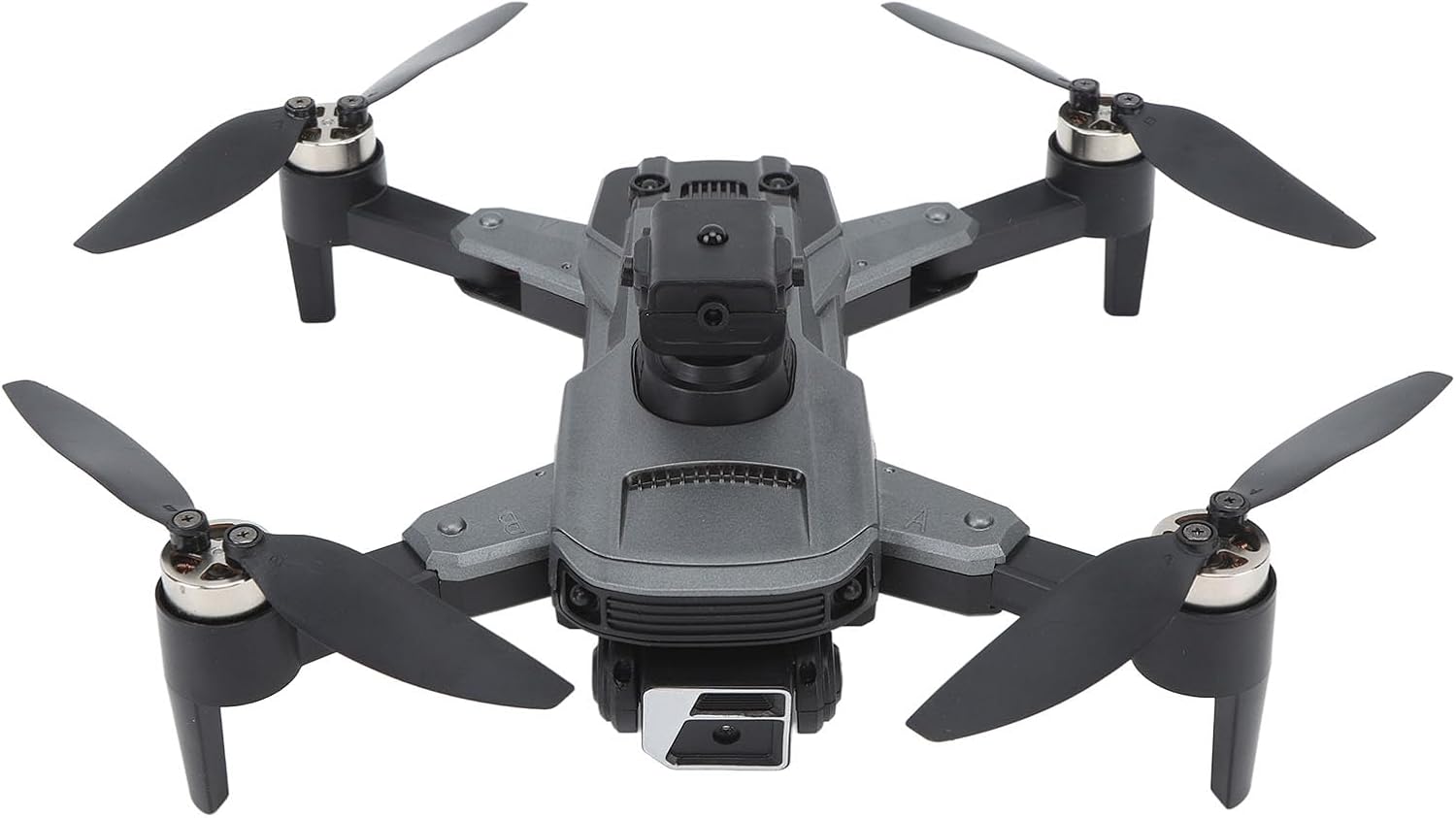
Image 1.1: The Cuifati S99 4K Camera Drone, showcasing its four propellers and central body with camera.
2. Safety Information
Operating a drone requires attention to safety. Adhere to the following guidelines:
- Pre-Flight Check: Always inspect the drone, propellers, and battery before each flight.
- Environmental Conditions: Avoid flying in strong winds, rain, or snow. Maintain clear line of sight.
- Battery Safety: Use only approved batteries and chargers. Do not overcharge or puncture batteries.
- Obstacle Avoidance: Utilize the drone's obstacle avoidance features, but always remain vigilant of surroundings.
- Age Recommendation: This product is recommended for users aged 14 years and older.
- Respect Privacy: Be mindful of privacy laws when using the camera feature.
3. Package Contents
Verify that all items are present in the package:
- Cuifati S99 Drone
- Remote Control
- Rechargeable Battery
- USB Charging Cable
- Spare Propellers
- Screwdriver
- User Manual

Image 3.1: Visual representation of the drone, remote control, battery, and accessories included in the package.
4. Setup
4.1. Battery Installation and Charging
- Ensure the drone is powered off.
- Locate the battery compartment on the drone.
- Insert the modular battery firmly until it clicks into place.
- To charge, remove the battery and connect it to the USB charging cable. Connect the cable to a suitable USB power source. The charging indicator will show the charging status.

Image 4.1: Illustration of the modular battery being inserted into the drone, highlighting its easy installation and removal.
4.2. Propeller Installation
If propellers are not pre-installed or need replacement, attach them according to the markings (A and B) on the propellers and motor arms. Use the provided screwdriver to secure them.
4.3. Remote Control Setup
- Install required batteries (not specified in product data, assume standard AA/AAA) into the remote control.
- Extend the phone holder on the remote control to mount your smartphone.
4.4. App Installation
Download the official Cuifati drone application from your smartphone's app store (iOS or Android). This app is essential for accessing advanced features and real-time viewing.
5. Operating Instructions
5.1. Power On and Pairing
- Place the drone on a flat, level surface.
- Power on the drone, then power on the remote control.
- The drone and remote control will automatically pair. Refer to the remote control's indicator lights for pairing status.
- Open the drone app on your smartphone and connect to the drone's Wi-Fi network for real-time viewing and advanced controls.
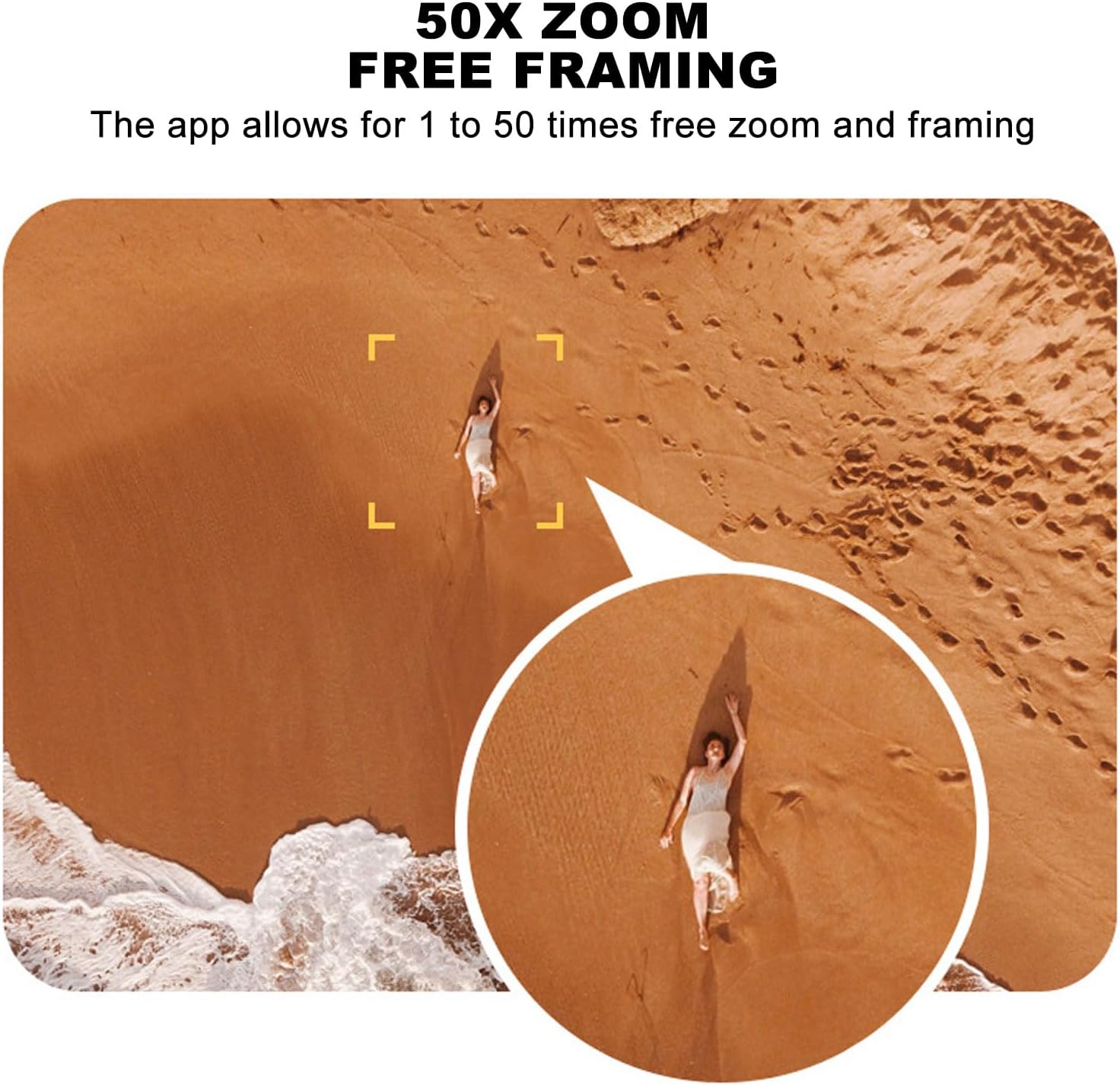
Image 5.1: A smartphone mounted on the remote control displaying real-time video feed from the drone's camera.
5.2. Takeoff and Landing
- One-Key Takeoff: Press the designated one-key takeoff button on the remote control or in the app. The drone will automatically ascend to a safe hovering altitude.
- One-Key Landing: Press the designated one-key landing button. The drone will automatically descend and land.
5.3. Flight Controls
- Remote Control: Use the joysticks on the remote control for directional flight (forward, backward, left, right, ascend, descend, rotate).
- Gravity Induction: In the app, activate gravity induction mode to control flight by tilting your smartphone.
- Optical Visual Hovering: The S99 drone features optical visual hovering, allowing it to maintain a stable position without constant throttle input.
- 360-Degree Roll: Execute aerial stunts with a single button press for a 360-degree roll.
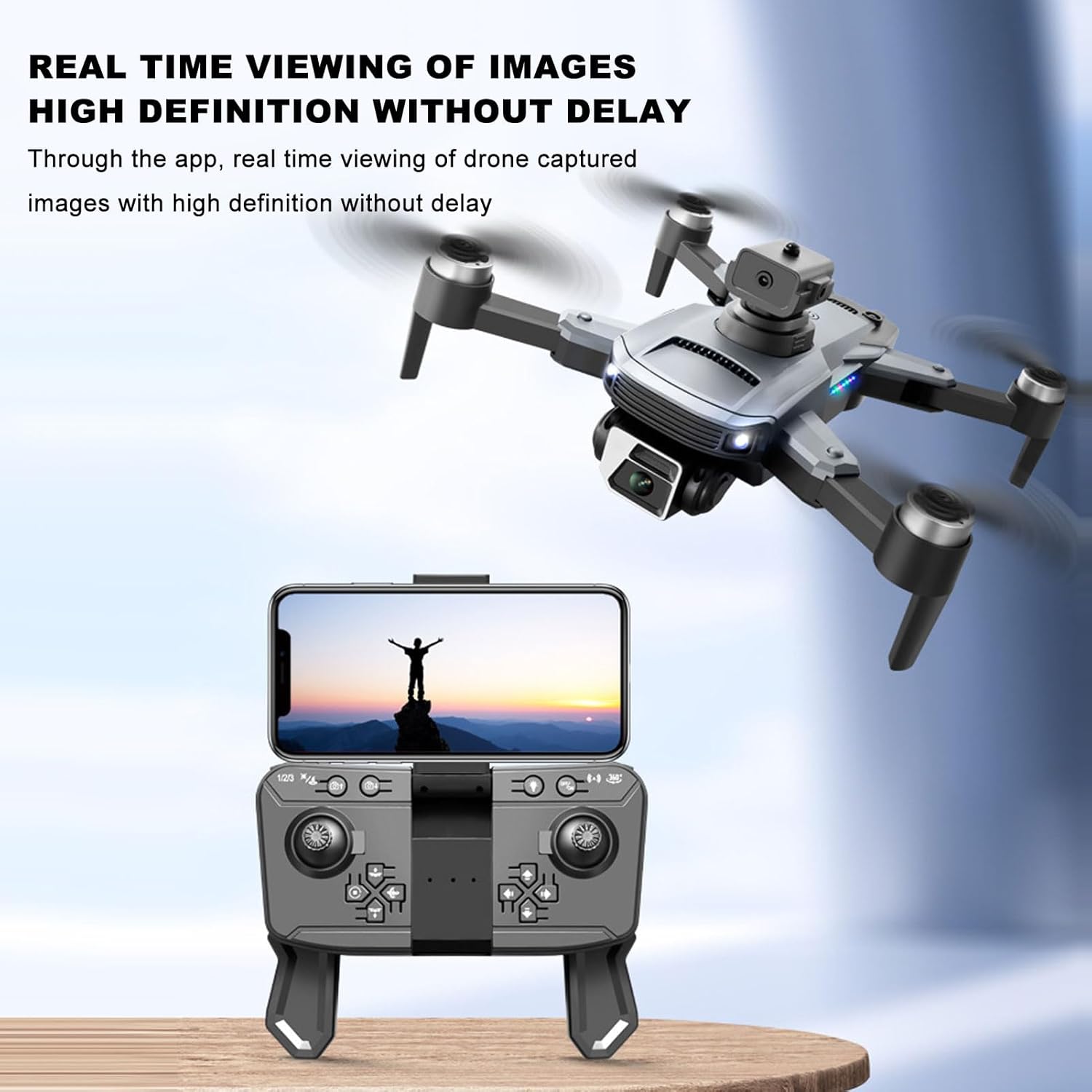
Image 5.2: A user demonstrating gravity induction control by tilting a smartphone to maneuver the drone.
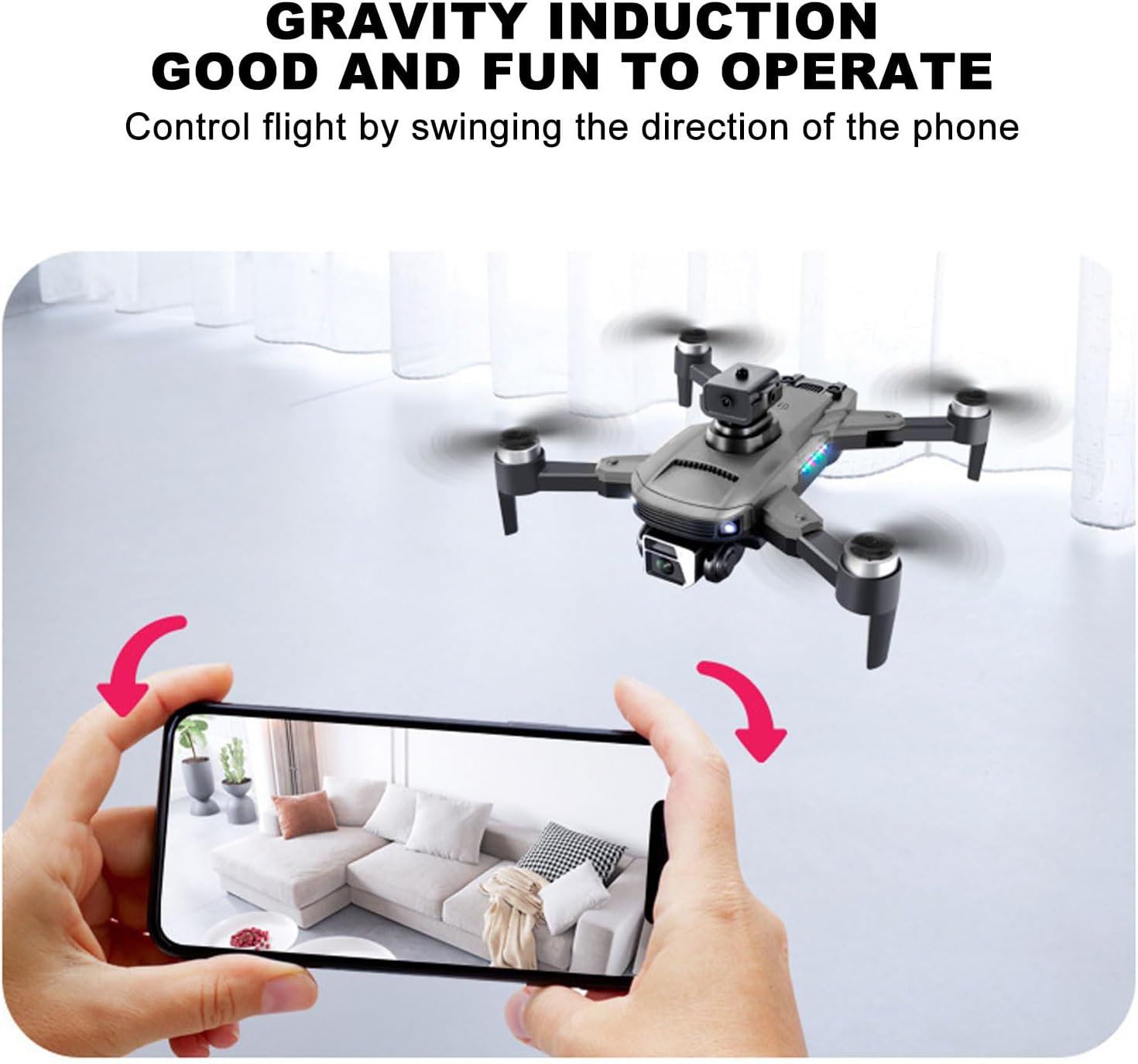
Image 5.3: Multiple drones performing a synchronized 360-degree roll, illustrating the stunt capability.
5.4. Camera Operation
- 4K Dual Camera: The drone is equipped with a high-definition 4K camera.
- 90-Degree Electric Angle Adjustment: Adjust the camera angle remotely via the app or remote control.
- 50x Digital Zoom: Utilize the app to zoom up to 50 times for detailed shots.
- Gesture Photography: Perform specific hand gestures to trigger photo or video recording.
- Real-Time FPV: View live footage from the drone's camera directly on your smartphone via the app.
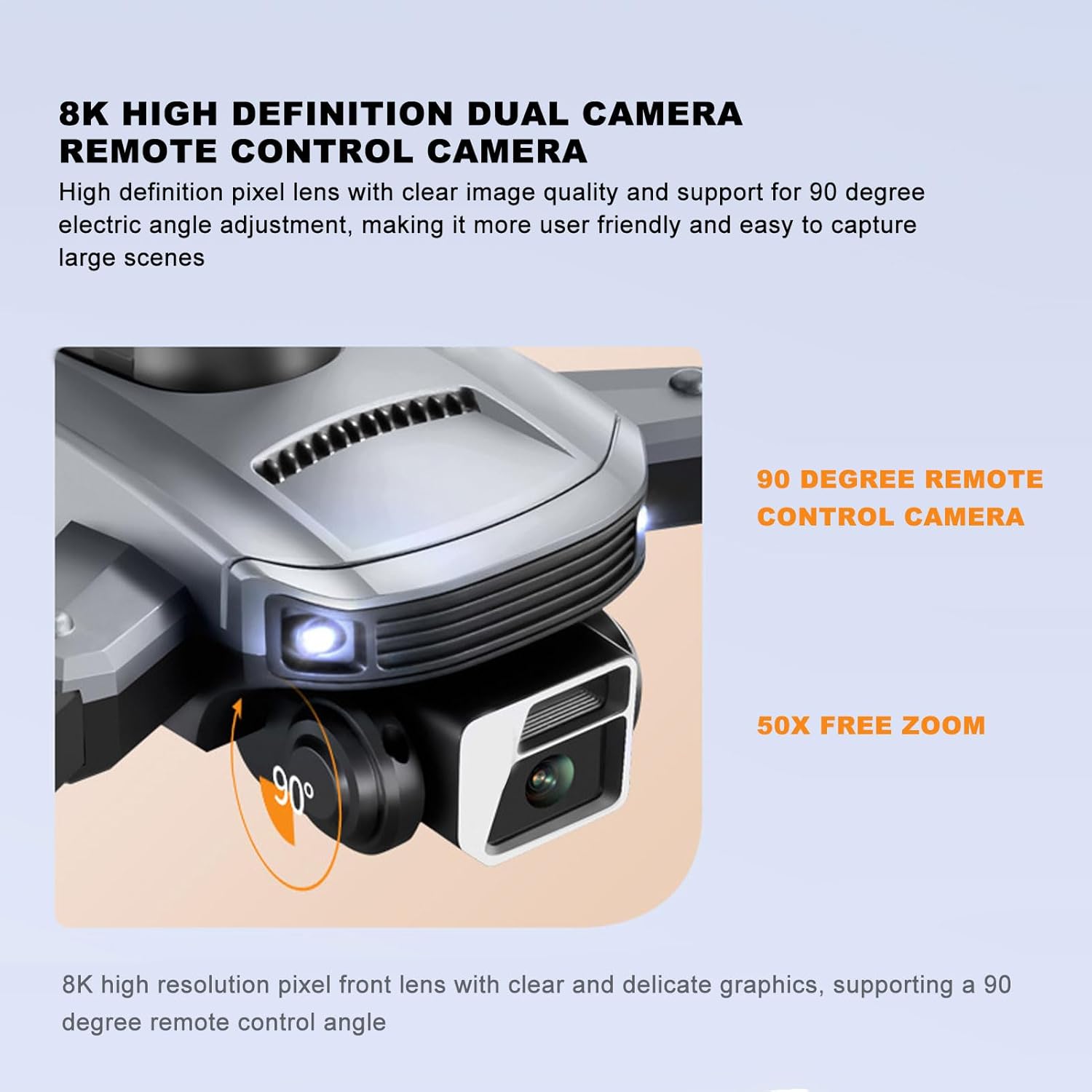
Image 5.4: Close-up of the drone's 4K camera, indicating its 90-degree remote control adjustment capability.
Image 5.5: An aerial view demonstrating the 50x zoom feature, focusing on a person on a beach.
5.5. Obstacle Avoidance
The S99 drone is equipped with four-way obstacle avoidance sensors (front, rear, left, right) that automatically detect and intelligently avoid obstacles, enhancing flight safety.
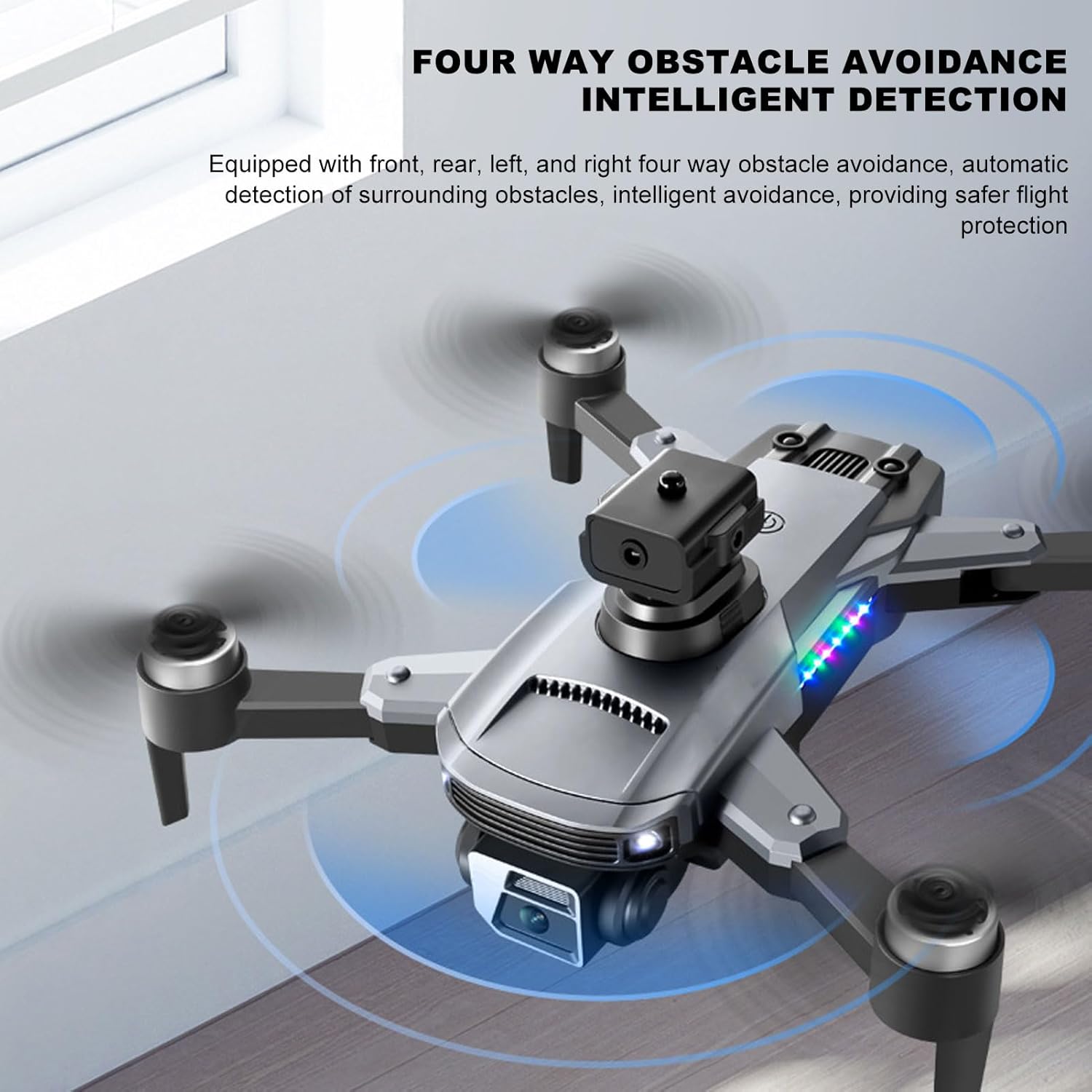
Image 5.6: The drone in flight with visual indicators of its four-way obstacle avoidance system detecting surrounding objects.
6. Maintenance
- Cleaning: Gently wipe the drone body and camera lens with a soft, dry cloth. Avoid using liquids.
- Propeller Inspection: Regularly check propellers for damage (cracks, bends). Replace damaged propellers immediately.
- Battery Care: Store batteries in a cool, dry place. Do not leave batteries fully discharged for extended periods.
- Storage: When not in use, store the drone and remote control in a protective case to prevent dust and physical damage.
7. Troubleshooting
| Problem | Possible Cause | Solution |
|---|---|---|
| Drone does not power on | Battery not installed correctly or discharged | Ensure battery is fully charged and properly inserted. |
| Drone fails to pair with remote | Remote control or drone not powered on, or too far apart | Ensure both devices are on and within close proximity. Restart both if necessary. |
| Unstable flight or drifting | Propellers damaged, drone not calibrated, or strong wind | Check propellers for damage and replace if needed. Perform drone calibration as per app instructions. Avoid flying in windy conditions. |
| No real-time video feed | Smartphone not connected to drone's Wi-Fi, or app issue | Verify Wi-Fi connection. Restart the app and drone. |
| Short battery life | Battery degradation or improper charging | Ensure proper charging cycles. Consider replacing the battery if performance significantly degrades over time. |
8. Specifications
| Feature | Detail |
|---|---|
| Brand | Cuifati |
| Model Name | CUIFATImu9824bk0w |
| Video Capture Resolution | 4K |
| Connectivity Technology | USB, Wi-Fi |
| Battery Capacity | 2000 Milliamp Hours |
| Battery Cell Composition | Lithium |
| Remote Control Technology | 2.4 GHz Radio Frequency |
| Maximum Range | 100 Meters |
| Item Weight | 1.14 pounds |
| Package Dimensions | 10.12 x 7.05 x 3.7 inches |
| Skill Level | Intermediate |
| Supported Image Format | JPEG |
| Video Capture Format | MP4 |
| Optical Sensor Technology | CMOS |
9. Warranty and Support
The Cuifati S99 4K Camera Drone comes with a 90-day warranty. For technical support, warranty claims, or further assistance, please contact Cuifati customer service or visit the official Cuifati store online.
Official Cuifati Store: Visit Cuifati Store

Image 9.1: The Cuifati brand logo, representing the manufacturer.