
Introduction
The Motorola Edge 40 Neo is a powerful 5G smartphone designed for seamless performance and connectivity. It features a robust processor, ample memory, and advanced camera capabilities. This manual provides essential information to help you set up, operate, maintain, and troubleshoot your device, ensuring you get the most out of your Motorola Edge 40 Neo.

Figure 1: Front and back view of the Motorola Edge 40 Neo smartphone.
1. Setup
1.1 Unboxing and Initial Inspection
Upon receiving your Motorola Edge 40 Neo, carefully open the packaging and inspect all contents. The retail box typically includes the smartphone and a USB Cable. Ensure all items are present and undamaged.
- Motorola Edge 40 Neo Smartphone
- USB Cable
- (Note: Charger may vary by region or may not be included. Please check your specific package contents.)
1.2 SIM Card Installation
The Motorola Edge 40 Neo supports Dual-SIM functionality. To install your SIM cards:
- Locate the SIM tray on the side of the device.
- Insert the SIM ejector tool (if provided) into the small hole next to the tray and push gently until the tray pops out.
- Place your Nano-SIM cards into the designated slots on the tray. Ensure the gold contacts are facing down and the notched corner aligns correctly.
- Carefully reinsert the SIM tray into the device until it clicks into place.
Important Network Compatibility Note:
For USA Buyers: This Smartphone is not compatible/will not work with any CDMA Networks including: VERIZON, SPRINT, US CELLULAR. Please check with your network provider for 3G or 4G/LTE compatibility check before you purchase.
Supported Frequencies (SIM CARD 1 & 2):
- 2G: GSM 850 / 900 / 1800 / 1900
- 3G: HSDPA 800(B19) / 850(B5) / 900(B8) / 1700|2100(B4) / 1900(B2) / 2100(B1)
- 4G: FDD-LTE 700(B12) / 700(B13) / 700(B17) / 700(B28) / 800(B20) / 850(B5) / 850(B18) / 850(B19) / 850(B26) / 900(B8) / 1500(B32) / 1700|2100(B4) / 1800(B3) / 1900(B2) / 1900(B25) / 2100(B1) / 2100(B66) / 2600(B7) : TDD-LTE 1900(B39) / 2300(B40) / 2500(B41) / 2600(B38) / 3500(B42) / 3500(B48) / 3700(B43)
- 5G: N1/N2/N3/N5/N7/N8/N20/N28/N38/N40/N41/N66/N77/N77
1.3 Charging the Device
The Motorola Edge 40 Neo is equipped with a Li-Po 5000 mAh non-removable battery and supports 68W TurboPower charging. To charge your device:
- Connect the USB cable to the charging port on your phone.
- Connect the other end of the USB cable to a compatible 68W TurboPower charger (if available) and plug it into a power outlet.
- The device will display a charging indicator.

Figure 2: The Motorola Edge 40 Neo supports 68W TurboPower for rapid charging.
2. Operating Your Device
2.1 Display Features
Experience vibrant visuals on the Motorola Edge 40 Neo's 6.55-inch P-OLED display. Key features include:
- Size: 6.55 inches
- Technology: P-OLED, 1 Billion colors
- Refresh Rate: 144Hz for smooth scrolling and gaming
- Brightness: HDR10+, 1300 nits (peak)
- Resolution: 1080 x 2400 pixels (~402 ppi density)

Figure 3: The stunning 6.55-inch P-OLED display with a 144Hz refresh rate.
2.2 Performance and Software
The device runs on Android 13 and is powered by the MediaTek Dimensity 7030 (6nm) Octa-core processor (2x2.5 GHz Cortex-A78 & 6x2.0 GHz Cortex-A55), ensuring efficient multitasking and smooth application performance.
- Operating System: Android 13
- Processor: MediaTek Dimensity 7030 (6nm), Octa-core
- RAM: 12GB
- Internal Storage: 256GB (non-expandable)

Figure 4: The MediaTek Dimensity 7030 processor powers the Motorola Edge 40 Neo.
2.3 Camera System
Capture stunning photos and videos with the advanced camera setup:
- Rear Camera: 50 MP (main sensor)
- Front Camera: 32 MP
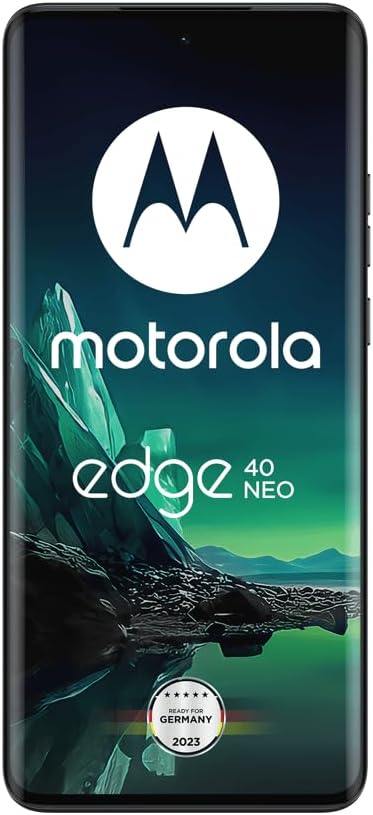
Figure 5: Detail of the 50MP Ultra-Pixel camera system on the Motorola Edge 40 Neo.
2.4 Connectivity
The Motorola Edge 40 Neo offers comprehensive connectivity options:
- Wireless Communication: Cellular (2G, 3G, 4G, 5G)
- Wired Connectivity: USB
- Navigation: GPS enabled
- Other Display Features: Wireless
3. Maintenance
3.1 Battery Care
To maximize the lifespan and performance of your 5000 mAh battery:
- Use only the original or certified Motorola chargers and cables.
- Avoid exposing the device to extreme temperatures (very hot or very cold).
- Do not leave the device charging for extended periods after it reaches 100%.
- For optimal battery health, try to keep the charge level between 20% and 80%.
3.2 Water Protection (IP68)
The Motorola Edge 40 Neo features IP68 water protection, meaning it is designed to withstand immersion in up to 1.5 meters of fresh water for up to 30 minutes. However, it is not waterproof. To maintain its water resistance:
- Avoid exposing the device to salt water, chlorinated water, or other liquids.
- Do not charge the device if the charging port is wet.
- Ensure all ports and covers are securely closed.
- If the device gets wet, dry it thoroughly with a clean, soft cloth before use or charging.

Figure 6: The Motorola Edge 40 Neo features IP68 water protection.
3.3 General Care
- Clean the screen and body with a soft, lint-free cloth.
- Avoid using harsh chemicals or abrasive materials.
- Protect the screen with a screen protector and the body with a protective case.
4. Troubleshooting
4.1 Common Issues and Solutions
- Device not turning on: Ensure the battery is charged. Connect to the charger and wait a few minutes before attempting to power on.
- Network connectivity issues: Verify SIM card installation. Check network compatibility with your carrier (refer to Section 1.2). Try restarting the device.
- Apps freezing or slow performance: Close background applications. Clear app cache. Restart the device. If issues persist, consider a factory reset (backup your data first).
- Charging problems: Ensure the USB cable and charger are securely connected. Try a different outlet or charger.
For more detailed troubleshooting, please refer to Motorola's official support website or contact customer service.
5. Specifications
| Feature | Specification |
|---|---|
| Model Name | Motorola Edge 40 Neo |
| Product Dimensions | 6.28 x 0.31 x 2.83 inches |
| Item Weight | 6 ounces (170 Grams) |
| ASIN | B0CCW6FBLS |
| Operating System | Android 13.0 |
| RAM | 12 GB |
| Memory Storage Capacity | 256GB ROM (non-expandable) |
| Wireless Communication Technologies | Cellular (5G capable) |
| Connectivity Technologies | USB |
| GPS | True |
| Human Interface Input | Touchscreen |
| Screen Size | 6.55 Inches |
| Resolution | 1080 x 2400 pixels |
| Other Camera Features | Front (32 MP), Rear (50 MP) |
| Audio Jack | No headphone jack |
| Color | Black Beauty |
| Battery Power Rating | 5000 mAh (Lithium Polymer) |
| Manufacturer | Motorola |
| Date First Available | September 28, 2023 |
| What's in the box | USB Cable |
6. Warranty and Support
Your Motorola Edge 40 Neo comes with a standard manufacturer's warranty. For specific warranty terms and conditions, please refer to the warranty card included in your product packaging or visit the official Motorola support website.
For technical support, service, or additional information, please visit the Motorola Store on Amazon or their official global support portal.


