
Dreo DR-HHM001S Black
Contents
Dreo Smart Humidifier User Manual
Model: DR-HHM001S Black
1. Introduction
Thank you for choosing the Dreo Smart Humidifier. This ultrasonic cool mist humidifier is designed to provide optimal humidity levels in your living space, enhancing comfort and air quality. Featuring smart controls via app and voice, a large 4L capacity, and quiet operation, it is ideal for bedrooms, nurseries, and large rooms. Please read this manual thoroughly before use to ensure safe and efficient operation.
2. Important Safety Instructions
To reduce the risk of fire, electric shock, or injury, please observe the following safety precautions:
- Always place the humidifier on a firm, flat, water-resistant surface away from walls and heat sources.
- Do not immerse the humidifier base in water or other liquids.
- Unplug the humidifier before filling, cleaning, or moving it.
- Do not operate the humidifier with a damaged cord or plug.
- Keep the humidifier out of reach of children and pets.
- Use only clean, cool tap water or distilled water. Do not add essential oils directly into the water tank; use the designated aroma pad.
- Clean the humidifier regularly to prevent mineral buildup and bacterial growth.
- Do not block the mist outlet or air intake vents.
3. Package Contents
- Dreo Smart Humidifier Body
- User Manual
- Aroma Pad x 2
- Cleaning Brush
4. Product Overview
Familiarize yourself with the components of your Dreo Smart Humidifier.

Figure 4.1: Front view of the Dreo Smart Humidifier, showing the main unit and a smartphone displaying the control app.
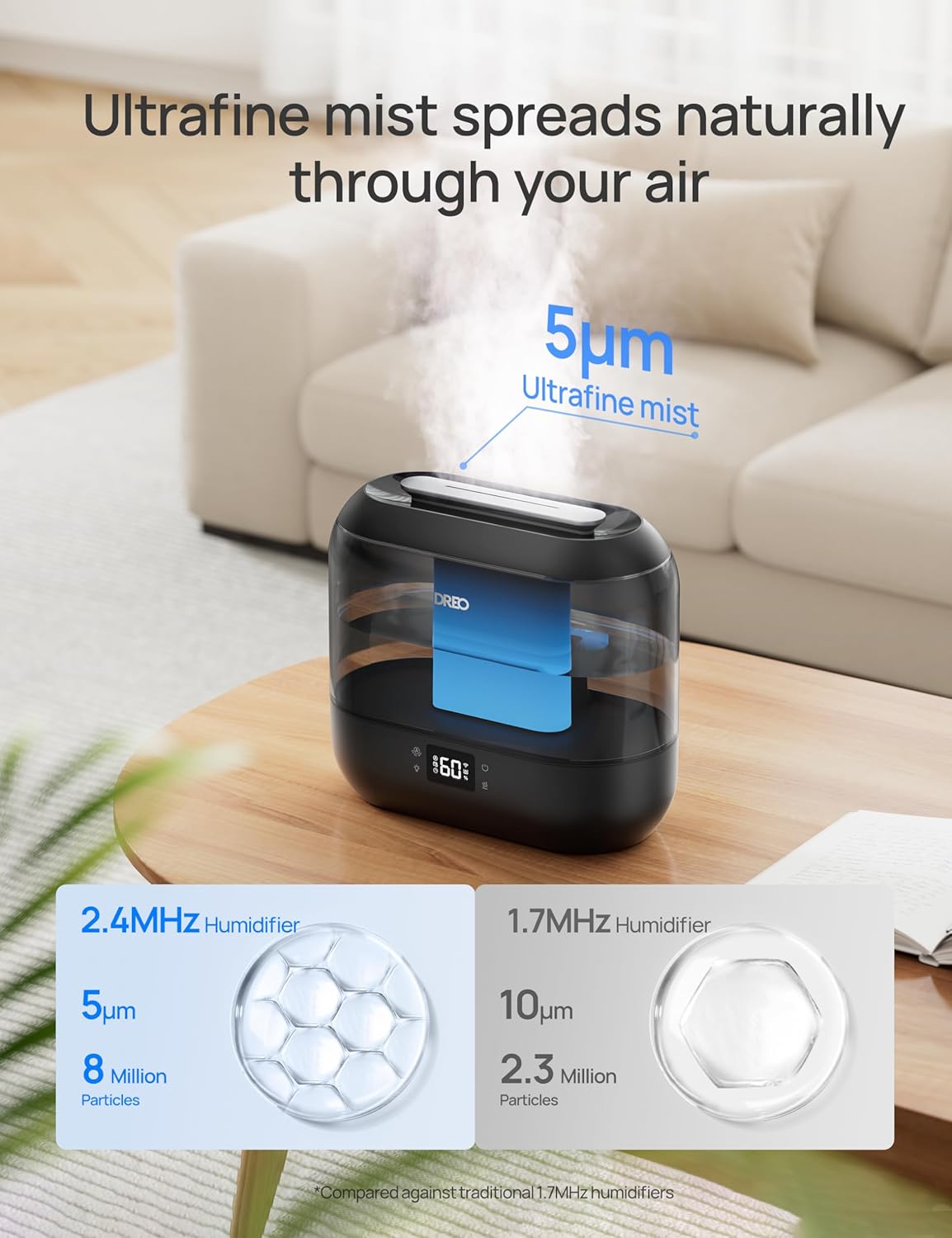
Figure 4.2: Detailed view of the humidifier's touch control panel and digital display.

Figure 4.3: The humidifier's modular design, illustrating how components can be separated for thorough cleaning.

Figure 4.4: Illustration of adding essential oils to the dedicated aroma pad for aromatherapy.
5. Setup Guide
- Placement: Place the humidifier on a flat, stable, and water-resistant surface at least 6 inches (15 cm) away from walls and furniture. Ensure good airflow around the unit.
- Fill Water Tank: Remove the top cover. Fill the 4L water tank directly from the top opening with clean, cool tap water or distilled water. Do not exceed the MAX fill line. Replace the top cover securely.

Figure 5.1: Easy top-fill design for convenient water replenishment.
- Power On: Plug the power cord into a grounded electrical outlet. The humidifier will enter standby mode.
- Initial Operation: Press the Power button on the control panel to turn on the humidifier. It will start operating in Auto mode by default.
- Connect to Dreo App (Optional):
- Download the "Dreo" app from the App Store or Google Play.
- Register or log in to your account.
- Follow the in-app instructions to add your Dreo Smart Humidifier. This typically involves putting the humidifier into pairing mode (refer to app for specific steps) and connecting it to your Wi-Fi network.

Figure 5.2: The humidifier can be easily controlled and monitored via the Dreo smartphone application.
6. Operating Instructions
Your Dreo Smart Humidifier offers multiple ways to control its functions:
6.1. Control Panel
- Power Button: Turns the humidifier On/Off.
- Mode Button: Cycles through operating modes: Auto, Manual, Sleep.
- Mist Level Button: In Manual mode, adjusts mist output (Low, Medium, High).
- Ambient Light Button: Toggles the ambient light On/Off.
- Timer Button: Sets a timer for automatic shut-off.
6.2. Dreo App Control
Once connected to the Dreo app, you can access advanced features:
- Remote Control: Adjust all settings (mist level, mode, timer, light) from anywhere.
- Precise Humidity Control: Set a target humidity level, and the humidifier will automatically adjust mist output to maintain it.
- Schedules: Create custom schedules for the humidifier to turn on/off or change settings at specific times.
- Ambient Light Customization: Adjust brightness and color of the ambient light.
- Notifications: Receive alerts for low water, cleaning reminders, or cartridge replacement.
6.3. Voice Control
The Dreo Smart Humidifier is compatible with Amazon Alexa and Google Assistant. After linking your Dreo account in the respective voice assistant app, you can use voice commands such as:
- "Alexa, turn on the humidifier."
- "Hey Google, set humidifier to Auto mode."
- "Alexa, turn off the humidifier light."
Video 6.1: An overview of the Dreo 4L Smart Humidifier for Bedroom, demonstrating its features and operation.
7. Maintenance and Cleaning
Regular cleaning is essential for optimal performance and hygiene. The modular design makes cleaning easy.
7.1. Daily Maintenance
- Empty and rinse the water tank daily.
- Refill with fresh water.
7.2. Weekly Cleaning
- Unplug the humidifier.
- Remove the water tank and empty any remaining water.
- Disassemble the modular components (refer to Figure 4.3).
- Clean the water tank and base with a soft cloth and mild detergent. For mineral buildup, use a 1:1 mixture of white vinegar and water. Let it soak for 20-30 minutes, then scrub gently and rinse thoroughly.
- Clean the atomizer (the small disc in the base) gently with the provided cleaning brush. Do not apply excessive force.
- Rinse all components thoroughly to remove any cleaning solution residue.
- Dry all parts completely before reassembling.
7.3. Cartridge Replacement
The humidifier is compatible with Dreo demineralization and clean mist cartridges (sold separately). The ICON light on the display will notify you when a cartridge needs replacing.
- Demineralization Cartridge: Reduces limescale and white dust. Search for "Dreo Demineralization Cartridge" to purchase.
- Clean Mist Cartridge: Helps generate healthier mist. Search for "Dreo Clean Mist Cartridge" to purchase.
8. Troubleshooting
| Problem | Possible Cause | Solution |
|---|---|---|
| No mist or low mist output | Lack of water; Mineral buildup on atomizer; Air intake blocked. | Refill water tank; Clean atomizer; Ensure air vents are clear. |
| Water leaking from base | Tank not seated correctly; Unit not on a flat surface; Excessive water. | Ensure tank is properly aligned; Place on a flat, stable surface; Do not overfill. Some users elevate the unit slightly for better airflow underneath. |
| Unpleasant odor from mist | Dirty water or tank; Mineral buildup. | Clean the water tank and base thoroughly; Use fresh water daily. |
| Humidifier not connecting to app | Incorrect Wi-Fi password; Humidifier too far from router; App issues. | Double-check Wi-Fi credentials; Move humidifier closer to router; Restart app and humidifier. |
| White dust around unit | Hard water used. | Use distilled water or a demineralization cartridge. |
9. Specifications
| Feature | Detail |
|---|---|
| Brand | Dreo |
| Model Name | Dreo Humidifier (DR-HHM001S Black) |
| Color | Black |
| Capacity | 4 Liters |
| Operation Mode | Ultrasonic Cool Mist |
| Runtime | Up to 32 hours (on Sleep Mode) |
| Noise Level | 28 dB |
| Control Method | App, Touch, Voice (Alexa/Google Assistant) |
| Floor Area Coverage | Up to 300 Square Feet |
| Product Dimensions | 11.02"D x 10.15"W x 5.51"H |
| Item Weight | 3.1 Pounds |
| Voltage | 120 Volts |
| Wattage | 25 watts |
| UPC | 850049246057 |
10. Warranty and Support
Dreo provides a limited warranty for this product. For detailed warranty information, please refer to the warranty card included in your package or visit the official Dreo website. If you encounter any issues or have questions regarding your humidifier, please contact Dreo Customer Support.
You can also refer to the official User Manual PDF for additional details: Download User Manual (PDF)
Ask a question about this manual
Ask about setup, troubleshooting, compatibility, parts, safety, or missing instructions. Manuals+ will review the question and use this page’s manual context to help answer it.