
1. Introduction
This manual provides detailed instructions for the installation, operation, and maintenance of your SECULINK C17-4MP Dual-Band WiFi Dome Security Camera. This camera is designed for outdoor surveillance, featuring 4MP resolution, pan/tilt/zoom capabilities, automatic tracking, human detection, and color night vision. Please read this manual thoroughly before use to ensure proper functionality and safety.
2. Package Contents
Verify that all items are present in your package:
- SECULINK C17-4MP Dome Security Camera
- Power Adapter (Charger)
- Mounting Screws and Wall Plugs
- Waterproof Kit for Network Cable (if applicable)
- Quick Start Guide
3. Product Overview
The SECULINK C17-4MP camera features a robust dome design suitable for outdoor environments. Key components include:
- Camera Lens: Captures video footage.
- Infrared LEDs: Provide illumination for night vision.
- White Light LEDs (Floodlight): Enhance color night vision and act as a deterrent.
- Microphone: For audio input and two-way communication.
- Speaker: For audio output and two-way communication.
- Antennas: For dual-band 2.4GHz/5GHz Wi-Fi connectivity.
- Micro SD Card Slot: Supports local storage up to 256GB.
- Reset Button: For factory reset.
- Power Port: DC 12V power input.

Image 3.1: Overview of the SECULINK C17-4MP camera and its mobile application interface.
4. Setup
4.1 App Download and Account Registration
- Download the SECUEYE mobile application from the App Store (iOS) or Google Play Store (Android).
- Open the app and follow the on-screen instructions to register a new account or log in if you already have one.
4.2 Powering On the Camera
Connect the provided power adapter to the camera's power port and plug it into an electrical outlet. The camera will initiate its self-test sequence, indicated by a rotating motion and status light changes.
4.3 Connecting to Wi-Fi
The SECULINK C17-4MP supports dual-band Wi-Fi (2.4GHz and 5GHz) for flexible network connectivity.
- Ensure your mobile device is connected to the same Wi-Fi network you intend to connect the camera to.
- In the SECUEYE app, tap the "Add Device" or "+" icon.
- Select your camera model or scan the QR code on the camera (if available).
- Follow the app's instructions to enter your Wi-Fi network name (SSID) and password.
- The app will guide you through the pairing process, which may involve scanning a QR code displayed on your phone with the camera lens or listening for an audio prompt.
- Once connected, the camera's status light will indicate a successful connection (refer to the app or quick start guide for specific light indicators).
4.4 Mounting the Camera
The camera is designed for wall mounting and is IP65/IP66 weatherproof, making it suitable for outdoor installation.
- Choose a suitable mounting location that provides the desired viewing angle and is within Wi-Fi range.
- Use the mounting template (if provided) or the camera base to mark the drill holes on the wall.
- Drill holes and insert the wall plugs.
- Secure the camera base to the wall using the provided screws.
- Attach the camera body to the base.
- Ensure all cable connections are secure and protected from weather using the waterproof kit if necessary.
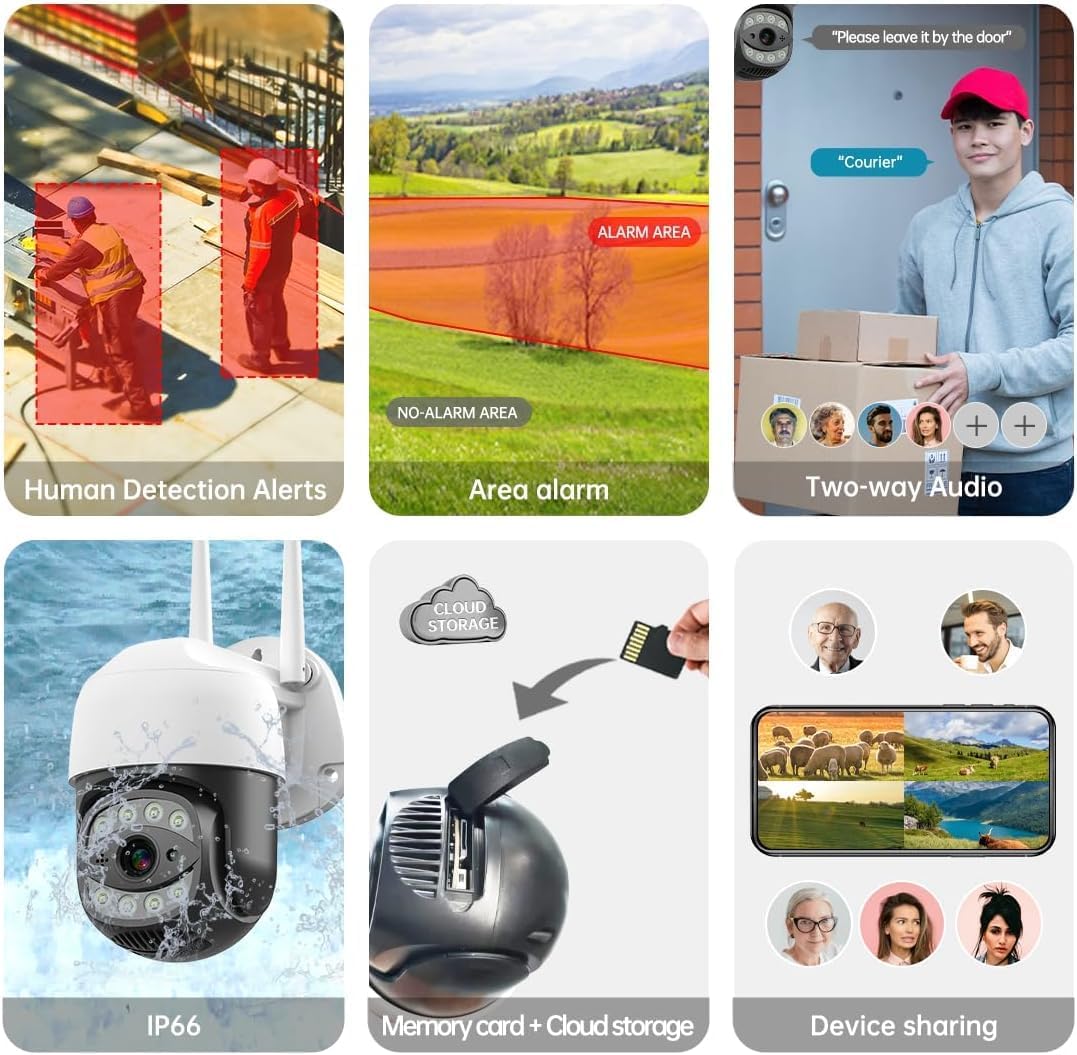
Image 4.1: The SECULINK C17-4MP camera is rated IP66 for dust and water resistance, suitable for various weather conditions.
5. Operating Instructions
5.1 Live View and Playback
Access the live video feed and review recorded footage through the SECUEYE app. The camera provides 4MP (2560x1440p) resolution for clear images.

Image 5.1: Visual comparison demonstrating the enhanced clarity of 5MP resolution over lower resolutions.
5.2 Pan, Tilt, and Digital Zoom (PTZ)
Control the camera's viewing angle remotely using the SECUEYE app. The camera offers:
- Horizontal Rotation: 335 degrees
- Vertical Tilt: 90 degrees
- Digital Zoom: 10x magnification
Use pinch-to-zoom gestures on your mobile device to digitally zoom in on specific areas of interest.

Image 5.2: Demonstrates controlling the camera's pan and tilt functions via the mobile app.

Image 5.3: Illustration of the 10x digital zoom feature, allowing closer inspection of details.
5.3 Automatic Tracking and Human Motion Detection
The camera features intelligent detection capabilities to enhance security monitoring.
- Automatic Tracking: When enabled, the camera will automatically detect and follow moving human figures within its field of view, recording their path.
- Human Motion Detection: Advanced algorithms distinguish human activity from other movements (e.g., pets, swaying branches), reducing false alarms.
- Alerts: Upon detection, the camera can send real-time alerts to your mobile phone.
- Floodlight and Sound Alarm: Built-in spotlights activate upon motion detection at night, and a security siren can be triggered as an additional deterrent.

Image 5.4: The camera's AI Humanoid Detection identifies human presence and sends alerts.

Image 5.5: The camera's automatic tracking capability follows detected human movement.

Image 5.6: Illustrates the camera's ability to differentiate human activity from other movements, reducing false alarms.
5.4 Night Vision Modes
The camera offers multiple night vision options for clear surveillance in low-light conditions:
- Infrared (IR) Night Vision: Uses IR LEDs to provide black and white video in complete darkness, with a range of up to 100ft (30m).
- Color Night Vision: Utilizes white light LEDs (floodlight) to capture full-color video at night when motion is detected or manually activated.
- Starlight Sensor: Enhances low-light performance to produce clearer images even without additional illumination.

Image 5.7: Demonstrates the different night vision modes: infrared (black and white), white light (color), and full-color night vision.

Image 5.8: The camera's infrared night vision provides visibility up to 20 meters in darkness.
5.5 Two-Way Audio
The built-in microphone and speaker allow for real-time two-way communication through the SECUEYE app. You can listen to audio from the camera's location and speak through the camera's speaker.
5.6 Storage Options
The camera supports two primary storage methods for recorded footage:
- Micro SD Card: Insert a Micro SD card (up to 256GB, sold separately) into the designated slot for local storage. The camera can record 24/7 or motion-triggered videos.
- Cloud Storage: Optional cloud storage services are available through the SECUEYE app for secure, remote backup of your recordings.
5.7 Device Sharing
You can share access to your camera's live feed and recordings with family members or trusted individuals through the SECUEYE app, allowing multiple users to monitor the property simultaneously.
6. Maintenance
To ensure optimal performance and longevity of your SECULINK C17-4MP camera, consider the following maintenance tips:
- Clean the Lens: Periodically wipe the camera lens with a soft, clean, lint-free cloth to remove dust, dirt, or water spots that may affect image clarity. Avoid abrasive cleaners.
- Check Power Connection: Ensure the power adapter and cable remain securely connected and free from damage, especially in outdoor environments.
- Firmware Updates: Regularly check the SECUEYE app for available firmware updates. Updates often include performance improvements, new features, and security enhancements.
- Inspect Mounting: Periodically check the camera's mounting for stability, especially after severe weather conditions.
7. Troubleshooting
If you encounter issues with your SECULINK C17-4MP camera, refer to the following common troubleshooting steps:
7.1 Camera Not Connecting to Wi-Fi
- Check Wi-Fi Signal: Ensure the camera is within range of your Wi-Fi router. Weak signals can cause connection issues.
- Verify Network Credentials: Double-check that the Wi-Fi network name (SSID) and password entered in the app are correct.
- Router Compatibility: Confirm your router supports 2.4GHz or 5GHz bands, and that the camera is attempting to connect to a compatible band.
- Restart Devices: Power cycle both your Wi-Fi router and the camera.
- Reset Camera: If issues persist, perform a factory reset on the camera (refer to the quick start guide for reset button location and procedure) and attempt the setup process again.
7.2 Poor Image Quality
- Clean Lens: Ensure the camera lens is clean and free from smudges or dirt.
- Network Bandwidth: A slow internet connection can affect live stream quality. Check your network speed.
- Lighting Conditions: Ensure adequate lighting for optimal image quality, especially for color night vision.
7.3 Motion Detection Not Working or Too Sensitive
- Adjust Sensitivity: In the SECUEYE app settings, adjust the motion detection sensitivity level.
- Detection Zones: Configure specific detection zones to monitor only relevant areas and exclude areas with frequent irrelevant motion (e.g., public roads, swaying trees).
- Check Schedule: Ensure motion detection is enabled for the desired time periods in the app.
7.4 No Recording to SD Card
- Insert SD Card Correctly: Ensure the Micro SD card is inserted properly into the slot.
- Format SD Card: Format the SD card through the camera settings in the SECUEYE app.
- Card Capacity/Health: Ensure the SD card is not full or corrupted. Try a different, known-good SD card if necessary.
- Recording Settings: Verify that continuous recording or motion-triggered recording is enabled in the app settings.
8. Specifications
| Feature | Specification |
|---|---|
| Model | C17-4MP |
| Resolution | 4MP (2560x1440p Max) |
| Image Sensor | CMOS |
| Focal Length | 3.6mm |
| Pan Rotation Angle | 335° Horizontal |
| Tilt Rotation Angle | 90° Vertical |
| Digital Zoom | 10x |
| Night Vision | IR-Cut, Starlight, LED (Color Night Vision) |
| Infrared Distance | Up to 100 feet (30 meters) |
| Audio | Built-in Microphone and Speaker (Two-Way Audio) |
| Water Resistance | IP65, IP66 (Waterproof) |
| Connectivity | Dual-Band Wi-Fi (2.4GHz/5GHz), Wired Ethernet |
| Storage | Micro SD Card (up to 256GB), Cloud Storage |
| Power | DC 12V, 9 Watts |
| Operating Temperature | -10°C to +50°C (14°F to 122°F) |
| App Compatibility | SECUEYE (iOS, Android) |
| Dimensions | 7 x 7 x 5 inches (Package) |
| Item Weight | 1.2 pounds |
9. Warranty and Support
For warranty information and technical support, please refer to the official SECULINK website or contact their customer service directly. Keep your purchase receipt as proof of purchase for warranty claims.
Manufacturer: SECULINK


