
SECULINK C17-2MP
SECUEYE C17-2MP Dome Camera User Manual
Model: C17-2MP | Brand: SECULINK
Introduction
This manual provides comprehensive instructions for the installation, operation, and maintenance of your SECUEYE C17-2MP Dome Camera. This advanced security camera is designed for outdoor use, offering high-definition video, intelligent features, and robust weather resistance to ensure reliable surveillance.
Product Overview
The SECUEYE C17-2MP Dome Camera is a versatile security solution featuring:
- Full HD 2MP: Produces brilliant 1080P video with crystal clear image quality. Advanced color night vision (premium LEDs and smart IR-Cut filter) ensures visibility up to 100ft (30m) even at night.
- Pan/Tilt/Zoom: Offers a wide viewing angle with horizontal 335-degree and vertical 90-degree rotation, plus 10x digital zoom. Easily controlled via the mobile app to view more details or a larger area.
- Floodlight and Sound Alarm: Built-in spotlights activate upon motion detection at night, complemented by a security siren for deterrence. Advanced human detection reduces false positives from moving cars or leaves.
- Automatic Tracking: Intelligently detects and tracks moving objects, automatically adjusting PTZ functions to follow them. Records tracking routes to a TF card and sends real-time alerts to your mobile phone.
- Dual-Band WiFi: Supports both 2.4 GHz and 5 GHz WiFi for optimal network performance. 2.4 GHz offers wider range, while 5 GHz ensures less interference, providing a high-speed and stable connection.
Package Contents
Verify that all items are present in your package:
- SECUEYE C17-2MP Dome Camera
- Charger
- Mounting Screws and Anchors
- User Manual (This document)
Setup Guide
1. Physical Installation
The camera is designed for wall mounting. Choose a location that provides optimal viewing coverage and is within range of your Wi-Fi network and a power outlet.

Image: The SECUEYE C17-2MP Dome Camera with its dual antennas, designed for wall mounting. A smartphone screen next to it shows the camera's live feed and 2.4G/5G Wi-Fi options.
- Prepare the Mounting Surface: Ensure the surface is stable and can support the camera's weight.
- Mark Drill Holes: Use the mounting template (if included) or the camera base to mark the positions for drilling.
- Drill Holes: Drill pilot holes and insert wall anchors if necessary.
- Secure the Camera: Attach the camera base to the wall using the provided screws.
- Connect Power: Plug the charger into the camera's power port and then into a power outlet.
2. Network Connection
The camera supports dual-band Wi-Fi (2.4 GHz and 5 GHz) for flexible connectivity.

Image: A visual representation of the camera's dual-band Wi-Fi capability, indicating support for both 2.4GHz and 5GHz networks for optimal performance.
- Download the App: Search for "SECUEYE" in your mobile device's app store (iOS or Android) and download the official application.
- Create an Account: Open the app and follow the on-screen instructions to register a new account.
- Add Device: Tap the "+" icon or "Add Device" option in the app. Select your camera model.
- Connect to Wi-Fi: Follow the app's prompts to connect the camera to your Wi-Fi network. This typically involves scanning a QR code displayed on your phone with the camera or entering Wi-Fi credentials.
- Wait for Connection: The camera will indicate a successful connection (e.g., a voice prompt or LED indicator change).
Operating Your Camera
1. Live View and PTZ Control
Access the live video feed and control the camera's pan, tilt, and zoom functions directly from the SECUEYE mobile app.

Image: A smartphone displaying the live view from the camera, with on-screen controls for panning (left/right arrows) and tilting (up/down arrows) the camera's view.
Pan/Tilt: Swipe your finger across the live view screen in the app to rotate the camera horizontally (335°) and vertically (90°).
Digital Zoom: Pinch to zoom in or out on the live view to get a closer look at details (up to 10x digital zoom).
2. Automatic Tracking
Enable automatic tracking to have the camera follow detected moving objects within its field of view.

Image: Two individuals in a backyard, with red boxes indicating the camera's human movement tracking capability, showing it can follow subjects.
When activated, the camera will automatically adjust its pan and tilt to keep the detected object centered in the frame. Tracking routes are recorded to the TF card, and alerts are sent to your mobile phone.
3. Human Detection and Alerts
The camera utilizes advanced AI to distinguish human motion from other movements, reducing false alarms.

Image: An illustration of the AI Humanoid Detection feature, showing a person highlighted in red within the camera's view, with an alarm bell icon indicating an alert.
Configure alert settings in the app to receive instant notifications on your mobile device when human activity is detected. You can customize alarm time periods and sensitivity.
4. Night Vision
The camera offers both infrared (IR) and full-color night vision modes for clear monitoring in low-light conditions.

Image: A three-panel comparison showing the camera's night vision capabilities: Infrared Light (monochrome), White Light (illuminated), and Full Color Night (with ambient light and floodlight activation).
IR Night Vision: Provides clear black-and-white video up to 100ft (30m) in complete darkness.
Color Night Vision: Activates built-in spotlights upon motion detection at night to provide full-color video.
5. Two-Way Audio
Communicate with visitors or deter intruders using the camera's built-in microphone and speaker.

Image: A graphic illustrating the two-way audio feature, showing a person at a door with a package and speech bubbles indicating communication with the camera user.
Tap the microphone icon in the app to speak, and listen through the speaker.
6. Storage Options
The camera supports both local and cloud storage for recorded footage.

Image: Icons representing memory card (TF card) and cloud storage options, indicating flexible recording solutions for the camera.
TF Card Storage: Insert a Micro SD card (up to 256GB, sold separately) into the designated slot on the camera for continuous or event-based recording.
Cloud Storage: Subscribe to the optional cloud storage service (sold separately) for secure, off-site backup of your video footage.
7. Device Sharing
Share access to your camera's live feed and recordings with family members or trusted individuals through the SECUEYE app.

Image: A graphic showing a smartphone screen with multiple camera feeds, surrounded by user profile icons, illustrating the device sharing capability.
Navigate to the sharing settings in the app and invite others to view your camera.
Maintenance
1. Cleaning
Regularly clean the camera lens and housing to ensure optimal image clarity and performance. Use a soft, damp cloth. Do not use harsh chemicals or abrasive cleaners.
2. Firmware Updates
Periodically check the SECUEYE app for available firmware updates. Keeping your camera's firmware up-to-date ensures the latest features, security enhancements, and bug fixes.
3. Weather Protection
The camera is IP65 waterproof, designed to withstand various weather conditions.
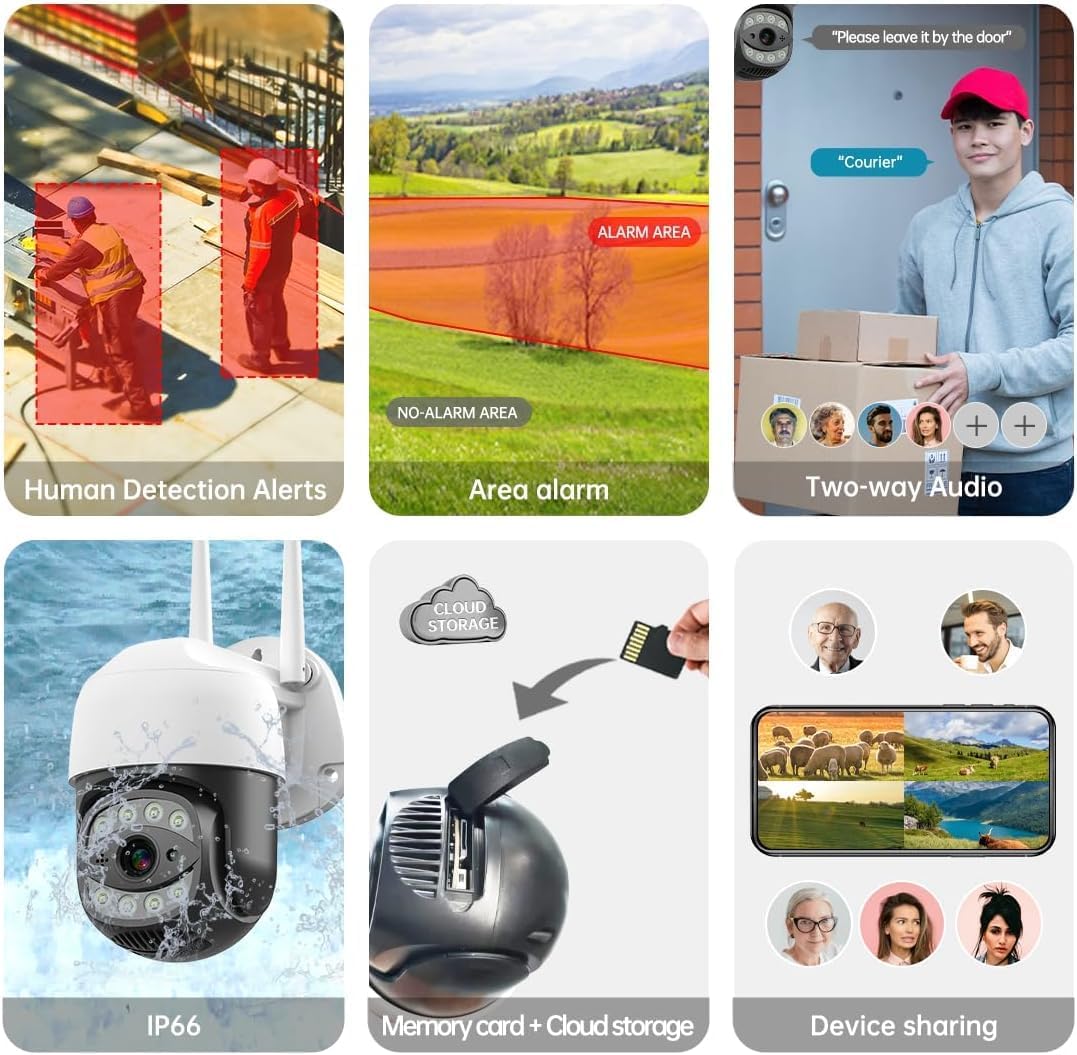
Image: The camera shown in a rainy outdoor environment, with icons indicating its waterproof, cold-proof, and sunscreen properties, highlighting its IP65 weather resistance.
While robust, avoid directing high-pressure water jets directly at the camera.
Troubleshooting
| Issue | Possible Cause | Solution |
|---|---|---|
| Camera fails to connect to Wi-Fi. | Incorrect Wi-Fi password; camera too far from router; router not dual-band compatible or 5GHz only selected. | Verify Wi-Fi password. Move camera closer to router. Ensure router supports 2.4GHz or select 2.4GHz band during setup. Reset camera and try again. |
| Poor image quality. | Dirty lens; low network bandwidth; insufficient lighting. | Clean the camera lens. Ensure stable Wi-Fi connection. Activate color night vision or add external lighting if needed. |
| Frequent false alarms. | Sensitivity too high; non-human motion triggering alerts (e.g., pets, trees). | Adjust motion detection sensitivity in the app. Utilize human detection feature to filter out irrelevant motion. |
| No recording to TF card. | TF card full or corrupted; incorrect recording settings. | Format or replace the TF card. Check recording schedule and settings in the app. |
Technical Specifications
| Feature | Specification |
|---|---|
| Model | C17-2MP |
| Resolution | 2MP (1920x1080p Max) |
| Pan/Tilt Range | Horizontal 335°, Vertical 90° |
| Digital Zoom | 10x |
| Night Vision Range | Up to 100ft (30m) |
| Connectivity | Dual-Band Wi-Fi (2.4GHz/5GHz), Wired Ethernet |
| Storage Options | Micro SD Card (up to 256GB), Cloud Storage |
| Water Resistance | IP65 |
| Power Source | DC 12V |
| Operating Temperature | -10°C to +50°C (14°F to 122°F) |
| App Compatibility | SECUEYE (iOS, Android) |
Warranty and Support
For warranty information and technical support, please refer to the official SECULINK website or contact their customer service directly. Keep your purchase receipt for warranty claims.
Manufacturer: SECULINK
Website: Visit the SECULINK Store on Amazon
Related documentsC17-2MP


Ask a question about this manual
Ask about setup, troubleshooting, compatibility, parts, safety, or missing instructions. Manuals+ will review the question and use this page’s manual context to help answer it.