1. Introduction
This manual provides essential instructions for the safe operation, setup, and maintenance of your Holy Stone HS720R GPS Drone. Please read this manual thoroughly before operating the drone to ensure proper function and to prevent damage or injury. Retain this manual for future reference.
2. Package Contents
Verify that all items listed below are present in your package. If any components are missing or damaged, please contact Holy Stone customer support.
- Holy Stone HS720R Drone
- Remote Controller
- Intelligent Flight Battery
- USB Charging Cable
- Spare Propellers (set)
- Screwdriver
- Carrying Case
- User Manual (this document)

3. Setup
3.1 Battery Charging and Installation
- Charge the Flight Battery: Connect the intelligent flight battery to the USB charging cable and plug it into a suitable USB power adapter (not included). The battery indicator lights will show charging status. Ensure the battery is fully charged before each flight.
- Install the Flight Battery: Insert the fully charged battery into the drone's battery compartment until it clicks securely into place.
- Charge the Remote Controller: Connect the remote controller to a USB power source using its charging cable. The indicator lights will show charging status.
3.2 Propeller Installation
The propellers are marked A and B. Match the propellers to the corresponding motor arms (A to A, B to B). Use the provided screwdriver to securely attach the propellers.
3.3 Remote Controller and Mobile Device Setup
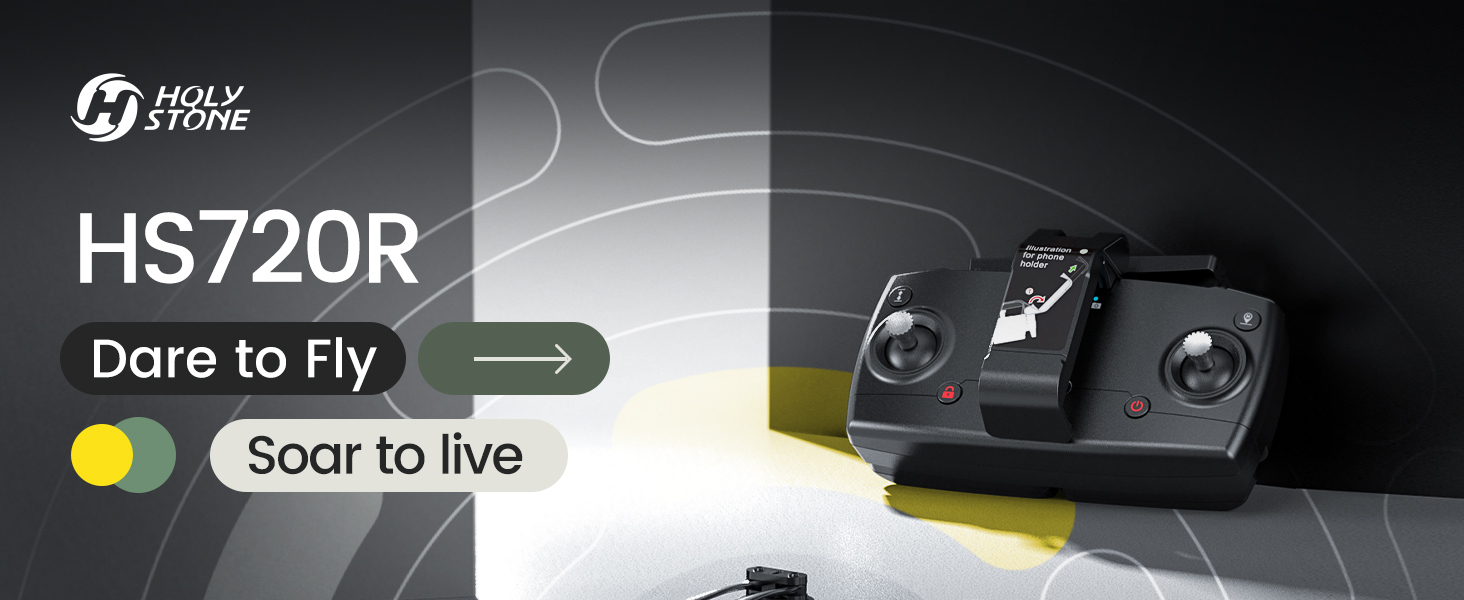
- Unfold the Remote Controller: Extend the phone holder and antennas on the remote controller.
- Mount Mobile Device: Place your smartphone securely into the phone holder on the remote controller.
- Install Ophelia FLY App: Download and install the 'Ophelia FLY' application from your mobile device's app store.
- Connect to Drone: Power on the drone and the remote controller. Open the Ophelia FLY app and follow the on-screen instructions to connect your mobile device to the drone's Wi-Fi network.
3.4 Pre-Flight Calibration
Before each flight, especially when flying in a new location, perform compass and gyroscope calibration as instructed in the Ophelia FLY app. This ensures accurate flight stability and GPS functionality.
3.5 Flight Environment Considerations
Always fly in open areas, away from obstacles, people, and animals. Avoid flying in strong winds (the drone has Level-6 wind resistance, but calm conditions are ideal for beginners), rain, or extreme temperatures. Ensure compliance with local aviation regulations, including FAA registration if required in your region.
4. Operating Instructions
4.1 Basic Flight Controls
- One-Key Take-off/Landing: Press the dedicated button on the remote controller or in the app for automatic take-off and landing.
- Altitude Hold: The drone maintains a stable altitude automatically, allowing for easier control of horizontal movement.
- Directional Control: Use the joysticks on the remote controller to control the drone's ascent/descent, forward/backward, and left/right movements.

4.2 GPS Intelligent Flight Modes
The HS720R utilizes an advanced GPS positioning system for enhanced flight stability and intelligent features.
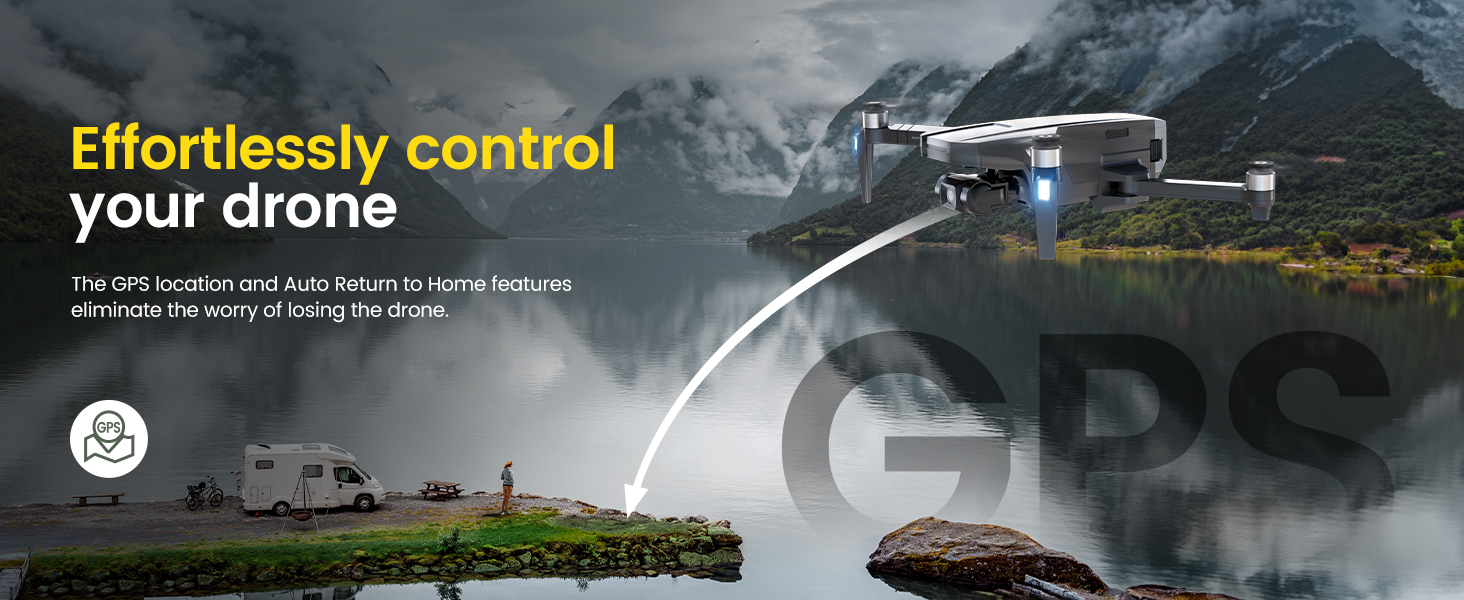
- Auto Return to Home (RTH): The drone will automatically return to its take-off point if the battery is low, connection is lost, or the RTH button is pressed. Ensure a clear return path.
- Follow Me: The drone will automatically follow the remote controller or mobile device, capturing footage as you move.
- Waypoint Flight: Plan a custom flight path by tapping points on the map within the Ophelia FLY app. The drone will fly along the designated route.
- Point of Interest: Select a central point on the map, and the drone will circle around it at a specified radius and altitude, capturing panoramic footage.
- TapFly: Tap a destination on the map in the app, and the drone will fly directly to that point.


4.3 Camera Operation
The HS720R features a 4K EIS camera with a 3-axis gimbal for stable, high-quality aerial photography and videography.
- Photo/Video Capture: Use the dedicated buttons on the remote controller or the Ophelia FLY app interface to capture 4K photos (3840x2160P with TF card) and 4K@30fps HD videos.
- 3-Axis Gimbal: The gimbal stabilizes the camera, reducing shake and blur for smooth footage.
- EIS (Electronic Image Stabilization): Further enhances video stability.
- Time-lapse Photography: Utilize the app to set up time-lapse sequences for creative video content.

5. Maintenance
5.1 Cleaning
Regularly clean the drone, propellers, and camera lens with a soft, dry cloth. Avoid using liquids or solvents that could damage electronic components.
5.2 Battery Care
- Do not overcharge or over-discharge the battery.
- Store batteries in a cool, dry place, away from direct sunlight and extreme temperatures.
- If storing for extended periods, charge the battery to approximately 50-60% capacity.
5.3 Propeller Replacement
Inspect propellers for cracks, bends, or damage before each flight. Replace damaged propellers immediately using the spare parts and screwdriver provided. Ensure correct A/B propeller placement.
5.4 Storage
When not in use, store the drone and its accessories in the provided carrying case to protect them from dust and physical damage.
6. Troubleshooting
This section addresses common issues you might encounter with your HS720R drone.
| Problem | Possible Cause | Solution |
|---|---|---|
| Drone does not power on | Battery not charged or improperly installed. | Ensure battery is fully charged and correctly inserted. |
| Unable to connect to app/remote | Wi-Fi not enabled, incorrect network, or interference. | Check Wi-Fi settings, ensure connection to drone's network. Restart drone and remote. |
| Unstable flight/Drifting | Improper calibration, strong winds, or GPS signal issues. | Perform compass and gyroscope calibration. Fly in calm conditions. Ensure strong GPS signal. |
| Poor image/video quality | Dirty lens, insufficient lighting, or camera settings. | Clean camera lens. Adjust camera settings in the app. Ensure adequate lighting. |
| Auto Return to Home not working | Weak GPS signal or RTH point not set. | Ensure strong GPS signal (at least 7-8 satellites). Confirm RTH point is recorded before take-off. |
For further assistance, refer to the official Holy Stone support resources or contact customer service.
7. Specifications
Key technical specifications for the Holy Stone HS720R drone:
| Feature | Detail |
|---|---|
| Brand | Holy Stone |
| Model Name | HS720R |
| Camera | 4K EIS Camera with 3-Axis Gimbal, 140° Wide-angle, 70° Adjustable |
| Video Capture Resolution | 4K (3840x2160P Photos, 4K@30fps Videos) |
| Sensor Technology | 1/3'' CMOS Sony Sensor |
| Connectivity Technology | Wi-Fi Repeater (5G FPV Transmission) |
| Maximum Transmission Range | 10,000 Feet (approx. 3000 Meters) |
| Flight Time | Up to 26 minutes (with 2950mAh Modular Battery) |
| Battery Capacity | 2950 Milliamp Hours (Lithium Polymer) |
| Control Type | Remote Control |
| Item Weight | 13.7 Ounces |
| Product Dimensions | 12"L x 9.3"W x 2.7"H |
| Material | Plastic |
| Skill Level | Advanced |
8. Warranty and Support
8.1 Warranty Information
For details regarding the product warranty, please refer to the documentation included with your purchase or visit the official Holy Stone website. Standard warranty terms typically cover manufacturing defects.
8.2 Customer Support
If you encounter any issues or have questions about your Holy Stone HS720R drone, please contact Holy Stone customer support. They are available to assist with troubleshooting, parts replacement, and general inquiries.
- Online Resources: Visit the Holy Stone Store on Amazon for product information and support.
- User Guides: Additional user guides and safety information are available in PDF format: Safety Information (PDF), User Guide (PDF), User Manual (PDF).


