1. Introduction
Thank you for choosing the Feegow Tuya Smart WiFi Thermostat. This device is designed to provide precise and convenient temperature control for your home's heating system, including water floor heating and boiler systems. By integrating with the Tuya Smart app, it offers remote control and intelligent energy-saving features, enhancing your comfort and efficiency. Please read this manual carefully before installation and operation to ensure proper use and optimal performance.
2. Key Features
- High-Precision Temperature Control: Advanced technology monitors ambient temperature in real-time and precisely adjusts the heating system for a comfortable environment.
- Convenient Remote Control: Manage your thermostat from anywhere, anytime, using the TUYA smart application on your mobile device.
- Clear Blue Backlit LCD Screen: Displays ambient temperature, set temperature, and other useful information clearly, day or night.
- Multiple Energy-Saving Modes: Features like on/off scheduling and intelligent detection help minimize energy waste and reduce utility bills.
- Wide Application Scenario: Suitable for various indoor floor heating systems in homes, offices, hotels, and other settings.
3. Product Overview
The Feegow Tuya Smart WiFi Thermostat (Model BHT-008) combines modern design with smart functionality. It features a sleek appearance and intuitive controls.

Figure 3.1: Front view of the Feegow Tuya Smart WiFi Thermostat (BHT-008).
3.1 Design and Components
The thermostat is constructed with a durable PC+ABS flame-retardant shell. It features sensitive capacitive touch buttons for easy interaction and a snap-on disassembly design for straightforward installation and maintenance.

Figure 3.2: Detailed view highlighting the PC+ABS shell, snap-on disassembly mechanism, and sensitive touch buttons.
The thermostat is available in classic white and black color schemes to complement various interior designs. It also features a 2.5D rounded corner, borderless design for a modern aesthetic.

Figure 3.3: The thermostat is offered in both white and black finishes.

Figure 3.4: The sleek 2.5D rounded corner, borderless design of the thermostat.
4. Technical Specifications
Below are the detailed technical specifications for the Feegow Tuya Smart WiFi Thermostat:

Figure 4.1: Detailed product parameters and dimensional drawing.
| Power Supply | 95 ~ 240 VAC, 50 ~ 60 Hz or 24 V DC/AC, 50 ~ 60 Hz |
| Current Load | 5A (Water Heating, Gas Boiler), 16A (Electric Heating) |
| Sensor | NTC3950, 10 K |
| Accuracy | ± 0.5 °C |
| Set Temperature Range | 5 - 35 °C |
| Room Temperature Range | 5 - 99 °C |
| Display Temperature Range | 5 - 99 °C |
| Ambient Temperature | 0 - 45 °C |
| Ambient Humidity | 5 - 95 % RH (Non-condensing) |
| Storage Temperature | -5 - 45 °C |
| Power Consumption | <1.5W |
| Timing Error | <1% |
| Shell Material | PC + ABS (Flame Retardant) |
| Installation Box | 86 x 86 mm Square or European 60 mm Round |
| Wire Terminals | 2 x 1.5 mm² or 1 x 2.5 mm² |
| Protection Class | IP20 |
| Buttons | Capacitive Touch Buttons |
| Product Dimensions (L x W x H) | 11 x 11 x 6 cm |
| Voltage | 240 Volts |
| Backlight | Yes |
5. Installation
Important Safety Notice: Installation should only be performed by a qualified electrician. Ensure the main power supply is turned OFF before beginning any installation work to prevent electric shock.

Figure 5.1: Visual guide for the thermostat installation process.
- Step 1: Power Off. Ensure the main power supply to your heating system is completely turned off at the circuit breaker. (Refer to Fig 1 in the image above).
- Step 2: Remove Mounting Plate. Gently push the display assembly to detach it from the mounting plate. (Refer to Fig 2).
- Step 3: Connect Power Supply and Load. Connect the power supply wires and load wires to the appropriate terminals on the mounting plate. Ensure all connections are secure and follow local electrical codes. (Refer to Fig 3 for wiring details).
- Step 4: Fix Mounting Plate. Secure the mounting plate to the wall using the screws provided in the box. Ensure it is firmly attached. (Refer to Fig 4).
- Step 5: Fix Thermostat Body. Align the thermostat body with the mounting plate and snap it into place. Ensure it clicks securely. (Refer to Fig 5).
- Step 6: Installation Complete. The thermostat is now physically installed. You can restore power to the heating system. (Refer to Fig 6).
5.1 Wiring Your Thermostat
The wiring terminals are located on the back of the mounting plate. Please refer to the diagram on the mounting plate and consult a qualified electrician for correct wiring based on your specific heating system (water heating, gas boiler, or electric heating). Verify the voltage information printed on the back of the thermostat for actual voltage requirements (95~240 VAC or 24 V DC/AC).
6. Operation
The thermostat features a clear LCD display and intuitive touch buttons for easy operation. The clock of the WiFi version thermostat will synchronize within 1 hour after the device is connected to the Internet for the first time. Relevant information will be synchronized every hour thereafter.
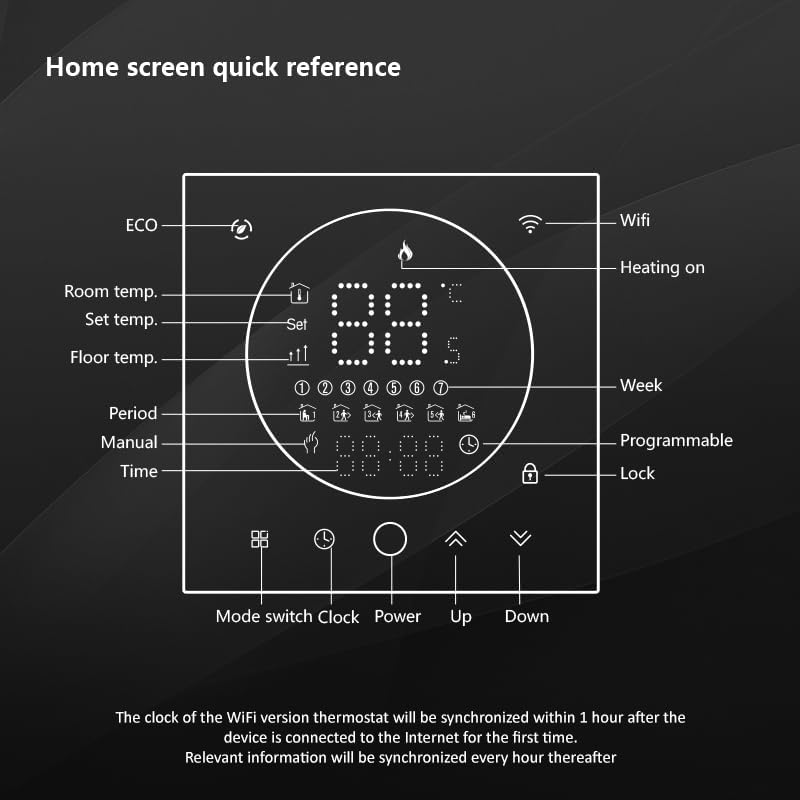
Figure 6.1: Quick reference guide for the thermostat's home screen display and button functions.
6.1 Display Icons and Indicators
- ECO: Economy mode indicator.
- Room Temp.: Displays the current ambient room temperature.
- Set Temp.: Displays the desired target temperature.
- Floor Temp.: (If applicable) Displays the current floor temperature.
- Period: Indicates the current programming period.
- Manual: Indicates manual operating mode.
- Time: Displays the current time.
- WiFi: WiFi connection status indicator.
- Heating On: Indicates when the heating system is active.
- Week: Displays the current day of the week.
- Programmable: Indicates programmable mode is active.
- Lock: Child lock or keypad lock indicator.
6.2 Button Functions
- Mode Switch Button: Toggles between different operating modes (e.g., Manual, Auto/Programmable).
- Clock Button: Used to set the time or access scheduling functions.
- Power Button: Turns the thermostat on or off.
- Up Button: Increases the set temperature or navigates menu options.
- Down Button: Decreases the set temperature or navigates menu options.
6.3 Remote Control via Tuya App
The Feegow thermostat can be controlled remotely using the Tuya Smart app. Download the app from your device's app store (available on App Store and Google Play). Follow the in-app instructions to connect your thermostat to your home WiFi network and link it to your Tuya account. This allows you to adjust settings, monitor temperatures, and manage schedules from anywhere.
7. Energy Saving Modes
The thermostat offers several energy-saving features to help optimize heating and reduce energy consumption:
- Programmable Schedules: Set custom heating schedules for different times of the day and days of the week to match your routine and avoid unnecessary heating.
- ECO Mode: Activate economy mode for reduced heating during periods when lower temperatures are acceptable.
- Intelligent Detection: The thermostat can learn your habits and optimize heating patterns, or detect open windows/doors to temporarily pause heating, preventing energy waste.
8. Maintenance
To ensure the longevity and optimal performance of your Feegow Tuya Smart WiFi Thermostat, follow these simple maintenance guidelines:
- Cleaning: Wipe the thermostat's screen and body with a soft, dry, or slightly damp cloth. Do not use abrasive cleaners, solvents, or chemical sprays, as these can damage the surface or internal components.
- Avoid Obstructions: Ensure that the thermostat is not covered by furniture, curtains, or other objects that could obstruct its temperature sensor, leading to inaccurate readings.
- Regular Checks: Periodically check the wiring connections to ensure they remain secure. If you notice any loose connections or damage, consult a qualified electrician.
9. Troubleshooting
If you encounter issues with your thermostat, refer to the following common problems and solutions:
- No Power/Display Off:
- Check the circuit breaker to ensure power is supplied to the thermostat.
- Verify that the wiring connections are secure and correct.
- Incorrect Temperature Reading:
- Ensure the thermostat is not exposed to direct sunlight, drafts, or heat sources that could affect its sensor.
- Make sure the thermostat is not covered or obstructed.
- Heating Not Turning On/Off:
- Check if the thermostat is in the correct operating mode (e.g., Manual or Programmable).
- Verify that the set temperature is higher (for heating) than the current room temperature.
- Check the wiring connections to the heating system.
- WiFi Connectivity Issues:
- Ensure your home WiFi network is active and the signal strength is adequate at the thermostat's location.
- Restart your home router and the thermostat.
- Follow the pairing instructions in the Tuya Smart app carefully.
- Buttons Unresponsive/Screen Locked:
- Check if the child lock or keypad lock function is activated (look for a lock icon on the display). Refer to the operation section to unlock.
- Try restarting the thermostat by temporarily cutting power at the circuit breaker.
If problems persist after attempting these solutions, please contact customer support for further assistance.
10. Safety Information
- Always disconnect power at the circuit breaker before installing or servicing the thermostat.
- Installation should be carried out by a qualified electrician in accordance with local electrical codes and regulations.
- Do not expose the thermostat to water or excessive humidity.
- Do not attempt to disassemble or repair the thermostat yourself. This may void the warranty and pose safety risks.
- Keep the device out of reach of children.