
1. Introduction
This manual provides essential instructions for the safe and effective operation of your Dpofirs 8K Digital Camera. Please read this manual thoroughly before using the camera and retain it for future reference.
The Dpofirs 8K Digital Camera is a compact device designed for high-resolution photography and videography. It features an 8K video recording capability, 68MP image resolution, a 2.7-inch display, 16X digital zoom, and various built-in beauty filters. Its dual-screen design supports convenient vlogging and selfies.

Image 1.1: Dpofirs 8K Digital Camera showcasing its features like 8K HD Video, 68MP, 2.7-inch screen, anti-shake, 16X zoom, auto delayed photography, filters, and connect & print.
2. Package Contents
Verify that all items listed below are included in your package:
- 1 x Digital Camera
- 1 x Data Cable (USB)
- 1 x User Manual
- 1 x Lithium Battery (BL-5B, 750mAh)
- 1 x Storage Bag
- 1 x Wrist Strap

Image 2.1: The camera comes with a wrist strap, USB data cable, BL-5B lithium battery, and a grey storage pouch.
3. Camera Components
Familiarize yourself with the main parts of your camera:

Image 3.1: Rear view of the camera, highlighting the display screen, navigation buttons (OK/FUNC, Up, Down, Left, Right), Menu button, Filter button, Playback button, and Zoom (W/T) buttons.
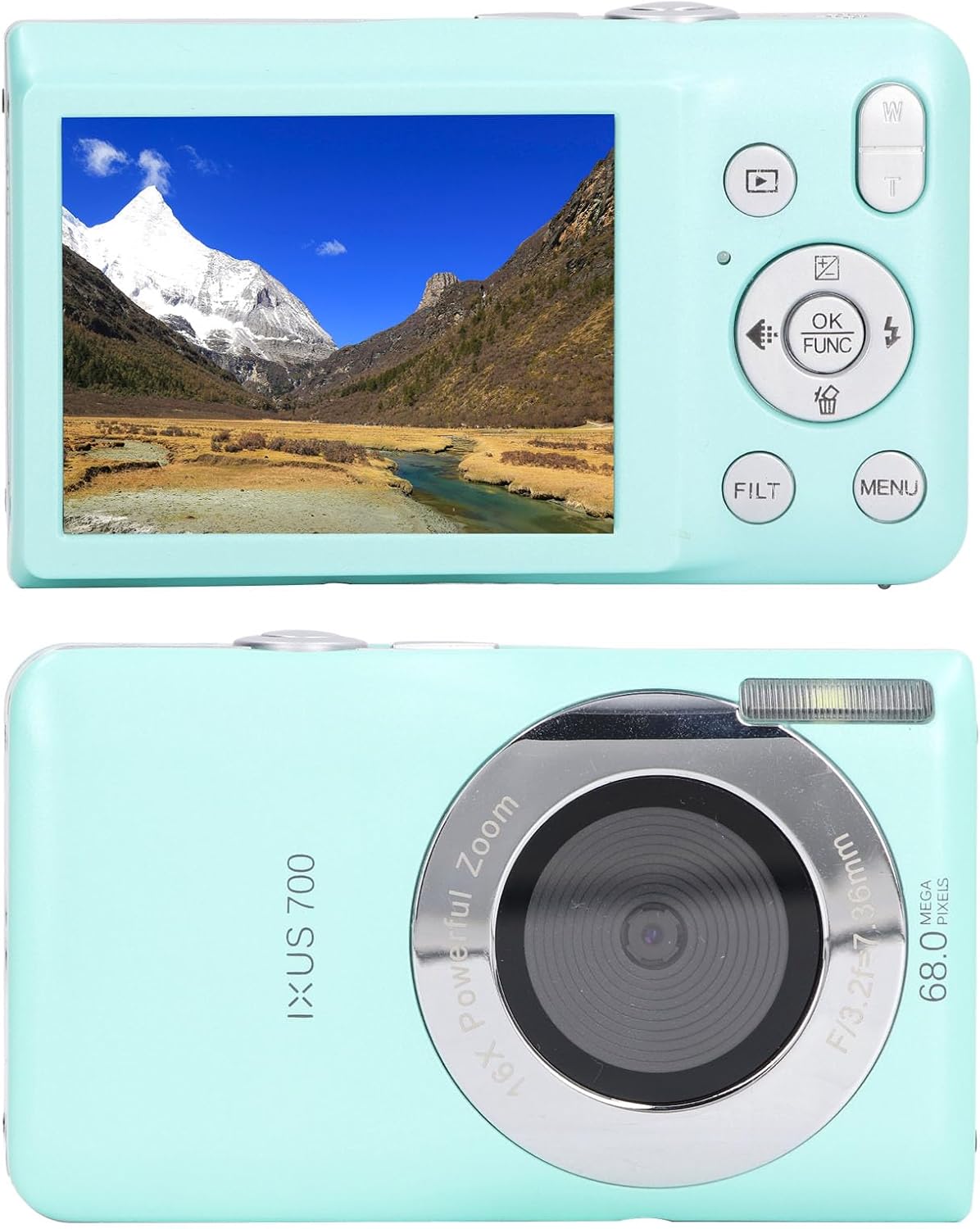
Image 3.2: Front view showing the camera lens, flash, and microphone. Rear view shows the screen and control buttons.
4. Setup
4.1. Battery Installation
- Open the battery compartment cover located on the bottom of the camera.
- Insert the BL-5B lithium battery, ensuring the correct polarity (+/-) as indicated inside the compartment.
- Close the battery compartment cover until it clicks securely.
4.2. Storage Card Installation
The camera supports up to a 32GB storage card (not included).
- Locate the memory card slot, usually next to the battery compartment.
- Insert the storage card with the metal contacts facing the correct direction until it clicks into place.
- To remove, gently press the card until it springs out.

Image 4.1: The bottom of the camera features a USB port, a tripod mount, and the access panel for the battery and storage card.
4.3. Charging the Battery
Connect the camera to a power source using the provided USB data cable. The charging indicator light will show the charging status.
5. Operating Instructions
5.1. Power On/Off
Press and hold the power button (usually located on the top or side) to turn the camera on or off.
5.2. Photo and Video Modes
The camera supports both still photography and 8K high-definition video recording.
- Switching Modes: Use the mode button (if available) or navigate through the menu to select between photo and video modes.
- Taking Photos: In photo mode, frame your shot and press the shutter button to capture an image. The 68MP resolution ensures exquisite image quality.
- Recording Videos: In video mode, press the shoot button to start recording. Press the M key to temporarily pause recording, and press it again to resume. Press the shoot button to stop recording.

Image 5.1: The camera supports HD video recording.

Image 5.2: Capture vivid pictures with 68MP resolution.
5.3. Digital Zoom
The camera features 16X digital zoom. Use the T (Telephoto) button to zoom in and the W (Wide) button to zoom out. This is useful for capturing both close-up and distant scenes.
5.4. Portrait and Selfie Functions
The camera automatically detects facial expressions for accurate focusing. It supports auto-delayed photography with options for 2s, 5s, and 10s delays. Face recognition and smile detection features help capture optimal moments. Two shutter release buttons allow for comfortable operation with either hand.

Image 5.3: Features like self-timer, compact design, continuous shooting, and fill light enhance the photography experience.
5.5. Beauty Filters
Enhance your photos with 20 built-in beauty filters. Access these filters via the "FILT" button or through the camera menu to adjust beauty and selfie effects, adding a unique touch to your images.
5.6. Connecting to a Computer and Printing
Easily connect the camera to a computer using the provided USB data cable. Once connected, you can transfer photos for instant printing. The camera also allows for cropping or rotating photos before printing.

Image 5.4: The camera offers versatile connectivity options, including a 4-in-1 interface for connecting to computers.
6. Maintenance
- Cleaning: Use a soft, dry cloth to clean the camera body. For the lens, use a specialized lens cleaning cloth and solution. Avoid harsh chemicals.
- Storage: Store the camera in a cool, dry place away from direct sunlight and extreme temperatures. If storing for extended periods, remove the battery.
- Battery Care: Do not expose the battery to high temperatures. Charge the battery regularly, even if not in use, to maintain its lifespan.
7. Troubleshooting
| Problem | Possible Cause | Solution |
|---|---|---|
| Camera does not power on. | Battery is low or not inserted correctly. | Charge the battery or re-insert it correctly. |
| Cannot take photos/record videos. | Storage card is full or not inserted. | Insert a storage card or delete unnecessary files. |
| Images are blurry. | Lens is dirty or insufficient lighting. | Clean the lens. Ensure adequate lighting or use flash if available. |
| Camera freezes. | Software glitch. | Remove and re-insert the battery to reset the camera. |
8. Specifications
| Feature | Detail |
|---|---|
| Image Resolution | 68MP, 56MP, 48MP, 30MP, 24MP, 20MP, 18MP, 16MP, 12MP, 8MP, 7MP, 5MP |
| Video Resolution | 7680x4320 8K, 3840x2160 4K, 1920x1080 FHD, 1280x720 HD |
| Screen Size | 2.7 inches |
| Digital Zoom | 16X |
| Battery | BL-5B 750mAh Lithium Battery |
| Storage | Supports up to 32GB storage card (not included) |
| Image Format | JPEG |
| Video Format | AVI |
| Auto Focus | Supported |
| Weight | Approx. 250g / 8.8oz |
| Model Number | Dpofirsydte0i1qw2-13 |
| Brand | Dpofirs |
9. Official Product Video
Video 9.1: An official product video demonstrating the Dpofirs 8K Digital Camera, showcasing its design and features.
10. Warranty and Support
For warranty information and customer support, please refer to the documentation included with your product or visit the official Dpofirs website. Keep your purchase receipt as proof of purchase.
Contact Information: Refer to your product packaging or the manufacturer's website for the most current support contact details.