
1. Introduction
This manual provides detailed instructions for the setup, operation, maintenance, and troubleshooting of your Machenike K500-B94 Mechanical Keyboard. Please read this manual thoroughly before using the product to ensure proper functionality and longevity.
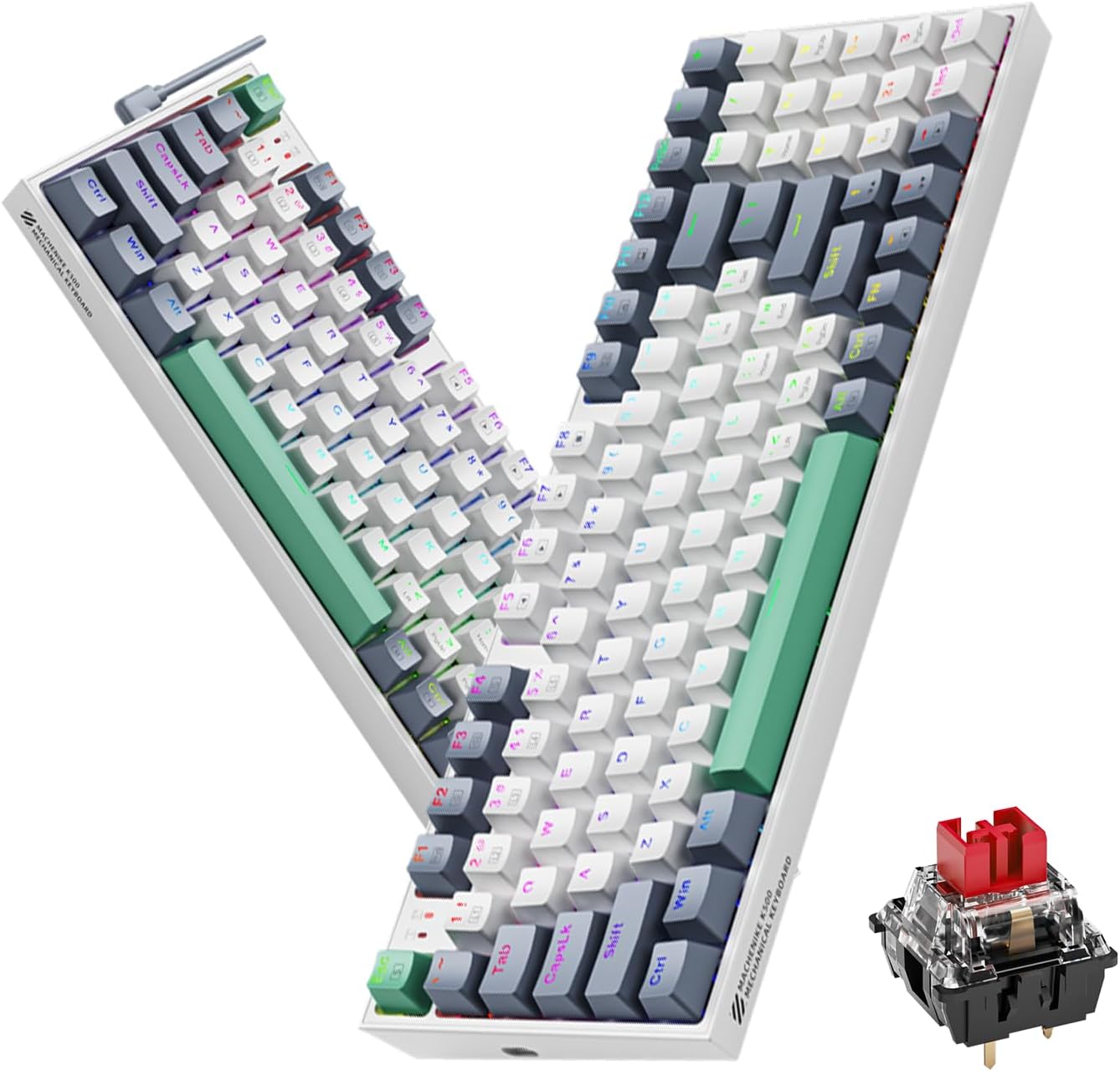
Image 1.1: The Machenike K500-B94 Mechanical Keyboard, showcasing its compact layout and a detailed view of a hot-swappable mechanical switch.
2. Package Contents
Verify that all items are present in the package:
- Machenike K500-B94 Mechanical Keyboard
- Detachable Type-C USB Cable
- Keycap Puller (for hot-swappable switches)
- Switch Puller (for hot-swappable switches)
- User Manual (this document)
3. Setup Instructions
- Unpack the Keyboard: Carefully remove the keyboard and all accessories from the packaging.
- Connect the USB Cable: Insert the Type-C end of the provided USB cable into the port on the keyboard. Connect the standard USB-A end to an available USB port on your computer (PC, Desktop, All-in-one, or Notebook).
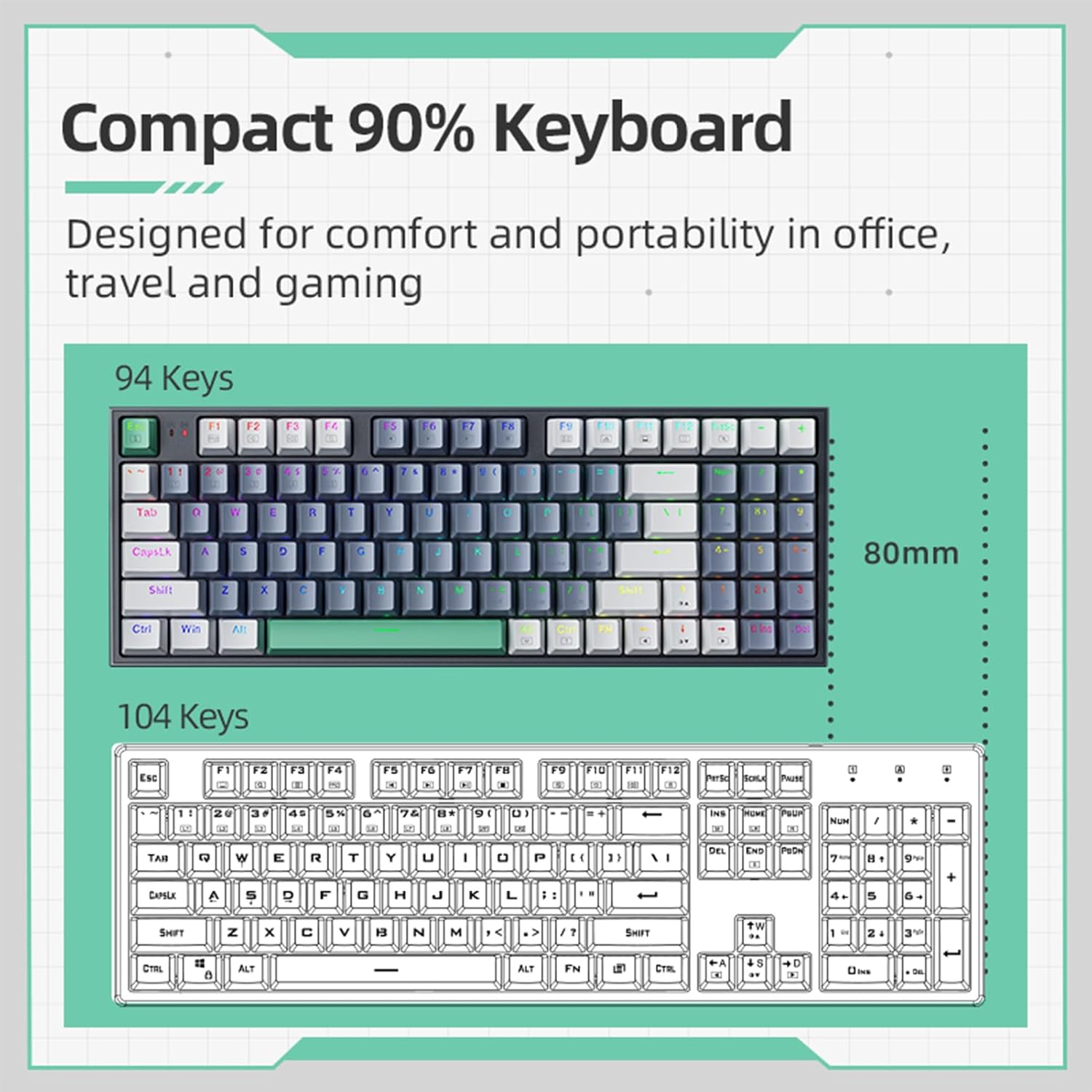
Image 3.1: Illustration of the detachable Type-C USB cable connection to the keyboard, highlighting its compatibility with various devices.
- Driver Installation: The keyboard is plug-and-play. Your operating system will automatically detect and install the necessary drivers. No additional software installation is required for basic functionality.
- Optional Software Installation: For advanced customization of RGB lighting and macros, download the official Machenike K500-B94 software from the official Machenike website.
4. Operating Instructions
4.1. Basic Keyboard Functions
The Machenike K500-B94 features a 94-key layout, providing a compact yet functional experience. All standard keyboard functions operate as expected.

Image 4.1: A visual representation of the Machenike K500-B94's 94-key compact layout, designed for comfort and portability.
4.2. RGB Lighting Control
The keyboard features customizable RGB backlighting. Use the dedicated function keys or the optional software to adjust lighting effects, brightness, and color.
- Brightness Adjustment: Typically, use Fn + Up/Down Arrow keys.
- Effect Cycling: Use Fn + Right/Left Arrow keys to cycle through various lighting modes.
- Color Selection: Some modes allow color changes via Fn + specific keys or through the software.

Image 4.2: Screenshot of the customizable software interface, demonstrating options for RGB lighting effects, brightness, speed, and color selection.
4.3. Hot-Swappable Switches
The Machenike K500-B94 features hot-swappable switches, allowing users to change mechanical switches without soldering. This enables customization of typing feel and sound.

Image 4.3: A detailed view of the keyboard with several keycaps and switches removed, illustrating the hot-swappable switch sockets for easy replacement.
To replace a switch:
- Use the provided keycap puller to gently remove the desired keycap.
- Use the provided switch puller to carefully grip the switch and pull it straight up.
- Align the pins of the new switch with the holes on the PCB and press it firmly into place until it clicks.
- Re-attach the keycap.
5. Maintenance
5.1. Cleaning the Keyboard
- Disconnect the keyboard from your computer before cleaning.
- Use a keycap puller to remove keycaps for thorough cleaning.
- Use compressed air to remove dust and debris from between the keys.
- Wipe keycaps and the keyboard surface with a soft, damp cloth. Avoid harsh chemicals.
- Ensure all parts are completely dry before reattaching keycaps and reconnecting the keyboard.
5.2. Cable Management
The detachable Type-C cable allows for easy replacement and storage. Ensure the cable is not kinked or excessively bent to prevent damage.
6. Troubleshooting
- Keyboard Not Responding:
- Ensure the USB cable is securely connected to both the keyboard and the computer.
- Try connecting the keyboard to a different USB port on your computer.
- Test the keyboard on another computer to rule out a computer-specific issue.
- Restart your computer.
- RGB Lighting Not Working or Incorrect:
- Check if the lighting is turned off via keyboard shortcuts (e.g., Fn + specific key).
- If using the software, ensure it is running and configured correctly.
- Reinstall the optional software if issues persist.
- Specific Keys Not Working:
- Due to the hot-swappable design, a switch might be improperly seated. Gently remove the keycap and switch, then reinsert the switch firmly.
- If a switch is faulty, replace it with a new one using the provided tools.
7. Specifications
| Feature | Detail |
|---|---|
| Brand | Machenike |
| Model Number | K500-B94 |
| Color | White |
| Connectivity Technology | USB (Detachable Type-C) |
| Number of Keys | 94 |
| Keyboard Description | Mechanical, Hot-Swappable |
| Product Weight | 830 g |
| Compatible Devices | PC |
8. Warranty and Support
Machenike products are designed for reliability and performance. For warranty information and technical support, please refer to the official Machenike website or contact their customer service directly.
Keep your purchase receipt as proof of purchase for warranty claims.
For additional support, visit: www.machenike.com


