
1. Introduction
Thank you for choosing the Deko TV PRO2 DVB-T2 HEVC Digital Terrestrial Receiver. This device allows you to receive digital terrestrial television broadcasts (DVB-T2) with HEVC (H.265) encoding, providing high-quality video and audio. This manual will guide you through the setup, operation, and maintenance of your new receiver to ensure optimal performance and enjoyment.
2. Box Contents
Please check the package contents carefully. If any items are missing or damaged, contact your retailer.
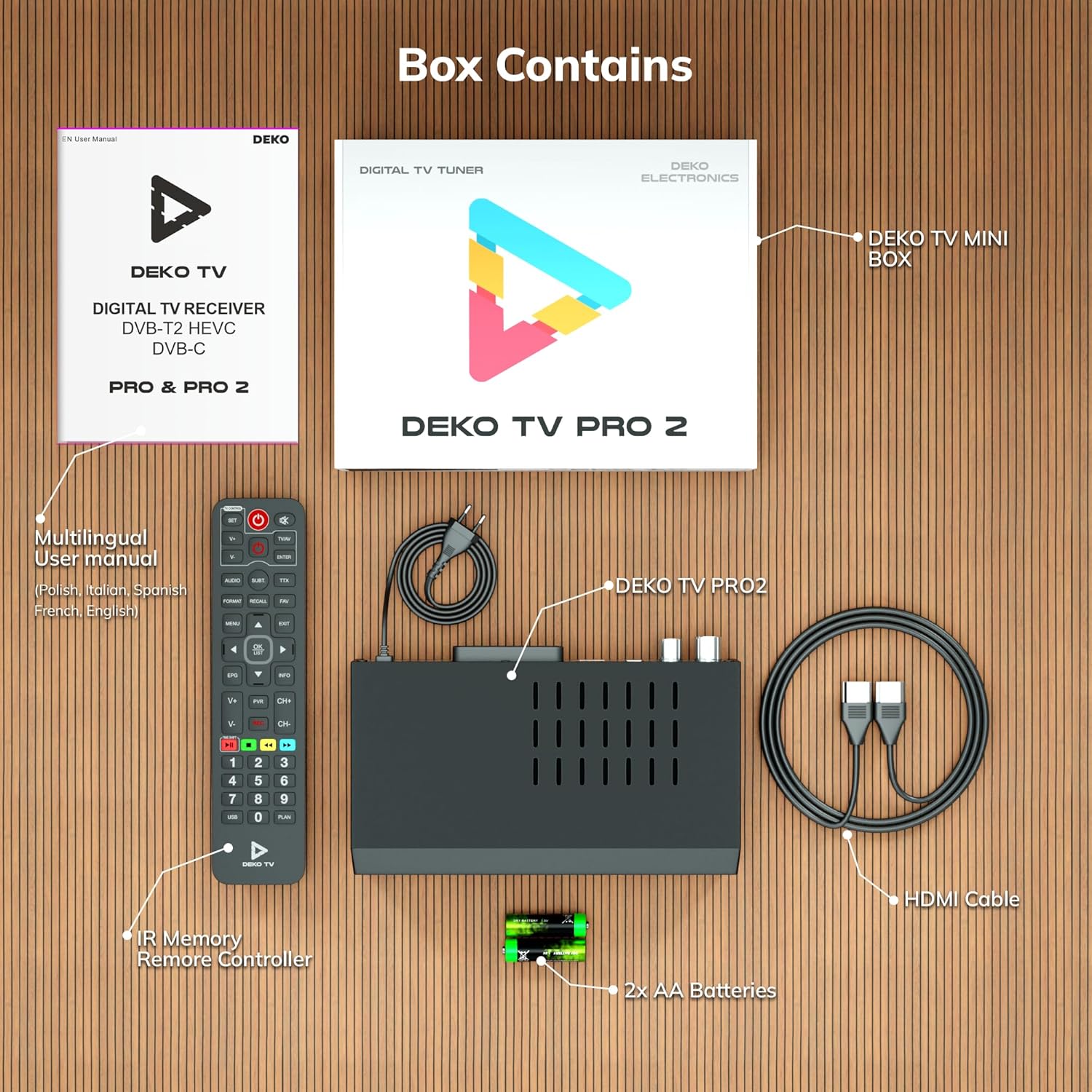
Figure 2.1: Deko TV PRO2 Box Contents. The image displays the Deko TV PRO2 receiver, a multilingual user manual, an IR remote control, two AA batteries, a power cable, and an HDMI cable.
- Deko TV PRO2 Digital Terrestrial Receiver
- IR Remote Controller
- 2x AAA Batteries
- Power Cable
- HDMI Cable
- Multilingual User Manual
3. Product Features
The Deko TV PRO2 offers a range of features designed to enhance your viewing experience:

Figure 3.1: Deko TV PRO2 Key Features. This image illustrates the main functionalities including DVB-T2 Terrestrial reception, Timeshift, HEVC H.265 Codec support, Personal Video Recorder (PVR), universal compatibility, and Crystal Clear Full HD output.
- DVB-T2 Terrestrial: Supports the latest digital terrestrial broadcasting standard.
- HEVC H.265 Codec: Ensures efficient video compression for high-quality picture.
- Universal Compatibility: Works with both modern and older television models.
- Timeshift: Pause live TV and resume watching later.
- Personal Video Recorder (PVR): Record your favorite programs to a connected USB storage device.
- Crystal Clear Full HD: Delivers high-definition video output.
- Dual USB Ports: For media playback and PVR functionality.
4. Setup Guide
4.1. Physical Connections
Before powering on the device, ensure all necessary connections are made.

Figure 4.1: Rear Panel Connections. This image details the rear panel of the Deko TV PRO2, indicating the RF IN, RF LOOP THROUGH, two USB ports, HDMI output, and SCART connector.
- Antenna Connection: Connect your terrestrial antenna cable to the RF IN port on the back of the receiver. If you have another device (e.g., a TV with an integrated tuner) that also needs an antenna signal, you can connect it to the RF LOOP THROUGH port.
- TV Connection (HDMI): For high-definition video and audio, connect an HDMI cable from the HDMI port on the receiver to an HDMI input on your television.
- TV Connection (SCART): For older televisions, connect a SCART cable from the SCART port on the receiver to the SCART input on your television. (Note: Do not use both HDMI and SCART simultaneously for video output.)
- USB Devices: Insert USB storage devices (for PVR or media playback) into the USB ports. The device has two USB ports.
- Power Connection: Connect the power cable to the receiver and then plug it into a wall outlet.
4.2. Remote Control Battery Installation
Open the battery compartment on the back of the remote control and insert two AAA batteries, ensuring correct polarity (+/-). Close the compartment.
4.3. Initial Power On and Channel Scan
- Ensure all connections are secure.
- Turn on your television and select the correct HDMI or SCART input source corresponding to where the Deko TV PRO2 is connected.
- Power on the Deko TV PRO2 using the power button on the front panel or the remote control.
- The first time you power on the receiver, an initial setup wizard will appear. Follow the on-screen instructions to select your language, country, and initiate an automatic channel scan. This process will find and store all available digital terrestrial channels.
- Once the scan is complete, you should be able to view the channels.
5. Operating Instructions
5.1. Basic TV Functions
- Channel Selection: Use the CH+/CH- buttons or the numeric keypad on the remote control to change channels.
- Volume Control: Use the VOL+/VOL- buttons on the remote control.
- Menu Access: Press the MENU button to access the main menu for settings and features.
- Electronic Program Guide (EPG): Press the EPG button to view program information and schedules.
- Information Display: Press the INFO button to display current channel and program details.
5.2. USB Media Playback
The Deko TV PRO2 supports media playback from USB storage devices.
- Insert a USB flash drive or external hard drive into one of the USB ports.
- Navigate to the "Media" or "USB" section in the main menu.
- Select the type of media you wish to play (e.g., Video, Music, Photo).
- Browse your files and select the desired content to play.
5.3. PVR (Personal Video Recorder) and Timeshift
To use PVR and Timeshift functions, a USB storage device must be connected and formatted by the receiver.
- Recording: While watching a program, press the REC button on the remote control to start recording. Press STOP to end the recording. Recorded programs can be accessed via the "PVR" or "Recordings" menu.
- Timeshift: Press the PAUSE button during live TV to activate Timeshift. The program will pause, and recording will begin in the background. You can then use PLAY, FAST FORWARD, and REWIND buttons to control playback. Press STOP to exit Timeshift and return to live TV.
5.4. Internet and Multimedia Features (Optional Wi-Fi Adapter)
The Deko TV PRO2 supports internet connectivity via a compatible USB Wi-Fi adapter (sold separately). Once connected, you can access certain online multimedia features.

Figure 5.1: Internet Connectivity. This image shows the Deko TV PRO2 with an optional USB Wi-Fi adapter, indicating support for Wi-Fi, YouTube, and IPTV functionalities.
- Insert a compatible USB Wi-Fi adapter into one of the USB ports.
- Go to the "Network Settings" in the main menu to configure your Wi-Fi connection.
- Once connected, you may find options for applications like YouTube or IPTV within the receiver's menu, depending on the firmware version.
6. Maintenance
- Cleaning: Use a soft, dry cloth to clean the receiver. Do not use liquid or aerosol cleaners.
- Ventilation: Ensure the receiver has adequate ventilation. Do not block the ventilation slots.
- Software Updates: Periodically check the manufacturer's website for available software updates. Updates can improve performance and add new features. Follow the instructions provided with the update carefully.
7. Troubleshooting
| Problem | Possible Cause | Solution |
|---|---|---|
| No picture or sound | Incorrect TV input selected; loose cables; receiver not powered on. | Select the correct HDMI/SCART input on your TV. Check all cable connections. Ensure the receiver is powered on. |
| "No Signal" message | Antenna not connected; poor antenna signal; no channels scanned. | Check antenna connection. Adjust antenna position. Perform a channel scan (refer to Section 4.3). |
| Remote control not working | Batteries are dead or incorrectly inserted; obstruction between remote and receiver. | Replace batteries with new AAA batteries, ensuring correct polarity. Remove any obstructions. Point the remote directly at the receiver. |
| Cannot record to USB | USB device not connected or formatted; insufficient storage space. | Ensure USB device is properly connected. Format the USB device via the receiver's menu (this will erase all data). Check available storage space. |
8. Specifications
| Feature | Detail |
|---|---|
| Brand | Deko |
| Model Number | PRO2 |
| Connectivity Technology | USB |
| Connections | USB, Wi-Fi (via adapter), HDMI, SCART, RF IN, RF LOOP THROUGH |
| Compatible Devices | Television |
| Special Features | Connected and multimedia functions, universal remote control |
| Total USB Ports | 2 |
| Total HDMI Ports | 1 |
| Audio Encoding | DD |
| Audio Output Mode | Stereo, Surround |
| Surround Sound Channel Configuration | 2.1 |
| Remote Control Type | Remote control |
| Batteries Required | 2 AAA batteries (Zinc-carbon) |
9. Warranty and Support
The Deko TV PRO2 receiver comes with a standard manufacturer's warranty. Please refer to the warranty card included in your package or contact your retailer for specific warranty terms and conditions.
For technical support, troubleshooting assistance beyond this manual, or inquiries about spare parts and software updates, please visit the official Deko Electronics website or contact their customer service department. Contact information can typically be found on the product packaging or the manufacturer's website.


