Introduction
This manual provides comprehensive instructions for the Newmen GM101 Mechanical Gaming Keyboard. It covers setup, operation, maintenance, and troubleshooting to ensure optimal performance and longevity of your device. Please read this manual thoroughly before using the keyboard.

Figure 1: Newmen GM101 Mechanical Gaming Keyboard with its integrated wrist rest.
1. Setup
1.1 Package Contents
Ensure all items are present in the package:
- Newmen GM101 Mechanical Gaming Keyboard with integrated wrist rest
- User Manual (this document)
1.2 Connecting the Keyboard
The Newmen GM101 keyboard connects via a standard USB-A cable.
- Locate an available USB-A port on your computer (PC or Mac).
- Insert the USB-A connector from the keyboard cable into the USB-A port.
- The operating system will automatically detect and install the necessary drivers.
- The keyboard's RGB backlighting will illuminate upon successful connection.

Figure 2: The Newmen GM101 keyboard ready for use, showcasing its design and connection.
1.3 Wrist Rest Usage
The GM101 features a foldable wrist rest designed for comfort and protection.
- To deploy the wrist rest for ergonomic support during use, gently pull it forward from the base of the keyboard until it locks into position.
- When not in use, or for storage and transport, the wrist rest can be folded neatly over the keyboard's keys. This also helps prevent dust accumulation in the key gaps.

Figure 3: The foldable wrist rest in both open (left) and closed (right) configurations.
2. Operating Instructions
2.1 RGB Backlighting Control
The GM101 keyboard offers 20 LED backlighting modes and 10 color sidelights. Use the Fn key in combination with other keys to customize the lighting effects.
- Fn + [Key]: Specific key combinations control different lighting modes and effects. Refer to the keyboard's keycap legends for exact functions (e.g., Fn + INS, Fn + HOME, etc.).
- Brightness Adjustment: Use designated Fn key combinations to increase or decrease backlight brightness.
- Speed Adjustment: Adjust the speed of dynamic lighting effects using specific Fn key combinations.

Figure 4: Examples of the 20 RGB backlighting modes available on the GM101 keyboard.

Figure 5: The RGB side lights of the GM101 keyboard, offering additional aesthetic customization.
2.2 Multimedia and Anti-Ghosting Features
The GM101 keyboard is equipped with features to enhance both gaming and productivity.
- Multimedia Keys: Access 12 dedicated multimedia functions using the Fn key in combination with the F1-F12 keys. These include controls for volume, media playback, and more.
- Anti-Ghosting: The keyboard features 104-key anti-ghosting, ensuring that every keystroke is registered accurately, even when multiple keys are pressed simultaneously. This is crucial for fast-paced gaming and efficient typing.
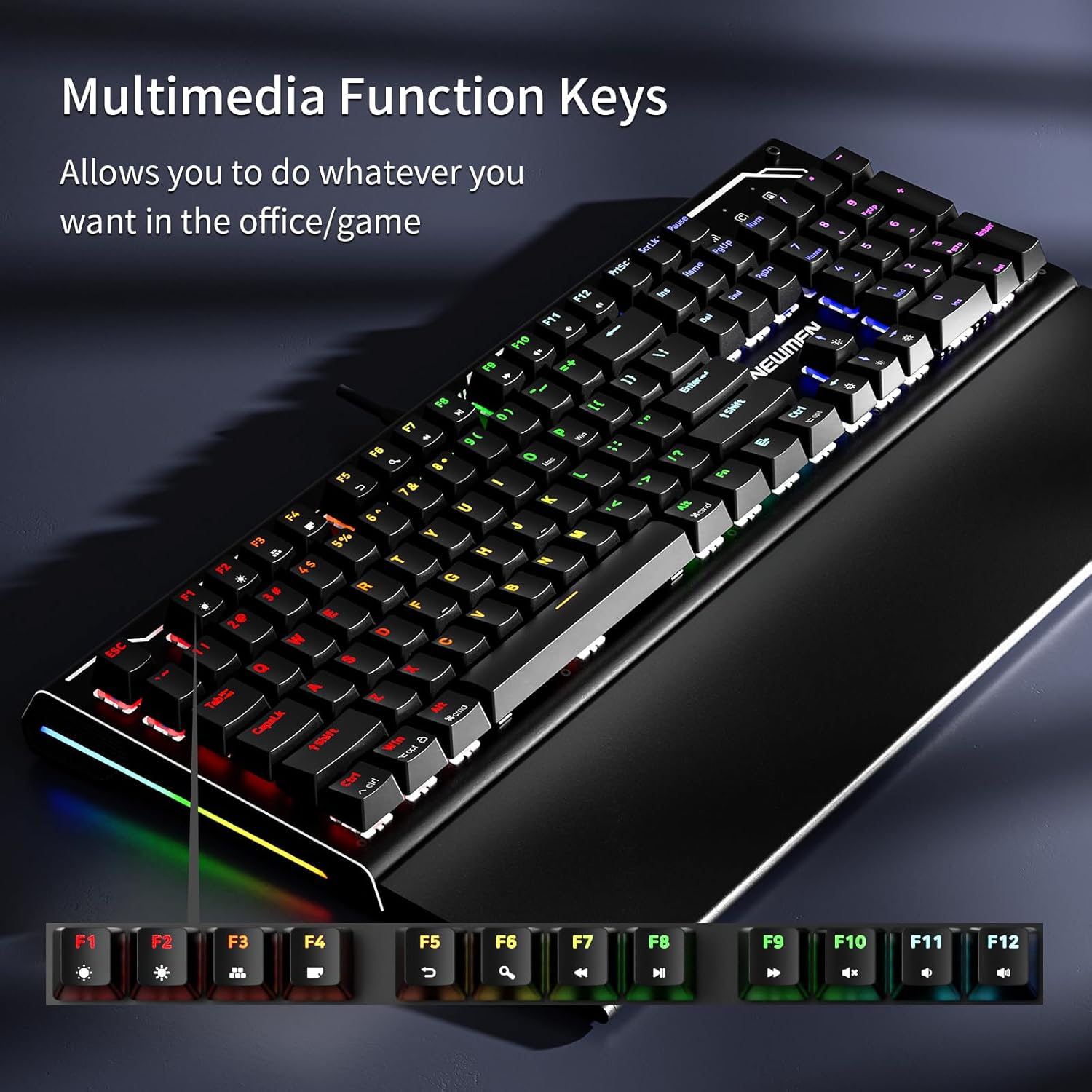
Figure 6: The multimedia function keys (F1-F12) accessible via the Fn key.

Figure 7: Visual representation of the anti-ghosting feature, showing multiple simultaneous key presses being registered.
2.3 Fully Programmable Macros
The Newmen GM101 allows for extensive customization through its programmable macro features. All keys and keypress combinations can be remapped to execute complex commands.
- Software Installation: Download the official Newmen GM101 software from the Newmen website.
- Macro Recording: Use the software to record and assign macros to any key. This allows for single-key execution of complex sequences.
- Customization: Personalize function keys, adjust advanced features, and create profiles for different applications or games.

Figure 8: The software interface for customizing key assignments and programming macros.
3. Maintenance
3.1 General Cleaning
Regular cleaning helps maintain the keyboard's appearance and functionality.
- Disconnect the keyboard from your computer before cleaning.
- Use a soft, dry cloth to wipe down the keyboard surface and keycaps.
- For stubborn dirt, a slightly damp cloth with mild soap can be used, ensuring no liquid enters the keyboard.
- Use compressed air to remove dust and debris from between the keycaps.
3.2 Wrist Rest Care
The foldable wrist rest can be cleaned with a damp cloth. When not in use, folding the wrist rest over the keys helps protect them from dust and spills.
3.3 Hot-Swappable Switches (If Applicable)
The GM101 keyboard features hot-swappable switches, allowing for easy replacement or customization of individual key switches without soldering.
- To remove a switch, use a switch puller tool (not included unless specified) to gently pry the switch from the plate.
- To install a new switch, align the pins of the new switch with the holes on the PCB and press firmly until it clicks into place. Ensure pins are straight to avoid bending.

Figure 9: The hot-swappable design of the GM101, allowing for easy switch replacement.
4. Troubleshooting
If you encounter issues with your Newmen GM101 keyboard, refer to the following common problems and solutions:
| Problem | Possible Cause | Solution |
|---|---|---|
| Keyboard not responding / No power | Loose USB connection, faulty USB port, driver issue. |
|
| Backlighting not working or incorrect | Lighting mode disabled, brightness set to minimum, software conflict. |
|
| Keys not registering / Double-typing | Dust/debris under keycap, faulty switch, software issue. |
|
| Macros not working | Incorrect macro programming, software not running, profile not active. |
|
If the problem persists, please contact Newmen customer support for further assistance.
5. Specifications
Key technical specifications for the Newmen GM101 Mechanical Gaming Keyboard:
| Feature | Detail |
|---|---|
| Model Number | GM101 |
| Connectivity | Wired USB-A |
| Switch Type | Mechanical (Linear Red Switches) |
| Number of Keys | 104 |
| Anti-Ghosting | Full 104-key rollover |
| Backlighting | RGB (20 LED modes, 10 color sidelights) |
| Multimedia Keys | 12 (Fn + F1-F12) |
| Programmable Keys | Yes, via software |
| Wrist Rest | Integrated, foldable |
| Material | Aluminum alloy panel |
| Dimensions | 17.8 x 7.99 x 2.2 inches |
| Item Weight | 3.19 pounds |
| Compatible Devices | Laptop, PC, Smartphone (via adapter if needed) |
6. Warranty and Support
6.1 Warranty Information
Newmen products typically come with a standard manufacturer's warranty covering defects in materials and workmanship. Please refer to the warranty card included with your product or visit the official Newmen website for detailed warranty terms and conditions specific to the GM101 keyboard.
6.2 Customer Support
For technical assistance, troubleshooting not covered in this manual, or warranty claims, please contact Newmen customer support through their official website or the contact information provided on your product packaging.
Newmen Official Website: www.newmen.com (Note: This is a placeholder URL. Please refer to actual product documentation for the correct support website.)


