
1. Introduction
Thank you for choosing the Newmen GM101 Mechanical Gaming Keyboard. This wired keyboard is designed for an enhanced gaming and typing experience, featuring RGB backlighting, anti-ghosting capabilities, and a durable aluminum panel. This manual provides detailed instructions for setup, operation, and maintenance to ensure optimal performance and longevity of your device.

Image: The Newmen GM101 Mechanical Gaming Keyboard, showcasing its full layout with RGB backlighting and integrated wrist rest.
2. Package Contents
Please verify that all items are present in the package:
- Newmen GM101 Mechanical Gaming Keyboard with Wrist Rest
- User Manual (this document)
3. Key Features
- Durable Metal Panel: The keyboard features a high-quality aluminum alloy panel, providing durability and scratch resistance, along with a sleek, streamlined design.
- Foldable Wrist Rest: An integrated foldable wrist rest offers ergonomic support during use and can be neatly stowed away to protect the keys from dust when not in use.
- Multiple RGB Backlighting Modes: Equipped with 20 LED backlighting modes and 10 color sidelights, allowing for extensive customization of the keyboard's illumination.
- Multimedia & Anti-Ghosting: Includes 12 dedicated multimedia keys for improved efficiency. 104 non-conflicting keys ensure simultaneous key presses are registered accurately at high speeds, ideal for gaming and typing.
- Fully Programmable Macros: All keys and keypress combinations can be remapped. Macros can be recorded via software for complex commands and personalized function keys.
- Hot-Swappable Switches: Allows for easy replacement of keycaps and switches to customize the typing feel and sound.

Image: The Newmen GM101 keyboard from an elevated angle, highlighting its design for a comfortable typing experience.

Image: A visual representation of the anti-ghosting feature on the Newmen GM101 keyboard, showing multiple key presses being registered simultaneously.

Image: Close-up of the Newmen GM101 keyboard demonstrating hot-swappable switches, with some keycaps and switches removed to show the mechanism.
4. Setup
Follow these steps to set up your Newmen GM101 Mechanical Gaming Keyboard:
- Unpack the Keyboard: Carefully remove the keyboard and any packaging materials from the box.
- Connect to Device: Locate the USB-A cable attached to the keyboard. Plug the USB-A connector into an available USB port on your computer (PC or Mac).
- Driver Installation: The keyboard is plug-and-play and typically does not require additional drivers for basic functionality. Your operating system should automatically recognize the device.
- Positioning: Place the keyboard on a stable, flat surface. If desired, deploy the integrated wrist rest for ergonomic support.

Image: The Newmen GM101 keyboard set up on a desk next to a gaming mouse, connected to a computer, illustrating a typical user setup.
5. Operating Instructions
5.1 Basic Keyboard Functions
The Newmen GM101 functions as a standard 104-key keyboard. All keys perform their labeled functions by default.
5.2 Multimedia Keys
The keyboard features 12 multimedia keys, accessible via the Fn key in combination with the F1-F12 keys. These shortcuts enhance productivity and control over media playback.
- Fn + F1: My Computer
- Fn + F2: Search
- Fn + F3: Calculator
- Fn + F4: Media Player
- Fn + F5: Previous Track
- Fn + F6: Next Track
- Fn + F7: Play/Pause
- Fn + F8: Stop
- Fn + F9: Mute
- Fn + F10: Volume Down
- Fn + F11: Volume Up
- Fn + F12: Lock Keyboard
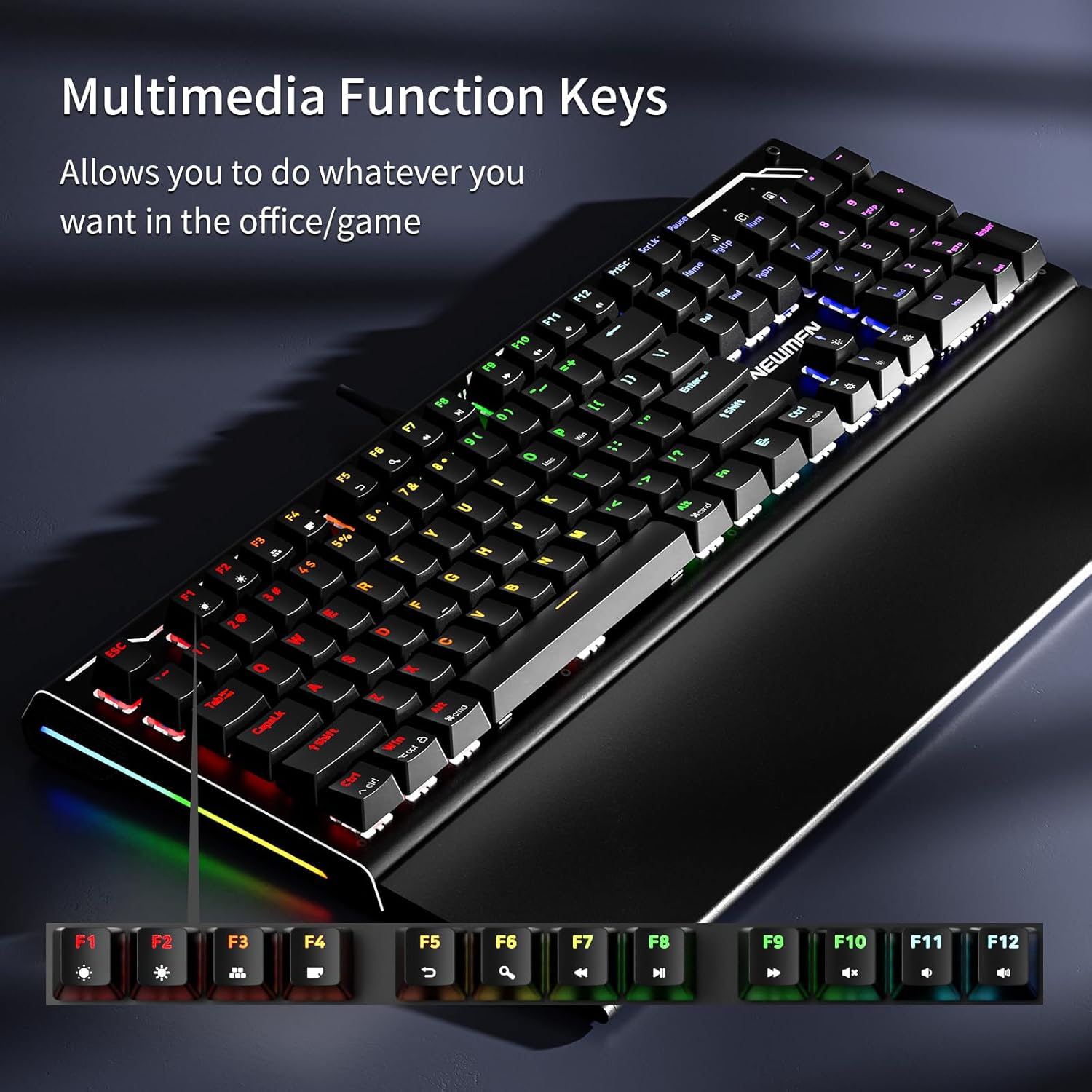
Image: The Newmen GM101 keyboard highlighting the F-keys with their corresponding multimedia functions, such as volume control and media playback.
5.3 RGB Backlighting Control
The GM101 keyboard offers extensive RGB backlighting customization. Use the following Fn key combinations to control the lighting effects:
- Fn + Ins: Cycle through 20 different backlight modes.
- Fn + Home: Adjust backlight brightness (typically 5 levels).
- Fn + PgUp: Adjust backlight speed (for dynamic modes).
- Fn + Del: Cycle through 10 different side light modes.
- Fn + End: Adjust side light brightness.
- Fn + PgDn: Adjust side light speed.
- Fn + Up/Down Arrow: Adjust backlight brightness.
- Fn + Left/Right Arrow: Adjust backlight speed.

Image: Three different views of the Newmen GM101 keyboard, each displaying a unique RGB backlighting pattern, illustrating the variety of available modes.

Image: A close-up view of the Newmen GM101 keyboard's side, showcasing the vibrant RGB side lights with their various switching modes.
6. Customization
6.1 Macro Programming
The Newmen GM101 keyboard supports full macro programming through dedicated software. This allows you to remap keys and create complex command sequences for gaming or productivity.
- Software Download: Visit the official Newmen website to download the latest GM101 keyboard software.
- Macro Recording: Follow the software's instructions to record and assign macros to any key.
- Profile Management: Create and save multiple profiles for different applications or games.

Image: A computer screen displaying the Newmen GM101 keyboard's customization software interface, showing options for key assignment, macros, and advanced features.
6.2 Hot-Swappable Switches
The GM101 features hot-swappable switches, allowing users to easily change switches without soldering. This enables customization of typing feel and sound.
- Switch Removal: Use a switch puller tool (not included) to gently remove the existing switch from the PCB.
- Switch Installation: Align the pins of the new switch with the holes on the PCB and press firmly until it clicks into place. Ensure pins are straight to avoid bending.
- Keycap Replacement: Simply pull off the old keycap and press the new one onto the switch stem.
7. Maintenance
Proper maintenance ensures the longevity and performance of your keyboard:
- Cleaning:
- Use a soft, dry cloth to wipe down the keyboard surface regularly.
- For dust and debris between keys, use compressed air.
- For stubborn grime, slightly dampen a cloth with isopropyl alcohol (do not spray directly onto the keyboard).
- Wrist Rest Care: When not in use, fold the wrist rest over the keys to protect them from dust and spills.
- Avoid Liquids: Do not expose the keyboard to excessive moisture or liquids. In case of a spill, immediately unplug the keyboard and allow it to dry completely before reconnecting.
- Cable Management: Avoid sharp bends or excessive pulling on the USB cable to prevent damage.
8. Troubleshooting
| Problem | Possible Cause | Solution |
|---|---|---|
| Keyboard not responding | Loose USB connection, faulty USB port, driver issue. |
|
| Backlighting not working or incorrect | Backlight mode off, brightness too low, software conflict. |
|
| Keys not registering or ghosting | Debris under keycap, faulty switch, software issue. |
|
| Macros not working | Incorrect macro setup, software not running, profile not active. |
|
9. Specifications
| Feature | Detail |
|---|---|
| Model Number | GM101 |
| Brand | Newmen |
| Connectivity | Wired (USB-A) |
| Keyboard Type | Mechanical Gaming Keyboard |
| Switch Type | Linear Red Switches (as per product title) |
| Backlighting | RGB (20 modes, 10 side light modes) |
| Anti-Ghosting | 104-key rollover |
| Material | Aluminum (panel) |
| Wrist Rest | Integrated, Foldable |
| Compatible Devices | Laptop, PC, Smartphone (via adapter if needed) |
| Item Weight | 3.19 pounds |
| Package Dimensions | 17.8 x 7.99 x 2.2 inches |
10. Warranty and Support
Newmen products are manufactured to high-quality standards. For warranty information and technical support, please refer to the warranty card included with your product or visit the official Newmen website. Keep your purchase receipt as proof of purchase for warranty claims.
Manufacturer: NEWMEN
For further assistance, please contact Newmen customer support through their official channels.


