
1. Introduction
This manual provides detailed instructions for the installation and operation of the Sarmert 3-Lead Hard-Wire Kit. This kit is designed to provide continuous power to your Micro-USB compatible dash camera, enabling features such as 24-hour parking monitoring and low voltage protection. It converts 12V-24V vehicle power to a stable 5V/2.5A output for your device.
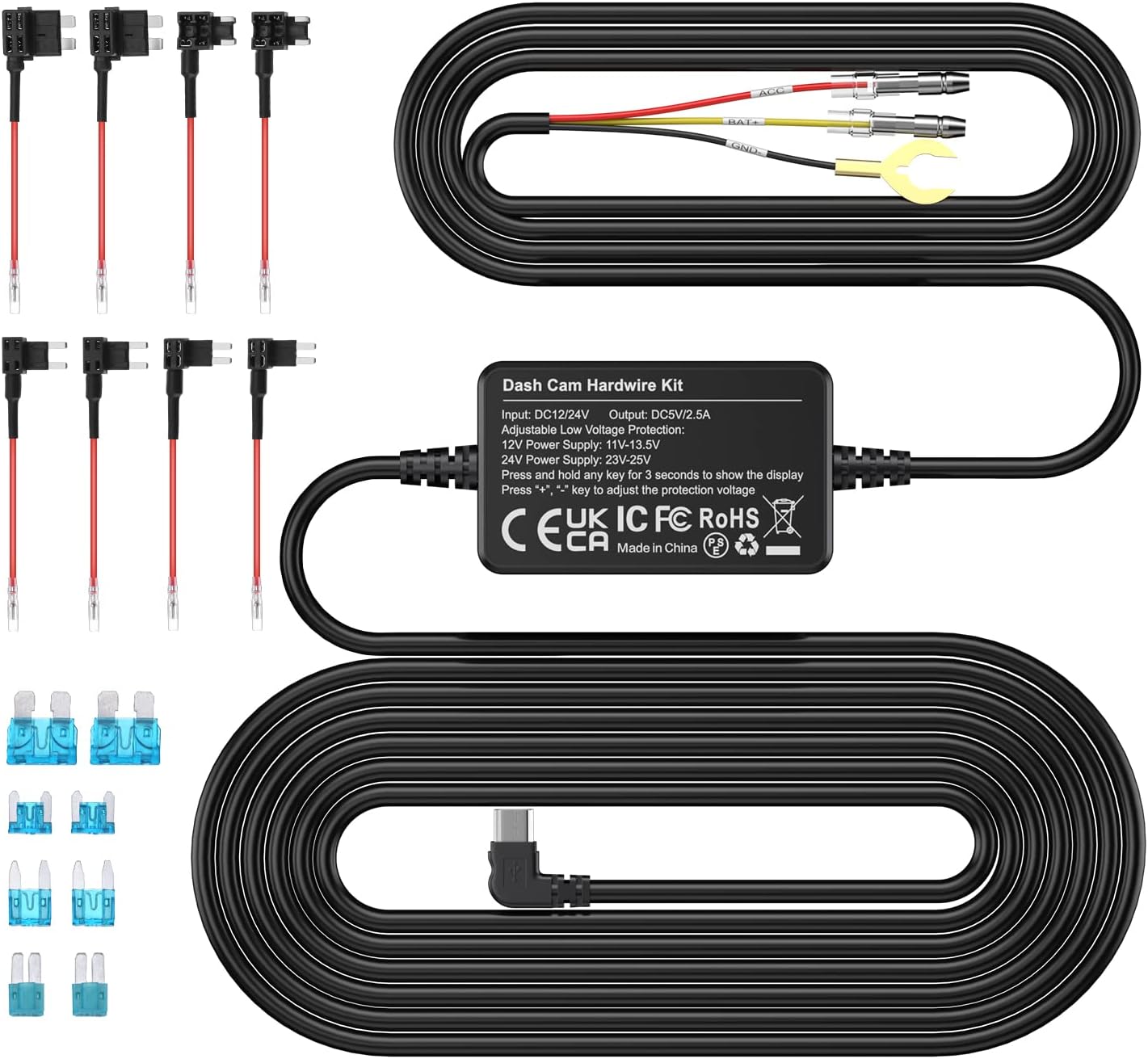
Figure 1: Overview of the Sarmert 3-Lead Hard-Wire Kit and included fuse taps.
2. Product Overview and Features
The Sarmert Hard-Wire Kit ensures your dash camera operates reliably with advanced power management features.
Key Features:
- Automatic Parking Mode: Powers on and records automatically when the vehicle is accessed, supporting time-lapse or continuous recording.
- Wide Voltage Compatibility: Compatible with 12V-24V vehicles (cars, trucks, buses). Adjustable protection voltage settings.
- 24/7 Parking Monitor: Provides constant power to the dash cam for continuous surveillance, protecting against theft.
- Low Voltage Protection: Intelligent system automatically cuts power to prevent vehicle battery drain when voltage drops below 11.6V (for 12V systems) or 23.2V (for 24V systems).
- Micro-USB Compatibility: Designed for Micro-USB dash cams, GPS navigators, and radar detectors, freeing up the cigarette lighter port.
Package Contents:
- Sarmert 3-Lead Hard-Wire Kit with Micro-USB connector
- Assorted Fuse Taps
- Assorted Fuses
- Owner's Manual (this document)

Figure 2: Contents of the Sarmert Hard-Wire Kit package.

Figure 3: The 3-lead hard-wire kit provides multiple protections including battery drain, over-current, short-circuit, reverse connection, and overheat protection.
3. Setup and Installation
Proper installation is crucial for the hard-wire kit's functionality. If you are unfamiliar with vehicle electrical systems, it is recommended to seek professional assistance.
Wiring Diagram:
The hard-wire kit consists of three main wires:
- Black Wire (GND): Connect to a metal bolt or screw on the vehicle chassis for ground.
- Red Wire (ACC): Connect to a fuse in the fuse box that is only powered when the ignition is on (Accessory power).
- Yellow Wire (BAT+): Connect to a fuse in the fuse box that has constant power, even when the ignition is off (Battery power).

Figure 4: Hard-wire kit control box showing input and output cables, and connections for GND, ACC, and BAT+.
Installation Steps:
- Locate Your Fuse Box: Refer to your vehicle's owner's manual to find the location of the fuse box. Common locations include under the dashboard, in the glove compartment, or under the hood.
- Identify Fuse Slots: Using a circuit tester, identify a fuse slot that provides ACC power (on with ignition) for the Red wire and a fuse slot that provides constant BAT+ power (always on) for the Yellow wire.
- Select Correct Fuse Type: Choose the appropriate fuse tap from the kit that matches the fuse type in your vehicle's fuse box.
- Connect Wires to Fuse Taps: Insert the Red and Yellow wires into their respective fuse taps. Insert the original fuse into the lower slot of the fuse tap and a new fuse (matching the original's amperage) into the upper slot for the hard-wire kit.
- Insert Fuse Taps: Plug the fuse taps into the identified ACC and BAT+ fuse slots.
- Locate a Ground Point: Connect the Black (GND) wire to a secure metal bolt or screw on the vehicle's chassis that is free of paint or rust.
- Route Cables: Carefully route the Micro-USB output cable to your dash camera, ensuring it does not interfere with driving controls or airbags. Conceal the cable behind trim panels for a clean installation.
- Connect to Dash Cam: Plug the Micro-USB connector into your dash camera.
- Test System: Start your vehicle to ensure the dash cam powers on. Turn off the vehicle and remove the key to verify the parking monitor mode activates (if enabled on your dash cam).

Figure 5: Visual guide for the hard-wire kit installation process within a vehicle.
4. Operating Instructions
Parking Monitor Mode:
Once correctly installed, the hard-wire kit enables your dash camera's parking monitor function. When your vehicle is turned off, the kit continues to supply power from the vehicle battery, allowing the dash cam to record in parking mode (e.g., time-lapse or motion detection, depending on your dash cam's features).
Low Voltage Protection:
The hard-wire kit features an integrated low voltage protection system to prevent excessive drain on your vehicle's battery. If the vehicle battery voltage drops below a preset threshold, the kit will automatically cut power to the dash camera.
- For 12V batteries, power is cut at 11.6V, 12.0V, 12.2V, or 12.4V (user adjustable).
- For 24V batteries, power is cut at 23.6V, 24.0V, 24.4V, or 24.8V (user adjustable).
To adjust the protection voltage, press and hold the '+' or '-' buttons on the hard-wire kit box for 3 seconds to display the current setting, then use the buttons to select the desired voltage. The digital display on the hard-wire kit box will show the current voltage setting.

Figure 6: Low voltage protection thresholds for 12V and 24V batteries.
5. Maintenance
- Regular Checks: Periodically inspect the wiring for any signs of wear, damage, or loose connections.
- Fuse Integrity: Ensure the fuses in the fuse taps are correctly seated and not blown. Replace blown fuses with ones of the same amperage.
- Cleanliness: Keep the hard-wire kit box and connections free from dust and moisture.
- Environmental Conditions: Avoid exposing the kit to extreme temperatures or direct sunlight for prolonged periods, which could affect its lifespan.
6. Troubleshooting
| Problem | Possible Cause | Solution |
|---|---|---|
| Dash cam not powering on. | Loose connection, blown fuse, incorrect wiring, vehicle battery too low. | Check all connections. Inspect fuses in fuse taps and replace if blown. Verify wiring (GND, ACC, BAT+). Check vehicle battery voltage. |
| Parking monitor mode not activating. | Dash cam setting not enabled, incorrect BAT+ connection, low voltage protection activated. | Ensure parking mode is enabled in your dash cam's settings. Verify the Yellow (BAT+) wire is connected to a constant power source. Check if low voltage protection has cut power. |
| Vehicle battery drains quickly. | Low voltage protection set too low, dash cam consuming too much power in parking mode. | Adjust the low voltage protection setting to a higher value. Consider using a dash cam with more efficient parking mode options (e.g., motion detection only). |
| Voltage display on kit box is off. | Power issue, internal fault. | Ensure the kit is receiving power. If the issue persists, contact customer support. |
| Micro-USB connector does not fit. | Incompatible dash cam port (e.g., USB-C, Mini-USB). | This kit is designed for Micro-USB ports only. Verify your dash cam's port type. |

Figure 7: The hard-wire kit is compatible with Micro-USB devices, not USB-C or Mini-USB.
7. Specifications
| Feature | Detail |
|---|---|
| Input Voltage | DC 12V - 24V |
| Output Voltage | DC 5V |
| Output Current | 2.5A Max |
| Connector Type | Micro-USB |
| Low Voltage Protection (12V) | 11.6V / 12.0V / 12.2V / 12.4V (Adjustable) |
| Low Voltage Protection (24V) | 23.6V / 24.0V / 24.4V / 24.8V (Adjustable) |
| Input Cable Length | Approximately 1000mm ± 50mm |
| Output Cable Length | Approximately 2500mm ± 50mm |
| Product Dimensions | 14.5 x 9 x 5 cm; 210 g (Overall package dimensions) |
8. Warranty and Support
For warranty information or technical support, please refer to the documentation provided with your purchase or contact Sarmert customer service directly. Keep your proof of purchase for any warranty claims.
You can visit the Sarmert store for more information: Sarmert Store