1. Introduction
This manual provides essential instructions for the safe operation, setup, and maintenance of your FYURI 998 PRO Foldable Drone. Please read this manual thoroughly before operating the drone to ensure proper function and to prevent damage or injury. Keep this manual for future reference.

Image 1.1: The FYURI 998 PRO Foldable Drone in its unfolded state, showcasing its sleek black design and integrated camera.
2. Safety Guidelines
Adherence to these safety guidelines is crucial for preventing accidents and ensuring safe operation:
- Flight Environment: Operate the drone in open areas, away from people, animals, buildings, and power lines. Avoid flying in strong winds or adverse weather conditions.
- Age Recommendation: This product is intended for users aged 14 and above. Adult supervision is recommended for younger operators.
- Battery Safety: Use only the provided battery and charger. Do not overcharge or puncture batteries. Discontinue use if batteries show signs of damage or swelling.
- Propeller Safety: Keep hands, face, and loose clothing away from rotating propellers. Ensure propellers are securely attached before flight.
- Line of Sight: Always maintain visual line of sight with the drone during flight.
- Respect Privacy: Be mindful of privacy laws when using the camera feature.
- Pre-Flight Check: Before each flight, ensure the drone and remote control are fully charged, propellers are intact, and all components are functioning correctly.
3. Package Contents
Verify that all items are present in your package:
- FYURI 998 PRO Foldable Drone
- Remote Control
- Rechargeable Drone Battery
- Spare Propellers (Wings)
- USB Charging Cable
- Screwdriver (for propeller installation/removal)
- User Manual (this document)
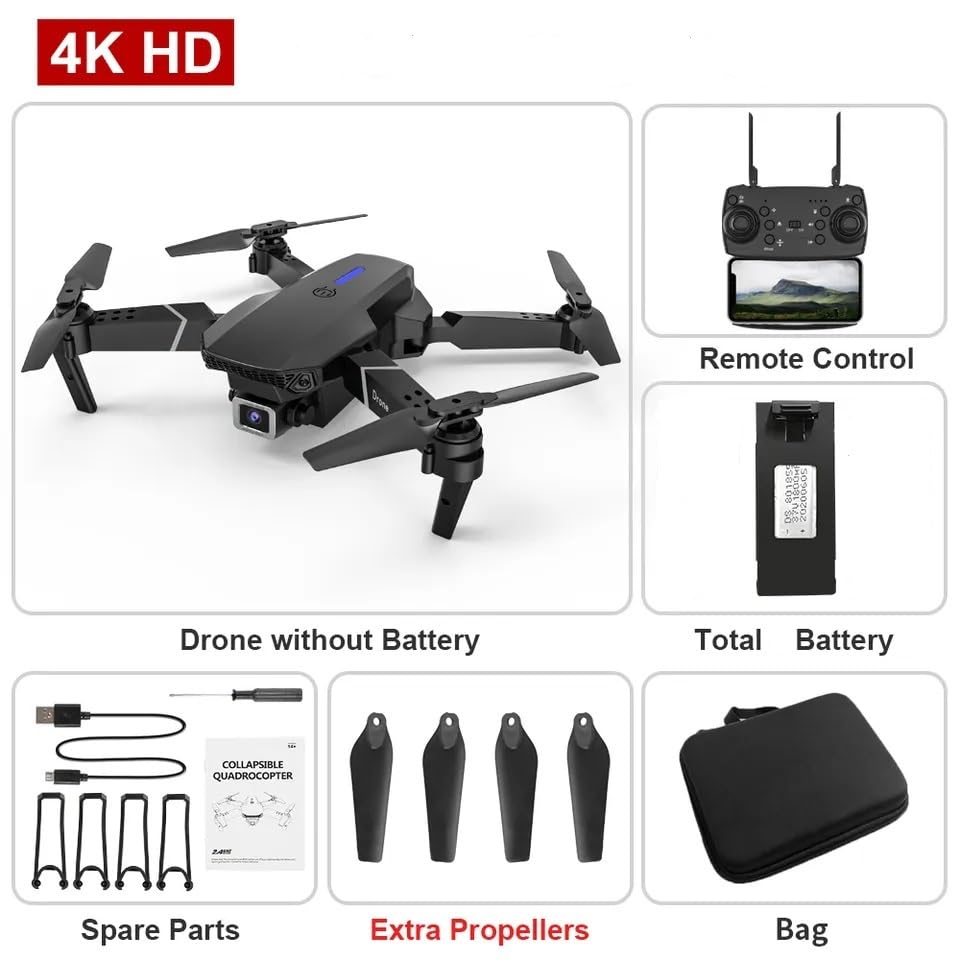
Image 3.1: An illustration showing the drone, remote control, battery, spare propellers, USB charging cable, and screwdriver included in the package.
4. Product Overview
4.1 Drone Components
- Propellers: Four rotating blades for lift and propulsion.
- Motors: Drive the propellers.
- Camera: Integrated 4K HD camera for photo and video capture.
- Battery Compartment: Located on the underside of the drone.
- LED Indicators: Provide status information (e.g., power, pairing).
- Foldable Arms: Allow for compact storage and transport.
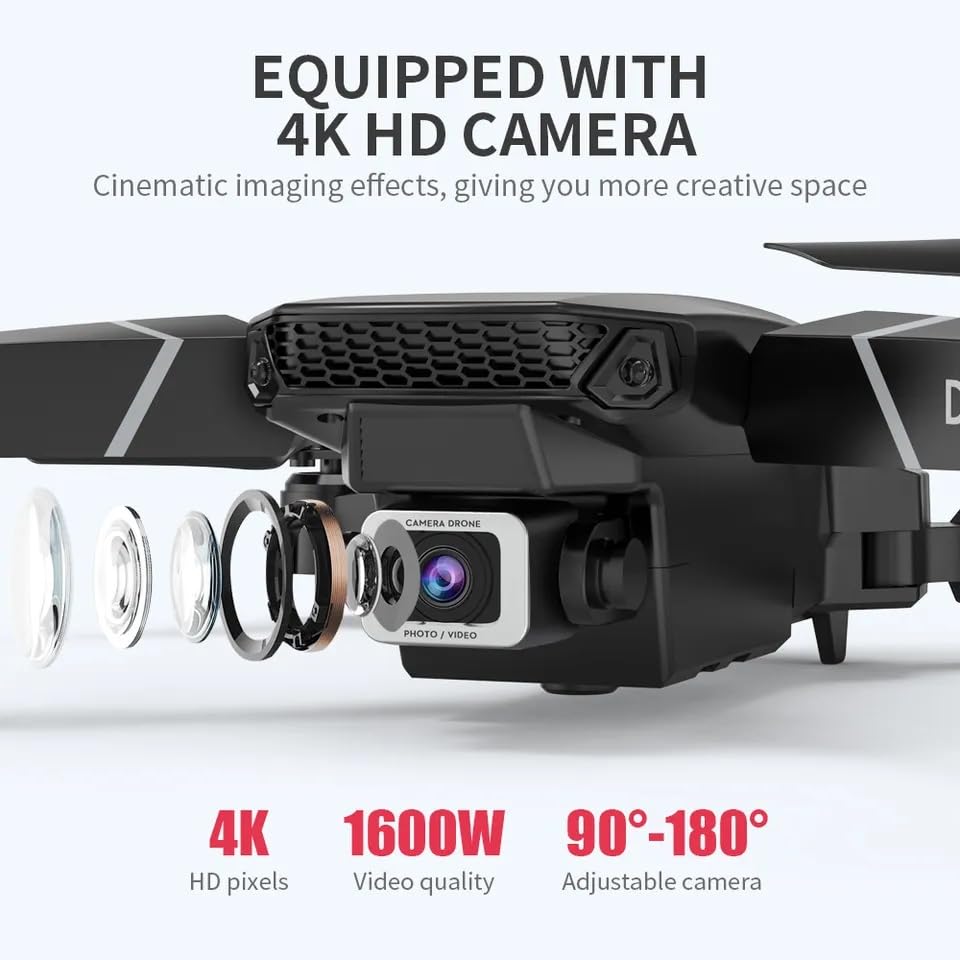
Image 4.1: A detailed view of the drone's integrated 4K HD camera, highlighting its optical components and adjustable angle capability.
4.2 Remote Control Components
- Left Joystick: Controls altitude (up/down) and rotation (left/right).
- Right Joystick: Controls forward/backward and left/right movement.
- Power Button: Turns the remote control on/off.
- One-Key Takeoff/Landing Button: Initiates automatic takeoff or landing.
- Headless Mode Button: Activates/deactivates headless flight mode.
- 360° Flip Button: Triggers a 360-degree aerial flip.
- Photo/Video Button: Captures photos or starts/stops video recording.
- Speed Switch: Adjusts flight speed (low/medium/high).
- Phone Holder: For mounting a smartphone to view the live camera feed via the app.
5. Setup
5.1 Unfolding the Drone
- Gently pull out the front arms until they are fully extended.
- Then, pull out the rear arms until they are fully extended.
- Ensure all arms are locked into position before flight.
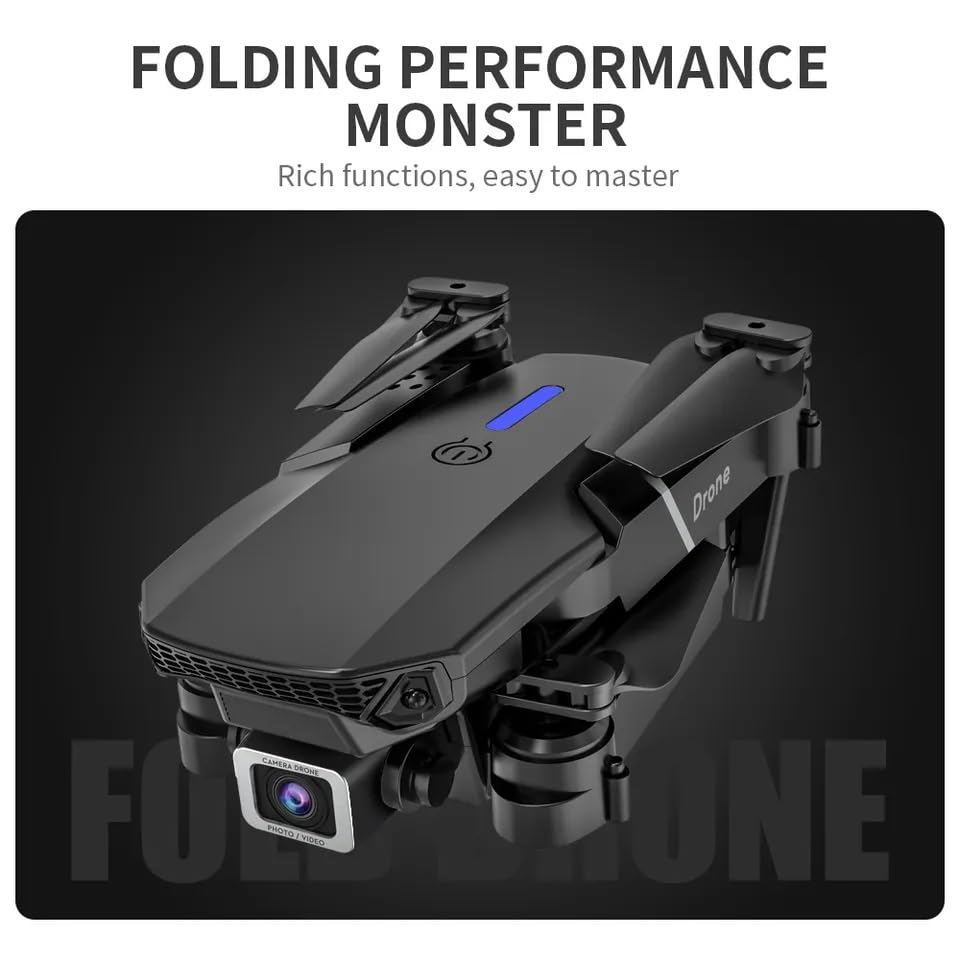
Image 5.1: The drone in its folded configuration, demonstrating its compact design for portability.
5.2 Battery Installation and Charging
- Drone Battery: Insert the fully charged Lithium Polymer battery into the drone's battery compartment until it clicks into place. To charge, connect the battery to the USB charging cable and plug it into a USB power source (e.g., computer, USB adapter). The charging indicator will show status.
- Remote Control Batteries: Open the battery compartment on the back of the remote control and insert 3 x AA batteries (not included), observing correct polarity. Close the compartment.
5.3 Propeller Installation
If propellers are not pre-installed or need replacement:
- Identify the 'A' and 'B' markings on the propellers and drone arms.
- Match 'A' propellers to 'A' motor shafts and 'B' propellers to 'B' motor shafts.
- Secure each propeller with the provided screws using the screwdriver. Ensure they are firmly attached but not overtightened.
6. Operating Instructions
6.1 Pairing the Drone and Remote Control
- Place the drone on a flat, level surface.
- Turn on the drone's power switch. The LED indicators will flash.
- Turn on the remote control.
- Push the left joystick (throttle) all the way up, then all the way down. The drone's LEDs will stop flashing and remain solid, indicating successful pairing.
6.2 Gyro Calibration
After pairing, perform gyro calibration for stable flight:
- With the drone on a flat surface, push both joysticks down and to the right simultaneously for a few seconds.
- The drone's lights will flash rapidly and then become solid, indicating successful calibration.
6.3 Takeoff and Landing
- Manual Takeoff: Push both joysticks down and outwards to start the motors. Then, slowly push the left joystick up to ascend.
- One-Key Takeoff: Press the One-Key Takeoff/Landing button. The drone will automatically ascend to a stable height.
- Manual Landing: Slowly pull the left joystick down to descend. Once on the ground, pull the left joystick down and hold for 2-3 seconds to stop the motors.
- One-Key Landing: Press the One-Key Takeoff/Landing button. The drone will automatically descend and land.
6.4 Flight Controls
- Altitude: Left joystick up/down.
- Rotation (Yaw): Left joystick left/right.
- Forward/Backward: Right joystick up/down.
- Left/Right Sideways (Roll): Right joystick left/right.
- Speed Adjustment: Press the Speed Switch button to cycle through low, medium, and high speeds.
6.5 Special Features
- 360° Flip: While flying, press the 360° Flip button, then push the right joystick in any direction to perform an aerial flip.
- Headless Mode: Press the Headless Mode button. In this mode, the drone's orientation is relative to the pilot, regardless of its actual front direction. Press again to exit.
- Gesture Selfie: When using the app, specific hand gestures can trigger photo or video capture. Refer to the app interface for gesture details.
6.6 Camera Operation (Photo/Video)
- Taking Photos: Press the Photo/Video button once on the remote control or tap the photo icon in the app.
- Recording Video: Press and hold the Photo/Video button on the remote control, or tap the video icon in the app to start recording. Press again to stop.
- Captured media is typically saved to your connected smartphone via the app or to an inserted SD card (if applicable, check drone specifications).
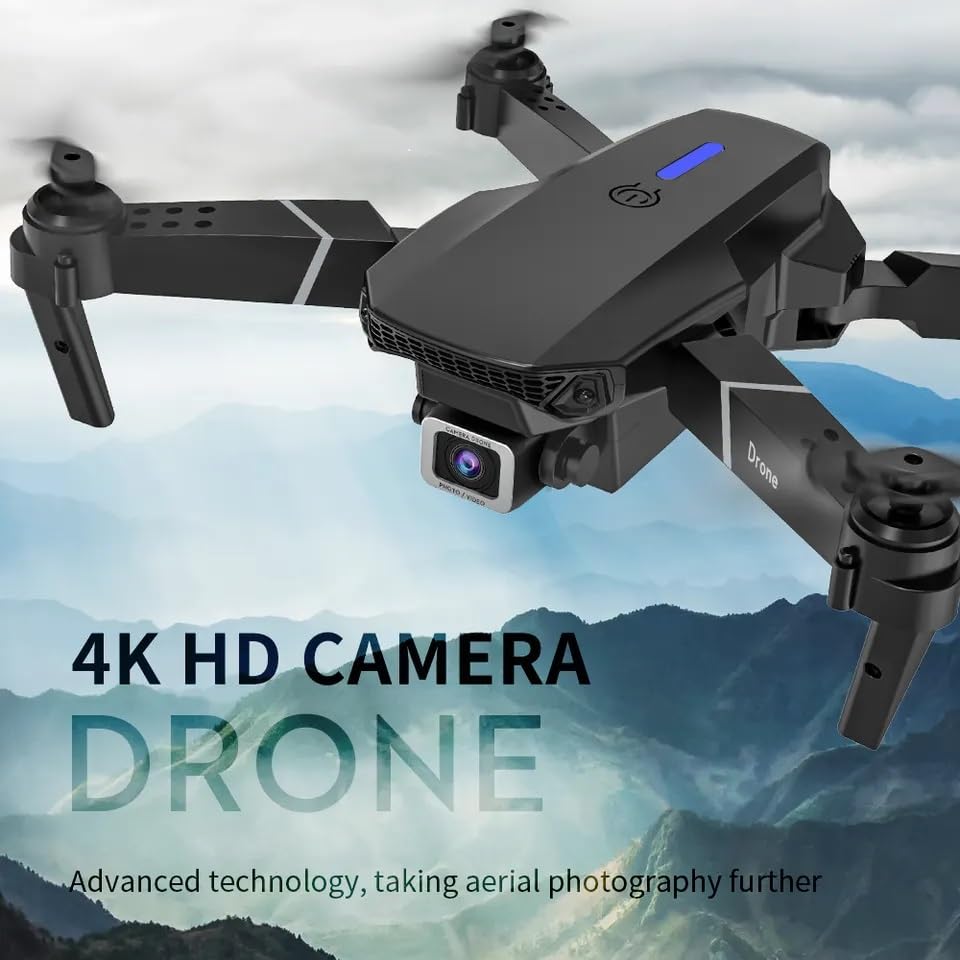
Image 6.1: The FYURI 998 PRO drone in flight, highlighting its 4K HD camera capability for aerial photography.
6.7 App Control and Wi-Fi Connectivity
- Download the dedicated drone control app from your smartphone's app store (search for 'FYURI Drone' or scan the QR code in the quick start guide).
- Turn on the drone.
- On your smartphone, go to Wi-Fi settings and connect to the drone's Wi-Fi network (e.g., 'WiFi-UFO-XXXXXX').
- Open the app. You should see a live video feed from the drone's camera and access to various flight controls and features.
7. Maintenance
- Cleaning: Use a soft, dry cloth to clean the drone and remote control. Avoid using water or solvents.
- Propeller Inspection: Regularly check propellers for cracks or damage. Replace any damaged propellers immediately using the spare parts.
- Battery Care: Store batteries in a cool, dry place. Do not fully discharge batteries for extended periods. Charge them periodically if not in use.
- Storage: When not in use, fold the drone and store it in its original packaging or a protective case to prevent damage. Remove batteries from the remote control if storing for long periods.
8. Troubleshooting
| Problem | Possible Cause | Solution |
|---|---|---|
| Drone does not respond to remote control. | Low battery in drone or remote; Not paired correctly; Interference. | Charge batteries; Re-pair drone and remote; Move to an area with less interference. |
| Drone drifts during flight. | Gyro not calibrated; Uneven propeller speed; Wind. | Perform gyro calibration; Check for damaged propellers; Fly in calm conditions. |
| Camera not recording or taking photos. | App not connected; Insufficient storage on phone/SD card. | Ensure app is connected via Wi-Fi; Check phone storage or insert/check SD card. |
| Drone unable to take off. | Low battery; Propellers blocked; Motors not spinning. | Charge drone battery; Clear any obstructions; Ensure motors are activated after pairing. |
9. Specifications
| Feature | Detail |
|---|---|
| Brand | FYURI |
| Model Name | 998 PRO |
| Special Features | 360 degree Flip, Foldable, Integrated Camera, Headless Mode, Gesture Selfie |
| Video Capture Resolution | 4K HD |
| Connectivity Technology | Wi-Fi |
| Control Type | Remote Control, App Control |
| Battery Type | Lithium Polymer |
| Battery Capacity | 600 Milliamp Hours |
| Optical Sensor Technology | CMOS |
| Supported Image Format | JPEG |
| Age Range (Description) | Kid (Recommended 14+) |
| Color | Black |
10. Warranty and Support
For warranty information and customer support, please refer to the contact details provided at the point of purchase or visit the official FYURI website. Keep your purchase receipt as proof of purchase for any warranty claims.