
SSK SST-DS14
SSK 14-in-1 USB C Laptop Docking Station Instruction Manual (Model: SST-DS14)
Comprehensive guide for setup, operation, and troubleshooting.
1. Introduction
This manual provides detailed instructions for the SSK 14-in-1 USB C Laptop Docking Station. Please read this manual carefully before using the product to ensure proper functionality and to maximize your experience.
The SSK 14-in-1 docking station is designed to expand the connectivity of your USB-C enabled laptop or device, offering a wide array of ports for various peripherals and display configurations.
2. Package Contents
Verify that all items are present in your package:
- SSK 14-in-1 USB C Laptop Docking Station (Model: SST-DS14)
- User Manual (this document)
- (Note: Specific cables or power adapters are typically not included unless specified by the manufacturer.)
3. Product Features
The SSK 14-in-1 USB C Laptop Docking Station offers extensive connectivity options:
- Display Outputs: 2 x HDMI (up to 4K@60Hz/30Hz), 1 x VGA (up to 1080P@60Hz)
- USB Data Ports: 3 x USB 3.0 (up to 5Gbps), 2 x USB 2.0 (for keyboard/mouse), 1 x USB C 3.1 Gen1 Data Port (up to 5Gbps)
- Power Delivery: 1 x USB C PD 3.0 (up to 100W input, 85W output for laptop charging)
- Network: 1 x RJ45 Gigabit Ethernet (1000Mbps)
- Card Readers: 1 x SD Card Slot, 1 x TF Card Slot (simultaneous use, up to 104MB/s)
- Audio: 1 x 3.5mm Audio/Mic Port

Figure 1: Overview of the SSK 14-in-1 Docking Station with labeled ports. This image illustrates the various input and output ports available on the device, including HDMI, VGA, USB, Ethernet, and card reader slots.
4. Compatibility Requirements
For full functionality, your host device (laptop, tablet, or smartphone) must meet the following criteria:
- USB-C Port: The USB-C port on your device must support "DisplayPort Alternate Mode" (DP Alt Mode) for video output.
- Power Delivery: For laptop charging via the docking station, your device's USB-C port must support Power Delivery (PD).
- Operating System: Compatible with Windows 10/11, macOS, Android, and iPadOS.
- Windows 7/XP/Linux: May require manual driver installation for Gigabit RJ45 Ethernet port.

Figure 2: USB-C port compatibility guide. This diagram helps users identify if their laptop's USB-C port supports data, DisplayPort Alt Mode, and Power Delivery, which are crucial for the docking station's full functionality.
5. Setup Instructions
- Connect to Host Device: Plug the integrated USB-C cable from the docking station into a compatible USB-C port on your laptop or host device.
- Connect Power (Optional but Recommended): For stable operation and laptop charging, connect a USB-C Power Delivery (PD) charger (up to 100W) to the PD 3.0 USB-C port on the docking station. (Wall charger and cable are not included.)

Figure 3: Power Delivery connection. This image shows how to connect a USB-C power adapter to the docking station to provide power to both the dock and the connected laptop.
- Connect External Displays:
- For HDMI displays, connect HDMI cables from your monitors to the HDMI ports on the docking station.
- For VGA displays, connect a VGA cable from your monitor to the VGA port on the docking station.
- Connect Peripherals: Plug your USB devices (keyboard, mouse, external drives, etc.) into the available USB 3.0, USB 2.0, or USB C data ports.
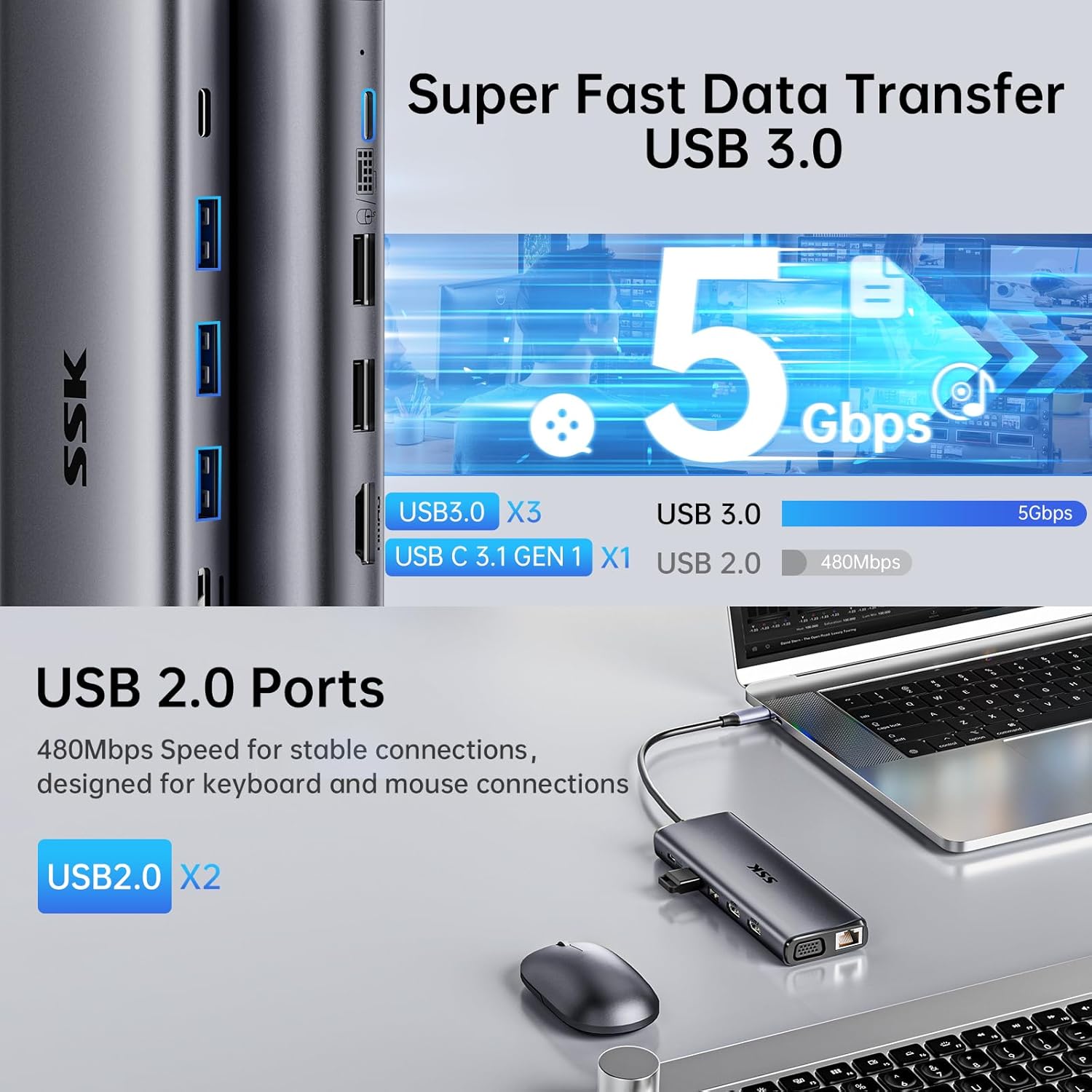
Figure 4: USB data transfer ports. This image highlights the USB 3.0 and USB 2.0 ports, demonstrating their use for connecting various peripherals like mice, keyboards, and external storage devices.
- Connect Ethernet: For a wired network connection, plug an Ethernet cable into the RJ45 port.

Figure 5: RJ45 Ethernet and 3.5mm audio port. This image shows the connection of an Ethernet cable for a stable network and headphones to the audio jack.
- Insert SD/TF Cards: If needed, insert your SD or TF cards into the corresponding slots.

Figure 6: SD/TF card reader. This image demonstrates how to insert SD and MicroSD (TF) cards into the dedicated slots for data transfer.
- Connect Audio: Plug headphones or speakers into the 3.5mm audio/mic port.
6. Operating Instructions
6.1. Display Modes
The docking station supports various display configurations depending on your operating system:

Figure 7: Display mode configurations. This image illustrates the different display modes (Mirror and Extend) available for both Windows and Mac OS, showing how multiple monitors can be arranged.
- Windows 10/11:
- Mirror Mode (A-AAA): All external monitors display the same content as your laptop screen.
- Extend Mode (A-BBB): External monitors display the same extended content, different from your laptop screen.
- Extend Mode (A-BCD): Each external monitor displays unique extended content, different from your laptop screen. This supports quad displays (laptop screen + 3 external monitors).
- macOS: Due to macOS limitations (does not support MST - Multi-Stream Transport), external monitors will display the same content.
- Mirror Mode (A-AAA): All external monitors display the same content as your laptop screen.
- Extend Mode (A-BBB): External monitors display the same extended content, different from your laptop screen.
Resolution Notes:
- Single HDMI 1: Up to 4K@60Hz.
- Dual HDMI: Up to 4K@30Hz for each monitor.
- When VGA is connected (Dual or Triple display): Each monitor's maximum resolution is 1080P@60Hz.
6.2. Audio Output Configuration
If using the 3.5mm audio port, you may need to select the correct audio output device in your operating system settings:
- For macOS: Go to Apple icon > System Preferences > Sound > Output. Select "LCD" or "USB Audio Device" as the sound output.
- For Windows: Click the sound icon on the bottom right of the desktop. Choose "USB Audio Device" as the sound output.
7. Maintenance and Care
- Keep the docking station away from water, fire, and corrosive liquids.
- Avoid dropping or subjecting the device to strong impacts.
- Clean the device with a soft, dry cloth. Do not use chemical cleaners.
- Store in a cool, dry place when not in use.
8. Troubleshooting
- Q: No video output to external monitors.
- A: Ensure your laptop's USB-C port supports DisplayPort Alternate Mode. Check all cable connections. Try restarting your laptop and reconnecting the docking station.
- Q: Laptop is not charging.
- A: Verify that your laptop's USB-C port supports Power Delivery. Ensure a compatible USB-C PD charger (up to 100W) is connected to the docking station's PD port.
- Q: Ethernet connection is not working (Windows 7/XP/Linux).
- A: You may need to manually install the Gigabit RJ45 Ethernet driver. Refer to the manufacturer's website for driver downloads.
- Q: External monitors show the same content on macOS in Extend Mode.
- A: This is a limitation of macOS, which does not support Multi-Stream Transport (MST). The docking station will mirror the extended display across all external monitors (A-BBB).
- Q: USB devices are not recognized.
- A: Ensure the docking station is properly connected to your host device. Try connecting the USB device directly to your laptop to confirm functionality. If using high-power devices, ensure the docking station is connected to a power source.
9. Technical Specifications
| Feature | Detail |
|---|---|
| Model | SST-DS14 |
| Brand | SSK |
| Connectivity | USB-C (Host Connection) |
| HDMI Ports | 2 (Max 4K@60Hz single, 4K@30Hz dual) |
| VGA Port | 1 (Max 1080P@60Hz) |
| USB 3.0 Ports | 3 (Up to 5Gbps) |
| USB 2.0 Ports | 2 |
| USB C Data Port | 1 (USB C 3.1 Gen1, up to 5Gbps) |
| USB C PD Port | 1 (PD 3.0, 100W input, 85W output) |
| Ethernet Port | RJ45 Gigabit (1000Mbps) |
| Card Reader | SD/TF (simultaneous, up to 104MB/s) |
| Audio Port | 3.5mm Audio/Mic |
| Dimensions | 9.02 x 3.98 x 0.87 inches |
| Weight | 7.4 ounces |
10. Warranty and Support
SSK products are designed for reliability and performance. For warranty information and technical support, please refer to the official SSK website or contact their customer service directly.
Please retain your proof of purchase for warranty claims.
Related documentsSST-DS14


Ask a question about this manual
Ask about setup, troubleshooting, compatibility, parts, safety, or missing instructions. Manuals+ will review the question and use this page’s manual context to help answer it.