
1. Introduction
This manual provides essential instructions for the safe and effective operation of your Grimtron Biometric Gun Safe 420F. Please read this manual thoroughly before initial use and retain it for future reference.
The Grimtron Biometric Gun Safe 420F offers secure storage with multiple access options, including fingerprint, keypad, and emergency key. It features a robust metal construction and a compact design suitable for various placements.
2. Product Overview
The Grimtron Biometric Gun Safe 420F is designed for secure storage of handguns and other valuables. Key features include biometric fingerprint access, a backlit electronic keypad, and a silent mode option.

Image: Grimtron Biometric Gun Safe 420F with its door open, revealing the interior storage compartments, a handgun rack, and the biometric keypad on the exterior.
2.1 Package Contents

Image: Contents of the Grimtron Biometric Gun Safe 420F package, showing the safe, expansion screws, user manual, two emergency keys, a gun organizer, and a gun rack.
- Grimtron Biometric Gun Safe 420F
- Expansion Screws (x4)
- User Manual (x1)
- Emergency Keys (x2)
- Gun Organizer (x1)
- Gun Rack (x1)
3. Setup
3.1 Battery Installation
The safe requires 4 AA batteries (not included) for operation. Ensure the safe is unlocked before proceeding.
- Open the safe door.
- Locate the battery compartment on the inside of the door. It may be covered by a fabric pouch; gently remove it if present.
- Use a screwdriver to unscrew the battery cover.
- Insert 4 AA alkaline or carbon batteries, ensuring correct polarity (+/-).
- Replace the battery cover and secure it with the screw.
Note:
- Please use alkaline or carbon batteries. Using other types of batteries may render the safe inoperable.
- Do not mix old and new batteries.
- The safe cannot be powered by rechargeable batteries. Do not attempt to charge any batteries inside the safe.
Video: Demonstrates the process of installing 4 AA batteries into the Grimtron Biometric Gun Safe 420F's internal battery compartment.
3.2 Setting Fingerprints
You can store up to 30 unique fingerprints for quick access.
- With the safe door open, locate the "SET" button inside the battery compartment.
- Press and release the "SET" button. The keypad will illuminate.
- Place your finger on the biometric scanner and scan it 3 times. The indicator light will flash green upon successful scan.
- Test the newly registered fingerprint by placing it on the scanner. The safe should unlock.
Note:
- If the new fingerprint does not unlock the safe, the indicator RED light will flash 5 times, indicating that the fingerprint has not been set successfully. Repeat the process.
- The process of repeating the fingerprint setup allows you to store additional fingerprints, up to the thirtieth fingerprint.
- If you are having difficulty with your print, set the same fingerprint 4 or 5 times. You have 30 slots available for setting and you can also try your thumb as it has more surface area to read.
Video: Guide on how to set up and register fingerprints for the Grimtron Biometric Gun Safe 420F.
3.3 Securing the Safe
For enhanced security, it is recommended to secure the safe to a fixed surface such as a wall or floor.

Image: Step-by-step diagram illustrating the process of securing the safe to a surface using expansion screws.
- Position the safe in the desired location.
- Mark the drilling points through the pre-drilled holes inside the safe.
- Drill pilot holes into the wall or floor using an appropriate drill bit.
- Align the safe with the drilled holes and insert the expansion screws.
- Tighten the screws securely to fix the safe in place.
4. Operating Instructions
4.1 Quick Access Methods
Your Grimtron safe offers four primary methods for quick access:
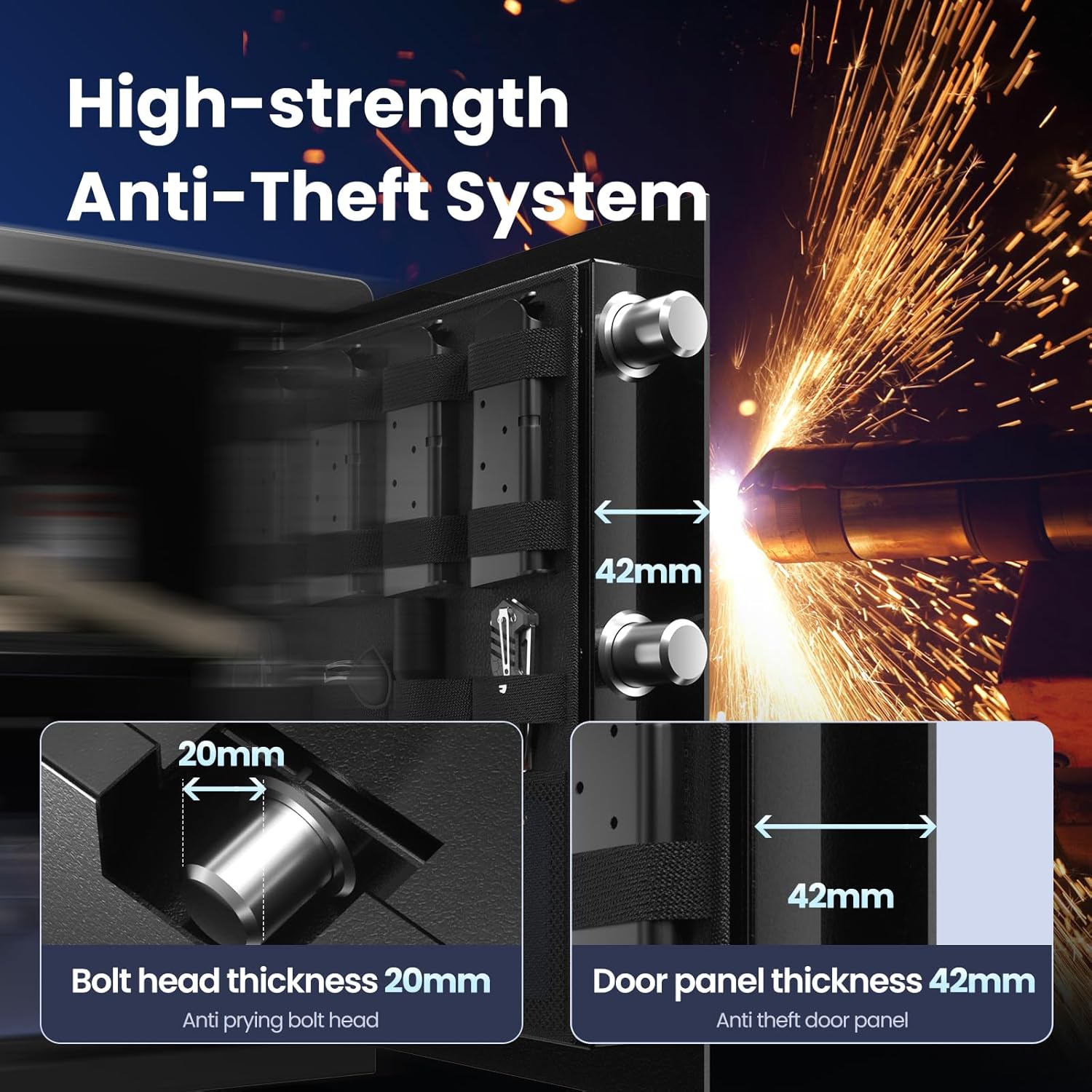
Image: Visual guide detailing the four methods to quickly access the safe: using a password, an emergency key, a registered fingerprint, or temporary power via USB-C combined with a password or fingerprint.
- Method 1: Password Entry
- Enter your programmed password.
- Press "#".
- Turn the knob clockwise to open the safe.
- Method 2: Emergency Key
- Slide the keyhole cover to the right.
- Insert the emergency key and turn it counter-clockwise.
- Turn the knob clockwise to open the safe.
- Method 3: Fingerprint Scan
- Place your registered finger on the fingerprint scanner.
- Once recognized (green light), turn the knob clockwise to open the safe.
- Method 4: USB-C Emergency Power (If batteries are depleted or not installed)
- Connect a USB-C cable to the emergency power port on the keypad.
- Unlock the safe using your password or a registered fingerprint.
- Turn the knob clockwise to open the safe.
Note:
- The emergency port can only provide temporary power to the safe. It cannot be used to charge the safe's internal batteries.
Video: Instructions on how to use the emergency power port with a USB-C cable to access the safe when batteries are low or absent.
4.2 Deleting Fingerprints
To remove all registered fingerprints from the safe's memory:
- With the safe door open, locate the "SET" button inside the battery compartment.
- Press and hold the "SET" button until the indicator light turns green.
- All fingerprint data will be successfully deleted.
Warning:
- This deletion process will remove ALL registered fingerprint data. It does not affect the keypad password.
Video: Demonstrates how to delete all registered fingerprints from the safe's memory.
5. Maintenance
- Battery Replacement: Replace batteries annually or when the low battery indicator appears. Always use new alkaline or carbon AA batteries.
- Cleaning: Wipe the exterior and interior surfaces with a soft, dry cloth. Avoid abrasive cleaners or solvents.
- Key Storage: Store emergency keys in a secure location outside the safe.
6. Troubleshooting
- Safe does not open with fingerprint/password:
- Check battery level. Replace batteries if low.
- Ensure your finger is clean and dry when using the biometric scanner.
- Verify the correct password is being entered.
- If batteries are completely dead, use the emergency key or USB-C emergency power.
- Keypad not responding:
- Check battery connections and ensure batteries are correctly installed.
- If the keypad is unresponsive, use the emergency key to open the safe.
- Fingerprint registration fails:
- Ensure your finger is clean and covers the entire scanner surface during registration.
- Try registering the same finger multiple times (4-5 times) for better recognition.
- Consider using a different finger or your thumb, which may have a larger surface area for scanning.
7. Specifications
| Feature | Detail |
|---|---|
| Brand | Grimtron |
| Model Number | VT02-420F |
| Lock Type | Electronic (Biometric Fingerprint, Keypad, Emergency Key) |
| Color | Black |
| Capacity | 1.72 Cubic Feet |
| Material | Metal |
| Special Feature | Portable, Backlit Keyboard, Silent Mode, Detachable Shelf |
| Mounting Type | Freestanding (Mounting hardware included) |
| Alarm | Anti-theft alarm |
| Water Resistance Level | Not Water Resistant |
| Item Weight | 39 pounds |
| Product Dimensions (L x W x H) | 13.8 x 13.8 x 16.5 inches |
| Batteries Required | 4 AA batteries (not included) |
8. Warranty and Support
Grimtron provides a limited warranty for this product against defects in materials and workmanship under normal use. Please refer to the warranty card included in your package for specific terms and conditions, including the warranty period and how to make a claim.
For technical support, troubleshooting assistance, or warranty inquiries, please contact Grimtron customer service through the contact information provided on your warranty card or the official Grimtron website.


