
MUBVIEW PK320-F
MUBVIEW PK320-F Indoor Security Camera User Manual
Model: PK320-F | Brand: MUBVIEW
Product Overview
The MUBVIEW PK320-F Indoor Security Camera is designed to provide comprehensive surveillance for your home, pets, elders, or babies. Featuring stunning 2K resolution, Pan-Tilt-Zoom (PTZ) capabilities, two-way audio, and advanced motion tracking with human/pet detection, this camera ensures you stay connected and informed. It supports both 2.4GHz and 5GHz WiFi for stable connectivity and offers 24/7 recording with clear night vision. Flexible storage options include local storage via an SD card and secure cloud backup.

Image: Four MUBVIEW PK320-F cameras, highlighting the multi-pack offering.

Image: Key features of the MUBVIEW PK320 Smart Camera, including two-way audio, 2K resolution, motion tracking, and dual-band WiFi.
Setup Guide
Follow these steps to set up your MUBVIEW PK320-F camera:
- Download the MUBVIEW APP: Search for "MUBVIEW" in your mobile device's app store (iOS or Android) and download the official application.
- Power On and Connect to WiFi: Plug the camera into a power outlet using the provided 2M power cable. Ensure your mobile device is connected to a 2.4GHz or 5GHz WiFi network. The camera supports both frequencies for flexible connectivity.
- Add Device in App: Open the MUBVIEW app, create an account or log in, and follow the on-screen instructions to add your new camera. You will typically scan a QR code on the camera or enter its device ID.
- Complete Setup: Once connected, you can name your camera and configure settings such as motion detection zones, alert preferences, and storage options.

Image: Visual guide for the quick and easy setup process.
Important Note: The camera requires continuous power and must be plugged into an outlet while operating.

Image: Illustration of dual-band WiFi compatibility and power requirement.
Operating Instructions
Pan-Tilt-Zoom (PTZ) and 2K Resolution
The MUBVIEW PK320-F camera offers a wide viewing angle with its Pan-Tilt capabilities, allowing you to remotely adjust the camera's view through the app. It provides 355° horizontal pan and 80° vertical tilt. The 2K (3MP) resolution ensures clear and detailed video footage, capturing essential details for monitoring.

Image: Visual comparison highlighting the clarity of 2K (3MP) resolution over 1080P.

Image: Demonstrates the camera's auto-tracking feature with 355° pan and 80° tilt.
Two-Way Audio
Engage in real-time conversations with family members, pets, or visitors through the camera's built-in microphone and speaker. This feature allows for seamless communication directly from your smartphone app.

Image: Illustrates the clear two-way audio function for interacting with pets or people.
Human/Pet Detection & Instant Alerts
The camera is equipped with intelligent human and pet detection capabilities. When motion is detected, the camera can automatically track the movement and send instant message alerts to your connected device, keeping you informed of any significant activity.

Image: Example of real-time alerts and interaction with a pet via the camera.
24/7 Recording & Night Vision
Benefit from continuous surveillance with 24/7 recording. The camera's advanced night vision ensures clear visibility even in low-light or completely dark environments, capturing important moments around the clock.
Image: Demonstrates the camera's clear night vision capability.
Multiple Device Viewing & Sharing
The MUBVIEW app allows you to view the camera feed from multiple devices simultaneously. You can also securely share access to your camera with trusted family members or friends, enabling collaborative monitoring.
Storage Options
The camera offers flexible storage solutions for your recordings:
- Local Storage: Insert a compatible storage card (MicroSD, not included) into the camera for local recording. Ensure the card is formatted correctly.
- Cloud Storage: Securely upload your recordings to the cloud. This option provides off-site backup and can be accessed from anywhere. Subscription may be required for certain cloud services.
Maintenance
To ensure optimal performance and longevity of your MUBVIEW PK320-F camera, follow these maintenance guidelines:
- Cleaning: Gently wipe the camera lens and body with a soft, dry, lint-free cloth. Avoid using harsh chemicals, solvents, or abrasive cleaners, as these can damage the surface or lens.
- Placement: Place the camera in a stable location, away from direct sunlight, heat sources, and excessive moisture. Ensure it is positioned where it has a clear line of sight and is within range of your WiFi network.
- Software Updates: Regularly check the MUBVIEW app for firmware updates. Keeping your camera's software up-to-date ensures you have the latest features, security enhancements, and bug fixes.
- Power Supply: Use only the original power adapter provided with the camera. Do not use damaged cables or adapters.
Troubleshooting
If you encounter issues with your MUBVIEW PK320-F camera, refer to the following common troubleshooting steps:
| Problem | Possible Cause / Solution |
|---|---|
| Camera not connecting to WiFi. |
|
| Poor video quality or blurry image. |
|
| Two-way audio not working. |
|
| Motion detection alerts are inconsistent or not received. |
|
| SD card not recording or recognized. |
|
Specifications
| Feature | Detail |
|---|---|
| Model Number | PK320-F |
| Indoor/Outdoor Usage | Indoor |
| Video Capture Resolution | 3 MP (2K) |
| Connectivity Protocol | Wi-Fi (2.4GHz & 5GHz) |
| Power Source | Corded Electric (220 Volts, 5 watts) |
| Controller Type | iOS, Android App |
| Mounting Type | Surface Mount, Wall Mount, Ceiling Mount, Countertop |
| Included Components | Indoor Camera with 2M Power Cable |
| Form Factor | Dome |
| Viewing Angle | 360 Degrees (Pan: 355°, Tilt: 80°) |
| Night Vision Range | 33 Feet |
| Frame Rate | 15-20fps |
| Material | Acrylonitrile Butadiene Styrene (ABS) |
| Product Dimensions | 6.8 x 5 x 6.8 inches |
| Item Weight | 2.59 pounds |
| Alert Type | Audio and Motion |
| Photo Sensor Technology | CMOS |
| Special Features | 2-Way Audio, Color Night Vision, Smart Tracking, Human Detection, Share with Family |
Warranty and Support
MUBVIEW is committed to providing excellent customer service and support for its products.
- Customer Support: For technical assistance or inquiries, MUBVIEW offers support via phone and email.
- Call Service: Available 9AM-5PM EST
- Online Email Support
- Cloud Service: Enjoy lifetime free cloud service for your recordings, ensuring your footage is securely backed up and accessible.
- Transparency Verification: Each MUBVIEW product includes a unique code that can be verified using the Transparency app to confirm authenticity and prevent counterfeits.
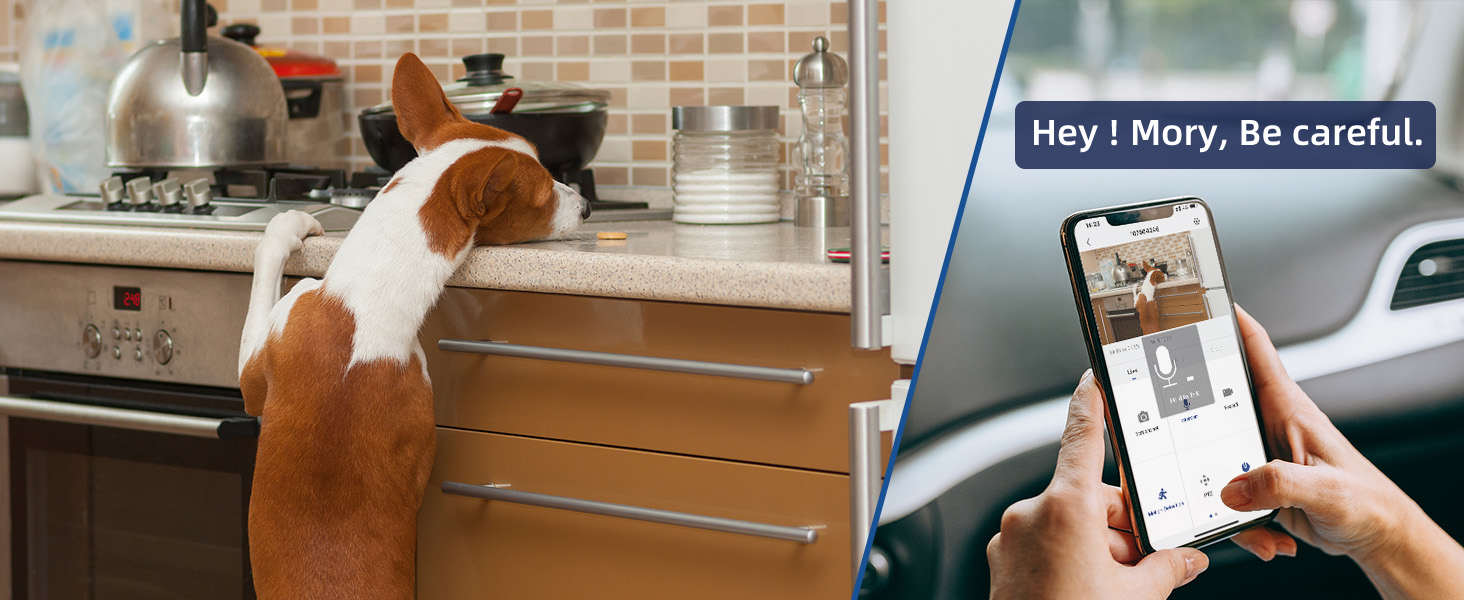
Image: MUBVIEW customer support contact information.

Image: MUBVIEW's commitment to customer-first service, including lifetime free cloud service and 24/7 technical support.

Image: Information on Transparency verification for product authenticity.
Related documentsPK320-F

Ask a question about this manual
Ask about setup, troubleshooting, compatibility, parts, safety, or missing instructions. Manuals+ will review the question and use this page’s manual context to help answer it.