
1. Introduction
The ASHATA T30 Pro 5.2 HiFi Sound Receiver Decoder is a versatile audio adapter designed to enhance your audio experience. It allows you to wirelessly stream high-fidelity audio from your devices to various sound systems, including speakers, home stereos, and car audio systems. This manual provides detailed instructions for setup, operation, and maintenance of your T30 Pro device.
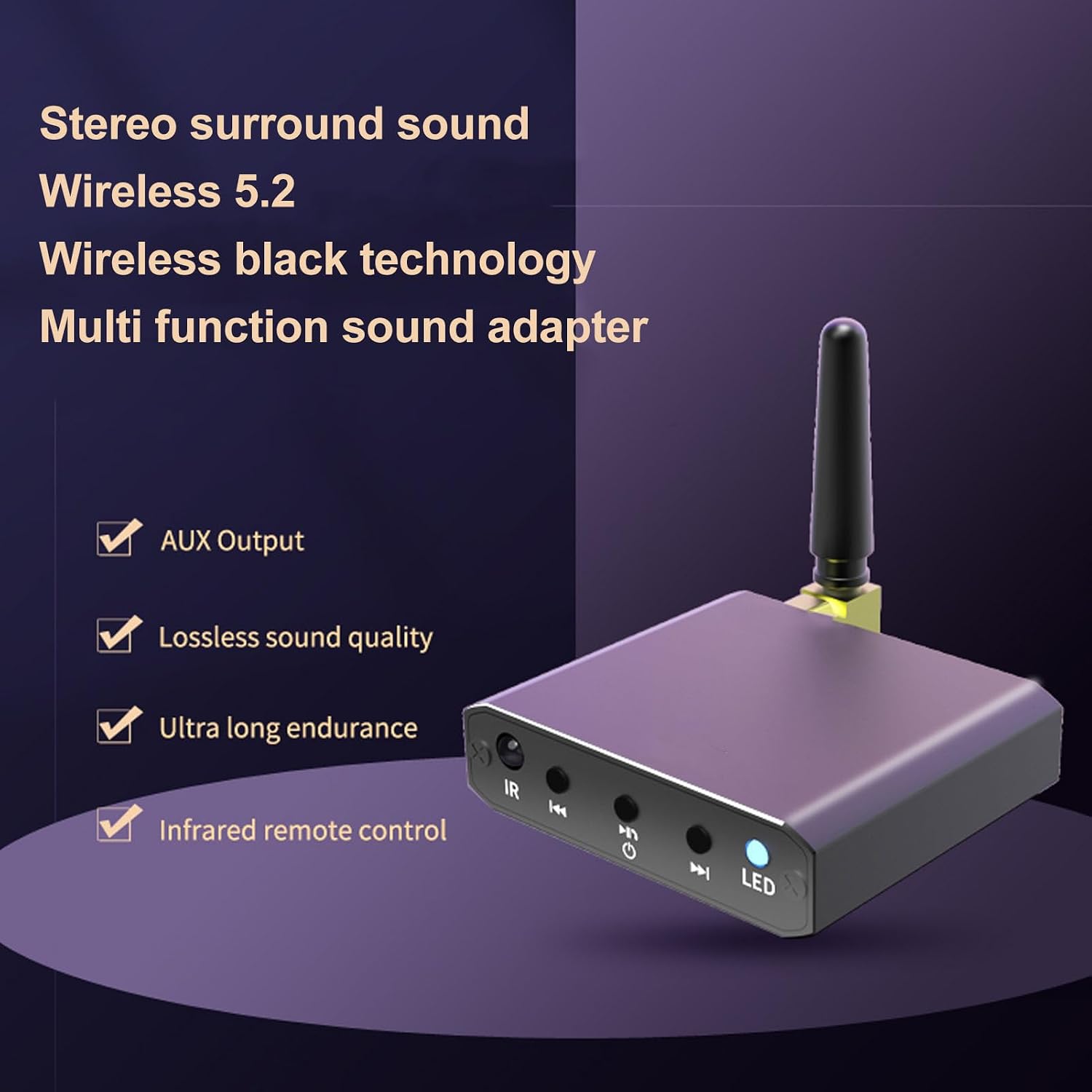
Figure 1: ASHATA T30 Pro Sound Receiver Decoder with key features.
Key Features:
- Wireless 5.2 Connectivity: Provides stable and efficient audio transmission.
- HiFi Stereo Sound: Delivers premium acoustics with low latency and high restoration for CD-level sound quality.
- Wide Compatibility: Connects to most speakers, car stereos, home stereos, and wired headphones using standard 3.5mm or RCA cables.
- Infrared Remote Control: Allows for convenient remote operation, including track control, volume adjustment, and mode selection.
- U Disk Playback: Supports direct music playback from a USB flash drive.
- Plug and Play: Easy setup with automatic connection to previously paired devices.
- Long Transmission Distance: Streams music up to 30 meters (98.4 feet) in unobstructed open areas.
2. Package Contents
Please verify that all items are present in the package:
- 1 x T30 Pro Sound Receiver
- 1 x Aux Sound Cable (3.5mm)
- 1 x Sound Cable (RCA)
- 1 x Type-C Power Cord
- 1 x Remote Control (CR2025 battery not included)

Figure 2: Package contents of the T30 Pro Sound Receiver.
3. Product Overview
Familiarize yourself with the device's ports and controls:

Figure 3: Front and Rear Panel Controls and Ports.
Front Panel Controls:
- IR: Infrared reception window for remote control.
- Previous Song / Volume Down: Short press for previous song, long press to decrease volume.
- Power / Play / Pause / Answer Call: Long press to power on/off. Short press to play/pause music or answer/end calls.
- Next Song / Volume Up: Short press for next song, long press to increase volume.
- LED: Indicator light for device status.
Rear Panel Ports:
- DC/5V (Type-C): Power input port.
- Audio Output (3.5mm): Connects to speakers, headphones, or other audio input devices.
- USB: USB disk input for music playback.
- Antenna: External 2.4G antenna connection for enhanced signal reception.
4. Setup
4.1 Powering On the Device
- Connect the provided Type-C power cord to the DC/5V port on the receiver and to a 5V power source (e.g., USB wall adapter, computer USB port).
- Long press the Power button on the front panel until the LED indicator lights up, indicating the device is powered on.
4.2 Connecting to an Audio System
The T30 Pro can connect to various audio output devices:
- For 3.5mm Audio Input: Use the provided 3.5mm Aux sound cable to connect the receiver's 3.5mm Audio Output port to the 3.5mm Aux input of your speaker, car stereo, or wired headphones.
- For RCA Audio Input: Use the provided RCA sound cable to connect the receiver's 3.5mm Audio Output port (using a 3.5mm to RCA adapter if necessary, or directly if the cable is 3.5mm to RCA) to the RCA input ports (red and white) of your home stereo or power amplifier.

Figure 4: Connecting the receiver to an active speaker.
5. Operating Instructions
5.1 Wireless Pairing
- Ensure the T30 Pro receiver is powered on and connected to your audio system.
- On your mobile phone, tablet, or other device, enable the wireless function.
- Search for available devices and select "T30 Pro" from the list.
- Once paired, the LED indicator on the receiver will show a stable light, and you can begin streaming audio.
- The device will automatically connect to previously paired devices upon startup.
5.2 U Disk Playback
The T30 Pro supports playing music directly from a USB flash drive.
- Insert a USB flash drive containing music files (MP3/APE/FLAC/WAV/WMA formats supported) into the USB port on the rear panel of the receiver. Ensure the U disk only contains song files and no other file types.
- The receiver will automatically detect the U disk and begin playing music.
- Use the front panel buttons or the remote control to navigate tracks and adjust volume.

Figure 5: U Disk playback functionality.
5.3 Remote Control Functions
The included infrared remote control provides convenient access to various functions:
- Power Button: Turns the device on/off.
- Play/Pause: Starts or pauses music playback.
- Previous/Next Track: Skips to the previous or next song.
- Volume Up/Down: Adjusts the audio output volume.
- Mode Button: Switches between wireless and U disk playback modes.
- Mute Button: Mutes or unmutes the audio.
Note: The remote control requires a CR2025 battery (not included). Ensure the remote is pointed towards the IR reception window on the receiver for optimal operation.
6. Specifications
| Feature | Specification |
|---|---|
| Brand | ASHATA |
| Model | T30 Pro (ASHATAdvtg93y10f) |
| Wireless Version | V5.2 |
| Protocol Support | SBC A2DP |
| Transmission Distance | Up to 30m / 98.4ft (Unobstructed Open Place) |
| Input Interface | Wireless, U Disk Input |
| Output Interface | Aux Sound Output Interface (3.5mm) |
| Receiver Battery Capacity | 500mAh (Included) |
| Charging Interface | Type-C |
| Call Function | Mobile Phone Hands-Free Call |
| Input Compatible Devices | Mobile Phones, Tablets, TVs, Projectors, Game Consoles, and other devices with sound output function |
| Output Compatible Devices | Power Amplifier, Sound System, Wired Headphones, Automobile Decoder, and other devices with sound input interface |
| U Disk Support | Play music (U Disk must only contain song files) |
| Remote Control Battery | CR2025 x 1 (Not Included) |
| Audio Output Mode | Stereo |
| Control Method | Remote, Push Button |
| Connectivity Technology | Infrared, Wireless |
7. Troubleshooting
If you encounter issues with your T30 Pro, please refer to the following common solutions:
- No Power: Ensure the Type-C power cord is securely connected to both the receiver and a working 5V power source. Check if the power button has been long-pressed to turn on the device.
- No Sound:
- Verify that the audio cable (3.5mm or RCA) is correctly connected between the receiver's Audio Output and your speaker/audio system's input.
- Check the volume levels on both the receiver and your connected audio system.
- Ensure the correct input source is selected on your audio system.
- If using wireless, ensure the receiver is successfully paired with your device.
- Unable to Pair:
- Make sure the receiver is powered on.
- Disable and re-enable wireless on your transmitting device (phone, tablet).
- Move your transmitting device closer to the receiver.
- Clear the wireless pairing list on your transmitting device and try pairing again.
- U Disk Not Playing:
- Ensure the U disk is inserted correctly into the USB port.
- Verify that the U disk contains only supported music file formats (MP3/APE/FLAC/WAV/WMA).
- Try a different U disk to rule out a faulty drive.
- Remote Control Not Working:
- Ensure a fresh CR2025 battery is installed correctly in the remote control.
- Point the remote control directly at the IR reception window on the receiver.
- Remove any obstructions between the remote and the receiver.
8. Maintenance
To ensure the longevity and optimal performance of your ASHATA T30 Pro Sound Receiver Decoder, follow these maintenance guidelines:
- Cleaning: Use a soft, dry cloth to clean the device. Avoid using liquid cleaners, aerosols, or solvents.
- Storage: Store the device in a cool, dry place away from direct sunlight and extreme temperatures.
- Handling: Handle the device with care. Avoid dropping it or subjecting it to strong impacts.
- Power Supply: Use only the provided Type-C power cord or a compatible 5V power adapter.
- Environment: Keep the device away from water, moisture, and excessive dust.
9. Warranty and Support
For warranty information or technical support, please refer to the documentation provided with your purchase or contact your retailer. Keep your proof of purchase for any warranty claims.