
Product Overview
The Epson EcoTank ET-2800 is a versatile all-in-one wireless color supertank inkjet printer designed for home use. It offers print, scan, and copy functionalities with a cartridge-free ink system, utilizing high-capacity refillable ink tanks. This printer is engineered for convenience and efficiency, providing a cost-effective printing solution.

Image: The Epson EcoTank ET-2800 printer shown with its included ink bottles, highlighting its compact design and the EcoTank system.
Key Features
- Printing Technology: 4-color (CMYK), drop-on-demand MicroPiezo inkjet.
- Max. Print Resolution: 5760 x 1440 dpi for sharp, vibrant prints.
- Print Speed: Efficient printing at 10.0 ISO ppm (black) and 5.0 ISO ppm (color).
- Cartridge-Free System: Features high-capacity, easily refillable ink tanks with EcoFit bottles, eliminating the need for traditional cartridges.
- Connectivity: Versatile connection options including Hi-Speed USB, Wi-Fi 4 (802.11 b/g/n), and Wi-Fi Direct.
- Mobile Printing: Supports Epson Smart Panel App, Epson iPrint App, Epson Remote Print, Apple AirPrint 1.8, Android Printing, and Mopria Print Service.
- Scanner Type: Color flatbed (CIS photo sensor) with a maximum hardware resolution of 1200 x 2400 dpi.
- Display: Intuitive 1.44" color LCD for easy navigation and status checks.
- Paper Capacity: Input tray holds up to 100 sheets of plain paper or 20 sheets of photo paper.

Image: The Epson EcoTank ET-2800 printer highlighting its cartridge-free design with visible ink tanks and EcoFit ink bottles.
Setup Guide
1. Unpacking and Initial Setup
- Carefully remove the printer from its packaging. Ensure all protective tapes and packing materials are removed from the exterior and interior of the printer.
- Place the printer on a stable, flat surface near a power outlet.
- Connect the power cord to the printer and then to a power outlet. Do not connect the USB cable yet if you plan to use a USB connection.
2. Filling the Ink Tanks
The EcoTank ET-2800 uses refillable ink tanks. Follow these steps to fill them:
- Open the ink tank unit cover on the right side of the printer.
- Open the cap for the black ink tank.
- Unpack the black ink bottle (522 Black). Do not shake the bottle.
- Align the top of the ink bottle with the filling port and insert it firmly. The ink will begin to fill automatically. Do not squeeze the bottle.
- Once the ink tank is full, the ink will stop flowing. Remove the bottle and securely close the ink tank cap.
- Repeat this process for the Cyan, Magenta, and Yellow ink tanks using the corresponding color bottles (522 Cyan, 522 Magenta, 522 Yellow).
- Close the ink tank unit cover.

Image: A hand demonstrating the process of refilling the black ink tank of the Epson EcoTank ET-2800 printer using an EcoFit ink bottle.
3. Initial Ink Charging
- Turn on the printer by pressing the power button.
- Follow the on-screen instructions on the 1.44" color LCD to begin the initial ink charging process. This may take approximately 10-15 minutes. Do not turn off the printer or open the ink tank unit cover during this process.
- Once charging is complete, the printer is ready for setup.
4. Software Installation and Connectivity
- Insert the software CD-ROM into your computer's drive, or download the latest drivers and software from the official Epson support website.
- Follow the on-screen instructions to install the printer software.
- During installation, select your preferred connection method:
- Wireless (Wi-Fi): Follow the prompts to connect the printer to your wireless network. You may need your Wi-Fi network name (SSID) and password.
- USB: Connect the USB cable from the printer to your computer when prompted by the software.

Image: The Epson EcoTank ET-2800 printer shown receiving a print job wirelessly from a smartphone, demonstrating its mobile printing capabilities.
Operating Instructions
1. Loading Paper
- Pull out the paper support and extend it.
- Slide the edge guides outward.
- Load paper print-side up into the rear paper feed slot. Ensure the paper stack is even and does not exceed the maximum capacity (100 sheets plain paper).
- Slide the edge guides against the paper, but not too tightly.
- Pull out the output tray and extend the paper stopper.
2. Printing Documents
- Open the document or image you wish to print on your computer or mobile device.
- Select "Print" from the application's menu.
- Choose "Epson ET-2800 Series" as your printer.
- Adjust print settings such as paper size, type, print quality, and color/grayscale as needed.
- Click "Print".
3. Copying Documents
- Lift the scanner lid.
- Place the document face-down on the scanner glass, aligning it with the alignment mark.
- Close the scanner lid gently.
- On the printer's 1.44" LCD panel, navigate to the "Copy" function.
- Adjust copy settings (e.g., number of copies, color/B&W, paper size) using the control panel buttons.
- Press the "Start" button (often indicated by a color or black start icon) to begin copying.
4. Scanning Documents
- Place the document face-down on the scanner glass.
- On your computer, open the Epson Scan software or a compatible scanning application.
- Select "Epson ET-2800 Series" as your scanner.
- Choose scan settings such as document type (photo/document), resolution, color mode, and destination folder.
- Click "Scan" to start the scanning process. The scanned image will be saved to your specified location.
Maintenance
1. Checking Ink Levels
Regularly check the ink levels visually through the transparent ink tanks on the front of the printer. The 1.44" LCD display may also show low ink warnings.
2. Refilling Ink Tanks
When an ink tank is low, refill it promptly using genuine Epson 522 series ink bottles. Refer to the "Filling the Ink Tanks" section in the Setup Guide for detailed instructions.
3. Print Head Cleaning
If print quality declines (e.g., missing lines, faded prints), perform a print head cleaning:
- On the printer's control panel, navigate to "Setup" > "Maintenance" > "Print Head Cleaning".
- Follow the on-screen prompts. This process uses a small amount of ink.
- After cleaning, print a nozzle check pattern to verify improvement. If quality is still poor, perform another cleaning.
4. Print Head Alignment
If prints appear blurry or misaligned, perform a print head alignment:
- On the printer's control panel, navigate to "Setup" > "Maintenance" > "Print Head Alignment".
- Follow the on-screen prompts to print an alignment sheet and select the best pattern.
5. Cleaning the Scanner Glass
If scanned images have streaks or smudges, clean the scanner glass:
- Turn off the printer and unplug the power cord.
- Wipe the scanner glass and the white document mat beneath the lid with a soft, lint-free cloth dampened with a mild glass cleaner. Do not spray cleaner directly onto the glass.
- Wipe dry with a clean, dry cloth.
6. Firmware Updates
Periodically check the Epson support website for firmware updates to ensure optimal performance and compatibility.
Troubleshooting
Common Issues and Solutions
| Problem | Possible Cause | Solution |
|---|---|---|
| Printer not turning on | Power cord not connected; power outlet issue | Ensure power cord is securely connected to printer and a working outlet. Try a different outlet. |
| Printer not printing | Printer offline; low ink; paper jam; incorrect drivers | Check printer status on computer; refill ink tanks; clear paper path; reinstall drivers. |
| Poor print quality (streaks, faded) | Clogged print head; low ink; incorrect paper type setting | Perform print head cleaning; refill ink; ensure correct paper type is selected in print settings. |
| Paper jam | Paper loaded incorrectly; foreign object in paper path | Remove all jammed paper carefully. Check for any obstructions inside the printer. Reload paper correctly. |
| Cannot connect to Wi-Fi | Incorrect Wi-Fi password; printer too far from router; network issue | Verify Wi-Fi password; move printer closer to router; restart router and printer. |
Error Messages
Refer to the printer's 1.44" LCD display for specific error codes or messages. Consult the Epson support website or the full electronic manual for detailed explanations and solutions for specific error codes.
Specifications
| Feature | Detail |
|---|---|
| Model Name | ET-2800 |
| Printing Technology | 4-color (CMYK), drop-on-demand MicroPiezo inkjet |
| Max. Print Resolution | 5760 x 1440 dpi |
| Print Speed (Black) | 10.0 ISO ppm |
| Print Speed (Color) | 5.0 ISO ppm |
| Scanner Type | Color flatbed (CIS photo sensor) |
| Optical Scan Resolution | 1200 dpi |
| Max. Hardware Scan Resolution | 1200 x 2400 dpi |
| Copy Speed (Black) | 7.7 ISO cpm |
| Copy Speed (Color) | 3.8 ISO cpm |
| Display | 1.44" color LCD |
| Connectivity | Hi-Speed USB, Wi-Fi 4 (802.11 b/g/n), Wi-Fi Direct |
| Input Paper Capacity | 100 sheets plain paper, 20 sheets photo paper |
| Output Paper Capacity | 30 sheets plain paper |
| Max. Paper Size | 8.5" x 47.2" |
| Dimensions (W x D x H) | 14.8" x 13.7" x 7.0" |
| Weight | 8.8 lb |
| Included Components | Ink Bottles |
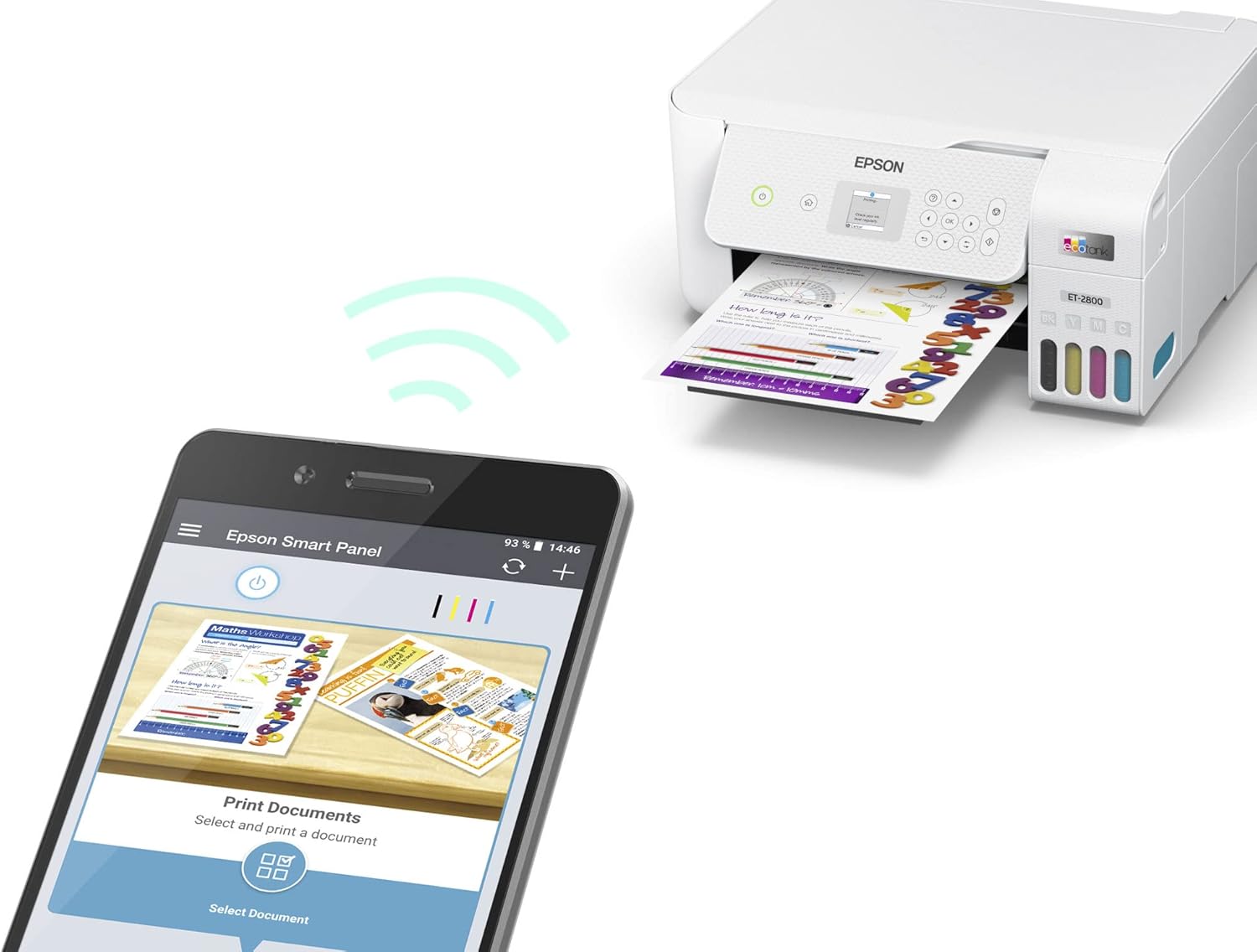
Image: Diagram illustrating the dimensions of the Epson EcoTank ET-2800 printer, including height, width, and depth.
Warranty and Support
Warranty Information
The Epson EcoTank ET-2800 printer typically comes with a limited warranty. For specific details regarding the warranty period and coverage, please refer to the warranty documentation included with your product or visit the official Epson support website.
Customer Support
For technical assistance, troubleshooting, driver downloads, or further information, please visit the official Epson support website or contact Epson customer service. Keep your printer's serial number and proof of purchase readily available when seeking support.
Epson Official Website: https://epson.com/support
Model Number: ET-2800
UPC: 010343938090


