
Introduction
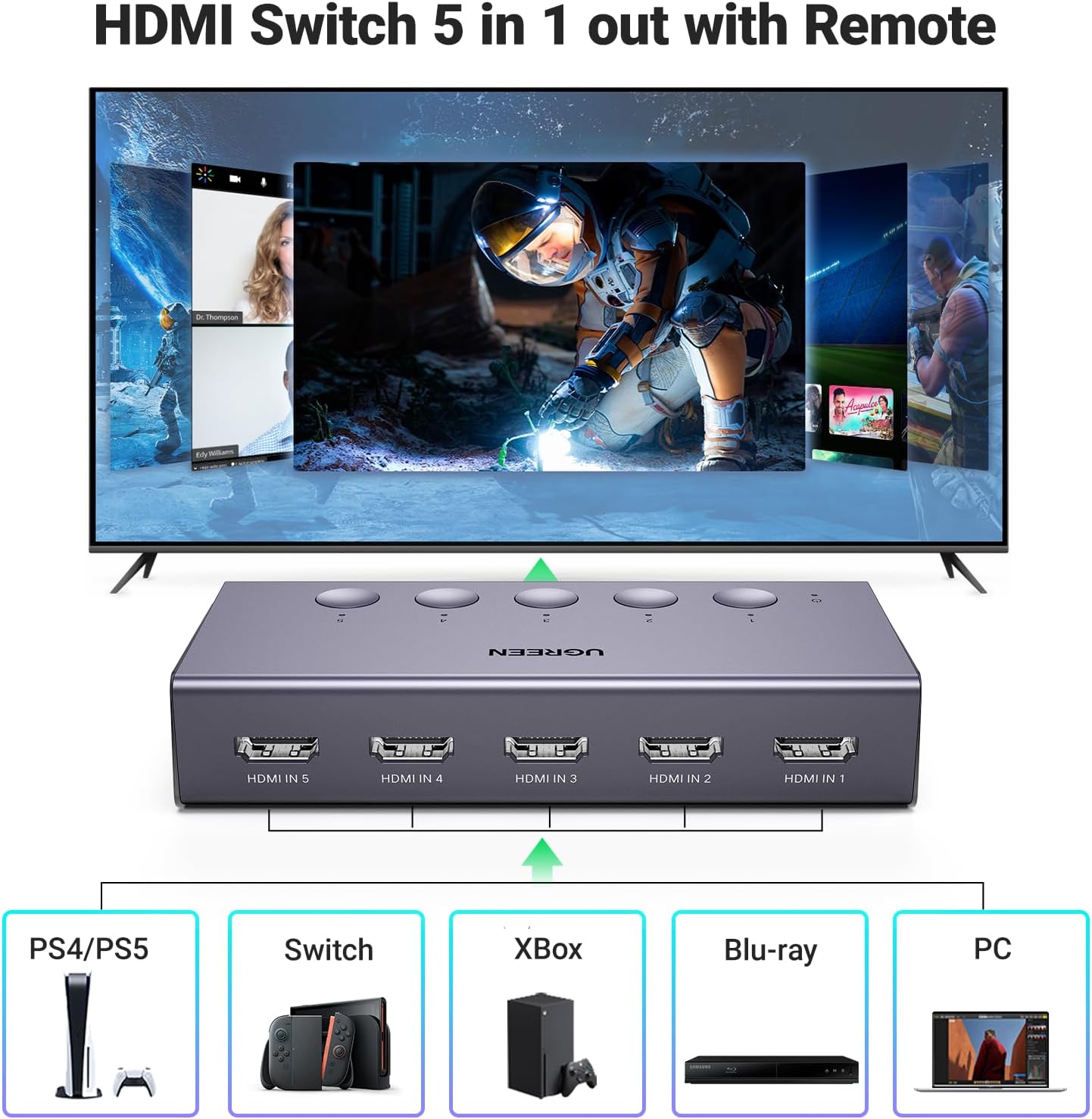
This manual provides detailed instructions for the UGREEN HDMI Switch 5 in 1 Out, Model CM568. This device allows you to connect up to five HDMI source devices to a single HDMI display, offering seamless switching between inputs. It supports high-resolution video up to 4K@60Hz, including 3D, CEC, HDR, and HDCP2.2, ensuring a high-quality visual and audio experience.
Package Contents
- 1 x UGREEN HDMI Switch (Model CM568)
- 1 x Remote Control
- 1 x USB Power Cable
- 1 x User Manual
Product Overview

Product Features in Action
This video provides an overview of the UGREEN HDMI Switch 5 in 1 Out 4K@60Hz, demonstrating its design and functionality.
Product Features
- 5-in-1 HDMI Switching: Connect up to five HDMI source devices (e.g., PS5, Xbox, Nintendo Switch, Blu-ray players, Fire TV stick, PC, laptop) to a single HDMI display.
- 4K@60Hz Resolution: Supports resolutions up to 4K@60Hz, with backward compatibility for 4K@30Hz, 2560*1440@120Hz, and 1920*1080@240Hz.
- Advanced Video Technologies: Compatible with HDMI 2.0/1.4, HDCP2.2/1.4, VRR, Dynamic HDR, 3D, and CEC.
- High Bandwidth: Supports 18Gbps data transmission for fast and stable video.
- USB Powered: Ensures stable video transmission and better performance. A USB power cable is included (power adapter not included).
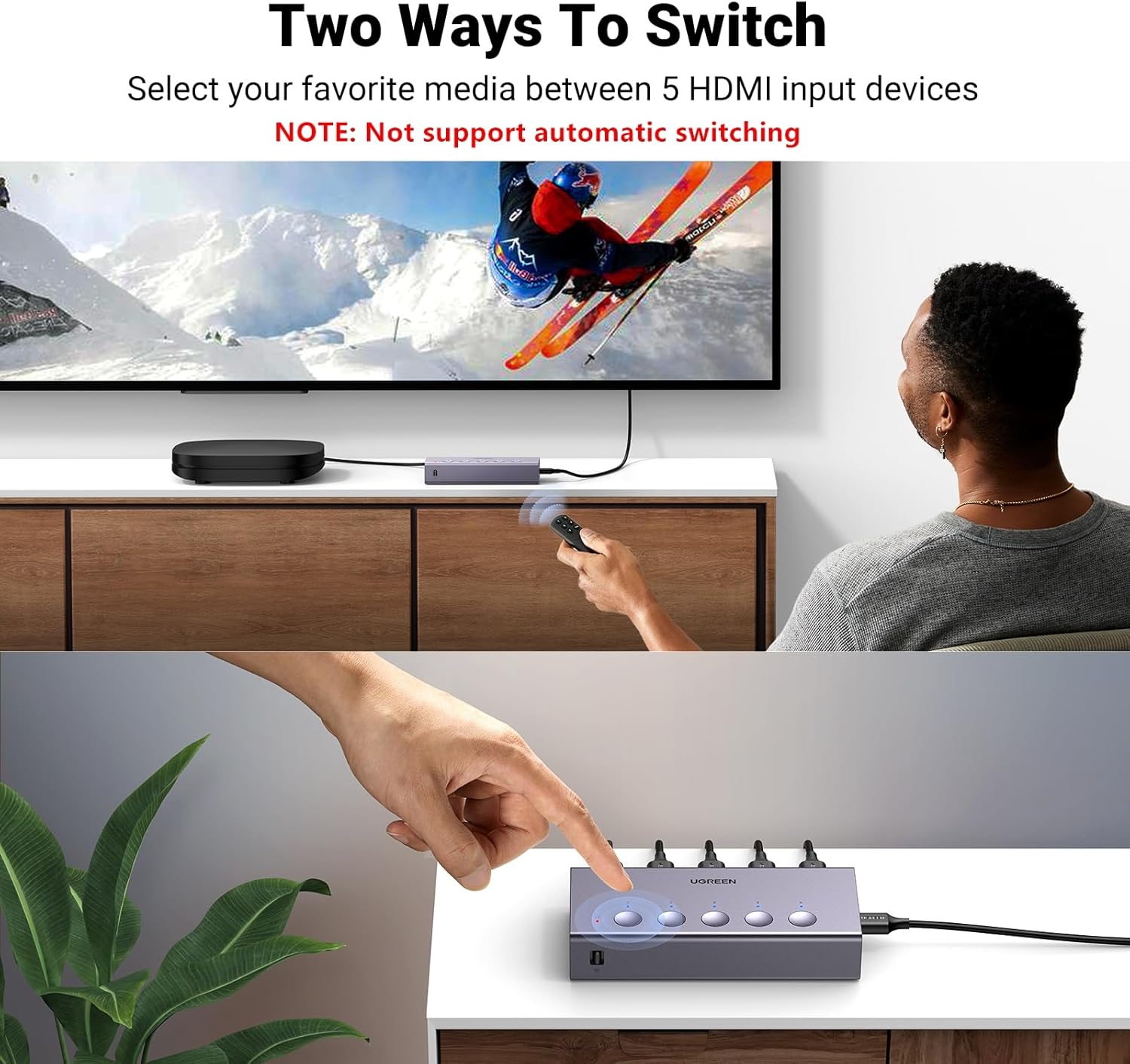
- Dual Switching Methods: Switch inputs using either the manual buttons on the device or the included remote control.
- LED Indicators: Five LED indicators clearly show which input port is currently active.


Setup Instructions
- Connect HDMI Source Devices: Plug your HDMI source devices (e.g., gaming consoles, Blu-ray players, streaming sticks) into the HDMI IN 1-5 ports on the UGREEN HDMI Switch.
- Connect to Display: Connect one end of an HDMI cable to the HDMI OUT port on the switch and the other end to an HDMI input port on your TV or monitor.
- Provide Power: Connect the included USB power cable to the USB-C Power Port on the switch and plug the other end into a USB power source (e.g., a USB wall adapter, TV USB port). Ensure the switch is connected to a power source for proper operation.

Setup Demonstration Video
This video demonstrates the physical setup and connection process for the UGREEN HDMI Switch 5 in 1 Out.
Operating Instructions
Switching Inputs
The UGREEN HDMI Switch offers two convenient methods for switching between your connected HDMI devices:
- Manual Button Switch: Press the corresponding numbered button (1-5) on the top of the switch to select your desired input. The LED indicator above the button will light up to show the active input.
- Remote Control: Use the included remote control to switch inputs from a distance. Press the numbered buttons (1-5) to directly select an input, or use the 'Next' button to cycle through the inputs sequentially.
Remote Control Usage
For optimal performance, ensure the remote control is used within a 55-degree angle of the switch's IR receiver. The effective control range is within 33 feet (10 meters).

Operating the Switch with Remote
This video demonstrates how to operate the UGREEN HDMI Switch using the remote control to switch between connected devices.
Specifications
| Feature | Description |
|---|---|
| Model Number | CM568 |
| Color | Grey |
| Connector Type | HDMI to HDMI |
| Number of Ports | 5 Input, 1 Output |
| Max Resolution | 4K@60Hz |
| Backward Compatibility | 4K@30Hz, 2560*1440@120Hz, 1920*1080@240Hz |
| HDMI Standards | HDMI 2.0/1.4, HDCP2.2/1.4 |
| Supported Technologies | VRR, Dynamic HDR, 3D, CEC |
| Data Transmission Bandwidth | 18Gbps |
| Power Source | USB Powered (USB power cable included, adapter not included) |
| Item Dimensions (D x W x H) | 4.98"D x 2.31"W x 0.96"H |
Recommended HDMI Cable Specifications

Troubleshooting
- No 4K@60Hz Output: Ensure that both the input and output HDMI cables are within 3 meters (9 feet) and are AWG30 standard. Longer or lower-quality cables may not support 4K@60Hz.
- No Signal/Intermittent Signal: Verify that the HDMI switch is properly connected to a power source using the provided USB power cable. A stable power supply is crucial for optimal performance.
- No Audio Return Channel (ARC/eARC) Support: This HDMI switch does not support ARC or eARC functionalities. If you require ARC/eARC, please ensure your setup bypasses the switch for these features.
- No Automatic Switching: The UGREEN HDMI Switch does not support automatic input switching. Inputs must be selected manually using either the physical buttons on the device or the remote control.
Warranty and Support
The UGREEN HDMI Switch (Model CM568) comes with a 24-month warranty. For any technical support or warranty claims, please contact UGREEN customer service through their official channels or the retailer where the product was purchased.


