
Introduction
The Apricorn Aegis NVX is a high-speed, hardware-encrypted external solid-state drive designed for secure data storage. It features 256-bit AES XTS encryption, onboard keypad PIN authentication, and USB 3.2 (10Gbps) connectivity. This device is cross-platform compatible, supporting Windows, Linux, Mac, Android, and Chrome operating systems. Its robust design protects against physical tampering and malware attacks, meeting U.S. government standards for information technology and computer security (NIST FIPS 140).

Image: The Apricorn Aegis NVX hardware-encrypted drive, featuring a numeric keypad for PIN entry.
Package Contents
- Apricorn Aegis NVX ANVX-1TB Hardware-Encrypted Drive
- 1 x USB Cable (integrated)
- Carrying Case (may vary by model/bundle)
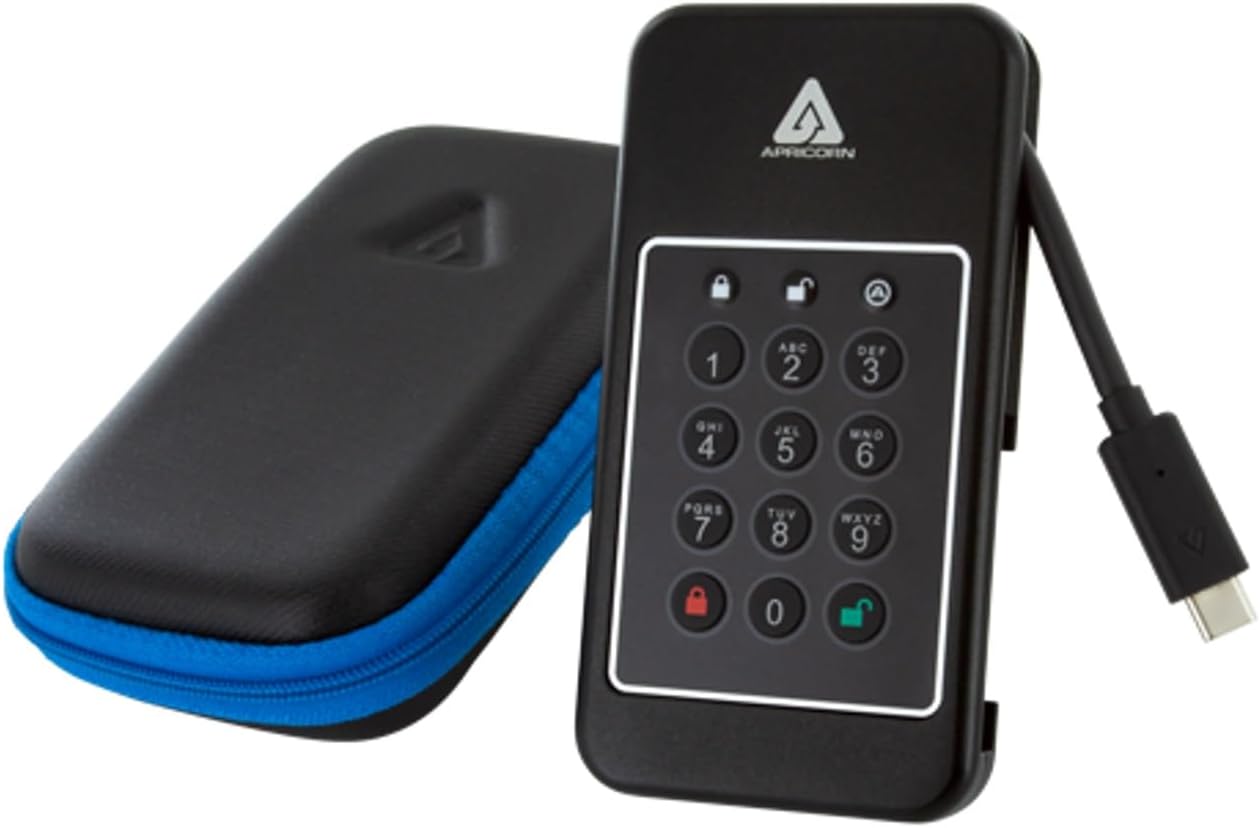
Image: The Apricorn Aegis NVX drive shown alongside its protective carrying case.
Setup and Initial Configuration
1. Connecting the Drive
The Aegis NVX features an integrated USB-C cable. Carefully extend the cable from its housing and connect it to an available USB-C port on your computer or device. The drive is powered via the USB connection.

Image: The Apricorn Aegis NVX drive with its integrated USB-C cable extended and ready for connection.
2. Setting the Administrator PIN
Upon first use, you must set an Administrator PIN. This PIN is crucial for managing the drive and accessing its features.
- Connect the Aegis NVX to your computer.
- Press the LOCK button (red padlock icon).
- Enter a PIN of 7-16 digits.
- Press the LOCK button again to confirm.
- Re-enter the same PIN to verify.
- Press the LOCK button one last time.
The drive's LED indicators will confirm successful PIN setup. Refer to the full Apricorn manual for detailed LED status meanings.
3. Formatting the Drive
After setting the Admin PIN, the drive may need to be formatted for your operating system.
- Windows: Use Disk Management to initialize and format the drive (e.g., NTFS or exFAT).
- macOS: Use Disk Utility to erase and format the drive (e.g., APFS or HFS+).
- Linux: Use disk utilities like GParted or
fdisk/mkfsto partition and format.
For cross-platform compatibility, exFAT is often recommended.
Operating the Drive
1. Unlocking the Drive
To access your data, the drive must be unlocked using a valid PIN.
- Connect the Aegis NVX to your computer.
- Enter your Administrator or User PIN.
- Press the UNLOCK button (green padlock icon).
The drive will unlock, and the appropriate LED will indicate its status. It will then be accessible as a standard external drive on your operating system.
2. Locking the Drive
To secure your data, always lock the drive when not in use or before disconnecting it.
- Manual Lock: Press the LOCK button (red padlock icon) while the drive is connected and unlocked.
- Auto-Lock: The drive is configured to automatically lock after a period of inactivity. This feature can be configured via the Admin PIN.
- Disconnecting: Safely eject the drive from your operating system before physically disconnecting it. The drive will automatically lock upon disconnection.
3. Admin and User Modes
The Aegis NVX supports separate Administrator and User PINs. The Administrator PIN has full control over the drive's settings, including creating and deleting User PINs, configuring auto-lock, and managing other security features. User PINs can only access and transfer data.
Consult the comprehensive Apricorn Aegis NVX manual for instructions on setting up and managing User PINs and other advanced features.
Maintenance
- Physical Care: Keep the drive clean and free from dust. Avoid exposing it to extreme temperatures or moisture. The integrated cable should be handled with care to prevent damage.
- Firmware Updates: Periodically check the Apricorn website for any available firmware updates for your Aegis NVX model. Follow the provided instructions carefully for any update procedures.
- Security Best Practices: Regularly change your PINs. Do not share your PINs with unauthorized individuals. Utilize the "Provision Lock with Unattended Auto Lock" feature to enhance security when the drive is left unattended.
Troubleshooting
Drive Disconnects or Becomes Unresponsive
If the drive disconnects unexpectedly or becomes unrecognized by your computer, especially after a period of inactivity, check the following:
- USB Power Settings (Windows): In Windows, power-saving features for USB ports can sometimes cause external drives to disconnect. Navigate to Device Manager → Universal Serial Bus controllers → USB Root Hub (or similar entries). Right-click, select Properties, go to the Power Management tab, and uncheck "Allow the computer to turn off this device to save power." Repeat for all relevant USB Root Hubs.
- Cable Connection: Ensure the integrated USB-C cable is securely connected to both the drive and your computer. Try a different USB port if available.
- Restart Computer: A simple restart of your computer can often resolve temporary connection issues.
Forgotten PIN or Brute-Force Defense Activation
The Aegis NVX includes a "Programable Brute-Force Defense" mechanism. If too many incorrect PINs are entered, the drive may lock down or wipe its data, depending on the configured settings.
- Data Recovery PINs: The drive supports Data Recovery PINs. If you have set one up, refer to the full manual for instructions on how to use it to regain access.
- Resetting the Drive: If the PIN is lost and no recovery options are available, a factory reset may be necessary. WARNING: A factory reset will erase all data on the drive. Consult the Apricorn support documentation for the specific procedure.
Drive Not Recognized After Unlocking
Ensure the drive is properly formatted for your operating system. If it's a new drive or has been reset, it may need to be initialized and formatted via your OS's disk management tools.
Specifications
| Feature | Detail |
|---|---|
| Model Number | ANVX-1TB |
| Digital Storage Capacity | 1024 GB (1TB) |
| Hard Disk Interface | USB 3.2 |
| Connectivity Technology | USB Type C |
| Encryption | Hardware Encryption (256-bit AES XTS) |
| Special Features | Programable Brute-Force Defense, Provision Lock with Unattended Auto Lock, Admin/User Modes |
| Hard Disk Form Factor | 2.5 Inches (Internal SSD) |
| Compatible Devices | Desktop (Windows, Linux, Mac, Android, Chrome) |
| Color | Black |
| Read Speed | Up to 1000 Megabytes Per Second |
| Data Transfer Rate | Up to 1000 Megabytes Per Second (10Gbps) |
| Manufacturer | Apricorn |
| UPC | 708326915151 |
Warranty Information
The Apricorn Aegis NVX ANVX-1TB drive comes with a 3-year manufacturer's warranty. This warranty covers defects in materials and workmanship under normal use. Please retain your proof of purchase for warranty claims.
For full details regarding warranty terms, conditions, and limitations, please refer to the official warranty documentation provided with your product or visit the Apricorn website.
Support
For further assistance, technical support, or to access the complete user manual with advanced features and detailed instructions, please visit the official Apricorn support website.
Apricorn Official Website: www.apricorn.com
When contacting support, please have your product model number (ANVX-1TB) and serial number ready.


