
Introduction
This manual provides instructions for setting up, operating, maintaining, and troubleshooting your Lenovo IdeaCentre 5 23.8" FHD All-in-One Desktop. The Lenovo IdeaCentre 5 is an integrated desktop solution featuring a 23.8-inch Full HD display, an Intel Core i5-10400T processor, 16GB DDR4 RAM, and a 1TB SSD. It comes pre-installed with Windows 10 Pro.
Package Contents
Verify that all items are present in the packaging:
- Lenovo IdeaCentre 5 All-in-One Desktop
- Wireless Keyboard
- Wireless Mouse
- Power Adapter
- Webcam
- Documentation (including this manual and warranty information)
Physical Overview
Front View

This image shows the front of the Lenovo IdeaCentre 5 All-in-One Desktop, featuring its 23.8-inch Full HD display, integrated webcam at the top, and the included wireless keyboard and mouse.
Side View (Left)
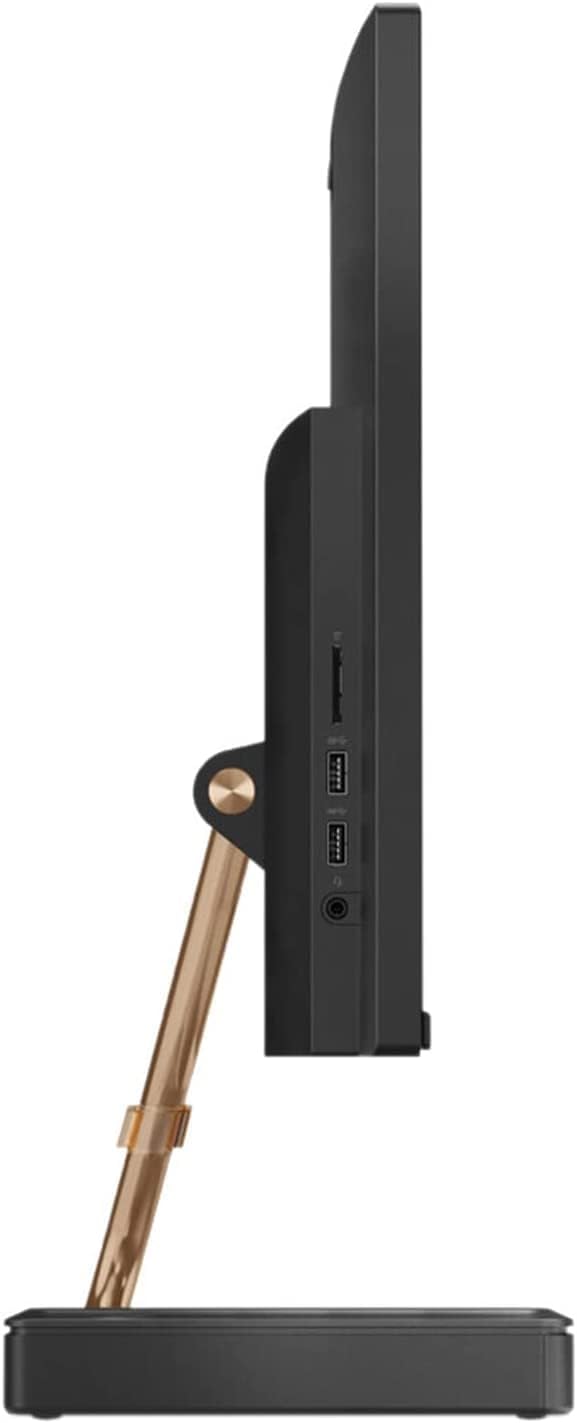
The left side of the desktop features an SD Memory Card slot, USB ports, and a headphone/microphone combo jack for easy access.
Rear View

The rear panel includes the power input, LAN port, additional USB ports, HDMI input, and HDMI output.
Setup
Unpacking and Placement
- Carefully remove all components from the packaging.
- Place the All-in-One desktop on a stable, flat surface. Ensure adequate ventilation around the device.
Connecting Peripherals
- Insert batteries into the wireless keyboard and mouse (if not pre-installed).
- Connect the wireless keyboard and mouse receiver to an available USB port on the desktop.
- Connect the power adapter to the desktop's power input and then to a power outlet.
Initial Power On
- Press the power button, typically located on the side or rear of the display.
- Follow the on-screen instructions to complete the Windows 10 Pro setup.
Operating Instructions
Power On/Off
To power on, press the power button. To power off, click the Start button in Windows, then select Power > Shut down.
Display Adjustments
The 23.8" FHD IPS display offers wide viewing angles. Adjust screen brightness and other display settings through Windows Display Settings.
Using the Webcam
The integrated webcam can be used for video calls and conferences. Access it through applications like Camera, Skype, or Zoom.
Connecting External Devices
Use the available USB 2.0 and USB 3.1 Gen 1 ports to connect external storage, printers, or other USB devices. The HDMI output allows connection to an external monitor, while the HDMI input can be used to display content from another device on the AIO screen.
Maintenance
Cleaning the Device
Use a soft, lint-free cloth slightly dampened with water or a screen cleaner to clean the display. For the chassis, use a dry, soft cloth. Avoid abrasive cleaners.
Software Updates
Regularly check for and install Windows updates to ensure system security and performance. Lenovo may also provide driver updates through their support website.
Data Backup
Periodically back up important data to an external drive or cloud storage to prevent data loss.
Troubleshooting
No Power
- Ensure the power adapter is securely connected to both the desktop and a working power outlet.
- Verify the power outlet is functional by plugging in another device.
Display Issues
- If the screen is blank, check if the device is powered on.
- Adjust brightness settings.
- If using HDMI input, ensure the correct input source is selected.
Keyboard/Mouse Not Responding
- Check battery levels in the wireless keyboard and mouse.
- Ensure the wireless receiver is properly connected to a USB port.
- Try connecting the receiver to a different USB port.
Slow Performance
- Close unnecessary applications.
- Check for and install system updates.
- Run a disk cleanup. For SSDs, ensure TRIM is enabled (usually automatic).
- Scan for malware or viruses.
Specifications
Technical Specifications
| Component | Detail |
|---|---|
| Model | IdeaCentre 5 |
| Display | 23.8" FHD (1920x1080) IPS, Anti-glare, 250 nits |
| Processor | Intel Core i5-10400T (6 Cores, 12 Threads, 2.00 GHz base, up to 3.60 GHz Turbo) |
| Graphics | Intel UHD Graphics 630 |
| Memory | 16GB DDR4-3200MHz RAM |
| Storage | 1TB SSD M.2 PCIe NVMe |
| Operating System | Windows 10 Pro |
| Ports | 2x USB 2.0, 3x USB 3.1 Gen 1, 1x LAN (Gigabit Ethernet), 1x Headphones/Microphone combo, 1x HDMI output, 1x HDMI input |
| Wireless | WiFi 6, Bluetooth |
| Audio | JBL speakers, 2x right/left channel, 1x subwoofer |
| Card Reader | SD Memory Card, SDHC Memory Card, SDXC Memory Card |
| Dimensions (LxWxH) | 21.3 x 7.3 x 17.1 inches |
| Weight | 23.68 lbs |
| Color | Black |
Warranty and Support
Warranty Information
This product is covered by Lenovo's standard limited warranty. Please refer to the warranty card included in your product packaging or visit the official Lenovo support website for detailed terms and conditions.
Technical Support
For technical assistance, driver downloads, or further support, please visit the official Lenovo support website or contact their customer service.