
1. Product Overview
The Dpofirs Portable 4G LTE USB Modem Router is designed to provide high-speed internet access on the go. Featuring a SIM card slot and a built-in 3200mAh battery, this device supports LTE CAT4 standard with up to 300Mbps internet speeds. It allows connection for up to 10 devices simultaneously, making it suitable for travel, business trips, and various outdoor activities.

Front view of the Dpofirs Portable 4G LTE USB Modem Router, showing indicator lights for signal, Wi-Fi, and battery.
Key Features:
- High-Speed Connectivity: Supports LTE CAT4 standard with up to 300Mbps internet access, dependent on signal strength.
- Wide Network Band Support: Compatible with network bands B1/2/3/5/7/8/20/40.
- Integrated SIM Card Slot: Allows direct use of a 3G/4G SIM card for network access.
- Long-Lasting Battery: Equipped with a 3200mAh battery for extended use. Can also operate with external power via USB.
- Multi-Device Support: Connects up to 10 devices simultaneously, including smartphones, tablets, and laptops, within an effective range of 10m/32.8ft.
- Compact and Portable: Designed for easy carrying, suitable for various mobile scenarios.
2. Setup Guide
Follow these steps to set up your Dpofirs Portable 4G LTE USB Modem Router for the first time.
2.1 Inserting the SIM Card and Battery
- Open the Back Cover: Gently slide or pry open the back cover of the router.
- Insert SIM Card: Locate the SIM card slot. Insert your 3G/4G SIM card into the slot, ensuring the correct orientation. If your SIM card has a PIN code enabled, you may need to disable it or modify the APN settings for proper functionality.
- Install Battery: Place the 3200mAh battery into its compartment, ensuring the contacts align correctly.
- Close Back Cover: Replace the back cover until it clicks securely into place.
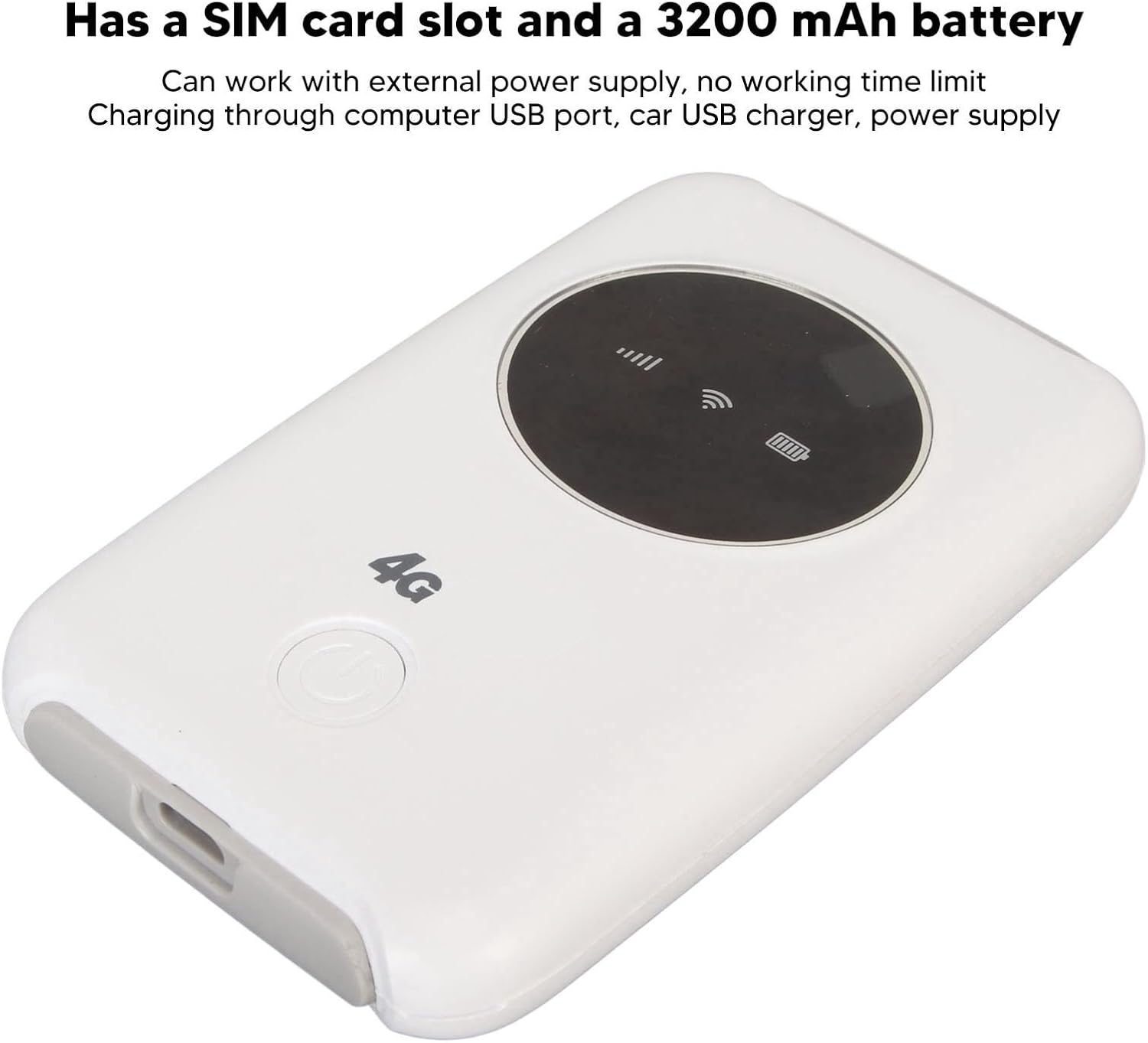
Image showing the router's back cover removed, highlighting the SIM card slot and battery compartment.

Visual guide on how to insert the SIM card and battery into the router.
2.2 Initial Power On and Connection
- Power On: Press and hold the power button (usually located on the front or side) until the indicator lights illuminate.
- Connect to Wi-Fi: On your device (smartphone, tablet, laptop), search for available Wi-Fi networks. The router's SSID (network name) and password (WIFI KEY) are typically found on a sticker inside the battery compartment or on the device itself.
- Enter Password: Select the router's SSID and enter the provided password to connect.
- APN Settings (if needed): If you cannot access the internet after connecting, you may need to configure the APN settings. Refer to your SIM card provider for the correct APN details. These settings can usually be accessed via the router's web interface (IP address and login details are often on the same sticker as the SSID/password).
2.3 Setup Video Tutorial
Video demonstrating the setup process for the portable router, including SIM card and battery installation, and initial power-on. (Source: Tangxi)
Video tutorial on setting up the 4G LTE Hotspot, covering microSIM insertion and battery installation. (Source: Xinxakk)
Instructional video for the Portable WiFi Router, showing basic setup and usage. (Source: Xinxakk)
3. Operating Instructions
3.1 Connecting Devices
Once the router is powered on and connected to the cellular network, you can connect your devices:
- Ensure your device's Wi-Fi is enabled.
- Scan for available Wi-Fi networks.
- Select the SSID (network name) of your Dpofirs router.
- Enter the Wi-Fi password when prompted.
- The router supports connecting up to 10 devices simultaneously within an effective range of 10 meters (32.8 feet).

The router can connect up to 10 devices simultaneously, supporting various smart devices.
3.2 Charging the Device
The router can be charged using the provided USB cable. Connect the cable to the router's USB port and to a power source such as a computer USB port, a car USB charger, or a power adapter. The device can operate while charging.

The portable router shown alongside its USB charging cable.
4. Maintenance
Proper maintenance ensures the longevity and optimal performance of your router.
- Cleaning: Use a soft, dry cloth to clean the exterior of the device. Avoid using liquid cleaners or abrasive materials.
- Battery Care: To prolong battery life, avoid exposing the device to extreme temperatures. If storing for an extended period, charge the battery to about 50% and recharge every few months.
- Storage: Store the router in a cool, dry place away from direct sunlight and moisture.
- Software Updates: Periodically check the manufacturer's website or the router's web interface for any available firmware updates to ensure optimal performance and security.
5. Troubleshooting
If you encounter issues with your Dpofirs Portable 4G LTE USB Modem Router, refer to the following common solutions:
- No Internet Connection:
- Ensure the SIM card is correctly inserted and activated with a data plan.
- Check if the SIM card has a PIN code enabled. If so, disable it using a smartphone or modify the APN settings via the router's web interface.
- Verify APN settings are correct for your mobile carrier.
- Check the signal strength indicator on the router. If the signal is weak, try moving to a different location.
- Restart the router and your connected device.
- Cannot Connect to Wi-Fi:
- Ensure the router is powered on and its Wi-Fi indicator is active.
- Double-check the Wi-Fi password.
- Move closer to the router to ensure you are within the effective range (10m/32.8ft).
- Restart both the router and your device.
- Slow Internet Speed:
- Internet speed is highly dependent on cellular signal strength. Try moving to an area with better signal reception.
- Reduce the number of connected devices if multiple devices are heavily using bandwidth.
- Check your data plan for any speed limitations or data caps.
- Device Not Powering On:
- Ensure the battery is correctly installed and charged.
- Connect the router to a power source using the USB cable and try powering it on again.
6. Technical Specifications
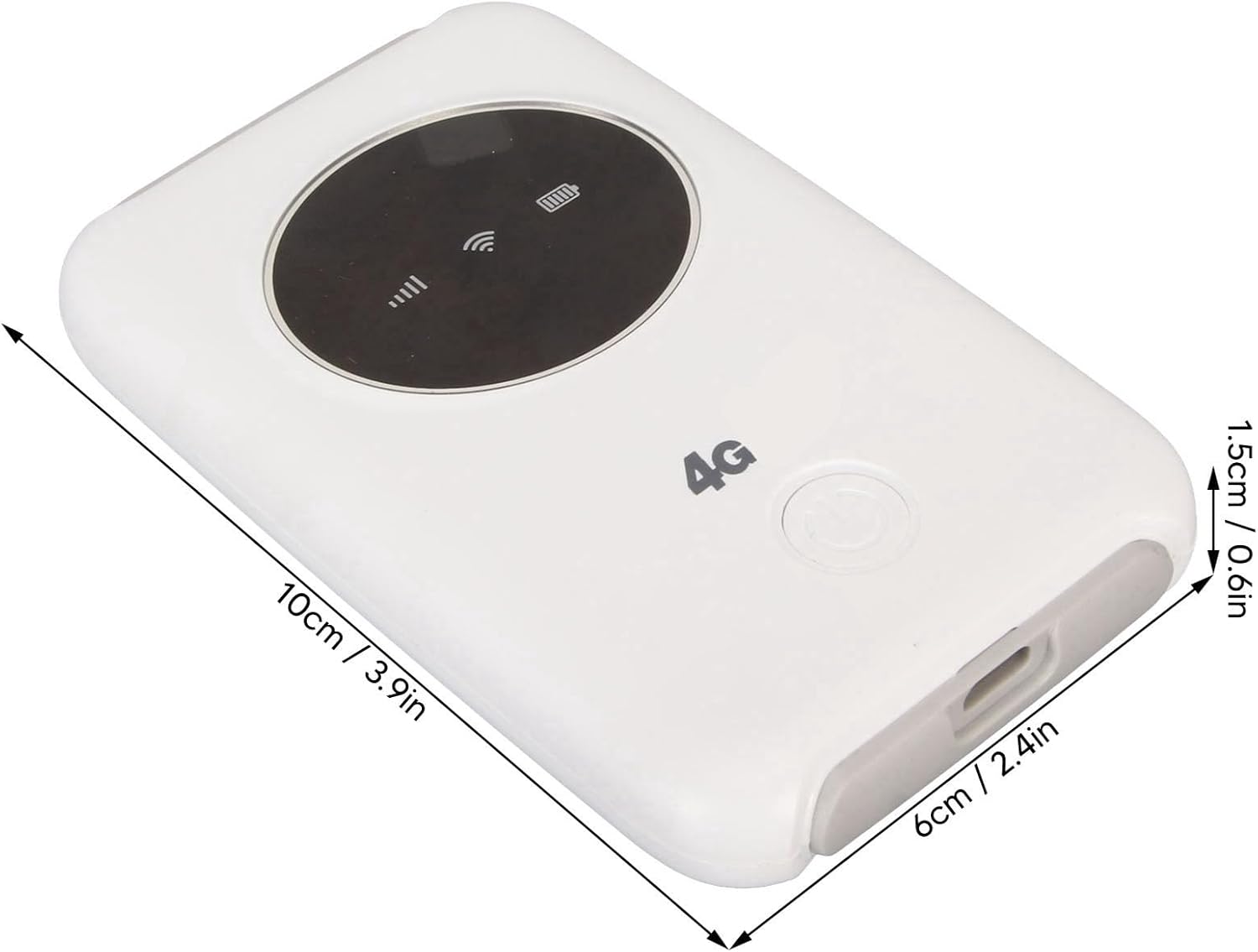
Dimensions of the Dpofirs Portable 4G LTE USB Modem Router.
| Feature | Specification |
|---|---|
| Product Dimensions | 2.36 x 0.59 x 3.94 inches |
| Item Weight | 5.6 ounces |
| Model Number | Dpofirsxmc4za28uw |
| Brand | Dpofirs |
| Special Feature | WPS |
| Frequency Band Class | Single-Band |
| Wireless Communication Standard | 802.11ac |
| Compatible Devices | Laptop, Personal Computer, Smartphone, Tablet |
| Connectivity Technology | 5G, LTE, USB, Wi-Fi |
| Color | White |
| Antenna Type | Internal |
| Operating System | Linux |
| Battery Capacity | 3200 mAh |
| Max Speed | 300Mbps (LTE CAT4) |
| Network Bands | B1/2/3/5/7/8/20/40 |
7. Warranty and Support
This Dpofirs product comes with a standard manufacturer's warranty. For specific warranty terms, duration, and conditions, please refer to the warranty card included in your product packaging or contact Dpofirs customer support directly.
For technical assistance, troubleshooting, or any product-related inquiries, please visit the official Dpofirs website or contact their customer service department. Keep your purchase receipt and product model number (Dpofirsxmc4za28uw) handy when seeking support.