
Mellerware Aquillo
Mellerware Aquillo 30cm Desktop Fan User Manual
Model: Aquillo
Introduction
Thank you for purchasing the Mellerware Aquillo 30cm Desktop Fan. This manual provides important information regarding the safe operation, installation, maintenance, and troubleshooting of your new fan. Please read it thoroughly before use and retain it for future reference.

Image: Front view of the Mellerware Aquillo 30cm Desktop Fan, showcasing its black finish and radial grille.
Important Safety Instructions
- Read all instructions before using this appliance.
- Ensure the voltage indicated on the rating label corresponds to your mains supply.
- Do not immerse the fan, plug, or cord in water or other liquids.
- Supervise children to ensure they do not play with the appliance.
- Unplug the fan from the outlet when not in use, before cleaning, or before moving.
- Do not operate any appliance with a damaged cord or plug, or after the appliance malfunctions or has been damaged in any manner.
- Do not use outdoors.
- Do not let the cord hang over the edge of a table or counter, or touch hot surfaces.
- Do not place on or near a hot gas or electric burner, or in a heated oven.
- Avoid contact with moving parts.
- Do not insert fingers or other objects through the grille when the fan is operating.
- Always operate on a dry, level surface.
- This appliance is for household use only.
Package Contents
Please check the package contents upon opening to ensure all parts are present and undamaged:
- Mellerware Aquillo 30cm Desktop Fan Unit
- User Manual (this document)
Setup and Assembly
The Mellerware Aquillo Desktop Fan comes pre-assembled and ready for use. No complex assembly is required.
- Unpack: Carefully remove the fan from its packaging.
- Placement: Place the fan on a stable, flat, and dry surface. Ensure there is adequate space around the fan for proper air circulation and oscillation.
- Power Connection: Plug the power cord into a suitable electrical outlet.
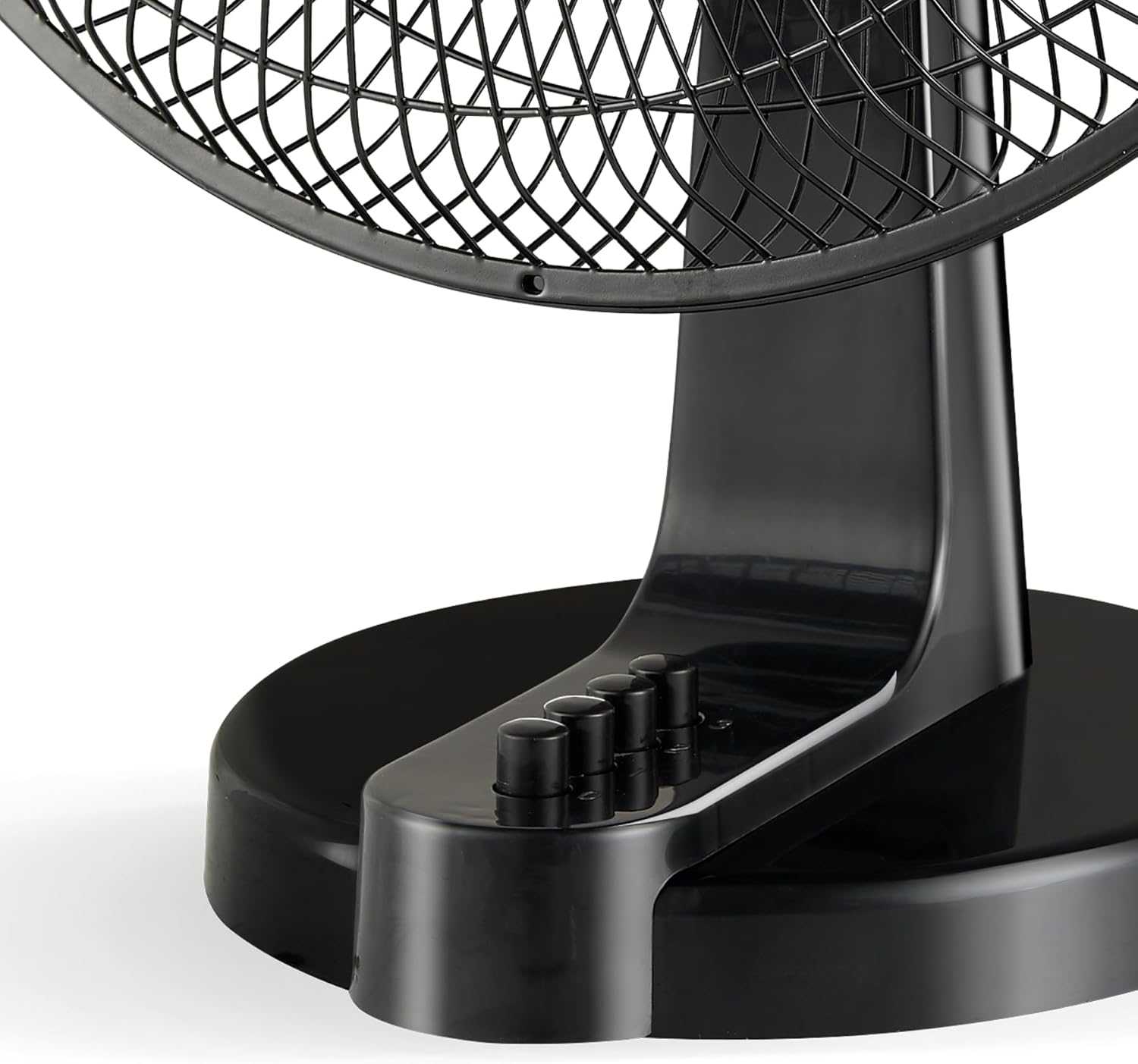
Image: Side view of the fan base, highlighting the control buttons for speed and oscillation.
Operating Instructions
Your Mellerware Aquillo Desktop Fan features simple controls for ease of use.
- Power On/Off: The fan is controlled by push buttons located on the base. Press the '0' button to turn the fan off. Press '1', '2', or '3' to turn the fan on and select a speed.
- Speed Selection:
- 1: Low speed
- 2: Medium speed
- 3: High speed
- Oscillation Function: To activate the oscillation (left and right sweeping motion), press the oscillation button located on the top of the motor housing. Pull it up to stop oscillation.
- Tilt Adjustment: The fan head can be manually tilted up or down to direct airflow. Gently adjust the head to your desired angle.

Image: Detailed view of the fan's base, showing the four push-button controls for power and speed settings.
Maintenance and Cleaning
Regular cleaning will help maintain your fan's performance and extend its lifespan.
- Before Cleaning: Always unplug the fan from the power outlet before cleaning.
- Exterior Cleaning: Use a soft, damp cloth to wipe the exterior surfaces of the fan. Do not use abrasive cleaners or solvents, as these may damage the finish.
- Grille Cleaning: To clean dust from the fan blades and inside the grille, use a vacuum cleaner with a brush attachment or a soft brush. Do not attempt to disassemble the fan for cleaning.
- Storage: When not in use for extended periods, store the fan in its original packaging or cover it to protect it from dust. Store in a cool, dry place.
Troubleshooting
If you encounter any issues with your fan, please refer to the following common problems and solutions:
| Problem | Possible Cause | Solution |
|---|---|---|
| Fan does not turn on. | Not plugged in; power outlet not working; speed button not pressed. | Ensure the fan is securely plugged into a working outlet. Press a speed button (1, 2, or 3). |
| Weak airflow. | Fan set to low speed; grilles are obstructed by dust. | Increase the fan speed. Clean the grilles and blades as described in the Maintenance section. |
| Fan is noisy. | Fan not on a level surface; loose parts; dust accumulation. | Place the fan on a stable, level surface. Check for any loose components (do not attempt to disassemble). Clean the fan. |
| Oscillation not working. | Oscillation button not engaged. | Ensure the oscillation button on top of the motor housing is pressed down. |
If the problem persists after trying these solutions, please contact Mellerware customer support.
Specifications
| Model | Aquillo |
| Brand | Mellerware |
| Type | Desktop Fan |
| Diameter | 30cm |
| Power | 35W |
| Colour | Black |
| Features | 3 Speed Selection, Left and Right Oscillation, Adjustable Tilt, Lightweight, Compact Design |
| Product Dimensions | 34.5D x 15W x 34.5H centimetres |
| Power Source | Corded Electric |
Warranty and Support
Your Mellerware Aquillo Desktop Fan comes with a comprehensive warranty:
- 1 Year Retail Warranty: Standard warranty from the date of purchase.
- 1 Year Online Registration: An additional year of warranty upon successful online registration of your product.
- 1 Year Communication Opt-in: Further extension of warranty by opting into Mellerware communications, totaling up to 3 years.
Please refer to the official Mellerware website or contact their customer service for detailed terms and conditions regarding warranty registration and claims.

Image: Graphic illustrating the Mellerware 3-year warranty structure, including 1 year retail, 1 year online registration, and 1 year communication opt-in.
For technical support, spare parts, or warranty inquiries, please visit the Mellerware official website or contact their customer service department. Contact details can typically be found on the product packaging or the official brand website.
Related documentsAquillo

Ask a question about this manual
Ask about setup, troubleshooting, compatibility, parts, safety, or missing instructions. Manuals+ will review the question and use this page’s manual context to help answer it.