
Rii RK906
Contents
Rii Wireless Typewriter Style Gaming Keyboard User Manual
Model: RK906
1. Introduction
Thank you for choosing the Rii Wireless Typewriter Style Gaming Keyboard. This keyboard combines a classic retro aesthetic with modern multi-device connectivity and vibrant RGB backlighting. Designed for versatility, it supports dual Bluetooth and 2.4G wireless connections, making it compatible with a wide range of operating systems including Windows, Mac, PC, iOS, and Android devices. This manual provides detailed instructions for setup, operation, and maintenance to ensure optimal performance and longevity of your keyboard.

Image: Front view of the Rii Wireless Typewriter Style Gaming Keyboard, showcasing its full 105-key layout and illuminated round keycaps.
2. Product Features
- Dual Mode Connectivity: Supports both 2.4G wireless via USB receiver and Bluetooth (BT1, BT2) for connecting up to three devices simultaneously.
- Full-Size 105-Key Layout: Compact yet complete, including a number pad, multimedia keys, and arrow keys, optimizing desk space.
- RGB Backlighting: Features 7 backlight color options and 2 backlight effects (constant and breathing), with adjustable lighting speed and brightness levels.
- Ergonomic Design: Maintains comfort during extended use.
- Auto Sleep/Wake-up: Conserves battery by entering sleep mode after 10 minutes of inactivity, waking up with any key press.
- Wide Compatibility: Compatible with Windows, Mac, iOS, Android, and other systems.
- Silent Operation: Updated version designed for quieter typing compared to previous models.
- Built-in Rechargeable Battery: 1800mAh capacity for long-lasting use.
- Type-C Charging: Modern and convenient charging interface.
- 6-Key Rollover: Ensures accurate input during fast typing or gaming.
- Removable Keycaps: Allows for easy cleaning and customization.
- Splash Resistant: Provides protection against accidental spills.

Image: Overview of the keyboard's key features, including multiple light modes, 2.4GHz & Bluetooth connectivity, 6-key rollover, and Type-C cable.
3. Package Contents
- 1 x Rii Wireless Typewriter Style Gaming Keyboard (Model: RK906)
- 1 x USB Receiver (stored inside the keyboard)
- 1 x Type-C Charging Cable
- 1 x User Manual
4. Setup Guide
4.1 Initial Setup and Power On
- Locate the USB receiver: The 2.4G USB receiver is conveniently stored in a compartment on the back of the keyboard. Gently remove it.
- Power On: Flip the keyboard over and locate the ON/OFF switch. Slide the switch to the "ON" position. The keyboard backlight will illuminate briefly.

Image: The underside of the keyboard, highlighting the USB receiver storage slot, the ON/OFF switch, and anti-slip pads.
4.2 Connecting via 2.4G Wireless (USB Receiver)
- Insert the USB receiver: Plug the removed USB receiver into an available USB port on your computer or device.
- Activate 2.4G mode: On the keyboard, press and hold the Fn key, then press the # (3) key. The keyboard will automatically connect to the USB receiver.
- Confirmation: The keyboard should now be ready for use. If prompted by your operating system (e.g., macOS Keyboard Setup Assistant), follow the on-screen instructions to identify the keyboard type.

Image: Visual representation of the keyboard's dual connectivity modes: 2.4G wireless and Bluetooth.
4.3 Connecting via Bluetooth
The keyboard supports two independent Bluetooth channels (BT1 and BT2), allowing connection to two different Bluetooth-enabled devices.
- Enable Bluetooth on your device: Ensure Bluetooth is turned on for the device you wish to connect (e.g., computer, tablet, smartphone).
- Select Bluetooth channel: On the keyboard, press and hold the Fn key, then press either the ! (1) key (for BT1) or the @ (2) key (for BT2). The corresponding indicator light on the keyboard will blink, indicating it's in pairing mode.
- Pairing: On your device, search for Bluetooth devices. You should see "BT Keyboard" or a similar name appear in the list. Select it to pair.
- Confirmation: Once paired, the indicator light on the keyboard will stop blinking and remain solid, indicating a successful connection.

Image: The keyboard shown connected to a laptop, tablet, and smartphone, illustrating its multi-device capability.
5. Operating Instructions
5.1 Switching Between Connected Devices
To switch between devices connected via 2.4G and Bluetooth:
- Press Fn + ! (1) to switch to Bluetooth Device 1.
- Press Fn + @ (2) to switch to Bluetooth Device 2.
- Press Fn + # (3) to switch to 2.4G Wireless Device.
5.2 Backlight Control
The keyboard features customizable RGB backlighting:
- Change Backlight Color: Press Fn + Insert to cycle through 7 different backlight colors (Purple, Green, Cyan, Yellow, White, Blue, Red).
- Change Backlight Mode: Press Fn + Del to switch between constant light mode and breathing light mode.
- Adjust Brightness: In constant light mode, press Fn + Page Up to increase brightness and Fn + Page Down to decrease brightness (3 levels: low, medium, high).
- Adjust Breathing Speed: In breathing light mode, press Fn + Insert to adjust the breathing speed (3 levels).
- Turn Off Backlight: Press Fn + Alt to turn off the backlight. Press again to turn it back on.

Image: The keyboard displaying various RGB backlight colors and effects, illustrating the customizable lighting options.
5.3 Multimedia Keys
Use the Fn key in combination with the F-keys for multimedia functions:
- Fn + F1: Media Player
- Fn + F2: Volume Down
- Fn + F3: Volume Up
- Fn + F4: Mute
- Fn + F5: Previous Track
- Fn + F6: Next Track
- Fn + F7: Play/Pause
- Fn + F8: Stop
- Fn + F9: Home Page
- Fn + F10: Mail
- Fn + F11: My Computer
- Fn + F12: Calculator
6. Maintenance
- Cleaning: Use a soft, dry cloth to wipe the keyboard surface. For deeper cleaning, the round keycaps are removable. Gently pull them off to clean underneath. Avoid using harsh chemicals or abrasive materials.
- Battery Charging: When the battery is low, the indicator light may flash. Connect the provided Type-C cable to the keyboard's charging port and the other end to a USB power source (e.g., computer USB port, USB wall adapter). The indicator light will show charging status and turn off when fully charged.
- Storage: Store the keyboard in a cool, dry place away from direct sunlight and extreme temperatures. If storing for an extended period, ensure the keyboard is fully charged and powered off.
- Splash Resistance: While splash resistant, avoid submerging the keyboard in liquid or exposing it to excessive moisture. In case of spills, immediately power off the keyboard and allow it to dry completely before use.
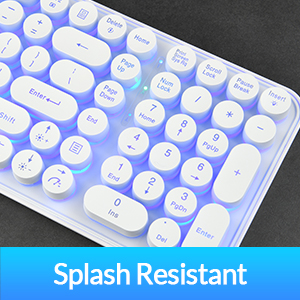
Image: Close-up of the Type-C charging port on the keyboard.
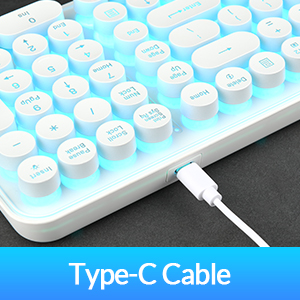
Image: Detached keycaps, demonstrating their removability for cleaning.
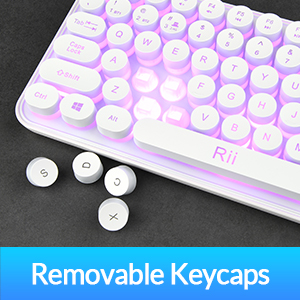
Image: Illustrates the keyboard's splash-resistant design.
7. Troubleshooting
| Problem | Possible Cause | Solution |
|---|---|---|
| Keyboard not connecting/responding. |
|
|
| Backlight not working or dim. |
|
|
| Specific keys not responding. |
|
|
| Keyboard enters sleep mode too quickly. |
|
|
8. Specifications
| Feature | Detail |
|---|---|
| Model | RK906 |
| Connectivity Technology | 2.4G Wireless, Bluetooth (BT1, BT2) |
| Number of Keys | 105 |
| Backlighting | RGB (7 colors, 2 modes, 3 brightness levels) |
| Battery Capacity | 1800mAh Lithium Polymer (included) |
| Charging Port | Type-C |
| Product Dimensions | 16.54 x 3.94 x 1.97 inches (42 x 10 x 5 cm) |
| Item Weight | 1.52 pounds (0.69 kg) |
| Compatible Devices | PC, Smart TV, Tablet, Smartphone |
| Operating Systems | Windows, Mac, iOS, Android, Linux, Chrome OS |
| Manufacturer | Riitek |
| Date First Available | September 18, 2023 |
9. Warranty and Support
Rii products are designed for reliability and performance. For any issues or questions regarding your Rii Wireless Typewriter Style Gaming Keyboard, please contact our customer support team. We are committed to providing excellent service to every customer.
Please refer to your purchase documentation for specific warranty terms and conditions. For technical assistance or service, please visit the official Rii website or contact the seller directly.
Ask a question about this manual
Ask about setup, troubleshooting, compatibility, parts, safety, or missing instructions. Manuals+ will review the question and use this page’s manual context to help answer it.