1. Introduction
This manual provides instructions for the UGREEN USB-C to HDMI Cable, Model 25155. This cable allows you to connect a USB-C enabled device to an HDMI display, such as a monitor, projector, or TV, to transmit video and audio signals. It supports resolutions up to 4K at 60Hz and is designed for plug-and-play functionality without requiring additional drivers.

Image 1.1: The UGREEN USB-C to HDMI Cable, featuring a USB-C connector on one end and an HDMI connector on the other, with a braided cable for durability.
2. Product Features
- Plug & Play: Connects USB-C devices to HDMI displays without driver installation.
- High Resolution: Supports resolutions up to 4K@60Hz and 3D technology, backward compatible with 1080P@144Hz and 720P.
- Wide Compatibility: Compatible with various USB-C devices supporting DisplayPort Alternate Mode (DP Alt Mode) or Thunderbolt 3/4, including specific models of iPhone, MacBook, iPad, Galaxy, Surface, Huawei, and Dell XPS.
- Stable Signal: Constructed with three layers of shielding and tinned copper wire for reliable signal transmission.
- Durable Design: Features a braided nylon jacket and aluminum housing for enhanced durability, heat resistance, and corrosion resistance. 24K gold-plated connectors ensure a secure and stable connection.

Image 2.1: Diagram illustrating the multi-layered construction of the cable, including nylon braiding, an isolation layer, an anti-corrosion layer, and high-purity oxygen-free copper wires, designed for stable signal transmission and durability.
3. Setup Instructions
The UGREEN USB-C to HDMI Cable is designed for simple plug-and-play operation. Follow these steps to connect your device to an external display:
- Connect USB-C: Insert the USB-C connector of the cable into the USB-C port of your source device (e.g., laptop, tablet, smartphone). Ensure your device's USB-C port supports video output (DisplayPort Alternate Mode or Thunderbolt 3/4).
- Connect HDMI: Insert the HDMI connector of the cable into an available HDMI input port on your display device (e.g., monitor, TV, projector).
- Select Input: On your display device, select the corresponding HDMI input source using the display's remote control or on-screen menu.
- Display Configuration: Your device should automatically detect the external display. You may need to adjust display settings (e.g., mirror mode, extended mode, resolution) in your device's operating system settings.

Image 3.1: A smartphone connected to a large television screen using the UGREEN USB-C to HDMI cable, demonstrating a typical setup for viewing content on a larger display.
4. Operating Modes
The cable supports various display modes depending on your source device's capabilities:
- Mirror Mode: Duplicates your device's screen onto the external display. This is useful for presentations or sharing content.
- Extended Mode: Extends your device's desktop across multiple screens, allowing for increased workspace.
- Clamshell Mode: For laptops, this mode allows you to close the laptop lid while still using an external monitor, keyboard, and mouse.
- DeX Mode (for compatible Samsung Galaxy devices): Transforms your smartphone into a desktop-like experience when connected to an external display.

Image 4.1: A laptop connected to a large television, illustrating both 'Extended Mode' where the display is expanded, and 'Mirror Mode' where the laptop screen is duplicated on the TV.

Image 4.2: A closed laptop (in clamshell mode) connected to an external monitor, demonstrating how the cable facilitates a desktop setup with the laptop lid closed.
5. Compatibility
This cable is compatible with USB-C devices that support DisplayPort Alternate Mode (DP Alt Mode) or Thunderbolt 3/4. It is essential to verify your device's USB-C port functionality for video output.
5.1. Compatible Devices
- Mobile Phones: iPhone 15 series (15, 15 Pro, 15 Pro Max), Galaxy S25 Ultra/S24 Ultra, Pixel 9 Pro/8 Pro, Galaxy Fold series, Huawei P60 Pro (and devices supporting Galaxy DeX Mode).
- Laptops: MacBook Pro (2016-2024), MacBook Air (2018-2024), MacBook (2015-2017), Surface Book 2/3, Dell XPS Series.
- Tablets: iPad Pro/Air 13 & 11 (2024), iPad Mini 6/7, Galaxy Tab S10/S9/S8/S7/S6, Surface Pro 9.
5.2. Incompatible Devices/Ports
The cable is not compatible with devices or ports that do not support video output via USB-C. This includes:
- Redmi phones, Galaxy Tab/Phone A series, Galaxy Flip series, iPhone 14 and earlier models, iPad with Lightning Port.
- Gaming consoles like PlayStation, Xbox, NS Switch.
- Kindle devices, Cameras, TV Sticks.
- USB Type-A ports or standard DisplayPort (without USB-C adapter).
- USB-C ports that are for data transfer only or charging only, without DisplayPort Alternate Mode support.

Image 5.1: A detailed chart showing both compatible devices (mobile phones, laptops, tablets) and incompatible devices (older iPhones, specific Android models, gaming consoles, etc.) for the USB-C to HDMI cable.

Image 5.2: A diagram illustrating different types of USB-C ports and their capabilities, distinguishing between ports that support Thunderbolt/DP Alt Mode (for video output) and those that are for data transfer or charging only, highlighting compatible and incompatible port types.
6. Specifications
| Feature | Detail |
|---|---|
| Brand | UGREEN |
| Model Number | 25155 |
| Connector Type | USB-C (Male) to HDMI (Male) |
| Max Resolution | 4K@60Hz |
| Data Transfer Speed | 18 Gigabits per second |
| Cable Material | Braided Nylon, Aluminum Housing |
| Connector Material | 24K Gold-plated |
| Special Features | Tangle-free, Durable, Stable Signal |
| Product Dimensions | 100 x 12 x 1.7 cm (Length: 1m) |
| Weight | 70 g |
7. Maintenance
To ensure the longevity and optimal performance of your UGREEN USB-C to HDMI Cable, follow these maintenance guidelines:
- Handle with Care: Avoid excessive bending, twisting, or pulling of the cable, especially near the connectors.
- Clean Connectors: Periodically inspect the connectors for dust or debris. Use a soft, dry cloth or compressed air to gently clean them if necessary.
- Storage: When not in use, store the cable in a cool, dry place, away from direct sunlight and extreme temperatures. Avoid tightly coiling the cable.
- Avoid Liquids: Do not expose the cable to water or other liquids. If it gets wet, disconnect it immediately and allow it to dry completely before reuse.
8. Troubleshooting
If you encounter issues while using the UGREEN USB-C to HDMI Cable, refer to the following troubleshooting tips:
8.1. No Signal or Flickering Display
- Check Connections: Ensure both the USB-C and HDMI connectors are fully and securely plugged into their respective ports.
- Verify Compatibility: Confirm that your source device's USB-C port supports DisplayPort Alternate Mode (DP Alt Mode) or Thunderbolt 3/4 for video output. Refer to your device's manual or manufacturer's specifications.
- Select Correct Input: On your display, make sure the correct HDMI input source is selected.
- Test with Another Device/Cable: If possible, test the cable with a different compatible source device or display, or try a different HDMI cable with your current setup to isolate the problem.
- Restart Devices: Disconnect the cable, restart both your source device and display, then reconnect the cable.
8.2. Incorrect Resolution or Aspect Ratio
- Adjust Display Settings: Access your source device's display settings (e.g., Windows Display Settings, macOS System Settings > Displays) and manually set the desired resolution and refresh rate.
- Update Drivers: Ensure your device's graphics drivers are up to date.
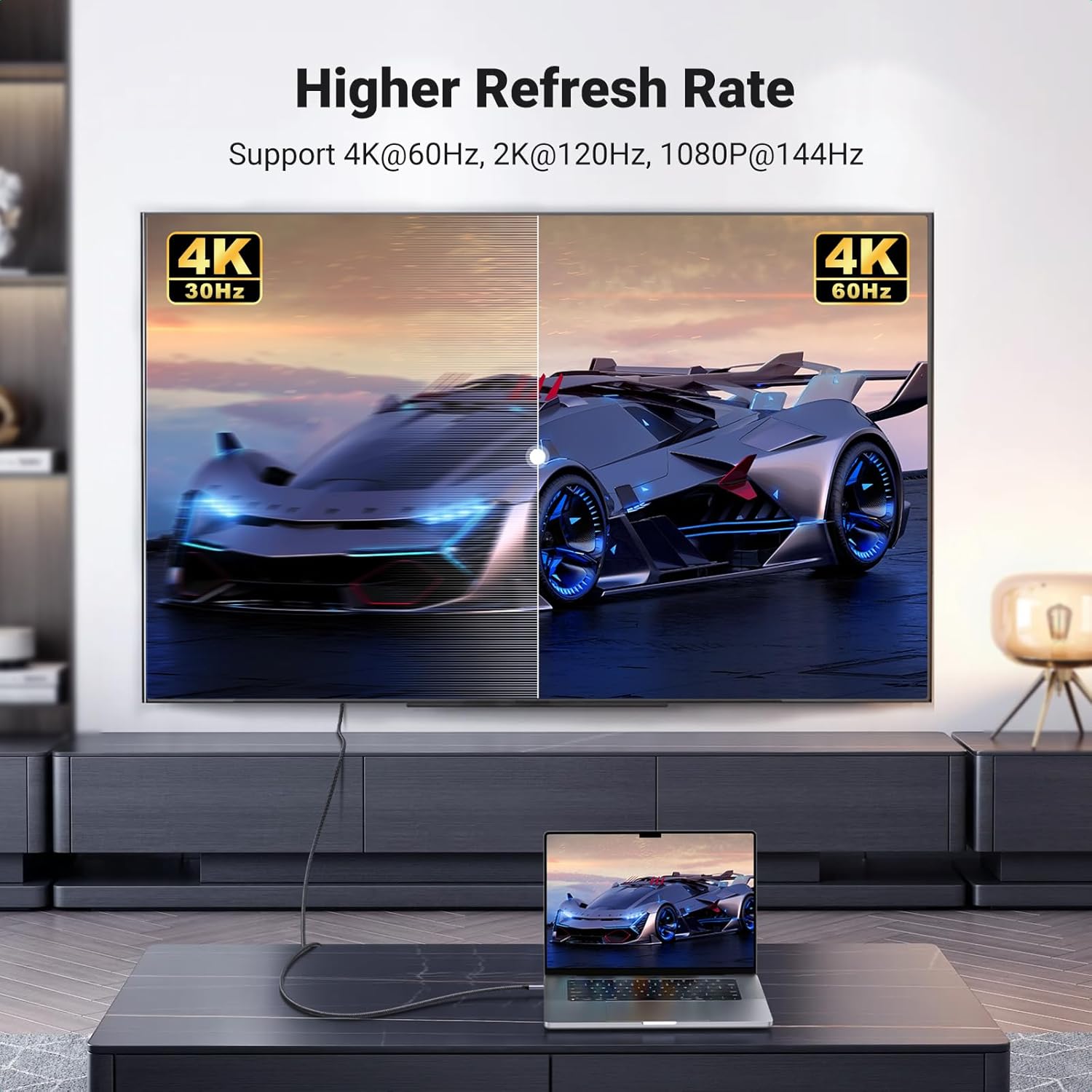
Image 8.1: A visual comparison demonstrating the difference between 4K@30Hz and 4K@60Hz refresh rates on a television screen, highlighting the smoother motion provided by the higher refresh rate supported by the cable.
9. Warranty and Support
For warranty information or technical support, please refer to the official UGREEN website or contact UGREEN customer service directly. Keep your purchase receipt for warranty claims.


