
Introduction
This manual provides detailed instructions for the Qulose Wireless Bluetooth Keyboard. Designed for versatility and comfort, this ultra-thin, ergonomic keyboard offers a quiet and responsive typing experience across multiple operating systems. Please read this manual thoroughly before using the product to ensure proper operation and longevity.
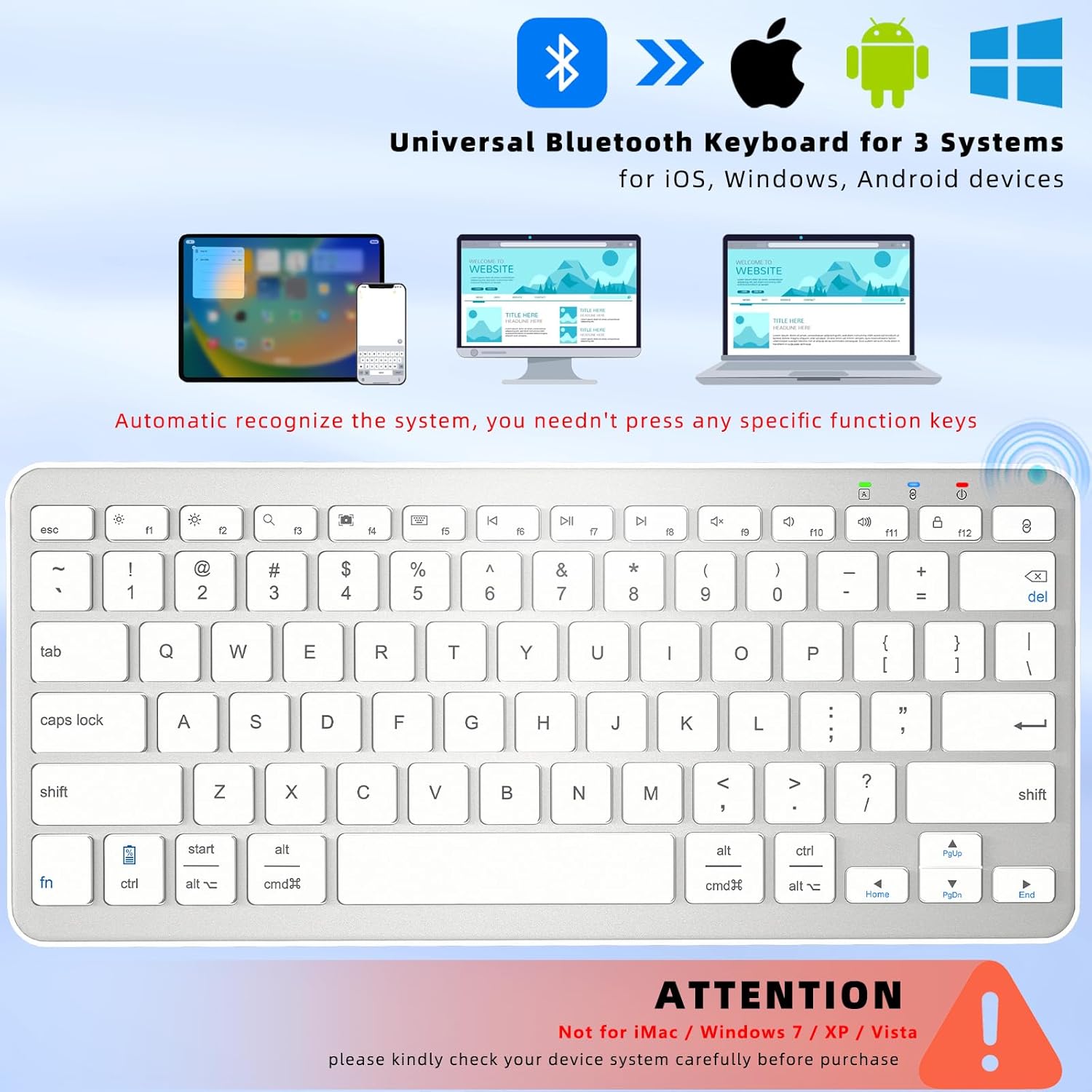
Image: The Qulose Wireless Bluetooth Keyboard demonstrating compatibility with iOS, Android, and Windows devices. The keyboard automatically recognizes the system, eliminating the need for manual selection.
Package Contents
Please check the package for the following items:
- 1 x Qulose Wireless Bluetooth Keyboard
- 1 x USB Type-C Charging Cable (charger not included)
- 1 x User Manual
Setup Instructions
1. Charging the Keyboard
Before initial use, fully charge the keyboard. Connect the provided USB Type-C charging cable to the keyboard's charging port and the other end to a USB power source (e.g., computer, USB wall adapter). The charging indicator light will illuminate during charging and turn off when fully charged. A full charge typically takes 3-4 hours and provides over 100 hours of usage.
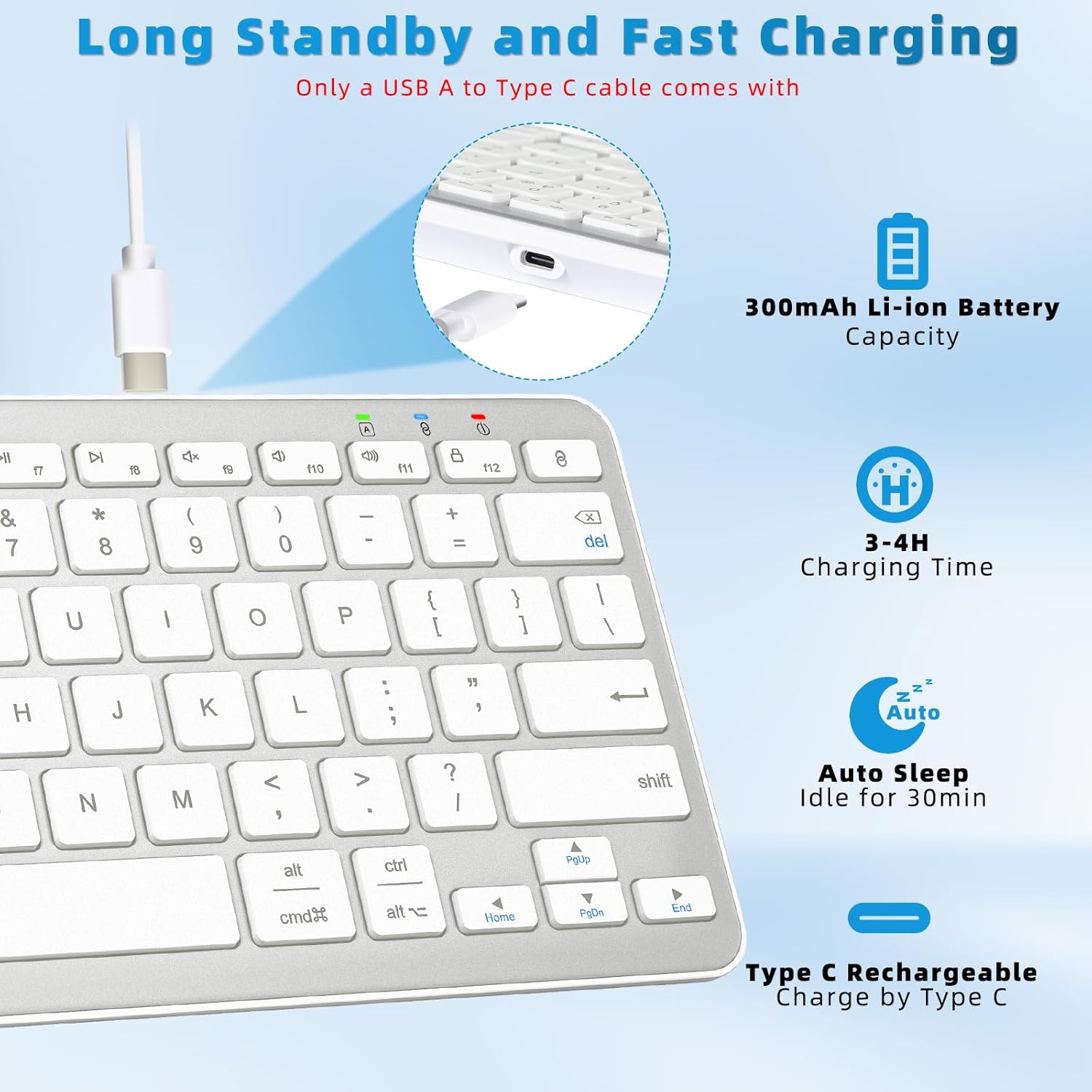
Image: The Qulose Wireless Bluetooth Keyboard connected to a USB-C charging cable, highlighting the charging port and battery capacity of 300mAh.
2. Powering On/Off
Locate the ON/OFF switch on the keyboard. Slide the switch to the "ON" position to power on the keyboard. Slide it to "OFF" when not in use to conserve battery.
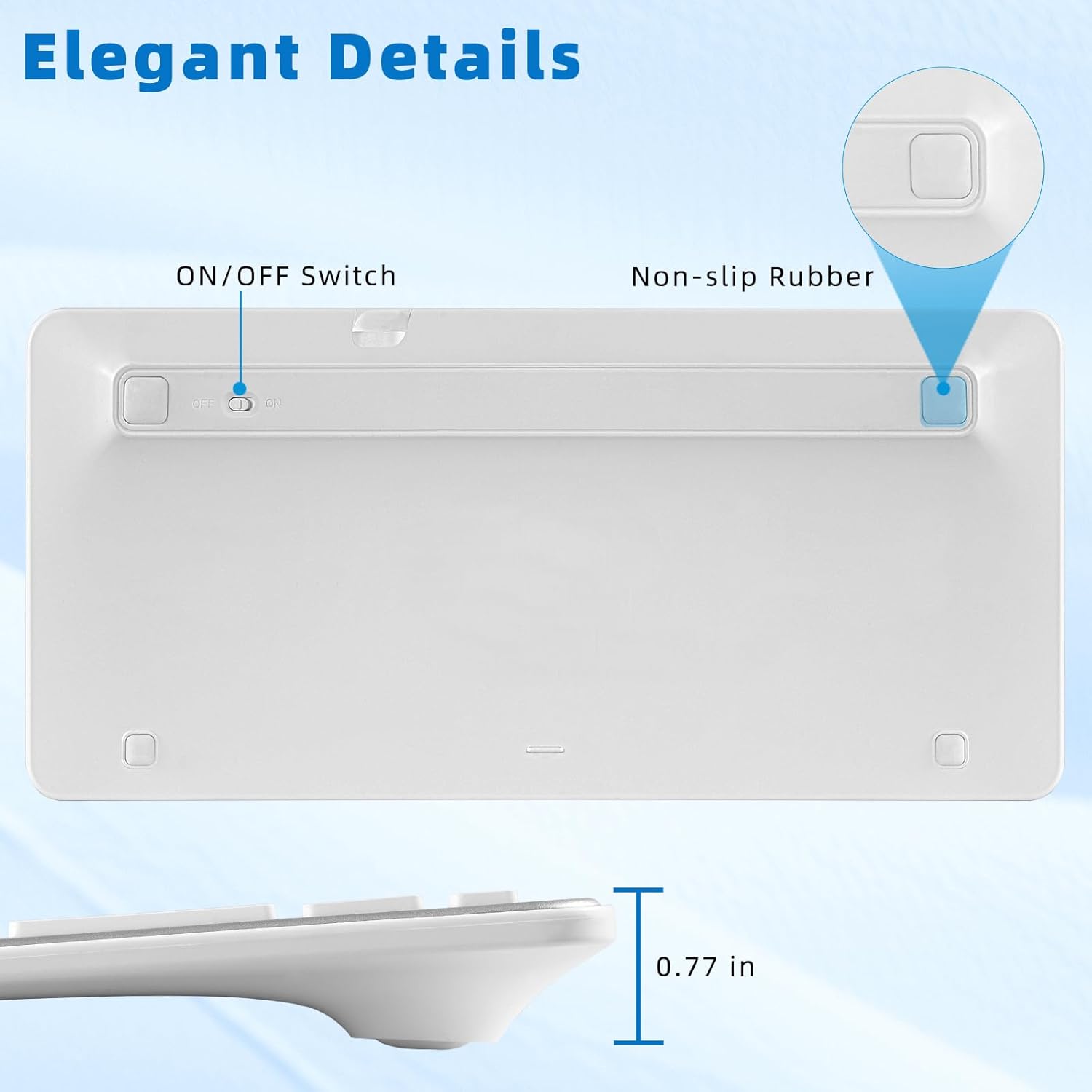
Image: The underside of the Qulose Wireless Bluetooth Keyboard, showing the ON/OFF switch and non-slip rubber pads for stability.
3. Bluetooth Pairing
- Ensure the keyboard is charged and powered on.
- Press the "Pair" button on the keyboard. This will activate Bluetooth pairing mode, and an indicator light may flash.
- On your device (tablet, smartphone, PC, laptop), go to the Bluetooth settings.
- Search for available Bluetooth devices. The keyboard should appear as "Qulose Keyboard" or a similar name.
- Select the keyboard from the list to initiate the connection. Your device may display a pairing code; enter this code on the Qulose keyboard and press Enter.
- Once successfully paired, the indicator light on the keyboard will stop flashing, and your device will confirm the connection.
Note: The keyboard supports connection to one device at a time. When connecting to a new device, you must restart the pairing process. The keyboard will automatically remember and reconnect to the last used device when powered on.
Important Compatibility Note: This keyboard is not compatible with iMac, Windows 7, Windows XP, or Windows Vista.
Operating Instructions
System Recognition
The Qulose Wireless Bluetooth Keyboard automatically recognizes the operating system of the connected device (iOS, Android, Windows). You do not need to manually select compatibility modes.
Multimedia and Function Keys
The keyboard features optimized multimedia keys for quick access to various functions. These keys are typically accessed by pressing the Fn key in combination with the corresponding function key (F1-F12).
- F1: Escape
- F2: Brightness Control (Decrease)
- F3: Brightness Control (Increase)
- F4: Search
- F5: Screenshot
- F6: Virtual Keyboard
- F7: Previous Track
- F8: Play/Pause
- F9: Next Track
- F10: Mute
- F11: Volume Down
- F12: Volume Up
- Pair Key: Initiates Bluetooth pairing.
- Lock Screen Key: Locks the device screen.
Note: For Android and iOS users, the F1-F12 keys may not be fully functional as standard function keys and are primarily designed for multimedia shortcuts.
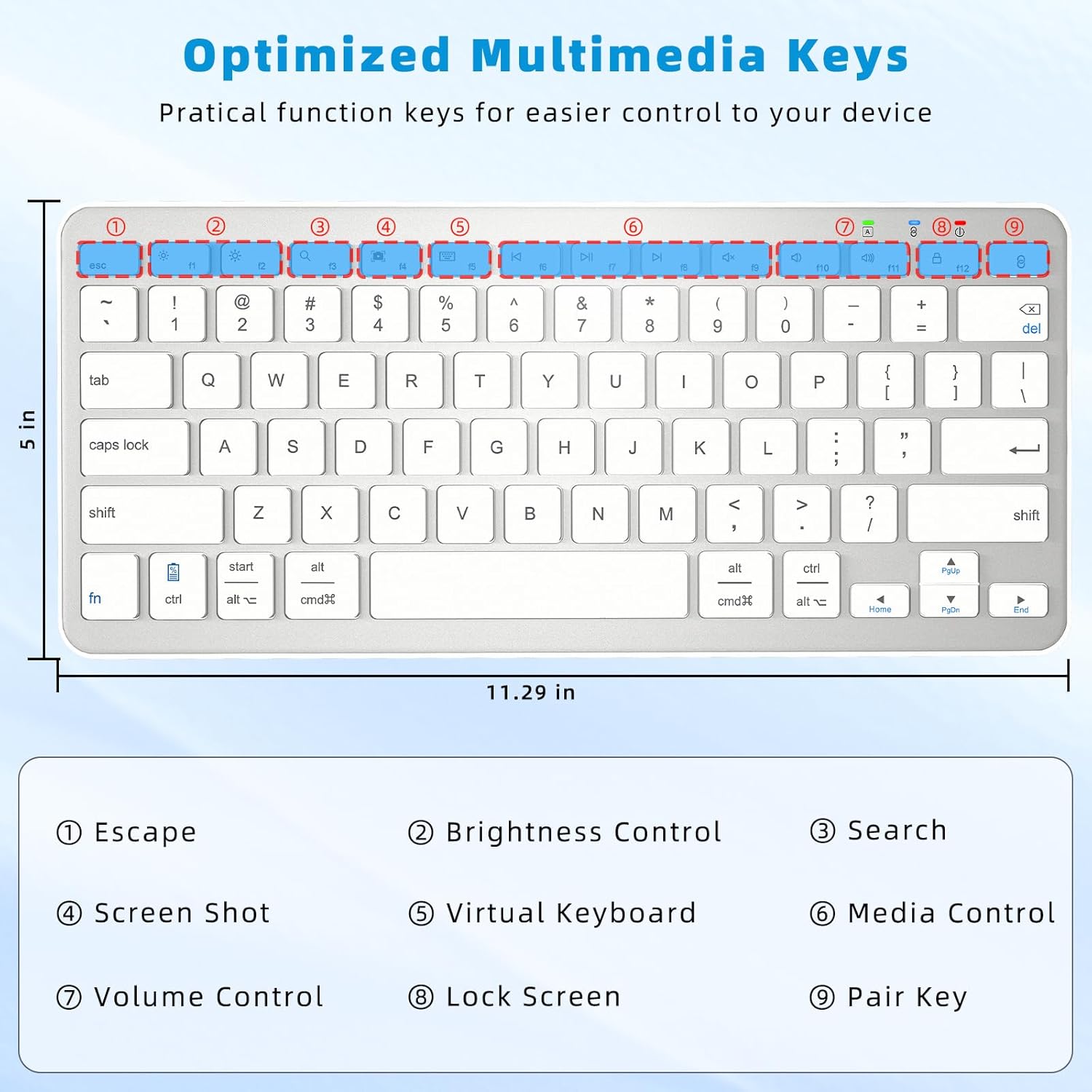
Image: Close-up of the Qulose Wireless Bluetooth Keyboard highlighting the optimized multimedia keys and their corresponding functions, such as Escape, Brightness Control, Search, Screenshot, Virtual Keyboard, Media Control, Volume Control, Lock Screen, and Pair Key.
Auto-Sleep Function
To conserve battery, the keyboard will automatically enter sleep mode after 30 minutes of inactivity. To wake it up, simply press any key and wait for 2-3 seconds for it to reconnect and become active.
Ergonomic Design and Typing Experience
The keyboard features a scissor-switch key structure, providing a smooth, quiet, and responsive typing experience. Its ergonomic design helps maintain a comfortable wrist posture during extended use. The effective working distance for Bluetooth connectivity is up to 10 meters (33 feet).
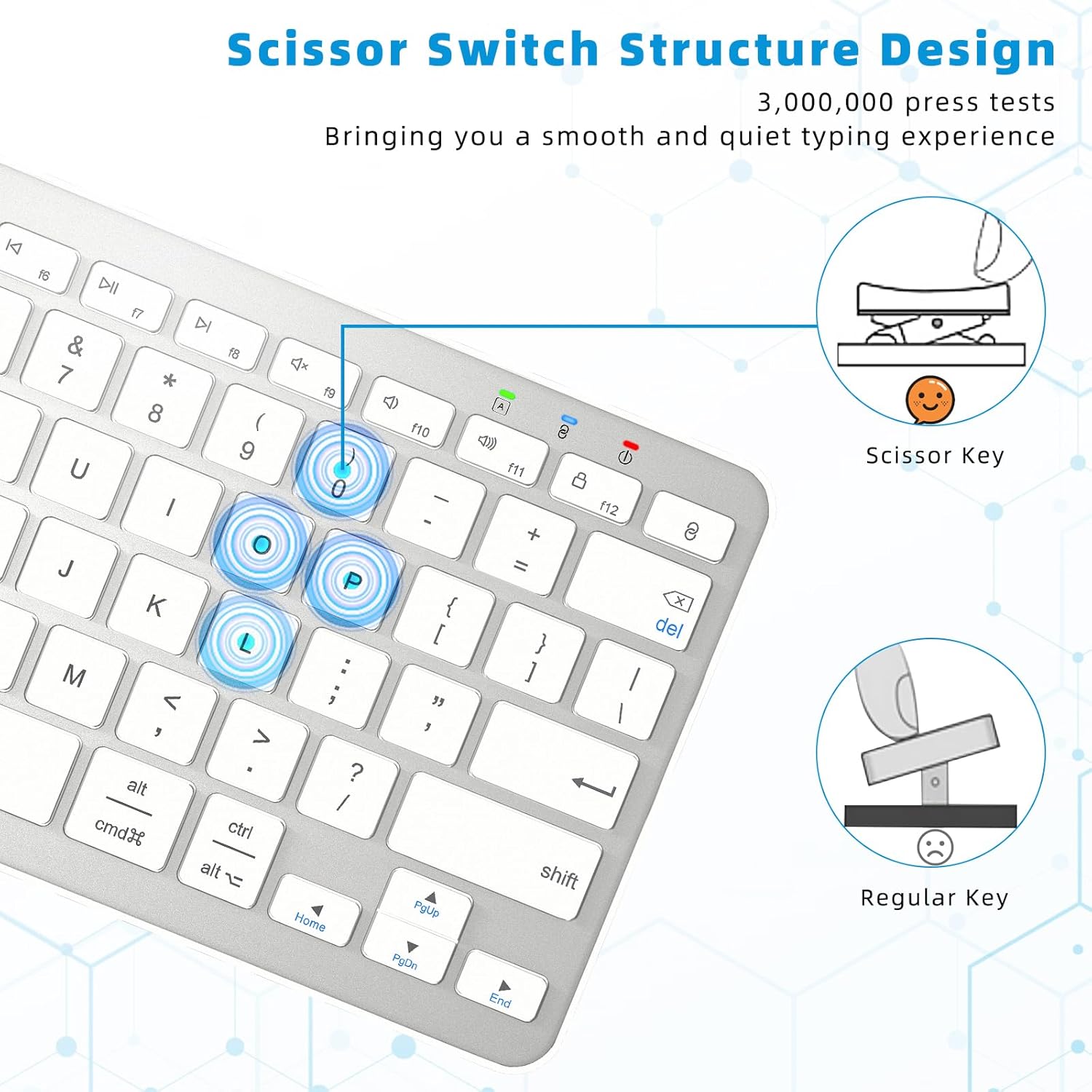
Image: Diagram illustrating the scissor-switch key structure of the Qulose Wireless Bluetooth Keyboard, emphasizing its smooth and quiet typing benefits compared to regular keys.
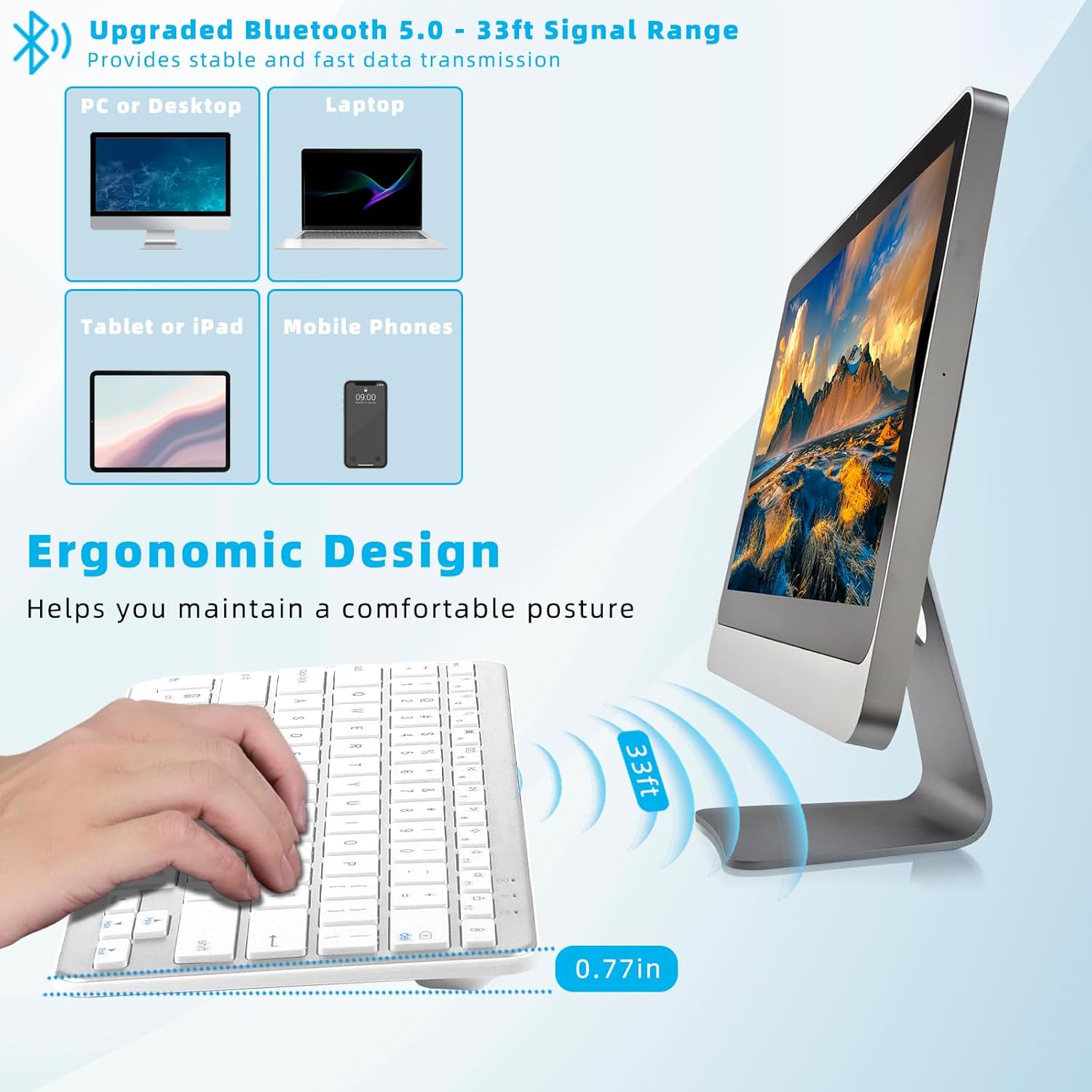
Image: A user typing on the Qulose Wireless Bluetooth Keyboard, showcasing its ergonomic design and the 33ft Bluetooth 5.0 signal range for stable and fast data transmission across various devices like PCs, laptops, tablets, and mobile phones.
Maintenance
Cleaning
To clean the keyboard, gently wipe the surface with a soft, damp cloth. Avoid using harsh chemicals or abrasive cleaners, as these can damage the finish. Ensure the keyboard is powered off before cleaning.
Battery Care
To prolong battery life, avoid completely draining the battery frequently. Recharge the keyboard when the low battery indicator appears. Store the keyboard in a cool, dry place when not in use for extended periods.
Troubleshooting
Keyboard Not Connecting/Responding
- Check Power: Ensure the keyboard is powered on and has sufficient battery charge. Recharge if necessary.
- Wake Up: If the keyboard is in auto-sleep mode, press any key and wait 2-3 seconds for it to wake up.
- Re-pair: If the connection is lost, go to your device's Bluetooth settings, forget the keyboard, and then re-initiate the pairing process as described in the "Bluetooth Pairing" section.
- Device Bluetooth: Ensure Bluetooth is enabled on your device and it is discoverable.
- Distance: Make sure the keyboard is within the 10-meter (33-foot) effective range of your device.
Keys Not Functioning Correctly
- F1-F12 Keys: Note that for Android and iOS devices, the F1-F12 keys are primarily designed for multimedia shortcuts and may not function as standard F-keys.
- System Compatibility: Confirm your device's operating system is compatible (Windows 10 or later, Android 8.0 or later, iOS 16.0 or later). The keyboard is not compatible with older Windows versions (7, XP, Vista) or iMac.
Charging Issues
- Cable Check: Ensure the USB Type-C charging cable is securely connected to both the keyboard and the power source.
- Power Source: Try a different USB power source or adapter to rule out issues with the current one.
Product Specifications
| Brand | Qulose |
| Model | Wireless Bluetooth Keyboard |
| Color | Silver White |
| Connectivity Technology | Bluetooth 5.0 |
| Operating System Compatibility | Windows 10 or later, Android 8.0 or later, iOS 16.0 or later |
| Incompatible Systems | iMac, Windows 7, Windows XP, Windows Vista |
| Compatible Devices | Laptop, PC, Smartphone, Tablet |
| Keyboard Description | Ergonomic, Scissor-switch keys |
| Battery Type | Lithium-ion (300mAh) |
| Charging Time | 3-4 hours |
| Usage Time | 100+ hours |
| Auto-Sleep Function | After 30 minutes of inactivity |
| Dimensions (L x W x H) | 28.7 x 12.7 x 2 cm (11.29 x 5 x 0.77 inches) |
| Weight | 420.1 g |
| Material | Acrylonitrile Butadiene Styrene (ABS) |
Warranty and Support
Qulose is committed to providing quality products and customer satisfaction. While specific warranty details are not provided in this manual, if you encounter any questions or concerns regarding your Qulose Wireless Bluetooth Keyboard, please contact our customer support. We will endeavor to respond and resolve your issues promptly.
Please refer to your purchase documentation or the retailer's website for any applicable warranty information.


