1. Introduction and Overview
Thank you for choosing the Hodozzy 7-inch Double-DIN Car Radio. This advanced car stereo system is designed to enhance your driving experience with its powerful Android operating system, vibrant IPS touchscreen, and extensive connectivity options. Featuring an 8-core processor, 4GB RAM, and 64GB ROM, it ensures smooth performance for all your multimedia and navigation needs. This manual provides detailed instructions for installation, operation, maintenance, and troubleshooting to help you get the most out of your device.

Figure 1.1: Hodozzy 7-inch Car Radio and included accessories.
2. Setup and Installation
2.1 Package Contents
Before installation, please verify that all components are present in the package:
- Hodozzy 7-inch Car Radio Unit
- Power Cable
- RCA Cable
- Rear Camera Input Cable
- GPS Antenna
- USB Cable (Dual)
- Mounting Bracket
- User Manual (this document)
- Microphone (Built-in)
- Rear Camera

Figure 2.1: Dimensions and complete list of included accessories and cables.
2.2 Installation Steps
Professional installation is recommended. Ensure the vehicle's battery is disconnected before beginning installation.
- Remove Existing Unit: Carefully remove your vehicle's existing car radio unit and trim.
- Connect Wiring: Connect the provided power cable, RCA cables, and other necessary inputs (GPS antenna, USB cables, rear camera input) to the corresponding ports on the Hodozzy unit. Refer to the wiring diagram for correct connections.
- Mounting: Secure the unit using the provided mounting brackets into the double-DIN slot of your vehicle's dashboard.
- Test Functionality: Before fully reassembling the dashboard, reconnect the vehicle's battery and perform a quick test of the unit's basic functions (power on, audio, touchscreen response).
- Final Assembly: Once confirmed working, carefully reassemble the dashboard trim.

Figure 2.2: Example of the car radio installed in a vehicle dashboard.
2.3 Initial Configuration
Upon first power-on, the unit will guide you through initial setup steps:
- Language Selection: Choose your preferred language for the system interface.
- Time and Date: Set the correct time zone, date, and time.
- Wi-Fi Connection: Connect to an available Wi-Fi network for internet access, app downloads, and software updates.
- GPS Setup: Ensure the GPS antenna is properly connected for accurate navigation.
3. Operating Instructions
3.1 Android System and User Interface
The Hodozzy car radio runs on the latest Android operating system, providing a familiar and intuitive interface. You can customize your home screen with various widgets and choose from 51 different user interfaces (UIs) and 17 wallpapers to personalize your experience.

Figure 3.1: Demonstrates the IPS screen, diverse UI options, and wallpaper customization.
Split Screen Functionality: The unit supports split-screen mode, allowing you to run two applications simultaneously. For example, you can use navigation on one side and play music on the other. To activate, long-press an app icon and drag it to one side of the screen, then select another app for the remaining side.

Figure 3.2: Example of split-screen operation, showing navigation and music playback.
3.2 Performance and Storage
Equipped with an 8-core processor, 4GB of RAM, and 64GB of internal storage, this unit delivers fast and stable performance. This ample memory ensures smooth multitasking, quick app loading, and sufficient space for offline maps, music, and other media without lag or delays.
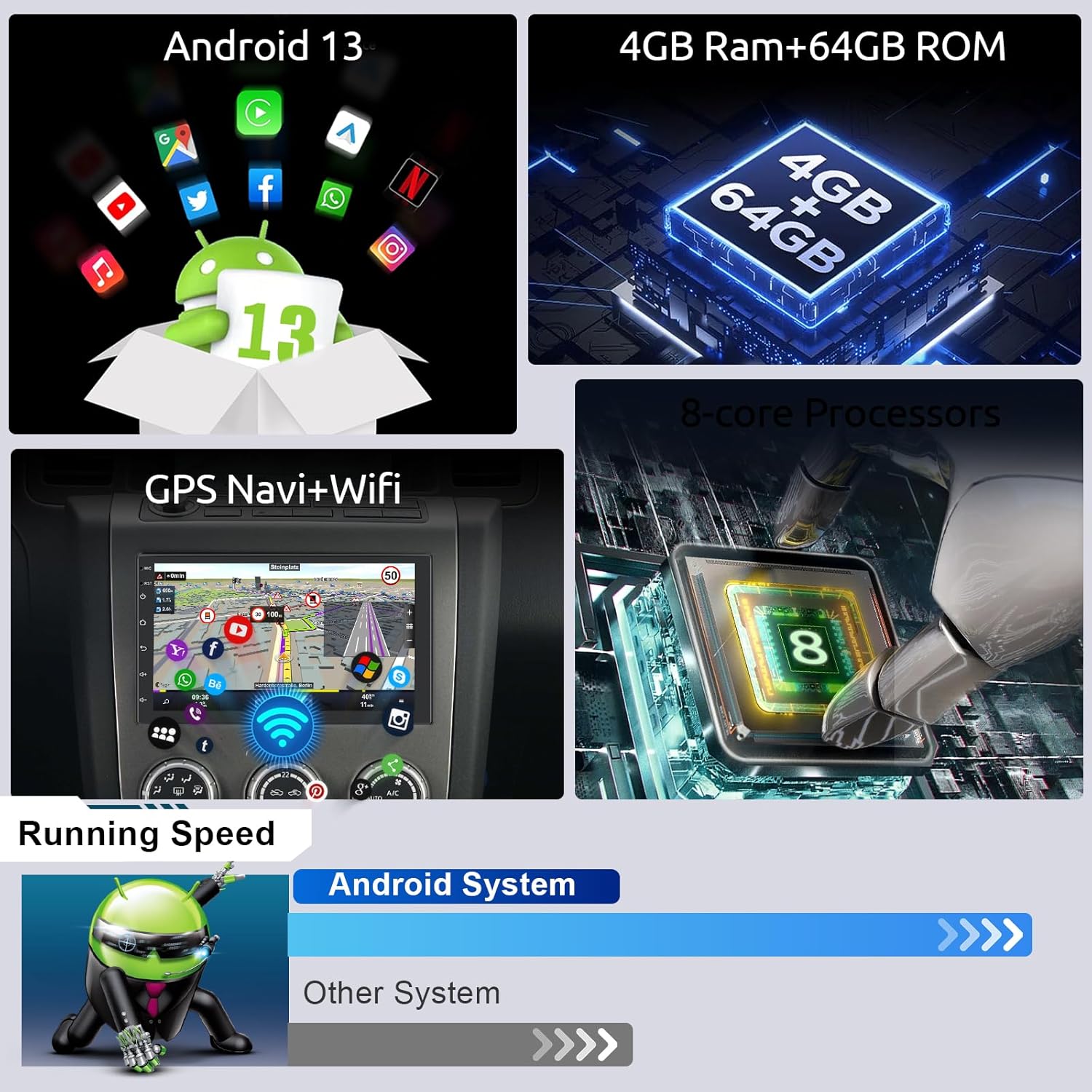
Figure 3.3: Visual representation of the unit's Android 13 OS, memory, and processing power.
3.3 Navigation and Connectivity
GPS Navigation: The unit supports both online and offline navigation. With the connected GPS antenna, you can use pre-installed maps or download your preferred navigation apps from the Google Play Store for accurate and real-time guidance.
Wi-Fi: Connect the unit to your smartphone's hotspot or a Wi-Fi network to access online content, stream music, browse the web, and download applications.

Figure 3.4: GPS navigation interface displaying online and offline map capabilities.
3.4 Wireless Carplay, Android Auto, and Mirror Link
Seamlessly integrate your smartphone with the car radio using these features:
- Wireless Carplay: For iPhone users, connect wirelessly to access navigation, make calls, send messages, and play music directly from your phone's interface on the car radio screen.
- Wireless Android Auto: For Android users, connect wirelessly to use Google Maps, play music, and manage calls and messages through the car radio.
- Mirror Link: Mirror your smartphone's screen (both iOS and Android) onto the car radio display via USB cable or Wi-Fi. This allows you to view and control your phone's apps, videos, and photos on the larger screen.

Figure 3.5: Overview of wireless Carplay, Android Auto, and Mirror Link features.

Figure 3.6: Mirror Link functionality with both Wi-Fi and USB connection options.
3.5 Bluetooth and Audio Features
Bluetooth: Pair your smartphone or other Bluetooth-enabled devices to the car radio for hands-free calling and wireless audio streaming. The built-in microphone ensures clear call quality.
FM RDS Radio: Tune into your favorite radio stations with clear sound quality. The RDS (Radio Data System) feature displays station information and song titles where available.
Built-in DSP (Digital Signal Processor): The integrated DSP enhances sound quality by reducing noise, distortion, and interference, providing a superior audio experience with customizable equalizer settings.

Figure 3.7: Bluetooth connectivity, FM RDS radio, and DSP audio customization.
3.6 Rear Camera and Steering Wheel Control
Rear Camera Input: The unit supports a rear-view camera, providing a clear display on the screen when reversing. This enhances safety and convenience during parking maneuvers.
Steering Wheel Control: Connect the unit to your vehicle's steering wheel controls (if supported) to manage audio playback, answer calls, and navigate menus without taking your hands off the wheel.

Figure 3.8: Rear camera display and steering wheel control functionality.
4. Maintenance
To ensure the longevity and optimal performance of your Hodozzy car radio, follow these maintenance guidelines:
- Screen Cleaning: Use a soft, lint-free cloth to gently wipe the IPS touchscreen. For stubborn smudges, slightly dampen the cloth with water or a screen-safe cleaner. Avoid abrasive materials or harsh chemicals.
- Unit Cleaning: Keep the main unit and surrounding areas free from dust and debris. Use a soft brush or compressed air to clean vents and ports.
- Software Updates: Periodically check for system software updates via the unit's settings menu when connected to Wi-Fi. Updates can improve performance, add new features, and fix bugs.
- Avoid Extreme Temperatures: Do not expose the unit to extreme hot or cold temperatures for prolonged periods, as this can affect electronic components.
5. Troubleshooting
If you encounter issues with your Hodozzy car radio, refer to the following common problems and solutions:
| Problem | Possible Cause | Solution |
|---|---|---|
| Unit does not power on. | Loose power connection, blown fuse, vehicle battery issue. | Check all power cable connections. Inspect vehicle fuses. Ensure vehicle battery is charged. |
| No sound from speakers. | Incorrect speaker wiring, volume too low, mute activated. | Verify speaker connections. Increase volume. Check if mute is enabled in settings. |
| Touchscreen unresponsive. | System freeze, temporary software glitch. | Restart the unit (turn off vehicle ignition and restart). If issue persists, perform a factory reset (refer to settings menu). |
| GPS signal weak or inaccurate. | GPS antenna not properly connected or obstructed. | Ensure GPS antenna is securely connected and placed in an unobstructed location (e.g., dashboard, not under metal). |
| Bluetooth/Carplay/Android Auto connection issues. | Incorrect pairing, device compatibility, software glitch. | Ensure Bluetooth is enabled on both devices. Forget and re-pair the device. Check for software updates on both the unit and your phone. |
If the problem persists after attempting these solutions, please contact Hodozzy customer support for further assistance.
6. Specifications
| Feature | Detail |
|---|---|
| Display Size | 7 inches (17.8 cm) |
| Operating System | Android (Latest version as of release) |
| Processor | 8-Core |
| Memory (RAM) | 4GB |
| Storage (ROM) | 64GB |
| Connectivity | USB, Wi-Fi, Bluetooth |
| Special Features | Wireless Carplay, Wireless Android Auto, Mirror Link, DSP, Split Screen, RDS Radio |
| Compatible Devices | Smartphone |
| Audio Output Mode | Stereo |
| Surround Sound Channel Configuration | 4.0 |
| Video Encoding Support | MKV/RMVB/AVI/MP4/MDV etc. |
| Package Dimensions | 23.5 x 21 x 11.9 cm; 1 Kilogram |
| Manufacturer | Hodozzy |
| Country of Origin | China |
7. Warranty and Support
Hodozzy is committed to providing excellent customer service and product support.
- Money-Back Guarantee: Enjoy a 30-day money-back guarantee from the date of purchase.
- Replacement Warranty: The product is covered by a 2-year replacement warranty.
- Technical Support: Lifetime technical support is provided for your Hodozzy car radio.
For technical assistance, warranty claims, or any other inquiries, please contact our professional technical team:
Email: hodozzyofficial@163.com

Figure 7.1: Hodozzy customer support contact details.


