
1. Introduction
This manual provides detailed instructions for the installation, operation, and maintenance of your FTes RFKits V70 WiFi Wireless Video Door Intercom System. Please read this manual thoroughly before using the product to ensure proper function and safety. This system is designed for multi-family homes, offering enhanced security and communication.
2. Safety Information
- Ensure all electrical connections are made by a qualified professional to prevent electric shock or damage to the system.
- Do not expose the outdoor camera to extreme temperatures, direct sunlight for prolonged periods, or corrosive environments.
- Keep the indoor monitor away from water and high humidity.
- Use only the power adapter supplied with the device.
- Do not attempt to repair or modify the device yourself. Contact customer support for assistance.
- Disconnect power before performing any maintenance or cleaning.
3. Package Contents
Verify that all items are present in the package:
- Outdoor Camera Unit (with integrated doorbell buttons)
- 7-inch Indoor Touchscreen Monitor(s)
- Power Adapter(s) for Indoor Monitor(s)
- Mounting Screws and Wall Plugs
- Wiring Cables (for wired connection between units)
- User Manual (this document)

Image 3.1: Overview of the FTes RFKits V70 outdoor camera unit and indoor monitor.
4. Product Overview
4.1 Outdoor Camera Unit

Image 4.1: Detailed view of the outdoor camera unit, showing the camera, microphone, white light, photoresistance, rain cover, and call buttons.
- Camera: 1080P resolution with a 120° wide-angle lens for clear video.
- Microphone: For two-way audio communication.
- White Light: Provides illumination for full-color night vision.
- Photoresistance: Detects ambient light for automatic IR LED switching.
- Rain Cover: Protects the unit from weather elements.
- Call Buttons: Multiple buttons for individual apartment calls (e.g., 101, 201, 301).
- User-defined Nameplate: Customizable area for apartment numbers or names.
4.2 Indoor Touchscreen Monitor

Image 4.2: Front and rear view of the indoor monitor, highlighting buttons, ports, and settings.
- 7-inch TFT LCD Touchscreen: Displays video feed and provides touch controls.
- Microphone & Speaker: For two-way audio communication.
- Control Buttons: Unlock key, Left/Right select, Monitor/Confirm, Answer/Return.
- TF Card Slot: For local storage of snapshots and video recordings (TF card not included).
- DC15V 1.2A Power Interface: For connecting the power adapter.
- Wiring Port: For connecting to the outdoor camera unit.
- Settings: Adjust color, light brightness, intercom volume, ringtone, and format TF card.
5. Setup & Installation
5.1 Wired Connection
The indoor monitor and outdoor camera are connected via a wired connection to ensure stable power supply and video transmission. Follow the wiring diagram provided in the packaging or consult a professional for installation.
- Mount the outdoor camera unit in a suitable location near your entrance, ensuring it is protected from direct heavy rain and accessible for visitors. The flush mounting design is convenient.
- Mount the indoor monitor(s) at a convenient location inside your home.
- Connect the outdoor unit to the indoor monitor(s) using the provided wiring cables. Ensure correct polarity and secure connections.
- Connect the power adapter to the indoor monitor and plug it into a power outlet.
5.2 Tuya App Setup (WiFi Connection)
The indoor monitor supports wireless connection to your 2.4 GHz WiFi network, enabling remote control via the Tuya app.
- Download the free Tuya Smart app from your smartphone's app store (available for Android and Apple iOS).
- Register or log in to your Tuya account.
- On the indoor monitor, navigate to the WiFi settings and enable WiFi.
- Follow the on-screen instructions on the monitor and in the Tuya app to add your video intercom system. This typically involves scanning a QR code displayed on the monitor or entering a pairing code.
- Ensure your smartphone is connected to a 2.4 GHz WiFi network during the pairing process.

Image 5.1: Steps for installing the Tuya app and demonstrating remote unlocking functionality.
6. Operating Instructions
6.1 Basic Functions
- Answering a Call: When a visitor presses a call button on the outdoor unit, the indoor monitor will ring and display the visitor's video. Press the 'Answer' button on the monitor or via the Tuya app to establish two-way communication.
- Two-Way Intercom: Speak to your visitor through the monitor or app. The system supports communication between monitors and cameras, as well as between multiple indoor monitors.
- Unlocking the Door: Press the 'Unlock' button on the indoor monitor or in the Tuya app to remotely open an electronic lock (if connected).
- Monitoring: Press the 'Monitor' button on the indoor unit to view the live feed from the outdoor camera at any time.
- PIR Motion Detection: The system can detect motion near the outdoor unit. When motion is detected, it can trigger a snapshot or video recording.
- Automatic Recording and Snapshot: When a visitor presses the doorbell button, the camera automatically records a video and stores it on the TF card (if inserted). You can review these recordings on your smartphone.
- Night Vision: The outdoor camera automatically switches to IR LED mode at night, providing clear images in low-light conditions. The white light also assists with full-color night vision.
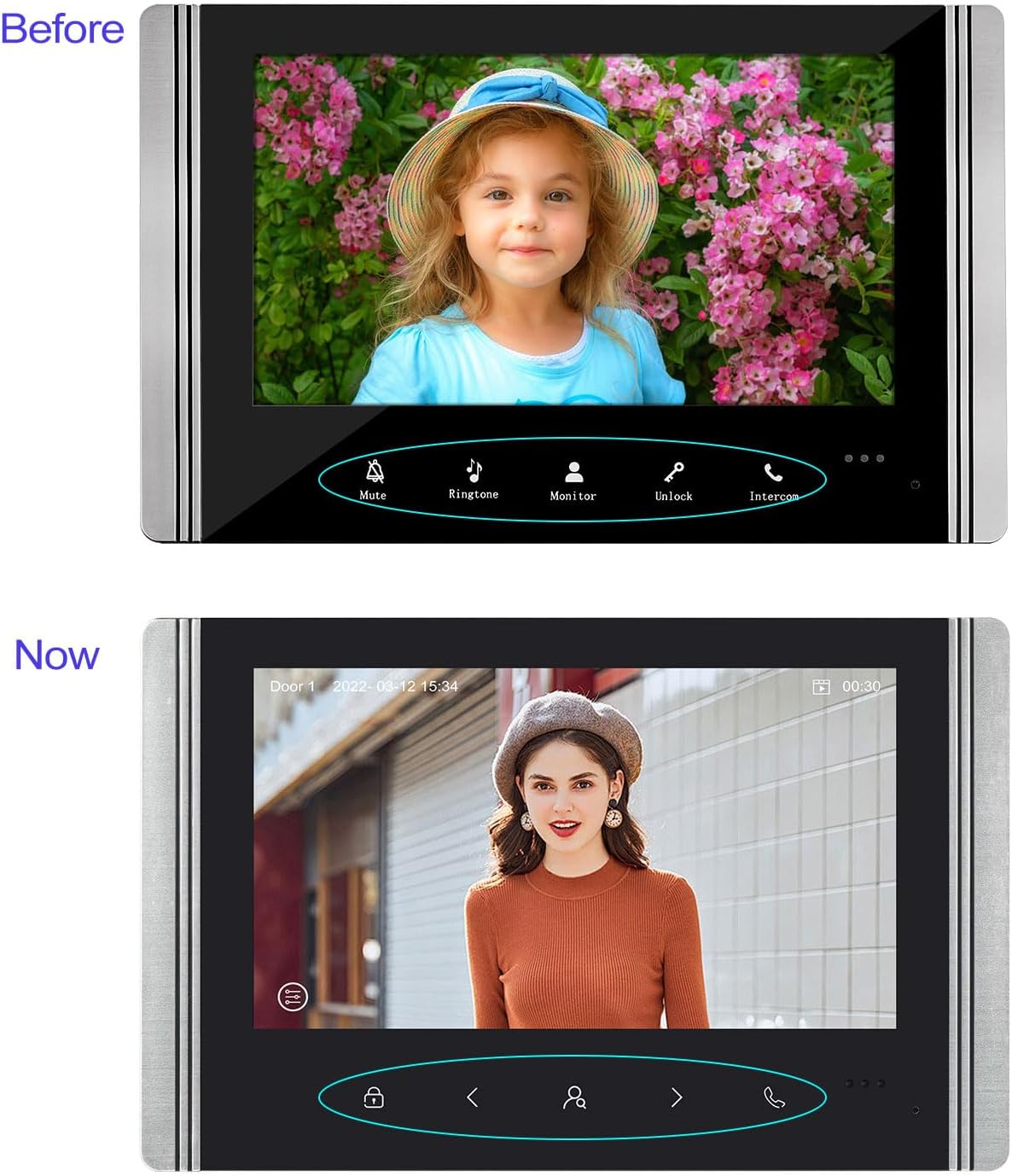
Image 6.1: Evolution of the indoor monitor's user interface, showing clear icons for mute, ringtone, monitor, unlock, and intercom functions.
6.2 Tuya App Control
Once connected to the Tuya app, you can perform the following actions remotely:
- Receive notifications when a visitor presses the doorbell.
- View live video feed from the outdoor camera.
- Engage in two-way audio communication with visitors.
- Remotely unlock the door.
- Review recorded videos and snapshots stored on the TF card.
- Adjust system settings.

Image 6.2: Illustration of the multi-family intercom system, showing individual indoor monitors for different apartments (101, 201, 301).
7. Maintenance
- Cleaning: Use a soft, dry cloth to clean the indoor monitor screen and the outdoor camera lens. Do not use abrasive cleaners or solvents.
- Firmware Updates: Periodically check for firmware updates through the Tuya app or the manufacturer's website to ensure optimal performance and security.
- TF Card Management: Regularly back up important recordings and format the TF card to maintain storage capacity and performance.
- Environmental Protection: Ensure the outdoor unit's rain cover is intact and free from obstructions.
8. Troubleshooting
| Problem | Possible Cause | Solution |
|---|---|---|
| No video/audio from outdoor unit | Loose wiring connection; Power issue; Damaged unit. | Check all wired connections between the outdoor unit and indoor monitor. Ensure the indoor monitor is powered on. If issues persist, contact support. |
| Indoor monitor not connecting to WiFi | Incorrect WiFi password; Router too far; 5GHz WiFi network; Firewall settings. | Ensure correct 2.4 GHz WiFi password. Move monitor closer to router. Verify router is broadcasting 2.4 GHz. Check router settings for any restrictions. |
| Tuya App not receiving notifications/connecting | App permissions; Network issues; Monitor not connected to WiFi. | Check app permissions on your smartphone (notifications, background data). Ensure your phone has internet access. Verify the indoor monitor is connected to WiFi. |
| Poor night vision quality | Obstruction of IR sensor/LEDs; Dirty lens. | Clean the outdoor camera lens. Ensure no objects are blocking the IR LEDs or photoresistance sensor. |
| Door unlock function not working | Electronic lock not connected; Wiring issue; Lock malfunction. | Verify the electronic lock is correctly wired to the outdoor unit. Check the lock's power supply and functionality independently. |
9. Specifications
- Model: V70
- Brand: FTes RFKits
- Outdoor Camera Resolution: 1080P
- Outdoor Camera Angle: 120° Wide Angle
- Indoor Monitor: 7-inch TFT LCD Touchscreen
- Connectivity: Wired (between units), WiFi 2.4 GHz (for app control)
- Night Vision: IR LED, White Light for Full Color Night Vision
- Storage: Supports TF Card (not included) for recording
- Power Source: Wired, DC15V 1.2A (for indoor monitor)
- Material: Metal
- Product Dimensions (Outdoor Unit): Approximately 173mm (H) x 85mm (W) x 41mm (D)
- Product Dimensions (Indoor Monitor): Approximately 135mm (H) x 210mm (W)
- Item Weight: 2.15 Kilograms (total system)
- Special Features: PIR Motion Detection, Two-Way Intercom, Remote Unlock, Snapshot, Video Recording, Tuya App Control

Image 9.1: Visual representation of product dimensions and a summary of key features.
10. Warranty and Support
For warranty information and technical support, please refer to the documentation included with your purchase or visit the official FTes RFKits website. If you encounter any issues not covered in this manual, please contact customer service for assistance.
Product Identifier: X001TZ1BER