
1. Introduction and Overview
The Arylic B50 SE is a versatile Bluetooth 5.1 stereo audio amplifier designed for home audio systems. It delivers 50W x 2 powerful output, supporting 2.1 channel configurations with a dedicated subwoofer output. Featuring the TPA3116D2 chip, it ensures stable and high-quality audio transmission with long-range Bluetooth connectivity. Control is made easy through the intuitive Go Control APP and integrated EQ settings, providing an enhanced listening experience for various audio sources.
2. Product Features
- Powerful Output: Delivers 50W x 2 stereo output, suitable for various home speakers.
- 2.1 Channel Support: Includes a dedicated subwoofer output for building a 2.1 home cinema system.
- Advanced Bluetooth 5.1: Ensures stable, long-range (up to 10 meters) wireless audio streaming with low latency.
- TPA3116D2 Chip: Utilizes the TPA3116D2 amplifier chip for high efficiency, stable performance, and built-in overheat, overcurrent, and short-circuit protection.
- Multiple Audio Inputs: Supports Bluetooth, Line-in (RCA), Optical, and USB DAC inputs for versatile connectivity.
- Go Control APP: Intuitive mobile application for comprehensive control, including input selection, volume adjustment, EQ customization, and USB song list management.
- Easy Control EQ: Offers preset and customizable equalizer settings via the app or remote control for optimized sound.

3. Package Contents
Please check the package carefully to ensure all items are present and in good condition:
- Arylic B50 SE Bluetooth Amplifier
- Power Adapter
- Remote Control
- Bluetooth Antenna
- User Manual (this document)
4. Product Layout and Controls
4.1 Front Panel
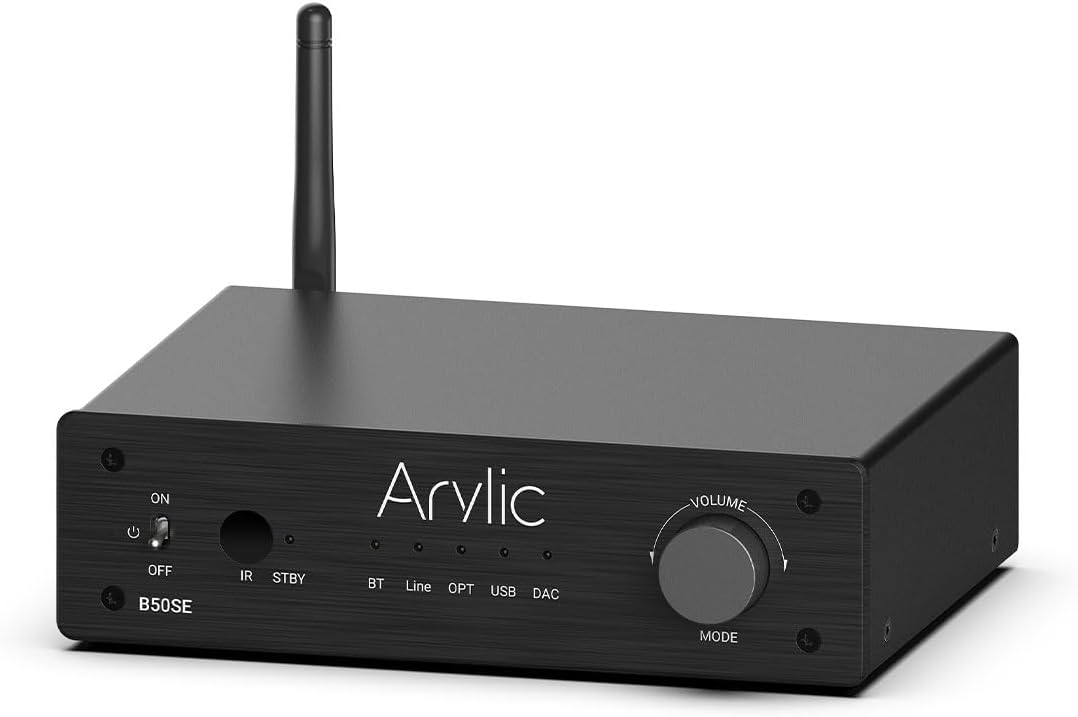
- ON/OFF Switch: Toggles the amplifier power.
- IR: Infrared receiver for the remote control.
- STBY: Standby indicator light.
- BT/Line/OPT/USB/DAC Indicators: Lights indicating the currently selected input mode.
- Volume/MODE Knob: Rotates to adjust volume; press to cycle through input modes.
4.2 Rear Panel
- DC Input: Power connection port.
- Speaker (L/R): Terminals for connecting passive left and right speakers.
- SW Out: RCA output for connecting an active subwoofer.
- Line In (RCA): RCA input for connecting analog audio sources.
- Optical In: Optical (Toslink) input for connecting digital audio sources.
- USB: USB-A port for connecting USB storage devices for music playback.
- DAC: USB-B port for connecting to a computer as a USB DAC.
- Reset: Button to reset the device. Press twice in Bluetooth Receiver mode to disconnect all Bluetooth connections. Press and hold to perform a factory reset.
- BT: Antenna connector for Bluetooth.

5. Setup and Connections
Follow these steps to set up your Arylic B50 SE amplifier:
- Connect Speakers: Connect your passive stereo speakers to the L (Left) and R (Right) speaker terminals on the rear panel. Ensure correct polarity (+ to + and - to -).
- Connect Subwoofer (Optional): If using an active subwoofer, connect its input to the 'SW Out' RCA port on the amplifier.
- Connect Audio Sources:
- Line-in: Use an RCA cable to connect your analog audio source (e.g., CD player, turntable with pre-amp) to the 'Line In' RCA ports.
- Optical: Use an optical (Toslink) cable to connect digital audio sources (e.g., TV, game console) to the 'Optical In' port.
- USB DAC: Connect your computer to the 'DAC' USB-B port using a USB cable.
- USB Disk: Insert a USB storage device (flash drive) into the 'USB' USB-A port for direct music playback.
- Connect Bluetooth Antenna: Screw the provided Bluetooth antenna into the 'BT' connector on the rear panel.
- Connect Power: Plug the power adapter into the 'DC Input' port on the amplifier, then plug the adapter into a wall outlet.
- Power On: Flip the ON/OFF switch on the front panel to the 'ON' position.


6. Operating Instructions
6.1 Input Selection
Press the Volume/MODE knob on the front panel to cycle through the available input modes: Bluetooth (BT), Line-in (Line), Optical (OPT), USB, and DAC. The corresponding indicator light will illuminate.
6.2 Volume Control
Rotate the Volume/MODE knob clockwise to increase volume and counter-clockwise to decrease volume. Volume can also be controlled via the remote control or the Go Control APP.
6.3 Remote Control Functions
The included remote control provides convenient access to various functions:
- Power On/Off
- Input Selection: Dedicated buttons for Phono In, Line In, Optical In, ARC, BT RX.
- Basic Playback Controls: Play/Pause, Next/Previous Track.
- Volume Up/Down
- EQ Presets: Buttons for Flat, Classic, Pop, Jazz, Rock, Vocal.
- Treble/Bass Control: Adjust treble and bass levels.

7. Bluetooth Pairing
To connect your Bluetooth device to the Arylic B50 SE:
- Ensure the amplifier is powered on and the input mode is set to Bluetooth (BT). The BT indicator light will blink, indicating it's in pairing mode.
- On your mobile device (smartphone, tablet, laptop), go to Bluetooth settings and search for available devices.
- Select "Arylic B50 SE" from the list of devices.
- Once connected, the BT indicator light on the amplifier will become solid. You can now stream audio wirelessly.
The Arylic B50 SE features Bluetooth 5.1 for a stable connection and supports long-distance transmission, typically over 10 meters (33 feet), allowing for flexible placement within your home.

8. Go Control APP
The Go Control APP provides advanced control and customization options for your Arylic B50 SE amplifier.
8.1 Downloading the App
Download the "Go Control" app from your device's app store (Google Play Store for Android, Apple App Store for iOS).
8.2 App Features
- Bluetooth Control: Manage Bluetooth connections and playback directly from the app.
- Customize Theme: Personalize the app's appearance with different color schemes.
- Customize EQ: Adjust sound settings with a graphic equalizer or select from preset EQ modes (Flat, Classical, Pop, Jazz, Rock).
- USB Stick Song List: Browse and select songs directly from a connected USB storage device.
- Firmware Updates: Check for and install the latest firmware for your amplifier.

9. USB Playback
The Arylic B50 SE supports direct music playback from a USB storage device.
- Insert a USB flash drive containing your music files into the 'USB' port on the rear panel.
- Switch the amplifier's input mode to USB.
- Use the Go Control APP to browse your music library and select tracks for playback. The app allows you to filter and manage playlists.

10. Optical Input
For high-fidelity digital audio, connect your source device using the optical input.
- Connect an optical (Toslink) cable from your source device (e.g., TV, Blu-ray player, game console) to the 'Optical In' port on the amplifier.
- Switch the amplifier's input mode to OPT.
- Ensure your source device's audio output is set to PCM/Stereo, as the amplifier may not support Dolby Digital or DTS formats.

11. Troubleshooting
| Problem | Possible Cause | Solution |
|---|---|---|
| No power | Power adapter not connected or faulty. | Ensure power adapter is securely connected to the amplifier and a working power outlet. Check the power switch. |
| No sound | Incorrect input selected; volume too low; speaker connections loose; faulty audio cable. | Verify the correct input mode is selected. Increase volume. Check all speaker and audio cable connections. Test with a different audio source or cable. |
| Bluetooth connection unstable or drops | Device too far from amplifier; interference; multiple devices trying to connect. | Move Bluetooth device closer to the amplifier. Avoid placing amplifier near other wireless devices. Disconnect other Bluetooth devices. Try resetting Bluetooth on both devices. |
| Go Control APP cannot connect | Bluetooth not enabled on phone; app permissions; amplifier not in Bluetooth mode. | Ensure Bluetooth is enabled on your phone and the amplifier is in BT mode. Grant necessary permissions to the app. Restart the app and amplifier. |
| Remote control not working | Batteries low/dead; IR receiver blocked; remote not pointed correctly. | Replace batteries. Ensure no obstructions between remote and amplifier's IR receiver. Point remote directly at the amplifier. |
12. Specifications
| Feature | Specification |
|---|---|
| Output Power | 50W x 2 |
| Channels | 2.1 Channel |
| Bluetooth Version | 5.1 |
| Inputs | Bluetooth, Line-in (RCA), Optical, USB DAC, USB Disk |
| Outputs | Speaker L/R, Subwoofer Out |
| Amplifier Chip | TPA3116D2 |
| Dimensions (L x W x H) | 14.53 x 9.13 x 2.64 inches |
| Item Weight | 3.61 pounds |
| Control Methods | Front Panel Knob, Remote Control, Go Control APP (Android, iOS) |
13. Safety Information
Please read and follow these safety guidelines to ensure safe operation and prolong the life of your device:
- Do not expose this appliance to rain or moisture.
- Do not place objects filled with liquids, such as vases, on the appliance.
- Ensure proper ventilation. Do not block any ventilation openings.
- Do not install near any heat sources such as radiators, heat registers, stoves, or other apparatus (including amplifiers) that produce heat.
- Only use attachments/accessories specified by the manufacturer.
- Unplug this appliance during lightning storms or when unused for long periods of time.
- Refer all servicing to qualified service personnel. Servicing is required when the apparatus has been damaged in any way, such as power-supply cord or plug is damaged, liquid has been spilled or objects have fallen into the apparatus, the apparatus has been exposed to rain or moisture, does not operate normally, or has been dropped.
14. Warranty and Support
Arylic products are designed and manufactured to the highest quality standards. This product is covered by a limited warranty from the date of purchase. For detailed warranty terms and conditions, please refer to the warranty card included with your product or visit the official Arylic website.
For technical support, troubleshooting assistance, or service inquiries, please contact Arylic customer support through their official website or the contact information provided in your product packaging. You may also find additional resources and FAQs on the Arylic support page.
A comprehensive Instructions for Use (IFU) document is also available in PDF format for further details: Download PDF User Guide
