
1. Setup
This section guides you through the initial setup of your Natec ATX NPC-2038 Semi-Tower PC Case, from unpacking to component installation.
1.1 Unpacking
- Carefully open the packaging and remove the PC case.
- Inspect the case for any signs of damage during transit. If damage is found, contact your retailer immediately.
- Remove all internal packaging materials and accessories. Keep the packaging for future transport or warranty claims.
1.2 Component Identification
Familiarize yourself with the key components and features of your PC case.
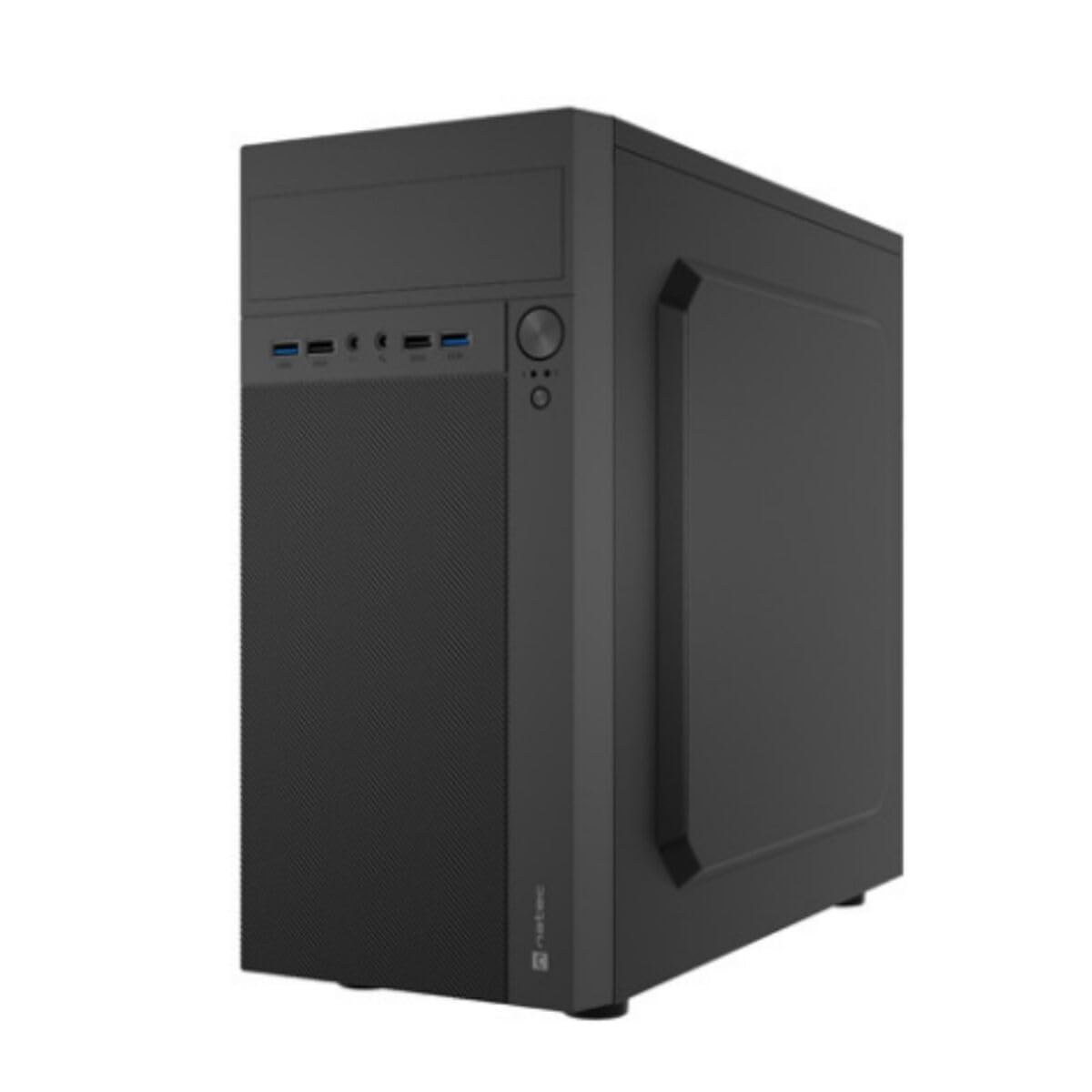
Image 1: Front and side view of the Natec ATX NPC-2038 Semi-Tower PC Case, highlighting its compact dimensions. The front panel features USB ports, audio jacks, and power/reset buttons. The case measures approximately 3.9 inches in depth, width, and height, indicating a compact design suitable for various setups.
- Front Panel: Includes power button, reset button, USB 2.0 ports, USB 3.0 port, and audio input/output jacks.
- Side Panels: Removable panels for easy access to internal components.
- Rear Panel: Features expansion slots and an opening for the motherboard I/O shield.
- Internal Bays: Provides space for 3.5-inch hard drives and other storage devices.
1.3 Installation
- Prepare the Case: Lay the case on its side and remove the side panel(s) by unscrewing the thumb screws at the rear.
- Install Motherboard: Secure the Mini ATX motherboard onto the standoffs provided. Ensure all screws are tightened appropriately.
- Install Power Supply: Mount the power supply unit (PSU) in the designated front mount area. Connect the necessary power cables to the motherboard and other components.
- Install Storage Drives: Install 3.5-inch hard drives into the internal bays. Secure them with screws.
- Install Expansion Cards: Remove the necessary expansion slot covers and install any graphics cards or other expansion cards.
- Connect Front Panel Cables: Connect the front panel USB, audio, power, and reset cables to the corresponding headers on your motherboard. Refer to your motherboard manual for specific pin layouts.
- Cable Management: Route cables neatly to ensure optimal airflow and a clean build.
- Close Case: Reattach the side panel(s) and secure them with the thumb screws.
2. Operating Instructions
This section details how to power on your system and utilize the front panel connections.
2.1 Powering On
- Ensure all external peripherals (monitor, keyboard, mouse) are connected.
- Connect the power cable from your power supply unit to a wall outlet.
- Press the power button located on the front panel of the case. The system should initiate startup.
2.2 Front Panel Connections
The front panel provides convenient access to various ports for your peripherals.
- USB 2.0 Ports (x2): For connecting standard USB devices such as keyboards, mice, and printers.
- USB 3.0 Port (x1): For connecting high-speed USB devices like external hard drives or flash drives, offering faster data transfer rates.
- Audio Input (Microphone): Connect your microphone for voice communication.
- Audio Output (Headphones): Connect your headphones or speakers for audio playback.
3. Maintenance
Regular maintenance helps ensure the longevity and optimal performance of your PC components.
3.1 Cleaning
- Exterior: Use a soft, damp cloth to wipe down the exterior surfaces of the case. Avoid abrasive cleaners.
- Interior: Periodically open the case and use compressed air to remove dust buildup from fans, heatsinks, and other components. Ensure the system is powered off and unplugged before cleaning the interior.
- Dust Filters: If your case includes dust filters, remove and clean them regularly to maintain good airflow.
3.2 Airflow Management
Proper airflow is crucial for cooling your components. Ensure that the case fans are clean and unobstructed. Consider the direction of airflow (intake vs. exhaust) to optimize cooling efficiency.
4. Troubleshooting
This section addresses common issues you might encounter with your PC case and offers potential solutions.
| Problem | Possible Cause | Solution |
|---|---|---|
| System does not power on. | Power cable disconnected, PSU switch off, front panel power button not connected correctly. | Check power cable connection, ensure PSU switch is on, verify front panel power cable connection to motherboard. |
| USB ports not functioning. | Front panel USB cables not connected to motherboard. | Ensure USB 2.0 and USB 3.0 headers are correctly connected to the motherboard. |
| Audio jacks not working. | Front panel audio cable not connected to motherboard. | Verify the HD Audio cable is securely connected to the motherboard's audio header. |
| Overheating components. | Poor airflow, dust buildup. | Clean dust filters and internal components. Ensure fans are properly oriented for optimal airflow. |
5. Specifications
Detailed technical specifications for the Natec ATX NPC-2038 Semi-Tower PC Case.
| Feature | Value |
|---|---|
| Brand | Natec |
| Model Name | HELIX (NPC-2038) |
| Case Type | Mid Tower |
| Motherboard Compatibility | Mini ATX |
| Color | multicoloured (Black) |
| Material | Legierter Stahl (Alloy Steel) |
| Power Supply Mounting Type | Front Mount |
| Cooling Method | Air |
| Fan Size | 120 Millimeters |
| Number of Fans | 1 (pre-installed, if applicable) |
| Total Expansion Slots Quantity | 4 |
| Total USB 2.0 Ports | 2 |
| Total USB 3.0 Ports | 1 |
| Internal Bays Quantity | 3 (for 3.5 Inches Hard Disk Form Factor) |
| Item Weight | 1 Kilograms |
| Item Dimensions (D x W x H) | 3.94"D x 3.94"W x 3.94"H (Approximate, based on provided data) |
| Recommended Uses For Product | General-Purpose Computing |
6. Warranty Information
Natec products are manufactured to high-quality standards. This product is covered by a manufacturer's warranty against defects in materials and workmanship. The specific duration and terms of the warranty may vary by region and retailer. Please retain your proof of purchase for warranty claims. For detailed warranty information, refer to the documentation provided with your purchase or visit the official Natec website.
7. Support
If you encounter any issues not covered in this manual or require further assistance, please contact Natec customer support or your retailer. You can typically find contact information on the official Natec website or on your product packaging.
- Online Support: Visit the official Natec website for FAQs, drivers, and support resources.
- Contact Retailer: For purchase-related issues or initial troubleshooting, your retailer may be able to provide immediate assistance.

