
1. Introduction
Thank you for purchasing the Bewinner T10 HD 1080P Video Projector. This manual provides essential information for setting up, operating, and maintaining your projector to ensure optimal performance and longevity. Please read this manual thoroughly before using the product and keep it for future reference.
The Bewinner T10 projector delivers a high-definition 1080P resolution, providing delicate and vivid images with true color restoration. Equipped with a high-efficiency LED chipset, it supports a native resolution of 1920 x 1080, enhancing image purity for an immersive viewing experience. Its integrated Bluetooth 4.0 allows for fast transmission and compatibility with various external devices such as controllers, wireless headphones, and speakers. Designed with a large-diameter, low-speed, and low-noise fan, it ensures your movie-watching or gaming experience remains undisturbed.
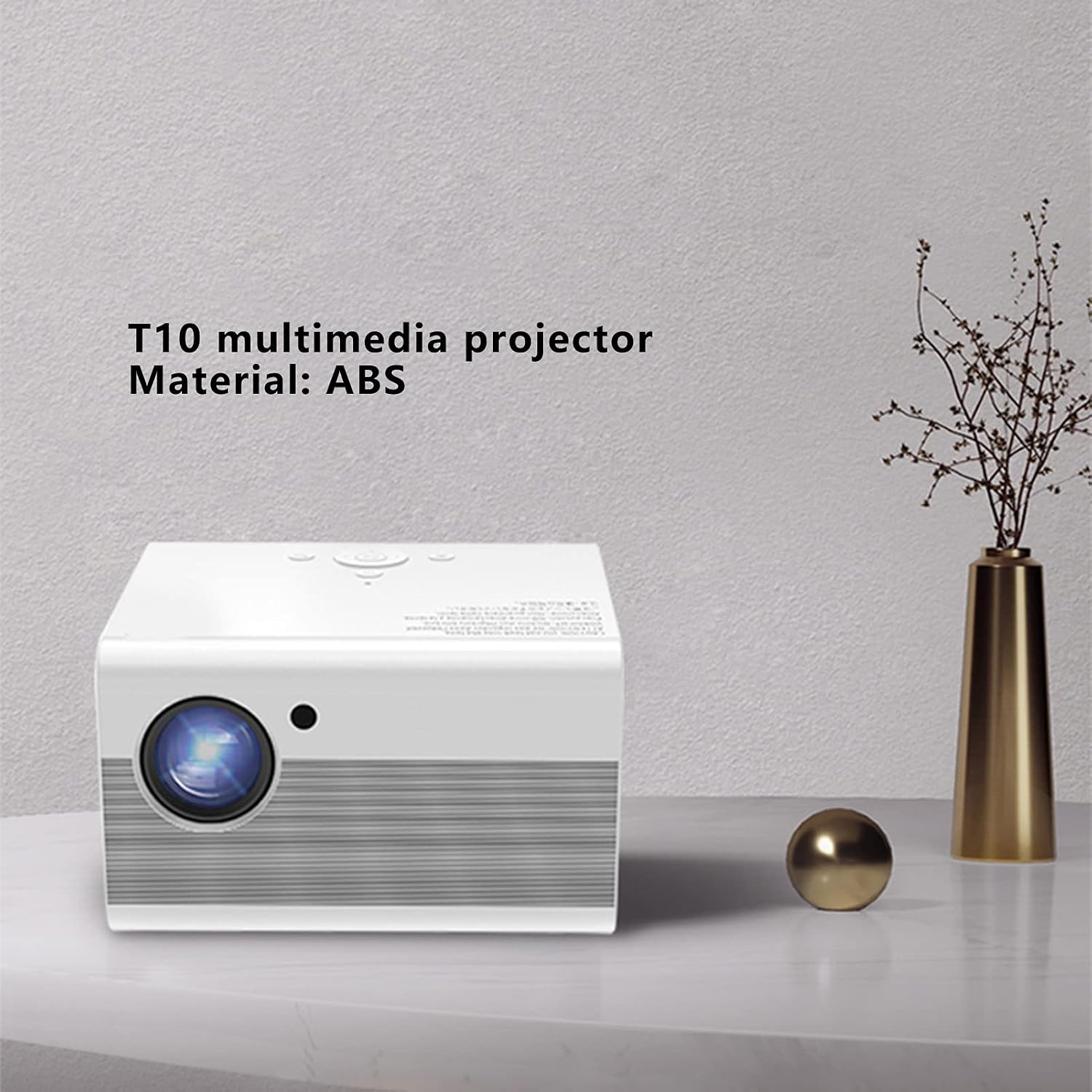
Image 1.1: The Bewinner T10 multimedia projector, showcasing its compact design and ABS material construction.
2. Safety Information
To prevent fire, electric shock, or injury, please observe the following safety precautions:
- Do not block the ventilation openings. Ensure adequate space around the projector for proper airflow.
- Do not expose the projector to rain or moisture. Keep it away from water sources.
- Avoid placing the projector on unstable surfaces.
- Do not open the projector casing. Refer all servicing to qualified personnel.
- Use only the power adapter supplied with the projector.
- Do not look directly into the projector lens when the lamp is on, as it may cause eye damage.
- Keep the projector away from direct sunlight and heat sources.
3. Package Contents
Please check that all the following items are included in your package:
- 1 x Bewinner T10 Projector
- 1 x User Manual (this document)
- 1 x AV Video Cable
- 1 x HD Multimedia Interface (HDMI) Cable
- 1 x Power Cable
- 1 x Remote Control
- 1 x Cleaning Cloth

Image 3.1: Contents of the Bewinner T10 projector package, including the projector and all accompanying accessories.
4. Product Overview
Familiarize yourself with the projector's components and ports.
Front View

Image 4.1: Front view of the Bewinner T10 projector, highlighting the projection lens and infrared receiver.
- Projection Lens: Emits the image onto the screen.
- IR Receiver: Receives signals from the remote control.
Side and Rear View

Image 4.2: Side view of the Bewinner T10 projector, illustrating the ventilation grilles and various input/output ports.
- Ventilation Grilles: Essential for heat dissipation. Do not block.
- Input Ports: (USB x 2, HD Multimedia Interface, AV Video) for connecting various devices.
- Output Port: (3.5mm Headphone Jack) for external audio devices.
- Power Input: Connects the power cable.
5. Setup
5.1 Placement
Place the projector on a stable, flat surface or mount it according to your preference. Ensure the projection path is clear of obstructions. The optimal projection distance is between 1.35m and 5m, yielding a screen size of approximately 45 to 220 inches.
5.2 Power Connection
- Connect the power cable to the projector's power input port.
- Plug the other end of the power cable into a suitable electrical outlet (AC 100-240V).
5.3 Connecting Input Devices
The projector supports multiple input sources:
- HD Multimedia Interface (HDMI): Connect your laptop, game console, Blu-ray player, or other HDMI-enabled devices using the provided HDMI cable.
- USB: Insert a USB drive into one of the two USB ports to play media files directly.
- AV Video: Use the AV cable to connect older devices like DVD players or VCRs.
5.4 Focus and Keystone Adjustment
- Focus: Rotate the focus ring on the projector lens until the image appears clear and sharp.
- Keystone Correction: If the projected image appears trapezoidal, use the vertical keystone correction feature (±15°) to adjust the image to a rectangular shape. This is typically done via a dial or menu option on the projector or remote.
5.5 Bluetooth Connection
The projector features integrated Bluetooth 4.0 for connecting external audio devices or controllers.
- Ensure your Bluetooth device (e.g., wireless headphones, speaker) is in pairing mode.
- Navigate to the Bluetooth settings menu on the projector (usually found in the main settings).
- Select your device from the list of available devices to pair.
6. Operating Instructions
6.1 Powering On/Off
- Power On: Press the power button on the projector or the remote control.
- Power Off: Press the power button again. The projector will go through a shutdown sequence. Do not unplug the power cable until the fan has stopped and the projector has fully cooled down.
6.2 Source Selection
After powering on, use the 'Source' button on the remote control or the projector's control panel to select the desired input source (HDMI, USB, AV).
6.3 Menu Navigation
Use the remote control's arrow keys and 'OK' button to navigate through the projector's on-screen menu. Adjust settings such as picture mode, sound, and system preferences as needed.
6.4 Audio Output
The projector has a built-in speaker. For enhanced audio, connect external speakers or headphones to the 3.5mm audio output jack or pair them via Bluetooth.
7. Maintenance
7.1 Cleaning the Lens
Use a soft, lint-free cloth specifically designed for optical lenses to gently wipe the projector lens. Avoid using abrasive cleaners or excessive force, which can scratch the lens.
7.2 Cleaning Ventilation
Regularly check and clean the ventilation grilles to prevent dust buildup, which can impede airflow and cause overheating. Use a soft brush or a can of compressed air to remove dust from the grilles.
7.3 Storage
When not in use for extended periods, store the projector in a cool, dry, and dust-free environment. Use the original packaging or a protective case to prevent damage.
8. Troubleshooting
| Problem | Possible Cause | Solution |
|---|---|---|
| No image displayed | Power cable loose; incorrect input source selected; input device not connected. | Check power connection; select correct input source; ensure input device is properly connected and powered on. |
| Image is blurry | Focus not adjusted; projector too close/far from screen. | Adjust the focus ring on the lens; reposition the projector within the recommended distance. |
| Image is trapezoidal | Projector not perpendicular to the screen. | Adjust the keystone correction (vertical ±15°). |
| No sound | Volume too low; external audio device not connected/paired; mute function active. | Increase volume; check external audio connections/Bluetooth pairing; disable mute. |
| Remote control not working | Batteries depleted; obstruction between remote and IR receiver. | Replace remote control batteries (2 x AAA); ensure clear line of sight to the projector's IR receiver. |
9. Specifications
| Feature | Specification |
|---|---|
| Model Number | Bewinnergz20rdpt3f-12 |
| Material | ABS |
| Display Technology | LCD |
| Light Source Technology | LED |
| Light Source Life | > 30000 Hours |
| Standard Resolution | 1920 x 1080 |
| Throw Ratio | 1.37 |
| Projection Method | Front Projection, Lifting |
| Keystone Correction | Vertical ± 15° |
| Projection Distance | 1.35 - 5 meters |
| Projection Size | Approx. 45 - 220 inches |
| Input Ports | USB x 2, HD Multimedia Interface, AV Video |
| Output Port | 3.5mm Headphone Jack |
| Standby Power Consumption | < 5 W |
| LED Light Power | 75 W |
| Remote Control Battery | 2 x AAA batteries (not included) |
| Voltage | 100-240 V |
| Dimensions | 25 x 22 x 19 cm |
| Control Method | Remote Control |
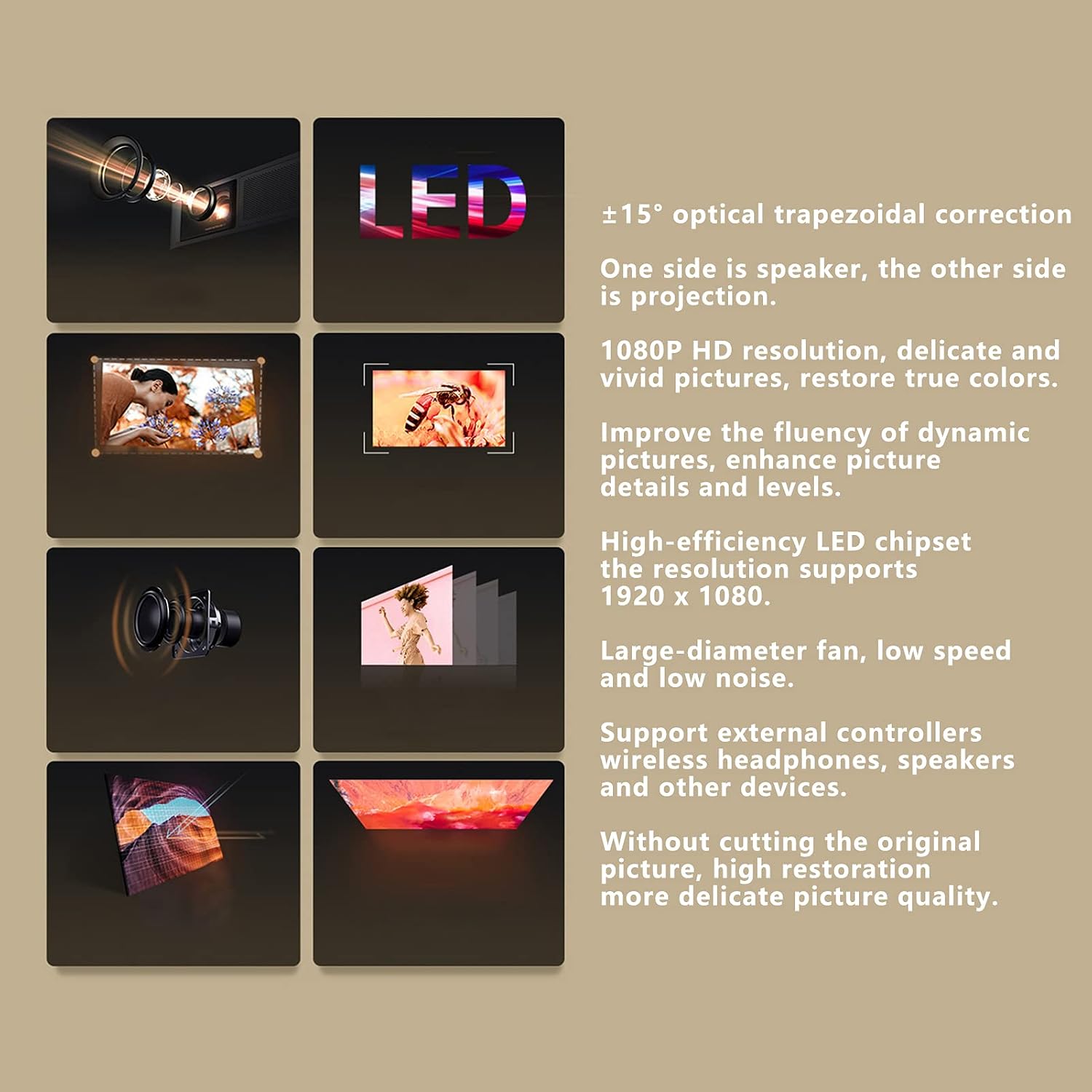
Image 9.1: Visual representation of the Bewinner T10 projector's core features and specifications.
10. Warranty and Support
Bewinner products are designed and manufactured to the highest quality standards. For warranty information and technical support, please refer to the documentation provided with your purchase or contact your retailer. Keep your proof of purchase for warranty claims.