
1. Introduction
Thank you for choosing the JRHC HC-653WL Wireless 1D Laser Barcode Scanner. This device offers versatile 2-in-1 connectivity, supporting both 2.4GHz wireless and USB 2.0 wired modes. Designed for efficiency and ease of use, it is compatible with various operating systems including Windows, Mac, and Linux, making it ideal for a wide range of applications from retail to inventory management. This manual provides detailed instructions to help you set up, operate, and maintain your scanner effectively.
2. Product Overview
The JRHC HC-653WL is a high-performance 1D laser barcode scanner engineered for fast and accurate data capture. Its robust design and user-friendly features ensure reliable operation in various environments.

Figure 2.1: The JRHC HC-653WL Wireless 1D Laser Barcode Scanner, showcasing its compact and ergonomic design.
Key Features:
- Dual Connectivity: Seamlessly switch between 2.4GHz wireless and USB 2.0 wired modes.
- 1D Laser Scanning: Capable of accurately reading most standard 1D barcodes.
- Plug and Play: Easy installation without the need for complex driver installations.
- Wide Compatibility: Works with Windows, Mac, and Linux operating systems.
- Powerful Editing Functions: Supports adding prefixes and suffixes to scanned data.
- Long Battery Life: Equipped with a 2000mAh rechargeable battery for extended use.
Physical Design:

Figure 2.2: The scanner features an ergonomically designed handle for comfortable grip during prolonged use.

Figure 2.3: Constructed with shockproof TPU material and IP54 rating, providing durability and protection against accidental drops.
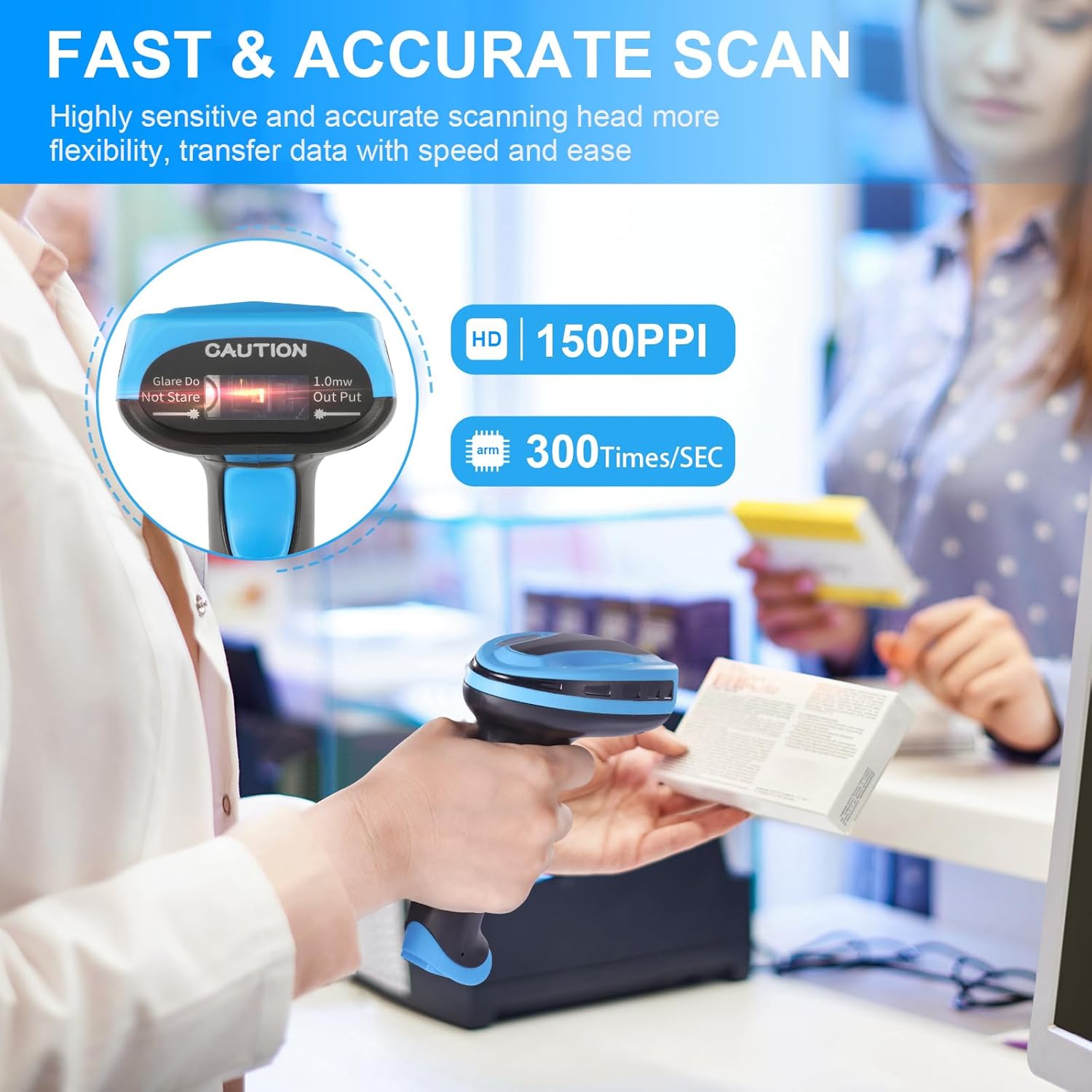
Figure 2.4: The scanner's highly sensitive scanning head ensures fast and accurate data transfer, with a scanning speed of 300 times per second and 1500PPI resolution.
3. Setup
3.1 Unpacking
Carefully unpack the contents of the box. Ensure all items are present:
- JRHC HC-653WL Barcode Scanner
- 2.4GHz USB Receiver
- USB Charging/Data Cable
- Adjustable Stand (if included with your model)
- User Manual
3.2 Charging the Scanner
Before first use, fully charge the scanner. Connect the USB charging cable to the scanner's charging port and the other end to a USB power source (e.g., computer USB port, USB wall adapter). The charging indicator light will show the charging status. A full charge typically takes a few hours.
3.3 Connecting the Scanner
The HC-653WL offers two connectivity options:
3.3.1 2.4GHz Wireless Mode
- Plug the 2.4GHz USB receiver into an available USB port on your computer.
- Turn on the barcode scanner. It will automatically pair with the receiver.
- Once connected, the scanner is ready for wireless operation.
3.3.2 USB Wired Mode
- Connect the scanner directly to your computer using the provided USB cable.
- The scanner will automatically switch to wired mode and function as a USB HID keyboard device.
- No additional drivers are required for most operating systems.
4. Operating Instructions
4.1 Scanning Modes
The HC-653WL supports three distinct scanning modes to suit various operational needs:

Figure 4.1: Illustration of the three available scanning modes: Manual Trigger, Continuous Scan, and Auto-sensing Scan.
- Manual Trigger Mode: Press the scan button to activate the laser and scan a barcode. Release the button to stop scanning. This is the default mode.
- Continuous Scan Mode: The laser remains active, continuously scanning for barcodes without needing to press the trigger. This mode is useful for high-volume scanning.
- Auto-sensing Scan Mode: The scanner automatically detects a barcode presented within its scanning range and activates the laser to read it. This mode is particularly efficient when used with the adjustable stand for hands-free operation.
4.2 Self-Sensing Feature with Adjustable Stand
When using the adjustable stand, the scanner can automatically switch between manual and auto-sensing modes:

Figure 4.2: The scanner automatically enters self-sensing mode when placed on the stand and reverts to manual mode when removed.
- Self-Sensing On: When the scanner is placed on its adjustable stand, it automatically switches to auto-sensing mode, allowing for hands-free scanning.
- Self-Sensing Off: When the scanner is lifted from the stand, it automatically switches back to manual trigger mode.
4.3 Compatible Barcode Types
The JRHC HC-653WL scanner is designed to read most common 1D barcodes printed on paper. It does not support scanning from digital screens.

Figure 4.3: The scanner supports various 1D barcode types including Codabar, EAN, UPC (e.g., 0004679678447), Code 11, Code 39, Code 93, Code 128, UCC/EAN 128, ITF-6, ITF-14, ISBN (e.g., 9780733426094), ISSN, MSI Plessey, GS1 Databar, Interleaved 25, Industrial 25, Standard25, and Matrix (e.g., 2184864564880).
4.4 Advanced Functions (Prefix/Suffix)
The scanner allows for customization of scanned data by adding prefixes or suffixes. Refer to the detailed programming guide (usually found in a separate booklet or online) for instructions on how to configure these settings using specific programming barcodes.
5. Maintenance
5.1 Cleaning
To ensure optimal performance, keep the scanner's scanning window clean. Use a soft, lint-free cloth, slightly dampened with water or a mild cleaning solution. Avoid abrasive cleaners or solvents that could damage the device.
5.2 Storage
When not in use, store the scanner in a cool, dry place away from direct sunlight and extreme temperatures. Protect it from dust and moisture.
5.3 Battery Care
To prolong battery life, avoid fully discharging the battery frequently. Recharge the scanner when the battery indicator is low. If storing for an extended period, charge the battery to about 50% and recharge every few months.
6. Troubleshooting
- Scanner not scanning:
- Ensure the scanner is powered on and fully charged.
- Verify the scanner is properly connected (USB receiver plugged in for wireless, USB cable connected for wired).
- Check if the barcode type is supported (only 1D barcodes are supported).
- Ensure the barcode is not damaged or poorly printed.
- Wireless connection issues:
- Confirm the USB receiver is securely plugged into the computer.
- Ensure the scanner is within range of the receiver (typically up to 10 meters).
- Try plugging the receiver into a different USB port.
- Scanned data is incorrect or incomplete:
- Check if any prefix or suffix settings have been accidentally enabled.
- Ensure the barcode is fully visible and not partially obscured during scanning.
- Scanner beeps but no data is transmitted:
- Verify that the cursor is active in the target application (e.g., Notepad, Excel).
- Ensure the scanner is properly paired/connected to the computer.
7. Specifications
| Feature | Specification |
|---|---|
| Brand | JRHC |
| Model | HC-653WL |
| Connectivity Technology | 2.4GHz Wireless, USB 2.0 Wired |
| Scanner Type | 1D Laser Barcode Scanner |
| Compatible Barcodes | Codabar, EAN, UPC, Code 11, Code 39, Code 93, Code 128, UCC/EAN 128, ITF-6, ITF-14, ISBN, ISSN, MSI Plessey, GS1 Databar, Interleaved 25, Industrial 25, Standard25, Matrix, etc. |
| Compatible Devices | Desktop, Laptop (Windows, Mac, Linux) |
| Battery | 1 Lithium Ion battery (2000mAh), rechargeable |
| Voltage | 5 Volts |
| Product Dimensions | 7.01 x 3.99 x 2.49 cm (7 x 4 x 2.5 Centimeters) |
| Item Weight | 381 g |
| Country of Origin | China |
| First Available Date | 16 March 2024 |
8. Warranty and Support
For any technical assistance, troubleshooting, or warranty inquiries, please contact JRHC customer support through your retailer or the official JRHC website. Please retain your proof of purchase for warranty claims.
Note: An optional 1-Year Extended Warranty by Onsitego may be available for purchase separately. This is not a standard product warranty.
