
Portkeys LH5P
Portkeys LH5P 5.5-inch Full HD Touchscreen Monitor Instruction Manual
Model: LH5P | Brand: Portkeys
1. Introduction
The Portkeys LH5P is a 5.5-inch Full HD touchscreen monitor designed for professional video production. It features a high-brightness display, intuitive touch controls, and advanced image analysis tools to assist filmmakers and videographers in achieving precise focus and exposure. This manual provides detailed instructions for setting up, operating, and maintaining your LH5P monitor.
2. Package Contents
Please verify that all items listed below are included in your package. If any items are missing or damaged, contact Portkeys support.

Image: Portkeys LH5P monitor, hard case, various cables, and a USB drive.
- Portkeys LH5P 5.5-inch Monitor
- Safety Plastic Box (Hard Case)
- Spin Aviation to Elbow DC Power Cord
- USB-C Control Cable
- LANC Control Cable
- U-Disk (USB Drive)
- Short Antenna (x2)
3. Setup
3.1 Powering the Monitor
- The LH5P can be powered via a DC input (7.4V-24V) or compatible NP-F series batteries (not included).
- Connect the provided DC power cord to the monitor's DC input port and a suitable power source, or attach a charged NP-F battery to the battery plate on the rear of the monitor.
3.2 Connecting to a Camera
- Use an HDMI cable to connect your camera's HDMI output to the LH5P's HDMI IN port.
- For camera control functionality, connect the appropriate control cable (USB-C or LANC) from the monitor to your camera's control port. Refer to the camera control diagram in Section 4.3 for compatibility.
3.3 Mounting the Monitor
- The monitor features standard mounting points (e.g., 1/4"-20 threads) for attachment to camera rigs, arms, or cages.
- Ensure the monitor is securely mounted to prevent accidental detachment during operation.
4. Operating the Monitor
4.1 Power On/Off and Basic Navigation
- Press and hold the power button located on the side of the monitor to turn it on or off.
- The LH5P features an intuitive touchscreen interface. Tap icons to access menus and settings. Swipe gestures may also be used for navigation.

Image: The main user interface of the Portkeys LH5P monitor, showing options like Motor, 3D LUT, Camera, Buttons, Function, and Setting.
4.2 Image Analysis Tools
The LH5P includes a suite of professional image analysis tools to assist with critical focus and exposure decisions:
- Focus Peaking: Highlights in-focus areas with a selectable color.
- False Color: Displays exposure levels using a color overlay, helping to identify overexposed or underexposed regions.
- Waveform: Provides a graphical representation of the luminance levels in your image.
- 3D LUT Support: Load custom 3D LUTs via the USB drive to preview your footage with desired color grades.
- Anamorphic Lens Correction: Supports various de-squeeze ratios (1.00X, 1.33X, 1.42X, 1.50X, 1.60X, 1.85X, 2.00X, 2.35X) and user-defined adjustments (0.25X-4.00X).
- Custom JPG Picture Freeze Frame: Capture a frame and overlay it semi-transparently with live video for comparison. (Note: Must be a 16:9 1920x1080 JPG image, not exceeding 1MB).
- Free Rectangular Cutting: Crop the display area to focus on specific details.

Image: Examples of Anamorphic Lens Correction and 3D LUT application on the LH5P monitor.
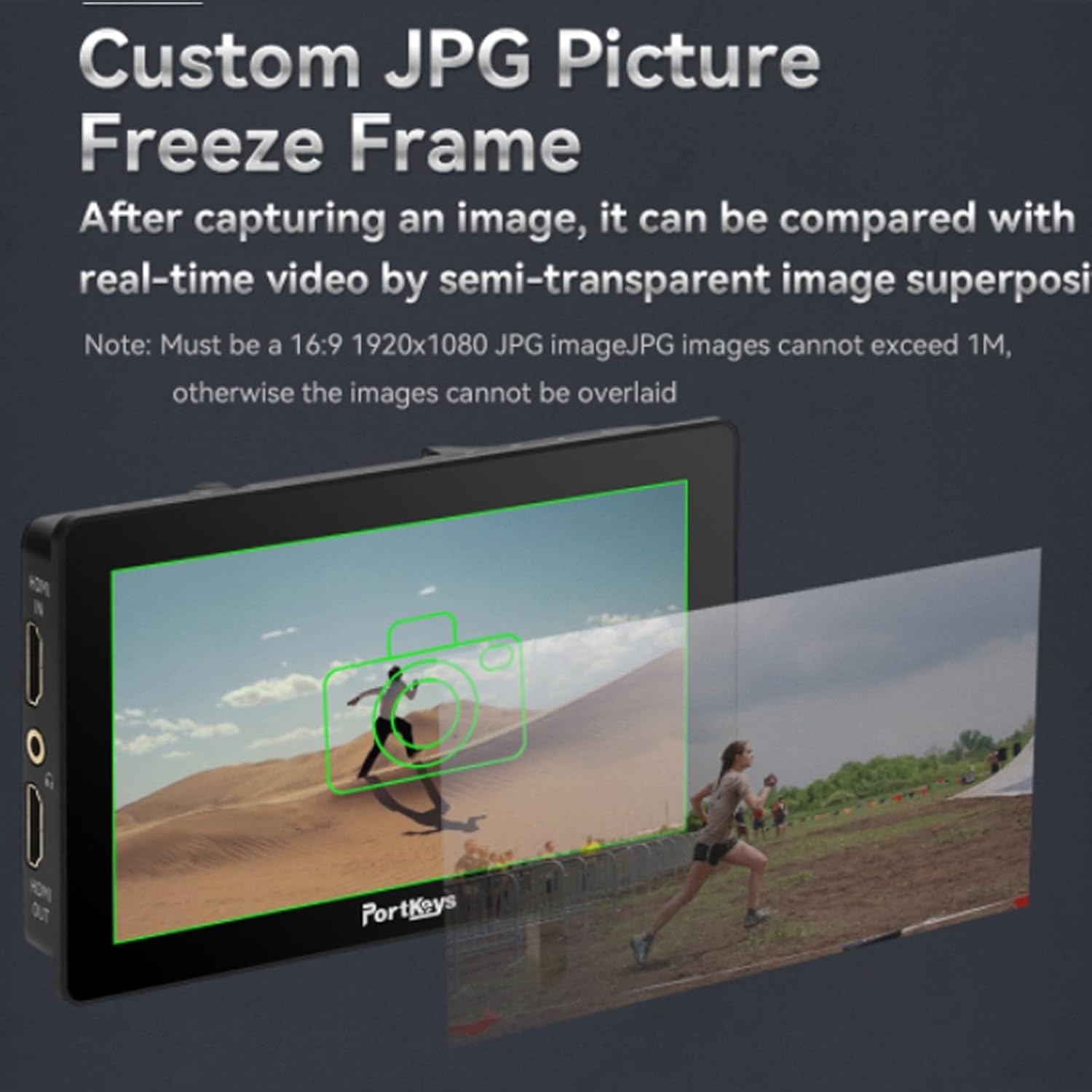
Image: The Custom JPG Picture Freeze Frame feature, showing a captured image overlaid with live video.

Image: Color calibration charts for Rec.709 and DCI-P3 85% displayed on the LH5P monitor.
4.3 Camera Control
The LH5P offers extensive camera control capabilities for various camera models, including Sony, Panasonic, Canon, Z CAM, and Blackmagic. Control functions include REC start/stop, ISO, Iris, Shutter, Zoom, and more.

Image: The Portkeys LH5P monitor demonstrating wireless touch control functionality for Sony cameras.

Image: A detailed diagram outlining the camera control compatibility of the LH5P with Sony, Panasonic, Canon, Z CAM, and Blackmagic cameras, specifying control types (Wi-Fi, USB-C, LANC, Bluetooth) and available functions.
4.4 Customizable Buttons
The monitor features customizable F1-F4 function buttons and +/- keys, allowing you to assign frequently used functions for quick access during shooting.

Image: Close-up of the customizable +/- keys and F1-F4 function buttons on the side of the Portkeys LH5P monitor.
5. Maintenance
- Cleaning the Screen: Use a soft, lint-free cloth specifically designed for electronics screens. Do not use harsh chemicals or abrasive materials.
- General Care: Keep the monitor away from extreme temperatures, direct sunlight for prolonged periods, and moisture. Avoid dropping or subjecting the monitor to strong impacts.
- Storage: When not in use, store the monitor in its protective case in a dry, cool environment.
6. Troubleshooting
- No Power: Ensure the battery is charged or the DC power cable is securely connected to a working power source.
- No Video Signal: Verify that the HDMI cable is correctly connected to both the camera and the monitor. Check camera output settings.
- Touchscreen Unresponsive: Restart the monitor. If the issue persists, check for firmware updates on the Portkeys website.
- Camera Control Not Working: Ensure the correct control cable is used and properly connected. Verify camera compatibility and settings. Check for firmware updates for both the monitor and your camera.
7. Specifications
| Feature | Specification |
|---|---|
| Product Dimensions | 8.5 x 4.9 x 2.4 inches |
| Item Weight | 1.15 pounds |
| Item Model Number | LH5P |
| Display Size | 5.5 inches |
| Resolution | 1920x1080 (Full HD) |
| Brightness | 1700 cd/sq. m |
| Video Input | HDMI (Supports UHD 4K, 1080p) |
| Manufacturer | Portkeys |
| Date First Available | July 14, 2023 |
8. Warranty and Support
The Portkeys LH5P monitor comes with a standard manufacturer's warranty. For specific warranty terms and conditions, please refer to the warranty card included with your product or visit the official Portkeys website. For technical support, troubleshooting assistance, or service inquiries, please contact Portkeys customer support through their official channels.
Official Portkeys Website: Portkeys Official Store
Ask a question about this manual
Ask about setup, troubleshooting, compatibility, parts, safety, or missing instructions. Manuals+ will review the question and use this page’s manual context to help answer it.