
1. Introduction
This manual provides instructions for the proper installation, operation, and maintenance of your INFILAND Tablet Case. This case is designed to protect your Samsung Galaxy Tab S9 Ultra (SM-X910B/SM-X916B) or Samsung Galaxy Tab S8 Ultra (SM-X900/X906) 14.6-inch tablet and enhance its functionality with features such as multi-angle viewing and S Pen storage.
Please read this manual thoroughly to ensure optimal use and longevity of your product.
2. Compatibility
This INFILAND case is specifically designed for the following 14.6-inch Samsung Galaxy Tab Ultra models:
- Samsung Galaxy Tab S9 Ultra (Model Numbers: SM-X910B, SM-X916B) - 2023 Release
- Samsung Galaxy Tab S8 Ultra (Model Numbers: SM-X900, SM-X906) - 2022 Release
Ensure your tablet model matches one of the listed compatible devices before installation.

Image: Visual guide indicating compatibility with 14.6-inch Samsung Galaxy Tab S9 Ultra and S8 Ultra models, and incompatibility with smaller models.
3. Setup and Installation
Follow these steps to correctly install your tablet into the INFILAND case:
- Prepare Your Tablet: Ensure your Samsung Galaxy Tab S9 Ultra or S8 Ultra is clean and free of dust or debris.
- Align the Tablet: Gently align your tablet with the case's internal frame. The camera cutouts and port openings on the case should match those on your tablet.
- Insert the Tablet: Carefully press the tablet into the case, starting from one side and working your way around. Ensure all edges of the tablet are securely seated within the case's protective frame.
- Secure the S Pen: Place your S Pen into the designated charging slot on the back of the case. The case features a precise cutout to allow for secure storage and wireless charging of the S Pen.

Image: The INFILAND case with a tablet installed, demonstrating its protective design and integrated S Pen storage.
4. Operating Instructions
4.1 Multi-Angle Stand Function
The INFILAND case supports multiple viewing angles, allowing you to adjust your tablet for comfortable reading, typing, or media consumption. Simply fold the front cover into a triangular stand to achieve your desired angle.

Image: Illustration of the case's multi-angle stand capability, providing ergonomic viewing positions.
4.2 Automatic Wake/Sleep Function
The case features a built-in smart sensor that automatically wakes your tablet when the front cover is opened and puts it to sleep when the cover is closed. This function helps conserve battery life.
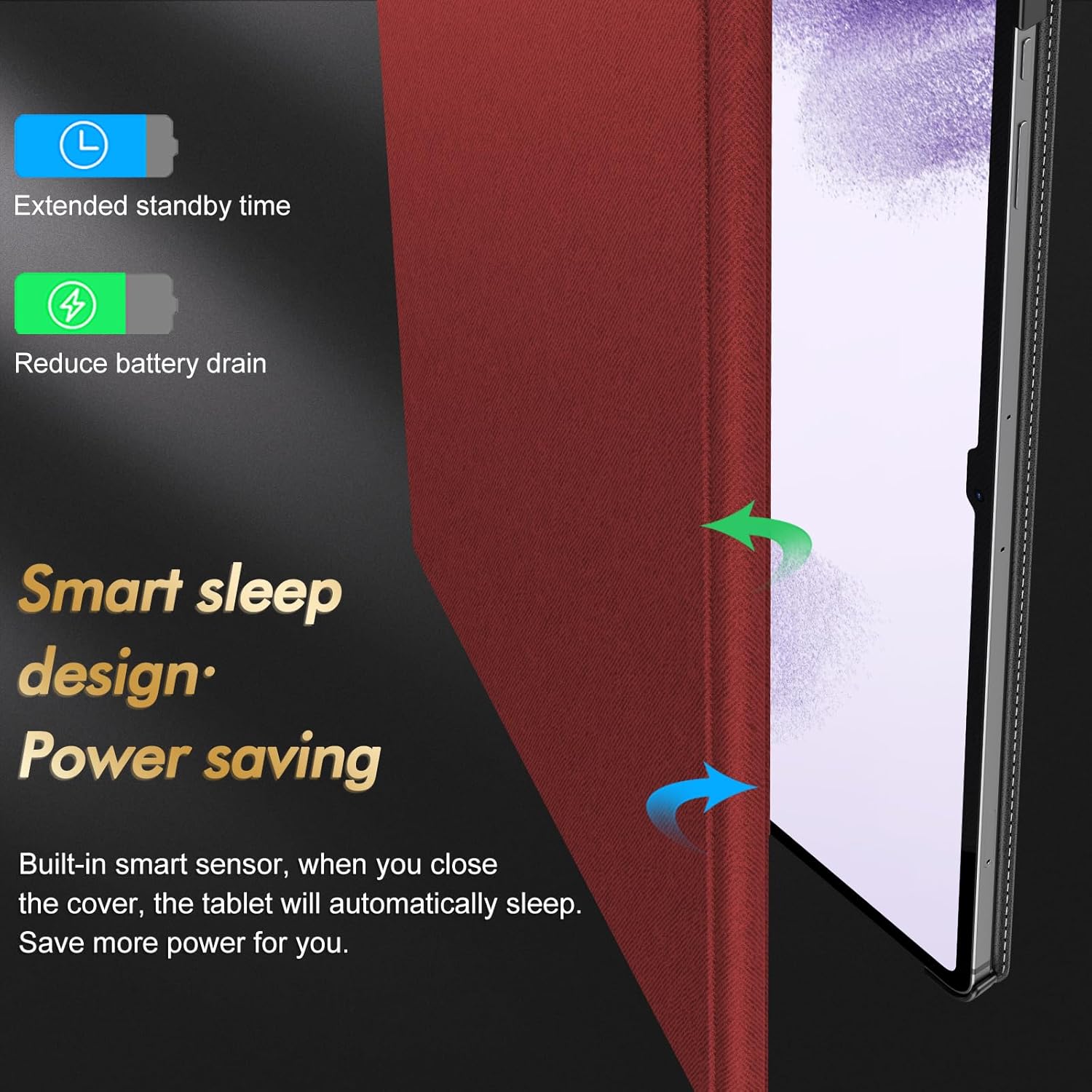
Image: Diagram illustrating the smart sleep design, which activates the tablet's wake/sleep function to save power.
4.3 Magnetic Closure Buckle
The case is equipped with a magnetic closure buckle that securely fastens the front cover when closed. This prevents accidental opening and provides comprehensive protection for your tablet and S Pen.

Image: The magnetic closure buckle in action, ensuring the case remains securely shut.

Image: Close-up demonstrating the magnetic closure's role in securing the S Pen within its designated slot.
5. Maintenance
To maintain the appearance and functionality of your INFILAND tablet case, follow these guidelines:
- Cleaning: Wipe the exterior of the case with a soft, damp cloth. Avoid using harsh chemicals or abrasive cleaners, as these may damage the PU leather material.
- Storage: Store the case in a cool, dry place away from direct sunlight and extreme temperatures when not in use.
- Protection: While the case offers three layers of protection against collision, scratches, and splashes, it is not waterproof. Avoid submerging the case in water.

Image: Detail of the PU leather material, which provides a comfortable feel and durability.
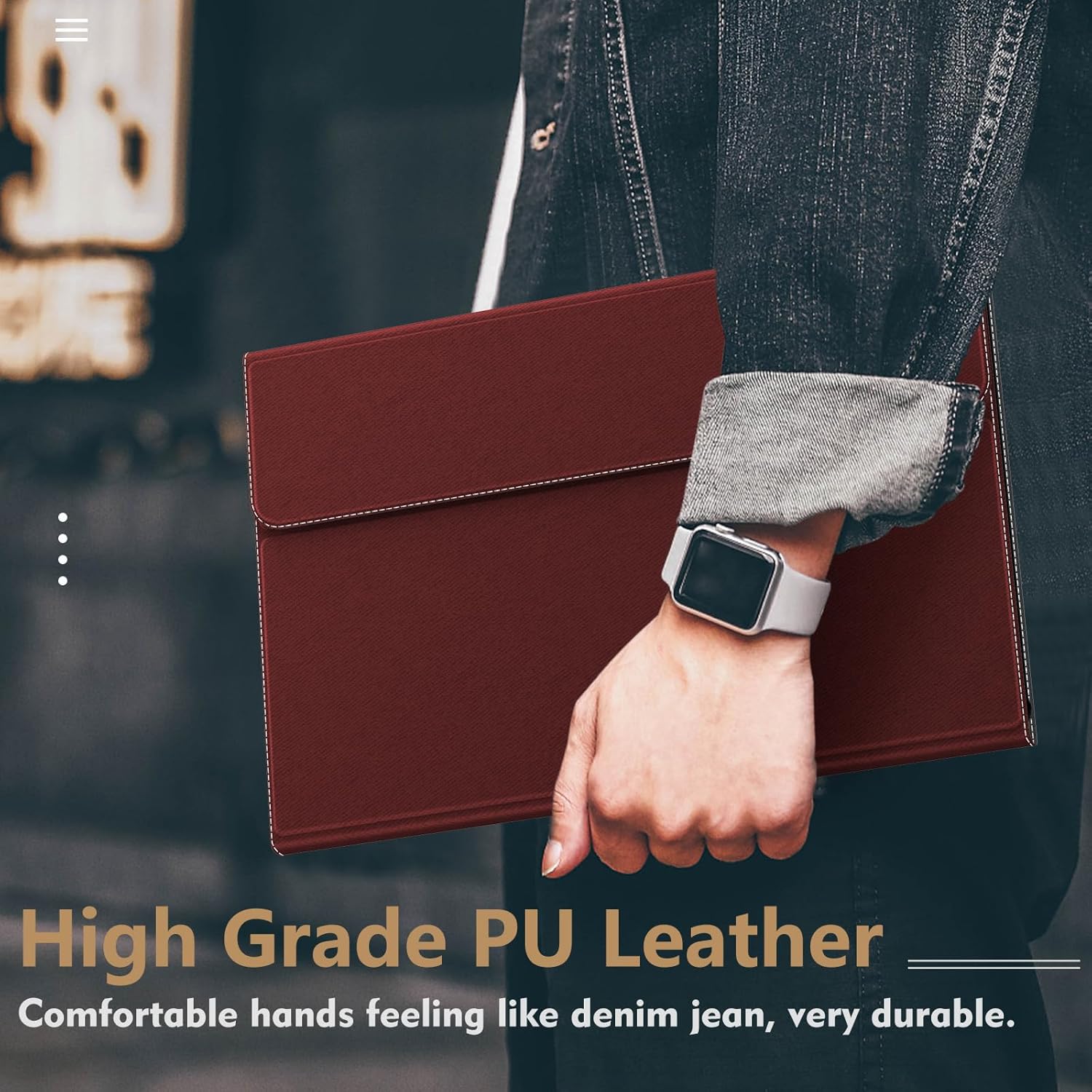
Image: The case's high-grade PU leather exterior, designed for both aesthetics and durability.
6. Troubleshooting
If you encounter any issues with your INFILAND tablet case, refer to the following common problems and solutions:
- Tablet Does Not Wake/Sleep Automatically:
- Ensure the tablet is correctly seated in the case and the front cover is fully closing.
- Check your tablet's settings to ensure the "Smart Cover" or "Magnetic Cover" function is enabled (if applicable).
- S Pen Not Charging/Falling Out:
- Verify the S Pen is placed correctly in the designated charging slot on the back of the case.
- Ensure the magnetic closure buckle is securely fastened to prevent the S Pen from dislodging.
- Case Does Not Close Securely:
- Check for any obstructions between the front cover and the tablet.
- Ensure the tablet is fully inserted and aligned within the case.
7. Specifications
| Feature | Detail |
|---|---|
| Brand | INFILAND |
| Compatible Devices | Samsung Galaxy Tab S9 Ultra (SM-X910B/SM-X916B), Samsung Galaxy Tab S8 Ultra (SM-X900/SM-X906) |
| Color | Red |
| UPC | 757158434231 |
| Material | High-Grade PU Leather |
| Special Features | Multi-Angle Stand, Auto Wake/Sleep, S Pen Charging Slot, Magnetic Closure Buckle, Three Layers of Protection |
8. Warranty and Support
INFILAND offers a professional lifetime service for this product. If you require a replacement or have any questions, please follow these steps:
- Navigate to the product page where you purchased the item.
- Locate and click on "Infiland LLC" (usually found under the "Buy Now" button).
- Select "Ask a product question" to contact customer support directly.
This process facilitates a free replacement without the need for a tedious return procedure.