
SCULPFUN CAM500
SCULPFUN CAM500 Lightburn Camera Instruction Manual
Brand: SCULPFUN | Model: CAM500
1. Introduction
The SCULPFUN CAM500 is an industrial-grade camera specifically designed to integrate with laser engraving machines and LightBurn software. It enhances the precision and efficiency of laser engraving and cutting tasks by providing features such as accurate positioning, image tracing, batch engraving, and HD video recording.
This manual provides detailed instructions for setting up, operating, and maintaining your SCULPFUN CAM500 camera, ensuring optimal performance and longevity.

Figure 1: SCULPFUN CAM500 Lightburn Camera mounted on a laser engraver, illustrating its operational setup and wide field of view.
2. What's in the Box
Please verify that all components listed below are included in your package:
- SCULPFUN CAM500 Camera Module
- Camera Horizontal Support Assembly
- T-shaped Fixation Clamp
- U-shaped Fixation Clamp
- USB Cable
- Measuring Tape
- A4 Size Calibration Paper (2 sheets)
- M5 Screws (4 pcs)
- M4 Screws (4 pcs)
- M3 Screws (4 pcs)
- Product Assembly Instruction (Printed Manual)
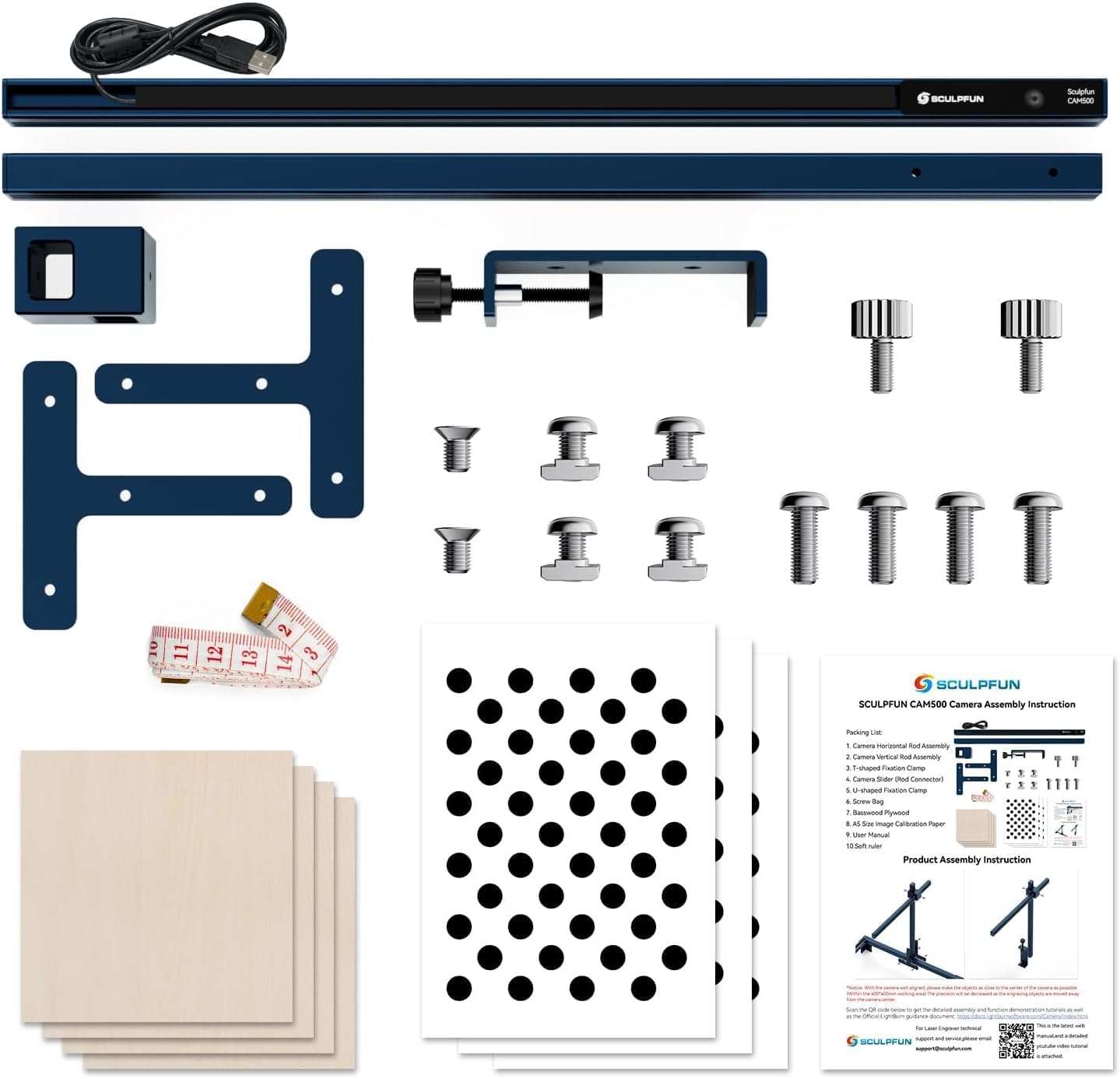
Figure 2: All components included in the SCULPFUN CAM500 package.
3. Setup and Installation
Follow these steps to properly install your SCULPFUN CAM500 camera:
- Choose the Correct Clamp:
- Use the T-shaped fixation clamp for SCULPFUN machine models (S6, S6 Pro, S9, S10, S30/S30 Ultra series) and most engraving machines with a V-slot structure.
- Use the U-shaped fixation clamp for U-shaped beam machines, including models like D1PRO, Falcon2, LM2 PRO S2, 20PRO 20S, 55, and JL3, 3 MAX V2.

Figure 3: T-shaped and U-shaped fixation clamps for versatile mounting.
- Mount the Camera: Securely attach the camera module to your laser engraver using the appropriate clamp and screws. Ensure the camera is positioned to have a clear view of the entire working area.
- Recommended Height: The recommended height from the camera to the engraving position is 325mm for optimal performance and minimal distortion.
- Connect to Computer: Connect the camera to your computer using the provided USB cable.
- LightBurn Software Integration:
- Ensure you have LightBurn software installed on your computer.
- Open LightBurn and navigate to the camera settings.
- Select the SCULPFUN CAM500 from the list of available cameras.
- Perform the camera calibration process within LightBurn. This involves placing the provided calibration paper on your laser bed and following the on-screen instructions to accurately map the camera's view to the laser's working area. Proper calibration is crucial for precise positioning.
Important Notice: This product must be used with a limit switch on your laser engraver for proper functionality and safety.
4. Operating Instructions
The SCULPFUN CAM500 camera significantly enhances your laser engraving workflow. Here's how to utilize its key features:
4.1 Precise Positioning
The CAM500 camera, when properly calibrated with LightBurn, allows for highly accurate positioning of your designs on the material. The positioning deviation is less than 1mm.
- Place your material on the laser bed.
- In LightBurn, the camera view will show the live feed of your material.
- Drag and drop your design onto the material in the LightBurn interface. The camera feed allows you to visually align the design with the physical object.
- Once aligned, the laser will engrave the pattern at the exact position you've set.

Figure 4: Precise positioning of designs using the CAM500 camera in LightBurn.
4.2 Image Tracing
The CAM500 can identify and extract patterns from the surface of objects, converting them into vector lines for engraving or cutting.
- Place the object with the pattern you wish to trace on the laser bed.
- In LightBurn, use the "Trace Image" function. The camera will capture the image, and the software will help you define and extract the contours.
- Once traced, these vector lines can be used directly for engraving or cutting.

Figure 5: Image tracing functionality for converting physical patterns into digital designs.
4.3 Batch Engraving
Improve efficiency by engraving multiple objects in a single job without manual repositioning for each piece.
- Place multiple engraving materials on the laser bed.
- In LightBurn, the CAM500 will identify the positions of each object.
- Assign different designs to different objects within the software.
- The laser will automatically find and process each object sequentially, saving time and effort.

Figure 6: Batch engraving multiple items simultaneously.
4.4 HD Video Recording
The CAM500 can record the entire engraving process in high definition, allowing you to document your work or create time-lapse videos.
- Access the video recording function within LightBurn or a compatible third-party application.
- Start recording before initiating the engraving process.
- The camera will capture the entire creation process.

Figure 7: HD video recording of the engraving process.
Video 1: Demonstration of the SCULPFUN CAM500 camera's video recording capabilities during a laser engraving operation.
4.5 Work Preview
The CAM500 provides a real-time observation window in LightBurn, allowing you to monitor the engraving progress without manual identification of the position.
- The live camera feed acts as a visual preview of your work area.
- You can see the laser's path and the material in real-time, ensuring everything is proceeding as expected.

Figure 8: Real-time work preview in LightBurn using the CAM500 camera.
5. Maintenance
To ensure the longevity and optimal performance of your SCULPFUN CAM500 camera, follow these maintenance guidelines:
- Lens Cleaning: Regularly clean the camera lens with a soft, lint-free cloth. For stubborn smudges, use a lens cleaning solution specifically designed for optical lenses. Avoid abrasive materials or harsh chemicals.
- Dust Removal: Keep the camera and its mounting area free from dust and debris, especially in a laser engraving environment where particles can accumulate. Use compressed air or a soft brush to gently remove dust.
- Cable Inspection: Periodically inspect the USB cable for any signs of wear, fraying, or damage. Replace the cable if necessary to ensure a stable connection.
- Secure Mounting: Ensure the camera remains securely mounted to your laser engraver. Vibrations during operation can loosen screws over time. Check and tighten all mounting screws as needed.
- Software Updates: Keep your LightBurn software updated to the latest version. Software updates often include performance improvements, bug fixes, and enhanced compatibility with accessories like the CAM500.
6. Troubleshooting
Here are some common issues and their potential solutions:
| Problem | Possible Cause | Solution |
|---|---|---|
| Camera image is blurry or unclear. | Insufficient lighting in the work area; dirty lens; incorrect focus. | Ensure the laser bed is very brightly lit. Clean the camera lens. The CAM500 has a fixed focus, ensure the recommended height (325mm) is maintained. |
| Precise positioning is inaccurate (deviation > 1mm). | Improper camera calibration; camera or laser moved after calibration; material not flat. | Recalibrate the camera in LightBurn using the provided calibration paper. Ensure the laser and camera are stable and not moved after calibration. Ensure the material is flat on the laser bed. |
| Camera not detected by LightBurn. | Loose USB connection; faulty USB cable; driver issue; camera not powered. | Check USB cable connection at both ends. Try a different USB port or cable. Restart LightBurn and your computer. Ensure the camera is receiving power (if applicable). |
| Image tracing is not accurate. | Poor image quality; complex pattern; insufficient contrast. | Ensure the object is well-lit and has good contrast. Simplify the pattern if possible. Adjust tracing settings in LightBurn. |
7. Specifications
Detailed technical specifications for the SCULPFUN CAM500 camera:
| Feature | Detail |
|---|---|
| Brand | SCULPFUN |
| Model | CAM500 |
| Color Image Sensor | 1/4-inch CMOS |
| Maximum Resolution | 2592*1944 (5MP) |
| Pixel Size | 1.4um*1.4um |
| Focus Mode | Fixed Focus |
| Interface | USB 2.0 |
| Application Area | 400*400mm (Working Range) |
| Perspective Breadth | 120° |
| Product Dimensions | 15.8 x 0.6 x 0.8 inches |
| Item Weight | 1.95 pounds |
| Manufacturer | SCULPFUN |
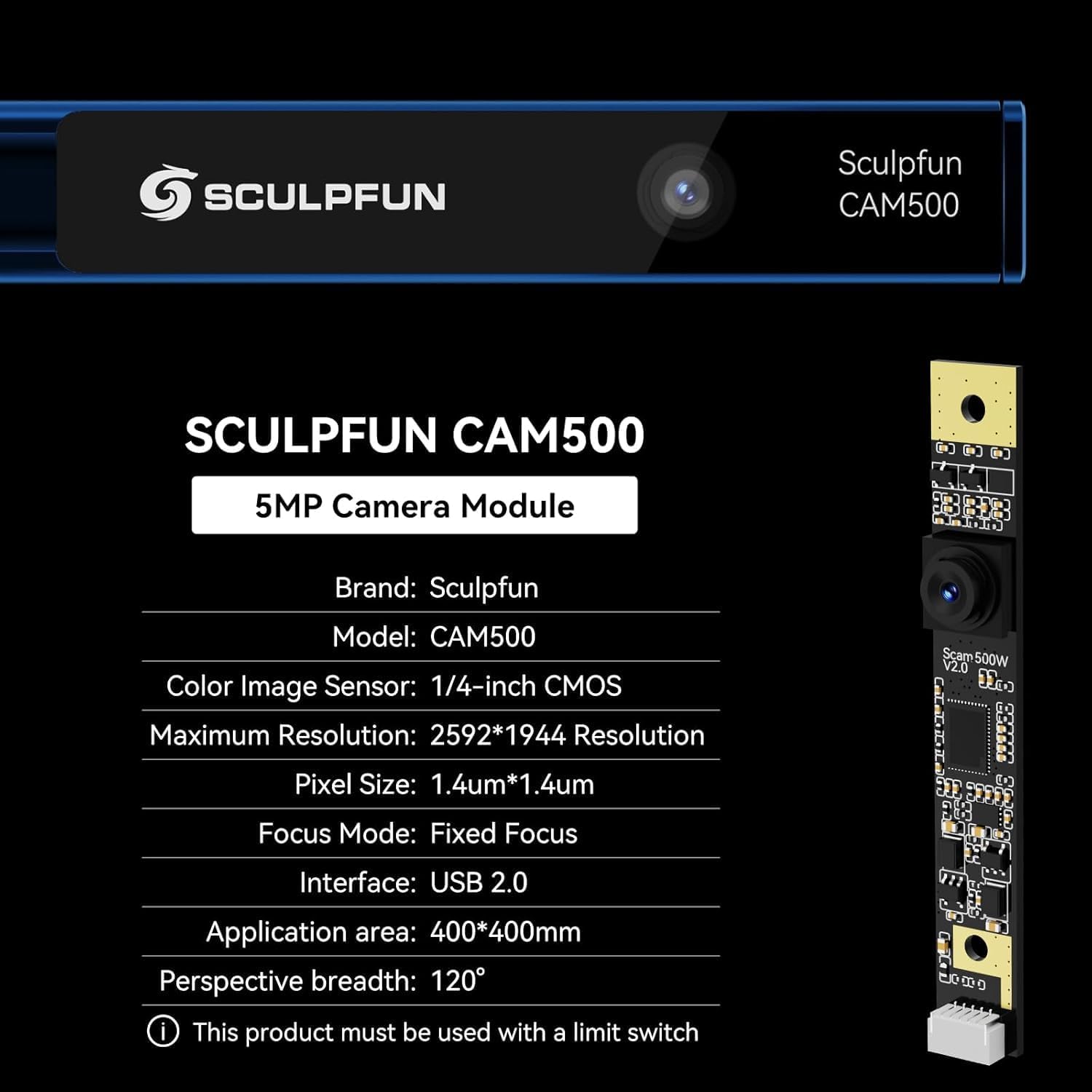
Figure 9: SCULPFUN CAM500 5MP Camera Module specifications.
8. Warranty and Support
For warranty information and technical support, please refer to the official SCULPFUN website or contact their customer service directly. Keep your purchase receipt as proof of purchase for any warranty claims.
SCULPFUN Official Website: www.sculpfun.com
For additional assistance, you may also refer to the LightBurn software documentation and community forums, as the CAM500 is designed for seamless integration with LightBurn.
Related documentsCAM500


Ask a question about this manual
Ask about setup, troubleshooting, compatibility, parts, safety, or missing instructions. Manuals+ will review the question and use this page’s manual context to help answer it.