1. Introduction
This manual provides essential information for the setup, operation, maintenance, and troubleshooting of your BEASTCOM Q7 Hero Gaming PC. Please read this manual thoroughly before using your new computer to ensure proper functionality and longevity. The BEASTCOM Q7 Hero is a high-performance desktop computer designed for demanding gaming and creative applications, featuring an AMD Ryzen 7 9800X3D processor, NVIDIA RTX 5090 graphics card, 32GB DDR5 RAM, and a 2TB NVMe SSD, running on Windows 11 Pro.
2. Safety Information
- Power Supply: Use only the provided power cable and connect it to a grounded electrical outlet. Do not overload power strips.
- Ventilation: Ensure adequate airflow around the PC. Do not block ventilation openings. Maintain at least 10 cm (4 inches) of clear space around all sides.
- Liquid and Moisture: Keep the PC away from liquids and high humidity. In case of accidental spills, immediately disconnect power and contact support.
- Static Electricity: Discharge static electricity from your body before touching internal components by touching a grounded metal object.
- Servicing: Do not attempt to service the PC yourself. Refer all servicing to qualified service personnel. Opening the case may void your warranty.
- Temperature: Operate the PC within a temperature range of 10°C to 35°C (50°F to 95°F).
3. Package Contents
Verify that all items are present in the package:
- BEASTCOM Q7 Hero Gaming PC
- Power Cable
- Documentation (Quick Start Guide, Warranty Information)
- Water Cooling (pre-installed)

Figure 3.1: BEASTCOM Q7 Hero Packaging Box
4. Setup
4.1 Unpacking and Placement
Carefully remove the PC from its packaging. Place the PC on a stable, flat surface with adequate ventilation. Ensure that no objects obstruct the air intake and exhaust vents.

Figure 4.1: Front View of BEASTCOM Q7 Hero PC
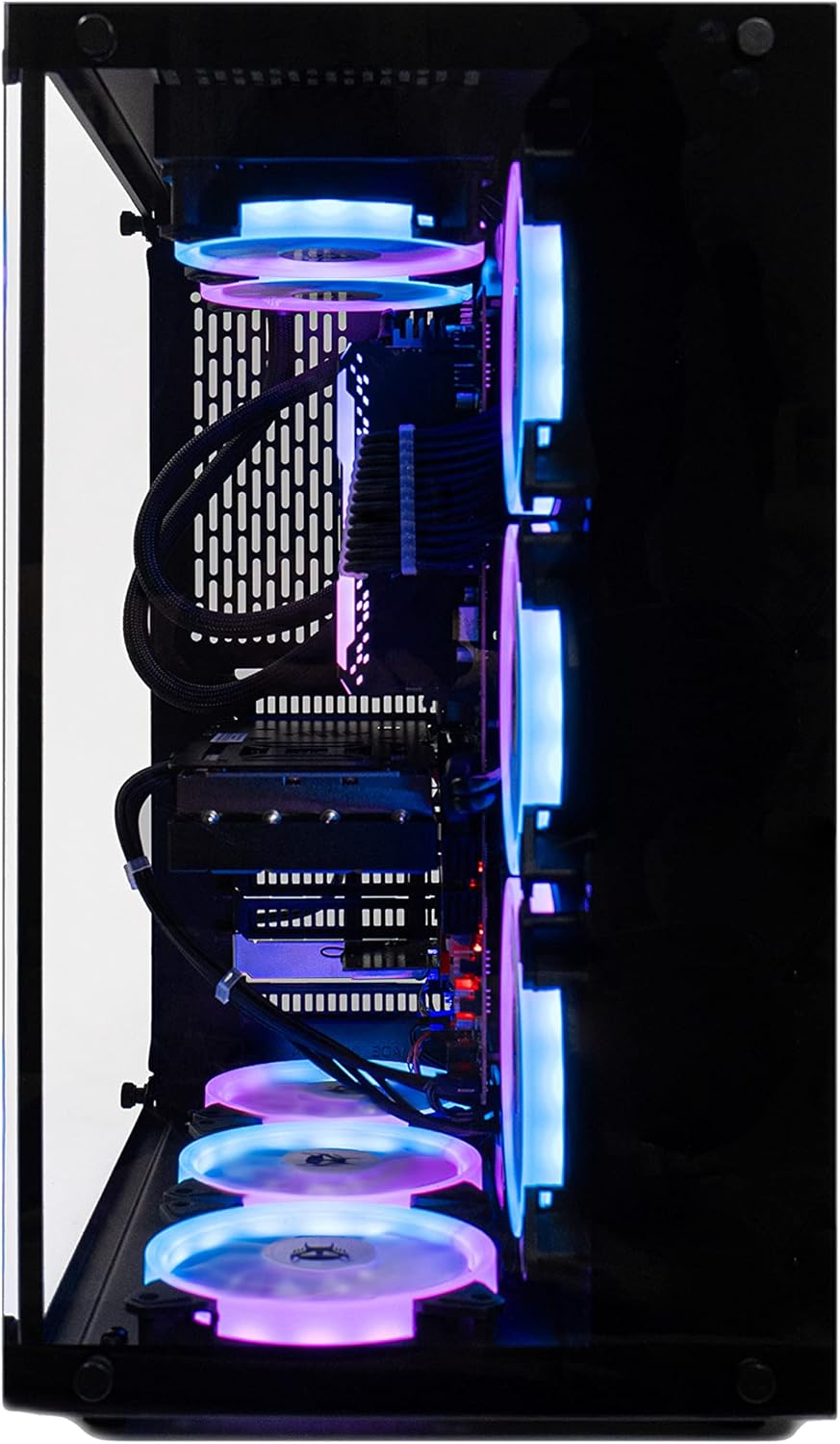
Figure 4.2: Side View of BEASTCOM Q7 Hero PC
4.2 Connecting Peripherals
- Monitor: Connect your monitor to the graphics card's DisplayPort or HDMI output. The graphics card is typically located in the lower PCIe slot on the rear of the PC.
- Keyboard and Mouse: Connect your keyboard and mouse to any available USB ports.
- Network: For wired internet, connect an Ethernet cable to the LAN port. For wireless internet, ensure the Wi-Fi antennas (if external) are connected.
- Audio: Connect speakers or headphones to the audio output jacks.
- Power: Connect the power cable to the PC's power input and then to a wall outlet.

Figure 4.3: Rear I/O Ports
4.3 First Boot
After connecting all peripherals, press the power button located on the front or top of the PC. The system will boot into Windows 11 Pro. Follow the on-screen instructions to complete the initial Windows setup.

Figure 4.4: Top Panel with Power Button and Ports
5. Operating Your PC
5.1 Windows 11 Pro
Your BEASTCOM Q7 Hero comes pre-installed with Windows 11 Pro. Familiarize yourself with the operating system's interface, settings, and features. Regular updates are recommended for security and performance.
5.2 System Performance
The PC is equipped with an AMD Ryzen 7 9800X3D processor and an NVIDIA RTX 5090 32GB graphics card, providing high performance for gaming and demanding applications. The 32GB DDR5 RAM ensures smooth multitasking. For optimal performance, ensure your graphics drivers are up to date.

Figure 5.1: CPU Water Cooler and DDR5 RAM

Figure 5.2: NVIDIA GeForce RTX Graphics Card
5.3 Cooling System
The BEASTCOM Q7 Hero features an integrated water cooling system with high-performance fans to maintain optimal operating temperatures during intensive use. Ensure the system fans are free from dust and obstructions for efficient cooling.
5.4 Connectivity
The PC supports Wi-Fi 6 and Bluetooth for wireless connectivity. It also offers multiple USB 2.0, USB 3.2 Gen 2 (Type-C and Type-A), DisplayPort, and HDMI ports for various peripherals and display outputs. The motherboard supports PCIe 4.0 for high-speed data transfer.

Figure 5.3: PCIe 4.0 Connectivity
6. Maintenance
6.1 Cleaning
- Exterior: Use a soft, damp cloth to clean the exterior surfaces. Avoid abrasive cleaners.
- Dust: Periodically clean dust from the ventilation grilles and fans using compressed air. Ensure the PC is powered off and unplugged before cleaning.
6.2 Software Updates
Regularly check for and install updates for Windows 11, graphics drivers (NVIDIA), and motherboard drivers to ensure system stability, security, and optimal performance.
6.3 Data Backup
It is recommended to regularly back up your important data to an external drive or cloud storage to prevent data loss.
7. Troubleshooting
If you encounter issues with your BEASTCOM Q7 Hero PC, refer to the following common troubleshooting steps:
- No Display: Ensure the monitor is correctly connected to the graphics card and powered on. Try a different display cable or monitor.
- System Freezing/Crashing: Ensure all drivers are updated. Check system temperatures using monitoring software. Reduce overclocking settings if applied.
- Overheating: Verify that all case fans and the water cooling pump are operating. Clean any dust accumulation from vents and fans. Ensure adequate airflow around the PC.
- Peripheral Not Detected: Try connecting the peripheral to a different USB port. Ensure drivers for the peripheral are installed.
- No Internet Connection: For Wi-Fi, check network settings and ensure Wi-Fi is enabled. For wired, check the Ethernet cable connection and router status.
7.1 Contacting Support
If issues persist after attempting basic troubleshooting, please contact BEASTCOM customer support for assistance. Refer to your warranty information for contact details.
8. Specifications
| Component | Specification |
|---|---|
| Brand | BEASTCOM |
| Model Number | Q7-415Z7 |
| Processor | AMD Ryzen 7 (9800X3D), 5 GHz |
| RAM | 32 GB DDR5 RAM |
| Hard Drive | 2 TB NVMe SSD |
| Graphics Coprocessor | NVIDIA GeForce RTX 4090 (Note: Product title indicates RTX 5090 32GB, specifications list RTX 4090. Please verify actual GPU upon receipt.) |
| Graphics Card Description | GeForce RTX 5090 32GB GDDR7, 8K HDR Gaming, Live-Streaming, DirectX 12 Ultimate, Raytracing, NVIDIA DLSS 3, NVIDIA Reflex, NVIDIA Broadcast, NVIDIA Omniverse, NVIDIA Ansel, NVIDIA ShadowPlay |
| Operating System | Windows 11 Pro |
| Wireless Type | Bluetooth, WiFi 6 |
| USB Ports | 8x USB 2.0, USB 3.2 Gen 2 (Type-C, Type-A) |
| Max Screen Resolution | 7680 x 4320 (8K) |
| Cooling | Water Cooling |
| Power Supply | 80 PLUS Gold certified |

Figure 8.1: 80 PLUS Gold Certified Power Supply
9. Warranty and Support
Your BEASTCOM Q7 Hero Gaming PC comes with a manufacturer's warranty. Please refer to the warranty card included in your package for specific terms, conditions, and duration. For technical support, warranty claims, or service inquiries, please contact BEASTCOM customer service. Contact information can typically be found on the BEASTCOM website or in the included documentation.
BEASTCOM USA Seller Information:
- Seller Name: BEASTCOM USA
- Seller ID: A28G321TY5DSXP