
Introduction
Thank you for choosing the GROWNSY Digital Alarm Clock. This multi-functional digital clock is designed for bedroom use, offering time display, alarm functions, and temperature monitoring. Please read this manual carefully to ensure proper setup and operation of your device.
Product Overview
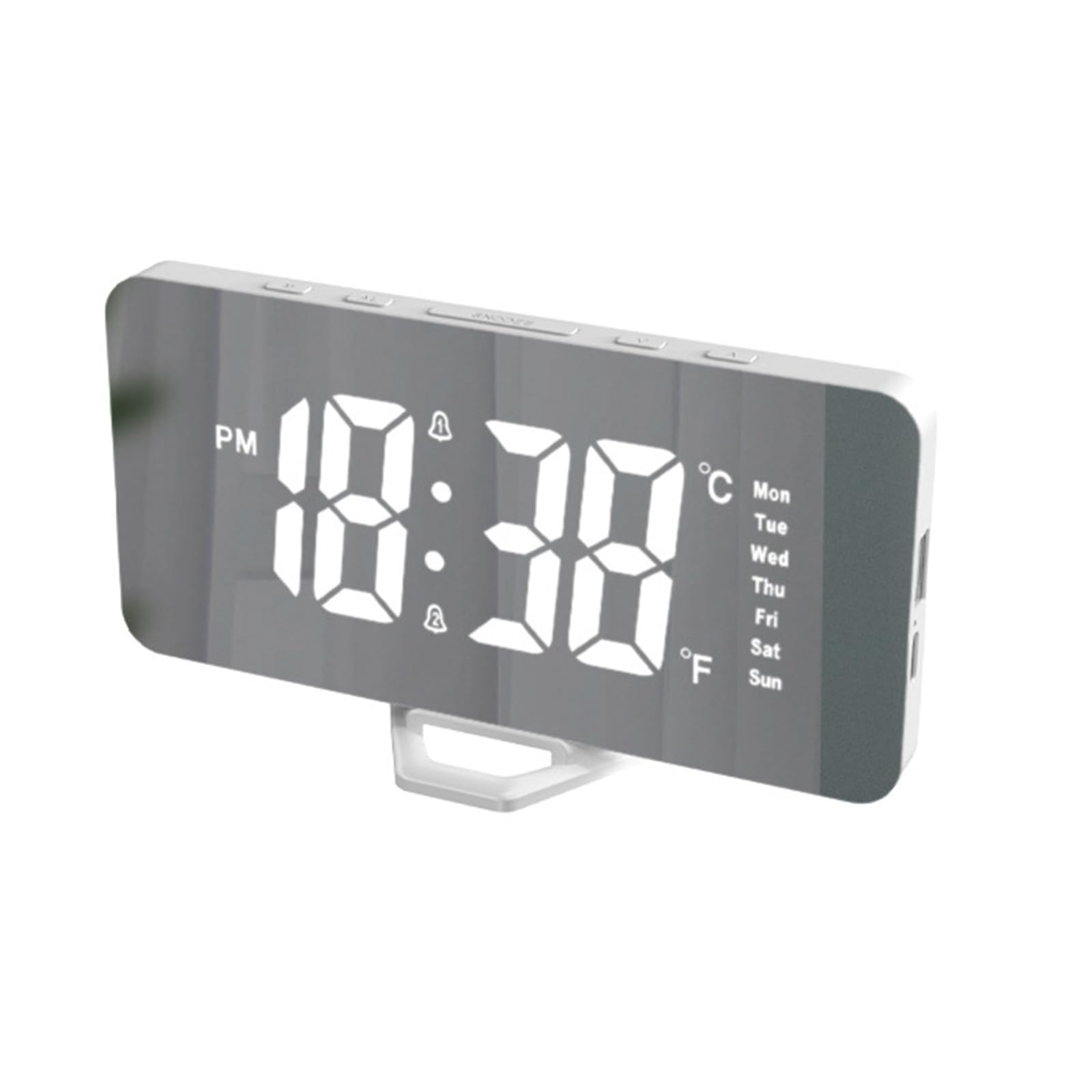
Figure 1: Front view of the GROWNSY Digital Alarm Clock, showcasing its large, clear digital display.
The GROWNSY Digital Alarm Clock features a sleek, rectangular design with a mirrored surface and a large, easy-to-read display. It includes essential functions for daily use. Please note that while some descriptions may mention a 'white noise machine,' this model does not include a white noise feature.
Setup
- Unpacking: Carefully remove the alarm clock and its accessories from the packaging. Verify that all components are present: the alarm clock unit, a USB-C to USB-A cable, and a detachable plastic stand.
- Attach the Stand: Locate the small plastic stand. Align it with the slot at the bottom of the alarm clock and snap it into place. Once attached, the stand is generally not designed to be removed.
- Power Connection: The alarm clock requires continuous power via USB. Connect the provided USB-C cable to the USB-C port on the side of the clock. Connect the USB-A end of the cable to a USB power adapter (not included) or a powered USB port. The clock will not operate without external power.
- Internal Battery (Memory): The clock contains an internal button battery (e.g., CR2032, not user-replaceable for primary power) which serves to retain time and settings in memory if the main power supply is interrupted. This battery does not power the display or functions independently.
- Initial Power On: Once connected to power, the display will illuminate. You may need to set the current time and date.
Operating Instructions
The control buttons are located on the top of the unit. These typically include: MODE, ALARM, SNOOZE, UP (▲), and DOWN (▼).
Setting the Time
- Press the MODE button once to enter time setting mode. The hour digits will flash.
- Use the UP (▲) and DOWN (▼) buttons to adjust the hour.
- Press MODE again to confirm the hour and move to minute setting. The minute digits will flash.
- Use the UP (▲) and DOWN (▼) buttons to adjust the minutes.
- Press MODE a third time to confirm minutes and exit time setting.
- To switch between 12-hour and 24-hour format, press the UP (▲) button while in normal time display mode.
Setting the Date and Temperature Unit
- From normal time display, press the MODE button repeatedly until the year, month, or day digits flash.
- Use UP (▲) and DOWN (▼) to adjust the values. Press MODE to cycle through year, month, and day settings.
- After setting the date, you may encounter the temperature unit setting. Use UP (▲) or DOWN (▼) to select between Celsius (℃) and Fahrenheit (℉).
- Press MODE to exit date/temperature settings.
Setting Alarms (Alarm 1 and Alarm 2)
The clock supports two independent alarms.
- Press the ALARM button once to enter Alarm 1 setting mode. The Alarm 1 hour digits will flash.
- Use UP (▲) and DOWN (▼) to set the desired alarm hour.
- Press ALARM again to confirm the hour and move to minute setting. The minute digits will flash.
- Use UP (▲) and DOWN (▼) to set the desired alarm minutes.
- Press ALARM a third time to confirm minutes and activate/deactivate Alarm 1. An alarm icon will appear on the display when active.
- To set Alarm 2, press the ALARM button repeatedly until Alarm 2 hour digits flash, then follow the same steps as for Alarm 1.
Snooze Function
When an alarm sounds, press the SNOOZE button to temporarily silence the alarm for a few minutes (typically 5-10 minutes). The alarm will sound again after the snooze period. To turn off the alarm completely, press any other button.
Display Brightness and Night Mode
- The display has two brightness levels. In normal time display mode, press the DOWN (▼) button to cycle between brighter and dimmer settings.
- The clock may feature a 'night mode' which automatically dims the display during a set period. Refer to the specific instructions for activating and customizing this feature, usually by holding the MODE button or cycling through settings.
Display Cycle (Time, Date, Temperature)
By default, the clock display may cycle through time, date, and temperature. To set the display to show only the time, or to disable the cycling feature, consult the detailed instructions provided with your product. This setting is often accessed by holding the MODE button or a combination of buttons.
Maintenance
- Cleaning: To clean the clock, gently wipe the surface with a soft, dry cloth. Avoid using abrasive cleaners or solvents, as these can damage the display and casing.
- Power Source: Ensure the clock is always connected to a stable USB power source for continuous operation.
- Internal Battery: The internal memory battery (CR2032) is not intended for user replacement. If settings are frequently lost after power interruptions, contact customer support.
Troubleshooting
- Clock does not turn on: Ensure the USB-C cable is securely connected to both the clock and a powered USB port or adapter. Verify the power source is active.
- Alarm is too soft or not sounding: The alarm volume on this model is fixed and generally soft. There is no volume adjustment. Ensure the alarm is activated (alarm icon visible on display). If you are a deep sleeper, this alarm may not be sufficient.
- Display is too bright, even on dim setting: The clock has two brightness levels. If the dimmest setting is still too bright for your preference, consider placing the clock further away or flipping it over at night.
- Time is inaccurate: If the time drifts significantly, ensure the clock has a stable power supply. The internal memory battery helps maintain time during power outages but does not correct drift during normal operation.
- No white noise feature: This model does not include a white noise machine, despite some product descriptions. This is a basic digital alarm clock.
- Difficulty setting time/alarm: The control buttons can be small. Press firmly and follow the instructions carefully. If you get stuck, unplug the clock for a few seconds and plug it back in to reset, then try again.
Specifications
| Brand | GROWNSY |
| Model Number | MBZ185-SEED |
| Color | White |
| Product Dimensions | 2.54 x 2.54 x 2.54 cm |
| Item Weight | 150 grams |
| Special Features | Alarm, Large Display |
| Display Type | Digital |
| Power Source | USB Powered (Internal battery for memory retention only) |
| Room Type | Bedroom |
| Shape | Rectangular (as described by users) |
| Batteries Included | No (Internal memory battery is pre-installed) |
| Installation Type | Tabletop |
Warranty and Support
For warranty information or technical support, please refer to the contact details provided with your purchase or visit the official GROWNSY website. Keep your proof of purchase for any warranty claims.


