
LC-Power LC-M32-FHD-165-C-A
LC-Power FHD 32 inch 165Hz Curved Gaming Monitor User Manual
Model: LC-M32-FHD-165-C-A | Brand: LC-Power
1. Introduction
This manual provides essential information for the proper installation, operation, and maintenance of your LC-Power FHD 32 inch 165Hz Curved Gaming Monitor (Model: LC-M32-FHD-165-C-A). Please read this manual thoroughly before using the product to ensure optimal performance and safety.

Figure 1.1: Front view of the LC-Power 32-inch curved gaming monitor.
2. Safety Information
Observe the following safety precautions to prevent damage to the monitor and ensure user safety:
- Do not expose the monitor to rain, moisture, or extreme temperatures.
- Ensure proper ventilation around the monitor. Do not block ventilation openings.
- Use only the power adapter supplied with the monitor.
- Avoid placing heavy objects on the power cord.
- Disconnect the power cable from the outlet during lightning storms or when unused for extended periods.
- Do not attempt to repair the monitor yourself. Refer all servicing to qualified personnel.
3. Package Contents
Verify that all items are present in the package:
- LC-Power 32 inch Curved Gaming Monitor
- Monitor Stand (Base and Neck)
- Power Adapter and Power Cable
- HDMI Cable
- User Manual
- Screws for Stand Assembly
4. Setup
4.1 Assembling the Stand
- Carefully remove the monitor from its packaging, keeping it protected on a soft surface.
- Attach the stand neck to the monitor panel using the provided screws.
- Connect the stand base to the stand neck and secure it with the remaining screws.
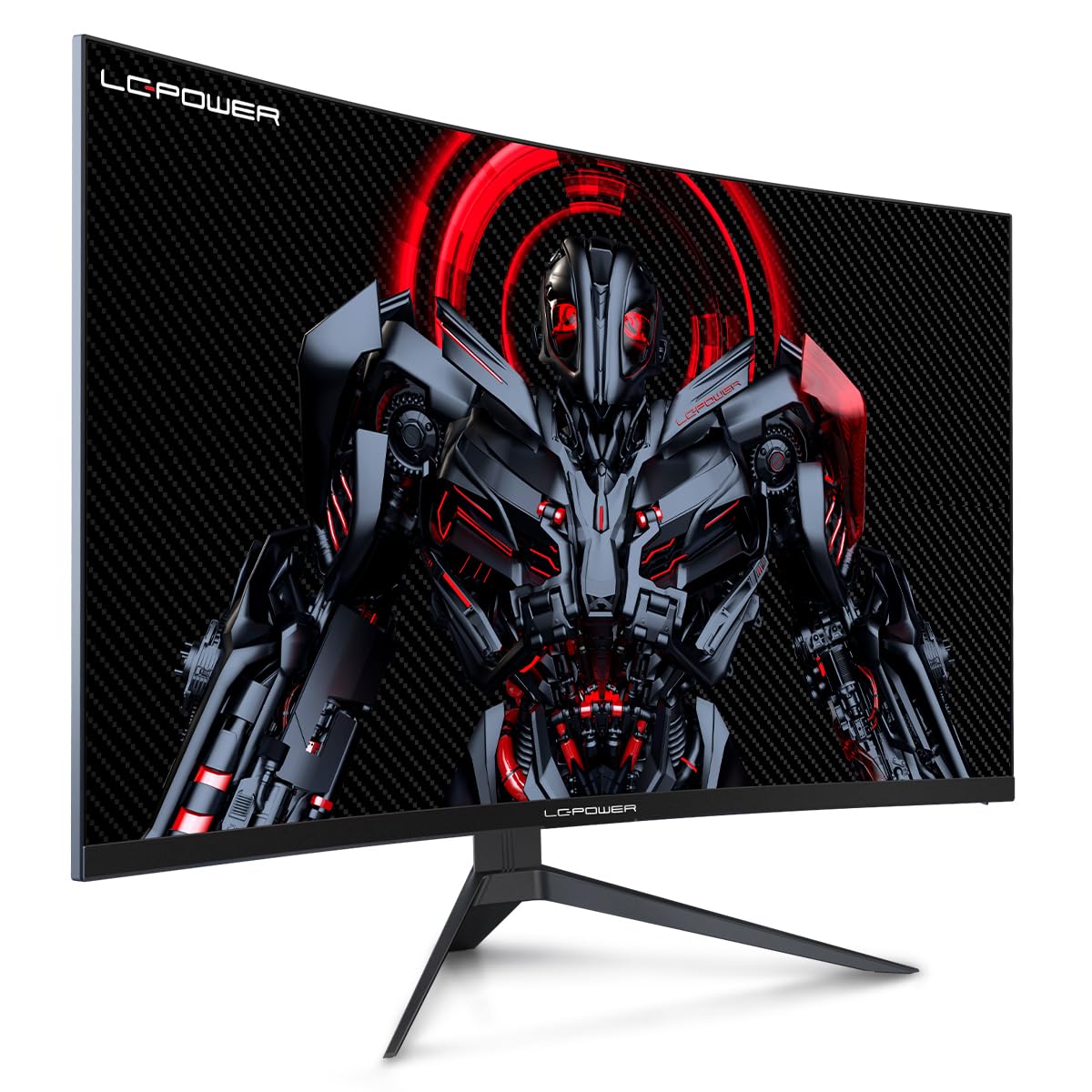
Figure 4.1: LC-Power monitor with stand assembled.
4.2 Connecting Cables
Connect the necessary cables to the monitor's rear ports:
- Power: Connect the power adapter to the monitor's DC input and then to a power outlet.
- Video Input: Connect an HDMI or DisplayPort cable from your computer's graphics card to the corresponding port on the monitor.

Figure 4.2: Rear view of the monitor with input ports.
4.3 VESA Mounting (Optional)
The monitor supports VESA 100x100mm mounting. To use a VESA mount, remove the stand and attach the monitor to a compatible VESA bracket using appropriate screws (not included).
5. Operating Instructions
5.1 Power On/Off
Press the power button, typically located on the back or bottom of the monitor, to turn the monitor on or off. The power indicator light will illuminate when the monitor is on.
5.2 On-Screen Display (OSD) Menu
The OSD menu allows you to adjust various monitor settings. Use the control buttons (joystick or individual buttons) on the monitor to navigate the menu.
Common OSD Settings:
- Picture Settings: Adjust brightness, contrast, sharpness, and color temperature.
- Input Select: Manually switch between HDMI and DisplayPort inputs.
- Audio: Adjust volume if external speakers are connected via the monitor's audio output.
- Game Settings: Access features like Overdrive, GamePlus (crosshair overlays), FPS/RTS modes, and Adaptive Sync.
- Display Settings: Adjust aspect ratio, resolution, and refresh rate. Ensure your graphics card is configured to output 1920x1080 resolution at 165Hz for optimal performance.
- Low Blue Light & Flicker-Free: These features are designed to reduce eye strain during prolonged use. They can be enabled or disabled in the OSD menu.
6. Maintenance
6.1 Cleaning the Monitor
- Always unplug the monitor before cleaning.
- Use a soft, lint-free cloth slightly dampened with water or a mild, non-abrasive screen cleaner.
- Do not spray cleaner directly onto the screen.
- Avoid using benzene, thinner, or ammonia-based cleaners.
6.2 Storage
If storing the monitor for an extended period, disconnect all cables, pack it in its original packaging, and store it in a cool, dry place away from direct sunlight.
7. Troubleshooting
Refer to the following table for common issues and their solutions:
| Problem | Possible Cause | Solution |
|---|---|---|
| No image on screen | Power cable disconnected; Video cable disconnected; Incorrect input selected | Check power and video cable connections; Select correct input via OSD menu |
| Image flickering | Faulty video cable; Graphics card driver issue; Refresh rate mismatch | Replace video cable; Update graphics drivers; Set refresh rate to 165Hz in OS display settings |
| Colors appear incorrect | Color settings in OSD; Graphics card settings | Adjust color settings in OSD; Calibrate colors via graphics card control panel |
| Monitor does not turn on | Power cable not connected; Power adapter faulty | Ensure power cable is securely connected; Test power outlet; Contact support if adapter is suspected faulty |
8. Specifications
Detailed technical specifications for the LC-Power LC-M32-FHD-165-C-A monitor:
| Feature | Specification |
|---|---|
| Brand | LC-Power |
| Model | LC-M32-FHD-165-C-A |
| Screen Size | 32 Inches |
| Screen Resolution | 1920 x 1080 (FHD 1080p) |
| Refresh Rate | 165 Hz |
| Response Time | 1 Millisecond |
| Curvature | 1500R |
| Aspect Ratio | 16:9 |
| Display Technology | LCD |
| Viewing Angle | 178 Degrees |
| Hardware Interface | HDMI, DisplayPort |
| Special Features | Curved, Flicker-Free, Low Blue Light, GamePlus, Overdrive, FPS/RTS |
| VESA Compatibility | 100x100mm |
| Product Dimensions | 14.3 x 53.8 x 40.6 cm (L x W x H) |
| Item Weight | 8.24 kg |
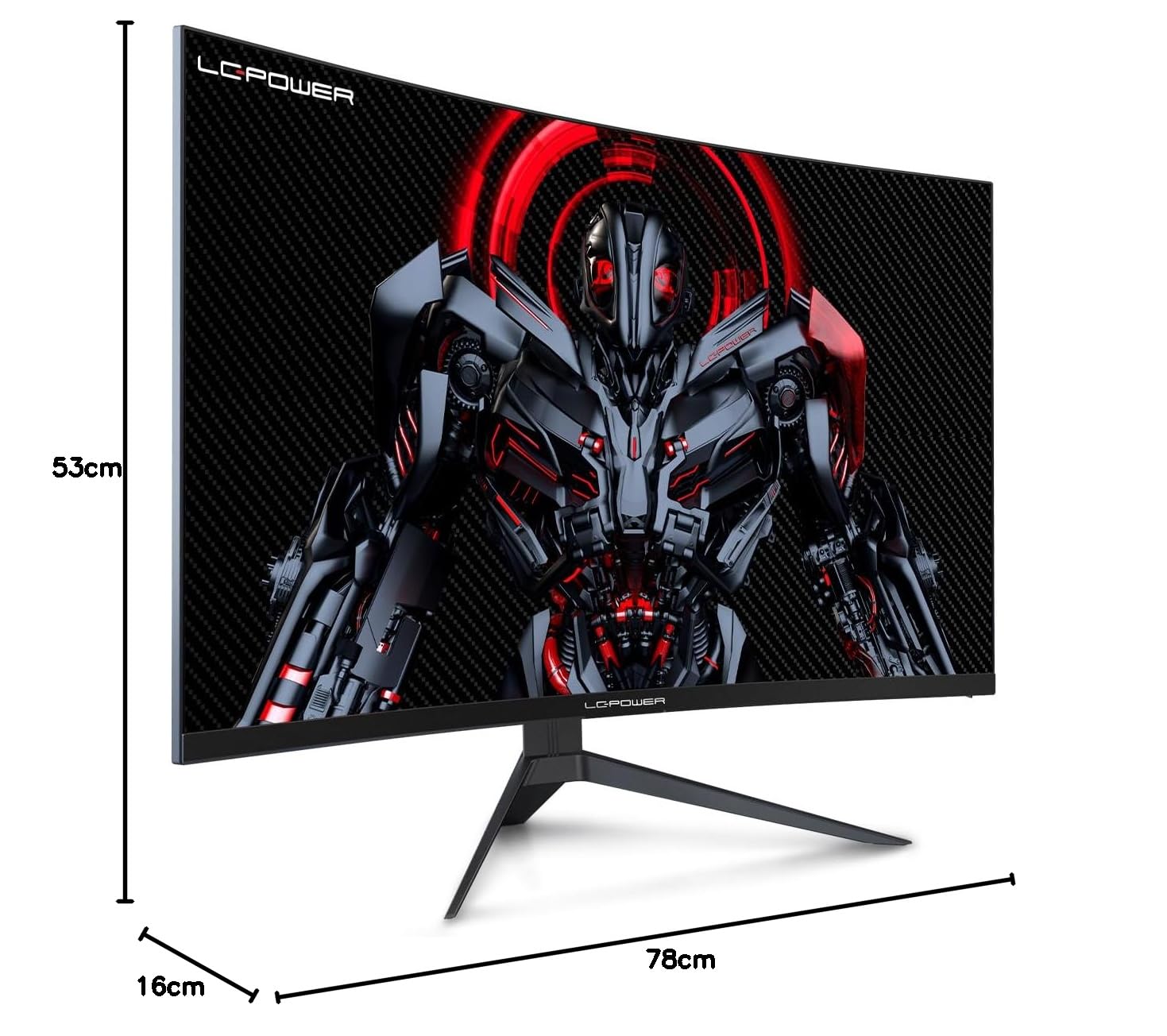
Figure 8.1: Monitor dimensions for planning installation space.
9. Warranty and Support
LC-Power provides a three-year warranty for this product. Additionally, a twelve-month replacement service is available. For technical assistance or inquiries regarding damage, defects, or missing parts, please contact LC-Power customer support. Telephone technical support is also available.
Related documentsLC-M32-FHD-165-C-A


Ask a question about this manual
Ask about setup, troubleshooting, compatibility, parts, safety, or missing instructions. Manuals+ will review the question and use this page’s manual context to help answer it.