
XTRONS b7d15b50-72f5-4b49-a238-a765ea844620
XTRONS Single Din Car Stereo User Manual
Model: b7d15b50-72f5-4b49-a238-a765ea844620
1. Introduction
This manual provides comprehensive instructions for the installation, operation, maintenance, and troubleshooting of your XTRONS Single Din Car Stereo. Please read this manual thoroughly before using the product to ensure proper functionality and safety.
Applicable Models & Years
This XTRONS car stereo is designed for specific vehicle models and years:
- For BMW E46: 4-door Sedan (1998-2005), 2-door Coupe (1999-2006), 2-door Convertible (1999-2006), M3 (2000-2006)
- For Rover 75: (1999-2005)
- For MG ZT: (2001-2005)

Image: Applicable car models and years for the XTRONS car stereo, including BMW E46 variants, Rover 75, and MG ZT.
2. Compatibility and Installation Notes
Important Notes on Compatibility
Before installation, verify your car's center console matches the provided images. If your vehicle has an air-conditioning cover, it may need to be removed to accommodate the unit.
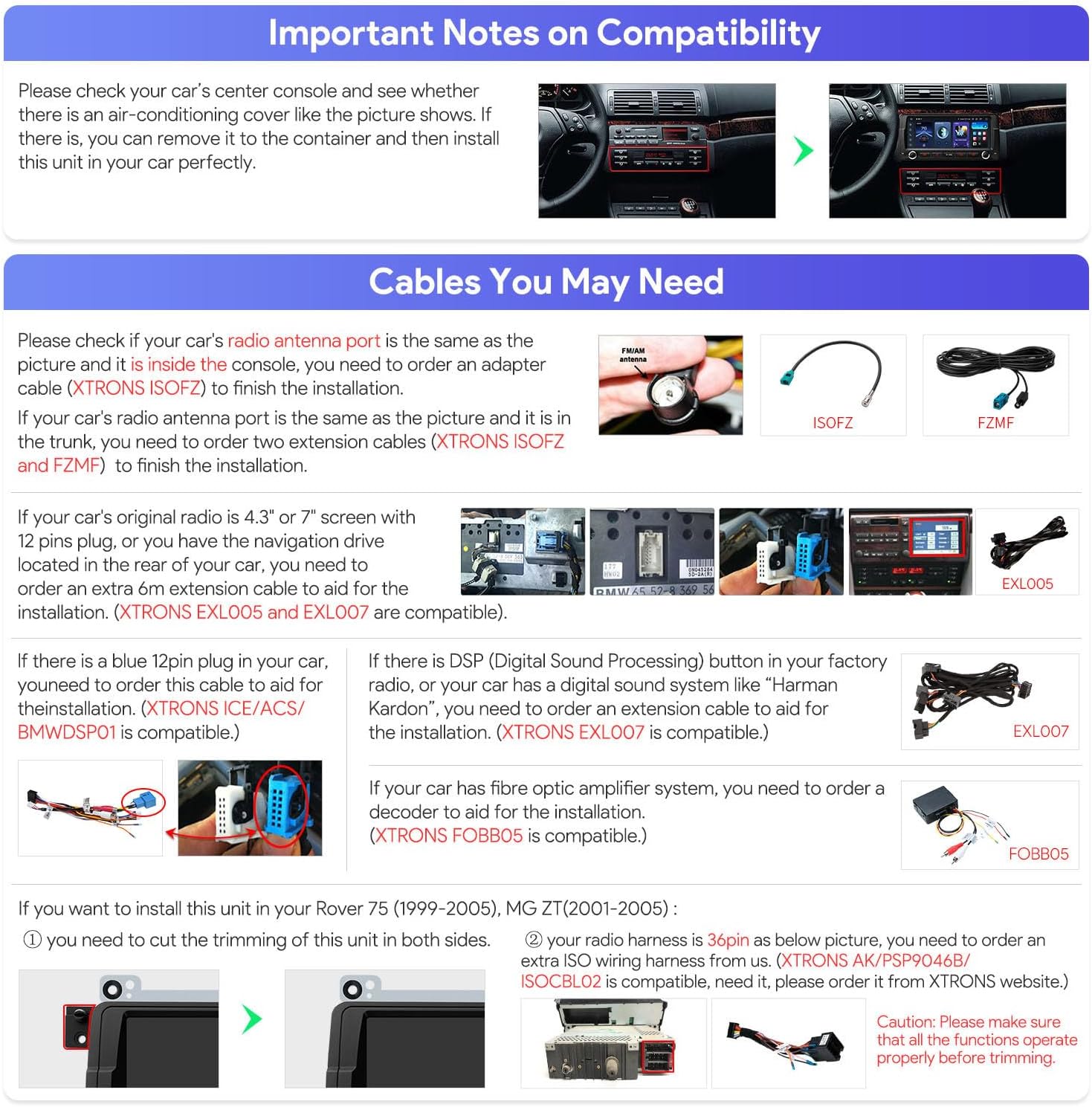
Image: Diagram showing how to check the car's center console and the process for removing the air-conditioning cover if necessary for installation.
Cables You May Need
Depending on your vehicle's original configuration, additional cables or adapters may be required:
- Radio Antenna Port: If your car's radio antenna port differs from the standard or is located in the trunk, you may need an adapter cable (XTRONS ISO FZ / FZMF) or two extension cables.
- 4.3" or 7" Screen with 12-pin Plug: For vehicles with an original 4.3" or 7" screen and a 12-pin plug, or if navigation is located in the rear, an extension cable (XTRONS EXL005) is required.
- Blue 12-pin Plug: If your car has a blue 12-pin plug, an adapter cable (XTRONS ICE/ACS/BMWDSP01) is needed.
- DSP (Digital Sound Processing) Button: If your factory radio has a DSP button or a Harman Kardon sound system, a decoder (XTRONS EXL007) is necessary.
- Fiber Optic Amplifier System: For vehicles with a fiber optic amplifier system, an adapter (XTRONS FOBB05) is required.
- Rover 75 (1999-2005) / MG ZT (2001-2005): You may need to trim the plastic on both sides of the unit and an extra ISO wiring harness (XTRONS AK/PSP9046B/ISOCBL02) if your radio harness is 36-pin.

Image: Visual guide for identifying and selecting necessary adapter cables for different vehicle configurations, including antenna, display, DSP, and fiber optic systems.
3. Setup and Installation
Unboxing and Initial Inspection
Upon opening the package, ensure all components are present and undamaged. The box should contain:
- 1 × ISO Wiring Harness
- 1 × RCA Cable
- 1 × Radio Antenna Cable
- 1 × 4G+ Antenna
- 1 × 4G- Antenna
- 2 × USB Cable
- 1 × GPS Antenna
- 1 × CANbus Cable
- 1 × Camera Cable
- 1 × CANbus Box
- 2 × User Manual (English, German)
Installation Overview
Installation typically involves removing the existing head unit, connecting the appropriate wiring harnesses and antennas, and securing the new XTRONS unit into the dashboard. Due to variations in vehicle models, it is recommended to consult a professional installer or refer to vehicle-specific installation guides for detailed steps. Ensure the vehicle's battery is disconnected before beginning any electrical work.
Wiring Diagram
A detailed wiring diagram is provided in the included user manual (English/German). Please refer to this diagram for precise connections of power, speakers, antennas, and other accessories.
First Power On
After installation, reconnect the vehicle battery. The unit should power on automatically or by pressing the power button. Follow the on-screen prompts for initial setup, including language selection and time zone.
4. Operating Instructions
Basic Functions
- Power On/Off: Press and hold the power button. A short press may mute/unmute audio.
- Volume Control: Use the rotary knob or on-screen controls to adjust volume.
- Source Selection: Tap the 'Source' icon on the touchscreen to switch between radio, media, Bluetooth, navigation, and other applications.
QLED Touch Screen Features
The unit features an 8.8-inch QLED display with 1280x480 resolution, offering clear visuals and a responsive interface. The IPS panel provides a 178° wide viewing angle, ensuring visibility from various positions within the vehicle. The capacitive touchscreen allows for intuitive control.

Image: The 8.8-inch QLED display, showcasing its 1280x480 resolution, IPS panel for 178° wide viewing angle, and responsive capacitive touch functionality.
Smartphone Connectivity (CarPlay & Android Auto)
The stereo supports built-in wireless Apple CarPlay and both wireless and wired Android Auto. Connect your smartphone via Bluetooth for wireless access or a USB cable for wired Android Auto. This allows for seamless integration of navigation, calls, music, and voice assistants (Siri, Google Assistant) directly on the head unit's display.
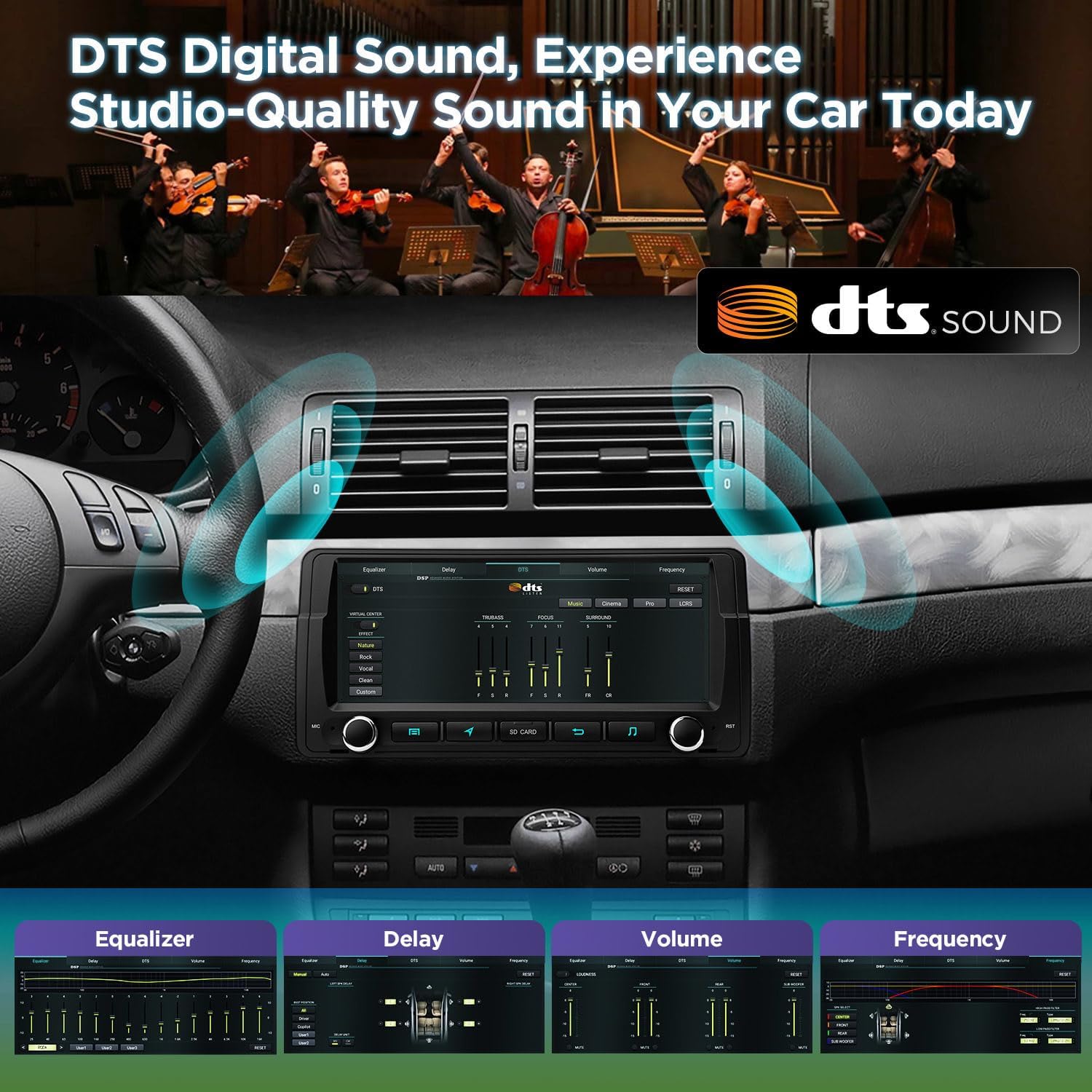
Image: The car stereo displaying both Apple CarPlay and Android Auto interfaces, demonstrating wireless connectivity options for smartphones.
Bluetooth 5.0
Utilize Bluetooth 5.0 for hands-free calling and audio streaming. Pair your device through the Bluetooth settings menu on the head unit. This enables making and receiving calls directly from the stereo and playing audio from your phone.
Audio Settings (DSP & DTS Sound)
The unit incorporates a powerful TDA7808 digital amplifier chip and Si47925 intelligent audio processor with DTS decoding technology. This provides high-efficiency digital processing and lossless audio output. Access the equalizer and sound settings to customize your audio experience.

Image: The car stereo's display showing the DTS Digital Sound logo and an on-screen graphic equalizer, illustrating the advanced audio customization options.
HDMI Output
A built-in HDMI port allows for high-fidelity content transmission to external monitors, such as rear-seat entertainment screens. You can choose to display the same content as the main unit or different content simultaneously.

Image: A visual demonstration of the HDMI output feature, where the car stereo's content is mirrored or independently displayed on a rear-seat monitor.
User Interface and Modes
The Android 14 operating system provides a smart and intuitive user interface. Features include:
- Day/Night Mode: Automatically or manually switch between display modes for optimal visibility in different lighting conditions.
- Split Screen: Run two applications side-by-side, for example, navigation and a music player.
- Picture-in-Picture: Maintain video playback in a small window while using other functions.
- Customizable Shortcuts: Access frequently used apps quickly from a dedicated bar.

Image: Screenshots of the XTRONS car stereo's user interface, highlighting the Day/Night mode switch, customizable app shortcuts, and car model selection options.
CANbus Decoding
Optimized CANbus decoding ensures seamless integration with your vehicle's existing systems. This enables functions such as steering wheel control, ACC (Accessory) control, reversing camera activation, and display of door status information.
Dual Band Wi-Fi
The unit supports both 2.4GHz and 5GHz Wi-Fi bands, providing faster speeds and improved flexibility. This helps to avoid connection issues and interference, offering a more stable internet connection for online features and app downloads.
5. Maintenance
Cleaning the Screen
To clean the QLED touchscreen, use a soft, lint-free cloth. For stubborn smudges, lightly dampen the cloth with water or a screen-safe cleaning solution. Avoid harsh chemicals or abrasive materials that could damage the screen surface.
Software Updates
Periodically check for software updates to ensure optimal performance and access to new features. Updates can typically be performed via Wi-Fi through the unit's system settings. Follow the on-screen instructions carefully during the update process.
6. Troubleshooting
Common Issues and Solutions
- No Power: Check all power connections and fuses. Ensure the vehicle battery is properly connected.
- No Sound: Verify speaker connections. Check volume levels and ensure the unit is not muted. Confirm audio source selection.
- Bluetooth Connection Issues: Ensure Bluetooth is enabled on both the stereo and your smartphone. Delete previous pairings and attempt to re-pair.
- GPS Signal Loss: Ensure the GPS antenna is correctly installed and has a clear view of the sky. Check GPS settings in the unit.
- Touchscreen Unresponsive: Try restarting the unit. If the issue persists, a factory reset may be necessary (note: this will erase all user data).
- Steering Wheel Controls Not Working: Verify CANbus connections and ensure the CANbus box is correctly installed and configured.
If you encounter issues not listed here or if the suggested solutions do not resolve the problem, please contact XTRONS customer support.
7. Specifications
| Feature | Detail |
|---|---|
| Model Number | b7d15b50-72f5-4b49-a238-a765ea844620 |
| Screen Size | 8.8 Inch QLED IPS |
| Resolution | 1280*480 |
| Operating System | Android 14 |
| Processor | Qualcomm Snapdragon 665 Octa-Core |
| RAM | 8GB |
| ROM | 256GB |
| Connectivity | Bluetooth 5.0, Cellular, USB, Wi-Fi (2.4GHz & 5GHz) |
| Special Features | Touchscreen, Wireless CarPlay, Wireless & Wired Android Auto, DSP, DTS Digital Sound, HDMI Output |
| Audio Output Mode | Stereo |
| Surround Sound Config | 4.0 |
| Video Encoding | H.264, H.265/HEVC |
Dimensions
Image: Technical drawing illustrating the physical dimensions of the XTRONS car stereo unit, including width, height, and depth.
| Measurement | Value |
|---|---|
| Width | 248mm |
| Height | 120mm |
| Depth (Overall) | 178mm |
| Depth (Top) | 30mm |
8. Warranty and Support
Warranty Information
Your XTRONS car stereo comes with a manufacturer's warranty. Please refer to the warranty card included in your package or visit the official XTRONS website for detailed terms and conditions regarding warranty coverage and duration.
Customer Support
For technical assistance, troubleshooting, or any inquiries regarding your product, please contact XTRONS customer support. Contact information can typically be found on the official XTRONS website or in the included documentation.
Related documentsb7d15b50-72f5-4b49-a238-a765ea844620

Ask a question about this manual
Ask about setup, troubleshooting, compatibility, parts, safety, or missing instructions. Manuals+ will review the question and use this page’s manual context to help answer it.